Managing System Services in Linux systemctl Command (original) (raw)
Last Updated : 18 May, 2026
Systemd is a modern system and service manager for Linux that serves as the core initialization process (PID 1). It controls system startup, manages background services, and ensures efficient system operation.
- Starts automatically as the first process when the Linux kernel boots.
- Manages all other processes during system runtime.
- Uses parallelization to launch multiple services simultaneously, speeding up boot time.
- Organizes system components into “units” such as services, sockets, devices, mounts, and timers.
- Controlled via the systemctl command-line tool (start, stop, enable, disable, and check services).
Example: Starting and Stopping a System Service in Linux****:**
**Syntax:
systemctl start [service_name]
systemctl stop [service_name]
systemctl status [service_name]
**Example with Apache Web Server
**Commands:
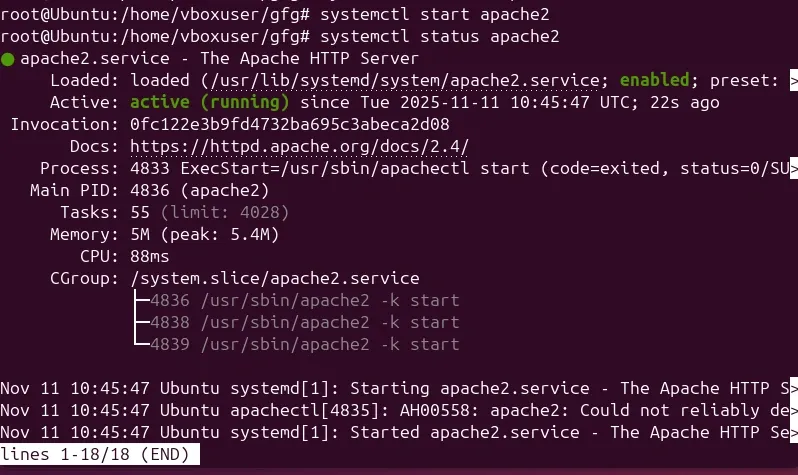
systemctl start apache2
systemctl status apache2
**Output:
Output
- The command systemctl start apache2 starts the Apache web server service.
- The command systemctl status apache2 displays the current status of the Apache service.
**Command:
systemctl stop apache2
systemctl status apache2
**Output:
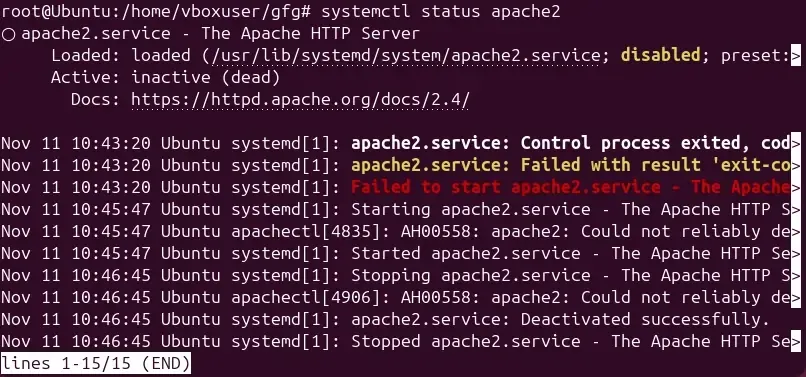
- The command systemctl stop apache2 is used to stop the Apache web server.
- The command systemctl status apache2 then checks whether the service is still running or stopped.
Syntax of `systemctl` command in Unix
systemctl [command] [service]
- **[command] = The action we want to perform (start, stop, enable, disable, etc.)
- **[service] = The name of the service we want to perform the action on.
Options available in `systemctl` command in Unix
| Option | Description | Example |
|---|---|---|
| --type | Filter output by unit type (service, socket, timer) | systemctl --type=service |
| --all | Lists all units including inactive ones | systemctl --all |
| --failed | Lists all units that have failed | systemctl --failed |
| --state | Filter output by unit state (active, inactive, failed) | systemctl list-units --state=failed |
| --user | Manage user services instead of system services | systemctl --user |
| -q, --quiet | Suppress output messages | systemctl daemon-reload --quiet |
Managing System Services in Linux
1. Enabling and Disabling Services
Enabling a Service
- Enables the Apache web server to start automatically at system boot.
**Syntax:
systemctl enable [service]
**Example:
sudo systemctl enable apache2
**Output:

Output
**Disabling a Service
- Disables the Apache web server, preventing it from starting automatically at boot.
**Syntax:
systemctl disable [service]
**Example:
sudo systemctl disable apache2
**Output:

2. Viewing the Status of a Service
- Displays the "current status" of Apache (whether it’s _active_, _inactive_, _running_, or _failed_).
**Syntax:
systemctl status [service]
**Example:
sudo systemctl status apache2
**Output:
3. Restarting and Reloading Services
Restarting a Service
- Restarts the Apache web server, applying any configuration or update changes.
**Syntax:
systemctl restart [service]
**Example:
sudo systemctl restart apache2
**Output:
Output
Reloading a Service
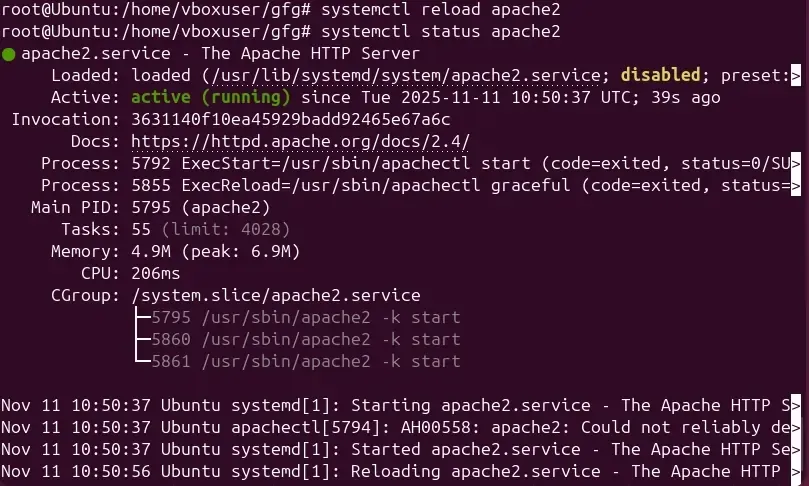
- Reloads Apache configuration without completely stopping the service, useful after minor config edits.
**Syntax:
systemctl reload [service]
**Example:
sudo systemctl reload apache2
**Output:
Output
4. Masking and Unmasking Services
Masking a Service
- Prevents the Apache service from being started manually or automatically, even if required by other services.
**Syntax:
systemctl mask [service]
**Example:
sudo systemctl mask apache2
**Output:

Unmasking a Service
- Allows the Apache service to be started or enabled again.
**Syntax:
systemctl unmask [service]
**Example:
sudo systemctl unmask apache2
**Output:

5. Changing the Default Target
- Sets the system to boot into the graphical (GUI) mode by default instead of command-line mode.
**Syntax:
systemctl set-default [target]
**Example:
sudo systemctl set-default graphical.target
**Output:

Output
6. Listing Unit Files
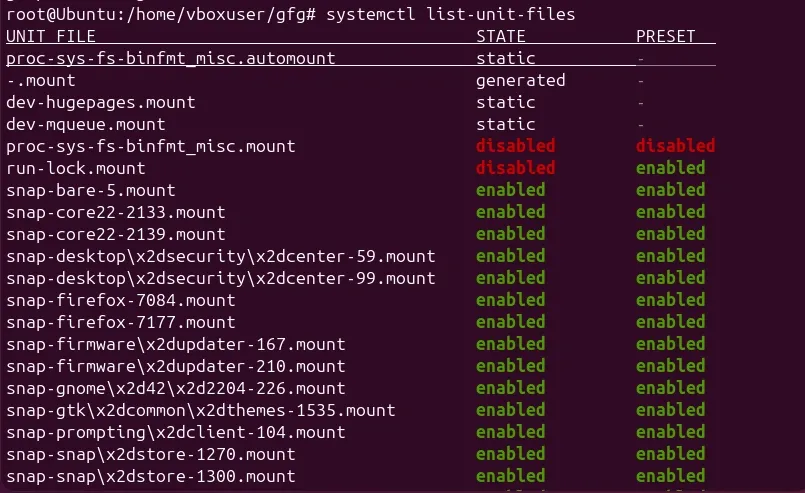
- Lists all available unit files on the system, showing which are enabled, disabled, or static.
**Syntax:
systemctl list-unit-files
**Output:
Output