Creating an Empty File in Linux | Touch Command (original) (raw)
Last Updated : 8 Dec, 2025
The touch command in Linux is used to create an empty file or update the access and modification timestamps of existing files. It’s one of the simplest and most commonly used commands for file management.
- The touch command creates a new, empty file if the file does not already exist.
- If the file already exists, it updates the file’s last modified timestamp instead of overwriting it.
- Multiple files can be created at once by specifying several filenames separated by spaces.
- The created file will have default permissions as per the user’s umask settings.
**Examples
Below are the examples of creating files using the touch command:
1. Create a Single Empty File:
You can create a single file at a time using touch command.
touch GeeksforGeeks.txt

2. Create Multiple Empty Files:
Creates three empty files simultaneously.
**Command:
touch gfg1.txt gfg2.txt gfg3.txt
Syntax
touch [options] [file_name...]
Commonly Used Options
Here is the commonly used options in the touch command
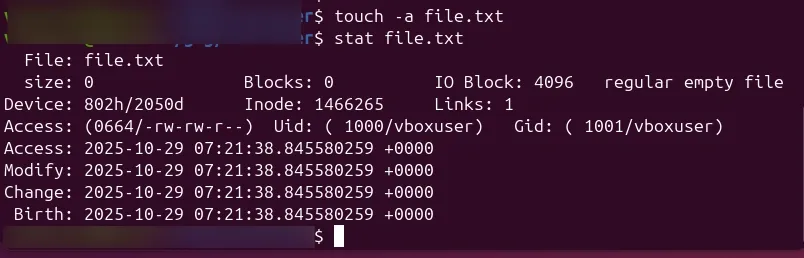
1. -a: Change Access Time Only
- **Purpose: Updates only the access time (atime) of a file — this indicates when the file was last opened or read.
- The modification time (mtime) remains unchanged.
- This option is useful when you just want to simulate a file being read.
**Example:
touch -a file.txt
**How to Verify:
stat file.txt
**You’ll notice:
- Access time (atime) changes to the current time.
- Modification time (mtime) stays the same.
2. -m: Change Modification Time Only
- Purpose: Updates only the modification time (mtime) — when the file content was last modified.
- The access time (atime) remains the same.
- Often used when syncing or simulating edits in scripts.
**Example:
touch -m file.txt
**How to Verify:
stat file.txt
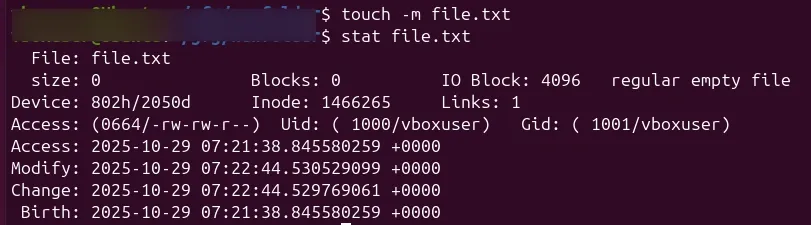
**You’ll see:
- Modification time (mtime) changes to the current time.
- Access time (atime) remains unchanged.
3. -c or --no-create: Do Not Create New File
- Purpose: Prevents the touch command from creating a new file if it doesn’t already exist.
- It only updates the timestamps of existing files.
- Handy when you want to update existing files but don’t want to accidentally create new empty ones.
**Example:
touch -c oldfile.txt
**How to Verify:
- If oldfile.txt exists, its timestamps update.
- If it does not exist, nothing happens — no new file is created.
**Check using:
ls -l oldfile.txt

You’ll either see the updated timestamp (if file existed) or an error (if not found).
4. -r: Use Reference File’s Timestamp
- **Purpose: Copies both access and modification times from one reference file to another.
- Helps synchronize file timestamps.
**Example:
touch-r reference.txt target.txt
**How to Verify:
stat reference.txt stat target.txt
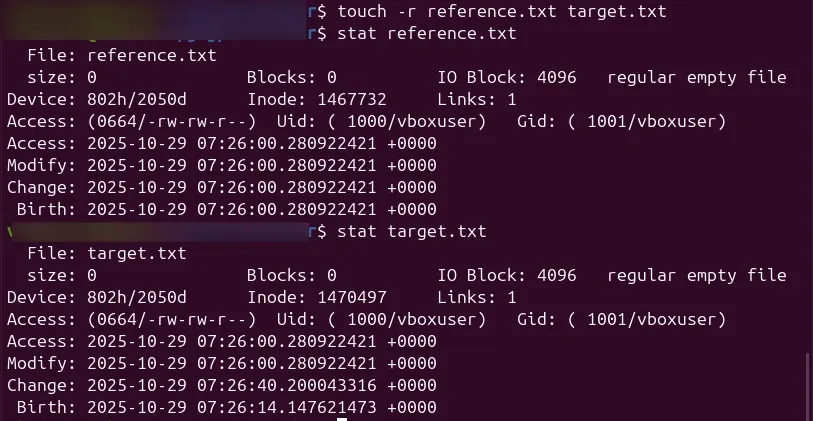
**You’ll see:
- Both files have exactly the same access and modification times.
5. -t: Set a Custom Timestamp
**Purpose: Manually set a specific date and time for a file’s access and modification times.
**Format:
[[CC]YY]MMDDhhmm[.ss]
- **CCYY: Year
- **MM: Month
- **DD: Day
- **hhmm: Hours and Minutes
- ****.ss:** Optional Seconds
**Example:
touch -t 202510231230.30 file.txt
**How to Verify:
stat file.txt
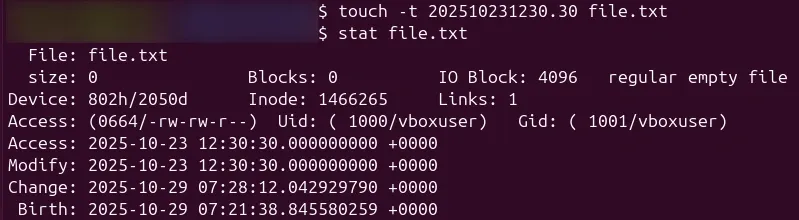
**You’ll see:
- Both access and modification times set to 23rd October 2025, 12:30:30 PM.
Practical Use Case
The touch command is often used in automation scripts to:
- Generate placeholder files before program execution.
- Update timestamps for backup or synchronization tools.
- Quickly test file permission and monitoring tools.