Introduction to Package Managers and systemctl in Linux (original) (raw)
Last Updated : 19 May, 2026
Package managers and systemctl are essential tools in Linux used to manage software and control system services. Together, they help users install applications, handle dependencies, and start, stop, or monitor services efficiently.
- Installs software packages along with required dependencies.
- Automatically detects and installs needed packages.
- Update software to newer versions for security and stability.
- Safely uninstalls software and removes unused dependencies.
- Shows all installed packages, updates and package details.
Package Manager Architecture
A package manager interacts with the user system, repositories, packages, metadata, and dependencies to install and manage software.
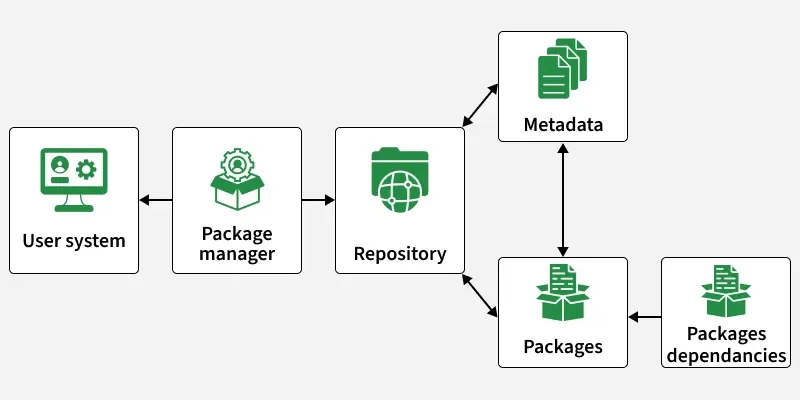
Package Manager Working
1. User System
The user system is where commands are executed by the user.
- The user runs commands like apt install, yum install, or dnf install
- Requests are sent to the package manager for software installation or updates
2. Package Manager
The package manager acts as the central controller.
- It processes user commands and communicates with repositories
- It manages installation, updates, removal, and dependency handling
**Examples:
- apt, dnf, pacman ,zypper
3. Repository
A repository is a remote or local storage location that contains software packages.
- Stores packages and their related metadata
- The package manager fetches required data from repositories
**Examples:
- Ubuntu repositories
- Red Hat repositories
4. Metadata
Metadata contains information about the packages.
- Includes package name, version, size, dependencies, and description
- Helps the package manager decide which packages and dependencies are required
5. Packages
Packages are the actual software files.
- Contain application binaries, configuration files, and documentation
- Downloaded and installed on the user system
**Examples:
- nginx, apache2, vim
6. Package Dependencies
Dependencies are additional packages required for software to work properly.
- Some software depends on libraries or other tools
- The package manager automatically installs these dependencies
Most Widely used Package Managers
1. APT (Advanced Package Tool):
APT (Advanced Package Tool) is a powerful and widely used package manager in the Linux world. It's the default package manager for Debian-based distributions, including Debian itself, Ubuntu, and Linux Mint.
- **Repository Management: APT connects to online repositories where software packages are hosted. Users can configure which repositories to use, allowing them to install software from official sources and trusted third-party repositories.
- **Package Management: It allows users to manage packages on the system, including installation, upgrading, downgrading, and removal. Additionally, APT can lock packages to specific versions, ensuring system stability.
- **Cache Management: APT maintains a local cache of package information. This cache helps in faster package searches and updates. Users can update this cache using the apt update command.
Basic commands in APT:
1. Installing a package:
sudo apt install package-name
2. Updating the package list:
sudo apt update
3. Upgrading packages:
sudo apt upgrade
4. Removing a package:
sudo apt remove package-name
5. Searching for packages:
apt search package-name
2. DNF (Dandified YUM) Package Manager
DNF is the successor to YUM and is now the recommended package manager for Red Hat based distributions. It provides a more modern and user-friendly experience. The syntax and commands for dnf are similar to yum.
- **Dependency Resolution: DNF automatically resolves dependencies while installing or updating packages, ensuring all required libraries and components are installed without conflicts.
- **Improved Performance: Compared to YUM, DNF uses optimized algorithms and better memory handling, making package operations faster and more efficient.
- **Repository Management: DNF connects to configured repositories to fetch and install packages. Users can easily enable, disable, and manage repositories.
- **Automatic Updates Support: DNF supports automatic updates, allowing systems to stay up-to-date with minimal manual intervention.
- **Plugin Support: DNF supports plugins that extend its functionality, such as version locking, system upgrades, and additional repository tools.
Basic commands in DNF
1. Installing a package:
sudo dnf install
2. Updating packages****:**
sudo dnf upgrade
3. removing packages****:**
sudo dnf remove
4. searching for a package****:**
sudo dnf search
3. Pacman
Pacman is the package manager used in Arch Linux and its derivatives, such as Manjaro. Arch Linux is known for its simplicity, flexibility, and rolling-release model, and Pacman is a vital component that makes managing software on Arch-based systems efficient. In this section, we'll explore Pacman, its commands, and provide examples of its usage.
- **Simplicity and Transparency: It doesn't hide the details and allows users to understand precisely what's happening during package installation, upgrade, and removal.
- **Rolling Release: Pacman plays a crucial role in keeping the system up-to-date with the latest software versions.
- **User-Managed Configuration: It provides options to save, overwrite, or merge configuration files during package upgrades, ensuring that the system stays tailored to the user's preferences.
- **AUR Support: The Arch User Repository (AUR) is a community-driven repository for additional software not available in the official repositories.
Basic commands in Pacman
1. Installing a package:
sudo pacman -S package-name
2. Updating the package list and upgrading packages:
sudo pacman -Syu
3. Removing a package:
sudo pacman -R package-name
4. Querying package information:
pacman -Q package-name
4. Zypper:
Zypper is the default package manager used in openSUSE and its derivatives. It plays a critical role in managing software packages on these Linux distributions. Zypper is known for its efficiency and robust dependency resolution capabilities. In this section, we will delve into Zypper, its commands, and provide examples of its usage.
- **Repository Management: Zypper interacts with software repositories, making it easy to fetch and install packages. openSUSE provides a wide range of official and community repositories, giving users access to a vast selection of software.
- **Package Management: Zypper offers a range of package management commands, including installation, upgrading, downgrading, and removal. It provides users with control over their software packages.
- **Transaction Safety: Zypper is designed with a focus on transaction safety. This means it will attempt to maintain a consistent system state by either completing a transaction successfully or rolling back changes in the event of an error, avoiding a partially updated system.
Basic commands in Zypper
1. Installing a package:
sudo zypper in package-name
2. Updating packages:
sudo zypper up
3. Removing a package:
sudo zypper rm package-name
4. Searching for packages:
zypper se package-name
5. DPKG (Debian Package Manager):
DPKG (Debian Package Manager) is a fundamental package management tool for Debian-based Linux distributions, including Debian itself, Ubuntu, and their derivatives.
- **Low-Level Package Management: DPKG directly handles the installation, removal, and management of individual package files (with the .deb extension). It does not automatically resolve or manage dependencies like higher-level package managers such as APT.
- **Package Installation: DPKG is responsible for installing software packages on a Debian-based system. Users can install packages from local .deb files or by specifying package names if the packages are already present on the system.
- **Package Removal: DPKG can remove installed packages from the system, ensuring that configuration files are retained or purged based on user preferences.
- **Package Querying: Users can query the status and information about installed packages, which is useful for diagnosing issues or verifying package details.
Basic commands in DPKG
1.Installing a package from a .deb file:
sudo dpkg -i package.deb
2. Removing a package:
sudo dpkg -r package-name
3. Querying package information:
dpkg -l | grep package-name
systemctl in Linux
systemctl is the primary command-line interface for interacting with systemd. It provides a wide range of functions for managing services, viewing their status, and controlling the system's behavior. Let's explore some of the most common systemctl commands and their usage.
- Parallel startup of services, which accelerates the boot process.
- Dependency management, ensuring that services are started in the right order.
- Cgroups integration for resource management.
- Enhanced logging through the journal system.
- Socket activation, which allows services to be started on-demand.
Basic systemctl Commands
1. Starting and Stopping Services
To start a service, you use the start command. For example, to start the Apache web server:
sudo systemctl start apache2

start service
To stop a service, use the stop command:
sudo systemctl stop apache2

Stop service
2. Enabling and Disabling Services
To ensure a service starts at boot, you enable it using the enable command:
sudo systemctl enable apache2
To disable a service from starting at boot:
sudo systemctl disable apache2

Disable services
3. Restarting and Reloading Services
To restart a service:
sudo systemctl restart apache2
To reload configuration files without stopping the service:
sudo systemctl reload apache2
4. Checking Service Status
To view the status of a service, use the status command:
systemctl status apache2
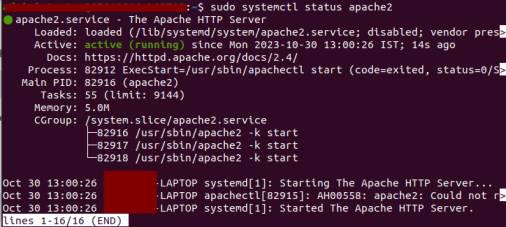
Checking status
This provides information about whether the service is running, its process ID, and recent log entries.
5. Viewing Active Units
You can list all currently active units (services, sockets, targets, etc.) with:
systemctl list-units --type=service

currently active units
Package managers and systemd, with its systemctl command, are indispensable tools for Linux system administrators and users. Package managers streamline software management, making installation, updates, and removals a breeze while resolving dependencies.