Using Shebang in Linux (original) (raw)
Last Updated : 23 Apr, 2026
The shebang is an interpreter directive used in Unix-like operating systems. It is a character sequence, #!, that constitutes the first line of a script. This line specifies the absolute path to the system interpreter (such as bash, python3, or perl) required to execute the commands within the script. You will use a shebang to:
- Tell the system what language a script is in (e.t., bash, python3, node).
- Allow you to run a script directly (e.g., ./myscript.py) instead of typing the interpreter's name first (e.g., python3 myscript.py).
- Make your scripts portable so they work on other people's computers.
Usage of the Shebang
In some Linux programs that are written in scripting languages like Python, Perl, and Shell-script, you will see a line right at the top that starts with #!/ like this one:

Components of the Shebang
There are three distinct concepts that work together.
1. The Shebang (#!)
The name "shebang" comes from its two characters:
- #: The "hash" or "sharp" symbol.
- !: The "bang" or exclamation mark.
When you try to run a file, the Linux kernel opens it, sees the #! at the beginning, and knows it shouldn't run the file itself. Instead, it reads the rest of the line as a command to run, using the script as the input for that command.
2. The Path
The path is the part after the #!.
#!/usr/bin/python3
- **What it does: This directly tells the system to use the python3 program located in the /usr/bin folder.
- **Why it's bad: What if another user's python3 is in /usr/local/bin/python3? The script will fail.
3. The Executable Permission (chmod +x)
The shebang tells the system how to run the script, but the file's permissions tell the system if it's allowed to be run.
This is a separate and mandatory step.
- chmod +x myscript.sh grants executable permission.
- chmod -x myscript.sh removes executable permission.
Understanding Executable Files
We will understand how files are converted into executables in Windows and Linux.
**On Windows:
If you've used Windows before, you're likely familiar with executable files, commonly recognized by their .exe extension. These files are designed to launch programs and can be run in two simple ways:
- Double-clicking the file in File Explorer.
- Typing its name in the Command Prompt and pressing Enter.
**On Linux:
When you transition to Linux, you'll notice a key difference: there's no fixed file extension for executables. Instead, Linux relies on file permissions to determine executability. Here's how it works:
- Any file can be made executable by setting the executable flag (using chmod +x filename).
- When you list files with the ls command, executable files often appear highlighted in green (depending on your terminal settings).
- To run such a file, use the syntax:
./filename

- When the green file '**greet ' in the above picture was run, it executed some Linux shell commands. In fact, the file **greet is a text file containing one line of code:
echo Hello, World!
- By default, any text file with lines of Linux shell commands inside it can be turned into an executable file by setting its Executable Flag, which is done with the command:
chmod +x
- But sometimes, you want to run a text file which has commands in Python, Perl, Ruby, JavaScript, etc. languages instead of Linux Shellscript. That is where the Shebang comes into the picture.
A Python Example
Suppose we wish to make an executable in Python. We can write a Python script which will input a number and return its square. We want to run this executable. If we have Python installed, we can run the file simply by using the following command:
python

**Question: But suppose we want to run this program without using the Python command? In other words, can we run the Python script square.py only using ./square.py and without using the python command?
Yes, you can, and that's where the Shebang comes into play.
Using a Shebang in Linux
You can use a shebang to tell Linux which interpreter is needed to run the script. For instance, in the case of a Python file, you will need the python executable. Usually, this is located in /usr/bin. You will need the complete path to the executable.
- To know the path to the executable, you can use the following command in Linux.:
which

- To use a shebang, you need to know where the interpreter is located in your computer.
- For the Python interpreter, you will need the location of the Python executable. Once you know this, the Shebang command is simple :
#!
- For instance, if your Python interpreter is located in /usr/bin/python like ours is, then your shebang is:
#!/usr/bin/python
- The next thing to remember is to write your Shebang in the first line of the Python script, even before any other line. So the overall Python code for the earlier file square.py becomes:
#!/usr/bin/python
number = int(input())
print(number * number)
- The last step is to set the executable flag for the Python script. To do this, we need to run the command
chmod +x square.py
- And we are ready to run square.py as an executable.
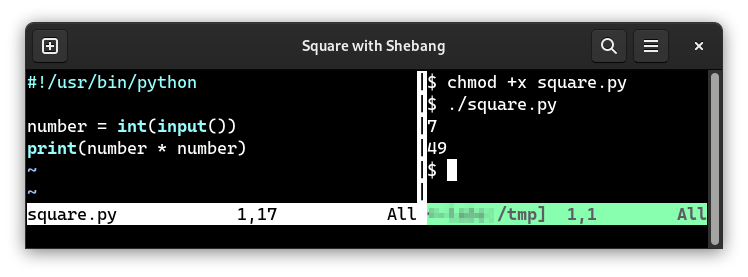
**Note: The Shebang does not make your file executable by itself. It simply tells Bash (the shell) where to find the interpreter to run it. You will still need to have the interpreter installed.
Using env
When you write a script with a shebang (#!), it might not work on another machine because different systems can have interpreters (like Python or Node.js) installed in different locations. To make your shebangs portable across all systems, you can use the env command.
- env itself is always located in the same place on all Linux machines:
/usr/bin/env
- So you can use env to make your shebangs portable:
For Python:
#!/usr/bin/env python3
For Node-JS (if the script is in Javascript):
#!/usr/bin/env node
For Perl:
#!/usr/bin/env perl
Executable Path and Shell Commands
When you use an executable script in Linux with a shebang, you can make it become a shell command! To do this, you need to place it in a PATH location. A PATH location is a special folder in your Linux filesystem, and all executables inside a PATH location can be used like commands in Linux.
There are two ways to do this:
- You can look up the existing PATH locations, find one that is to your liking, and place your executable script file there. Remember to set the executable flag with chmod +x after you move the file there.
- You can add the folder in which your script file is located to the PATH variable, and make the file a command.
Below, we will discuss both of these methods.
Adding Your File to a PATH Location
- First, look up the existing PATH locations using this command:
echo $PATH | sed "s/:/\n/g"
- This will list all the PATH locations in your terminal:

- Notice that not all of the folders listed here are accessible to you without sudo, since they do not belong inside your Home directory. The most preferred location is
/home/user/.local/bin
- If this folder doesn't exist, you can create it and add it to the list by following the instructions under the next subheading. Place the file inside that location and make sure that the executable flag is set. The file then becomes a command.

Adding a Folder to the PATH List
In general, it is a good idea to make yourself a new directory, add all your executable script files there, and then add that directory to the PATH locations. This is especially useful if you do not already have a folder named bin inside ~/.local directory.
1. First, make the folder which you need to add to PATH.
- If the folder already exists, then you can skip this step.
- If it doesn't exist, then you can make it - either using the terminal command mkdir, or using the GUI.
2. Second, not the path address of the folder. For instance, if the folder is named mypath and it is inside my home directory, then the location will be
/home/user/mypath
3. Third, open the .bashrc file in a preferred editor. This is a hidden file inside the home folder. You can see it in your GUI by using Ctrl+H to view hidden files, and then double-click on it. Alternatively, inside a terminal, you can use nano, vi, or vim to open the file with a command:
nano ~/.bashrc
- Remember, this is a very important system file. Do not mess with this file unless you know what you are doing! Simply add one line at the end of the file, with this content:
export PATH="$PATH:"
- For instance, if the directory is /home/user/mypath, then we can use the command:
export PATH="$PATH:/home/user/mypath"
4. The last step is to close and reopen your terminal.
All terminals you open from this point on will treat executable files inside mypath as commands. If you do not want to close and reopen your terminal, simply run the command
. ~/.bashrc
- It will update itself and your executable file with a Shebang will be available as a command.
**Remember: Your script must have a correct Shebang for it to become a command!
Some Other Uses
Shebangs allow you to choose the interpreter which runs a script, so that the user does not have to select the interpreter at run time. This can be used to turn a script into a command, but it also has some other uses. We are going to go over some of them.
1. Ensuring Compatibility
Different Linux and UNIX distributions use different default shells, which can cause scripts to behave inconsistently across systems.
- Various distros use different default shells (e.g., Bash, Zsh).
- Scripts may behave differently depending on the shell used.
- Users can override their default shell, leading to compatibility issues.
- To ensure consistency, specify the shell explicitly in the shebang line (e.g., #!/bin/sh).
Hence, we can ensure that our script runs identically on all of these systems by writing a script for the Bourne Shell using this shebang:
#!/bin/bash
2. Specifying Interpreter Version
Different versions of the same shell, such as Bash, can have varying features and security vulnerabilities. Older enterprise systems often run outdated shells, which may expose them to risks.
- Older Bash versions may have security issues.
- Enterprises use outdated systems due to licensing limits.
- Installing the latest Bash improves security.
- A custom shebang can set the new Bash as default.
For instance, to ensure that the script runs with Bash 5.2, they can use:
#!/bin/bash-5.2
- When a new Bash version (e.g., 5.3) is installed, all scripts would need updated shebangs. To avoid this, sysadmins create a symlink (shortcut) named like bash-latest, pointing to the newest Bash version.
- Then the shebang simply points to this symlink:
#!/bin/bash-latest
- When a later version of Bash is installed, the symlink is deleted and a new one is created at the same location, with the same name, but pointing to the newer version of Bash.
3. Preventing Direct Execution
- Sometimes you don't want a shell-script file to be executed. Maybe you only want it to be invoked internally, using commands like source or using the os.popen function in Python.
- If you make a software with such a script, and you want to prevent a user from unexpectedly running the script, you can deliberately use a shebang which points to an executable that cannot interpret the script.
- A common choice of such an executable is false, which returns a non-zero value to the shell (to indicate an error), and does nothing.
To disable a script from being run in the shell by a user who didn't read your README file, just use this shebang:
#!/usr/bin/false
You can still run a script with such a shebang using the **source keyword, but it cannot be run directly as an executable.
Possible Malicious Use
In Linux, a shebang (#!) defines which interpreter should execute a script. While it’s a useful feature, it can also be misused to run malicious executables, making it important to verify before executing unknown scripts.
- Defines the interpreter path (e.g., #!/bin/bash).
- Can be altered to launch harmful programs.
- Always check the shebang line before running unknown scripts.
- It may look like a comment, but it’s executed by the system.
- Verify before using chmod +x to make scripts executable.