XZ (Lossless Data Compression) Tool in Linux (original) (raw)
Last Updated : 29 May, 2026
XZ is a data compression tool in Linux that helps reduce the size of files using the efficient LZMA2 compression algorithm. It is commonly used to save space or for distributing software packages.
- Achieves high compression ratios (smaller file sizes).
- Useful for saving disk space and archiving large files.
- Supports both compression and decompression.
Example: Compressing a file
The following command is used to compress the example.txt to example.txt.xz
**Command:
xz example.txt
**Output:

Syntax:
xz [options] file_name
- **xz: The command used for compression or decompression.
- **[options]: Flags or parameters that modify the command’s behavior (e.g., -d, -k, -v).
- **[file_name]: The name of the file you want to compress or decompress.
Examples of xz Command
Here are some practical examples of using the xz command with different options in Linux.
1. Compressing files using xz
Compression can be performed by specifying the file name directly with the xz command:
**Command:
xz filename
**Output:

2. Decompressing Files Using xz
Compressed .xz files can be decompressed using either of the following methods:
**Method 1: Using the -d Option
The -d (decompress) option with the xz command can be used to decompress the file
**Command:
xz -d filename.xz
**Output:

**Method 2: Using the unxz Command
The unxz command can be used to decompress the file:
**Command:
unxz filename.xz
**Output:

After decompression the .xz file is replaced with the original uncompressed file. By default, the compressed file is removed once extraction is complete.
3. Creating a Compressed File Without Deleting the Original File Using xz
By default, the xz command removes the original file after compression. To retain the original file, use the -k (keep) option.
**Command:
xz -k filename
**Output:

- We can see that in the above image that the original file size is 70 MB and the size of the compressed file is 69MB.
- We can see that there is no significant difference in the size of the original file and compressed file. But what if we want more small compressed file? Let's see how to can we do that.
4. Controlling the Compression Level in xz
The xz utility allows control over the compression level to balance speed and compression ratio. Compression levels range from 0 to 9, with the default level set to 6.
- **Level 0 (--fast): Provides the fastest compression with a lower compression ratio.
- **Levels 1–8: Offer a balance between speed and compression efficiency.
- **Level 9 (--best): Produces maximum compression but requires more time and system resources.
**Command:
xz -8 filename
**Output:

5. Reducing RAM Usage in xz
The xz utility provides the --memlimit-compress option to limit memory usage during compression. This is particularly useful when working on systems with limited RAM. The --memlimit-compress option allows you to specify the maximum amount of memory that xz can use, either as a percentage of total system RAM or as a fixed size.
**Command:
xz --memlimit-compress=20% filename
- xz is restricted to using 20% of the total system memory for compression.
**Output:

6. Monitoring Progress During Compression and Decompression
The xz utility provides a verbose mode to monitor the progress of compression or decompression operations. This can be enabled using the -v option.
**Command:
xz -v filename
**Output:

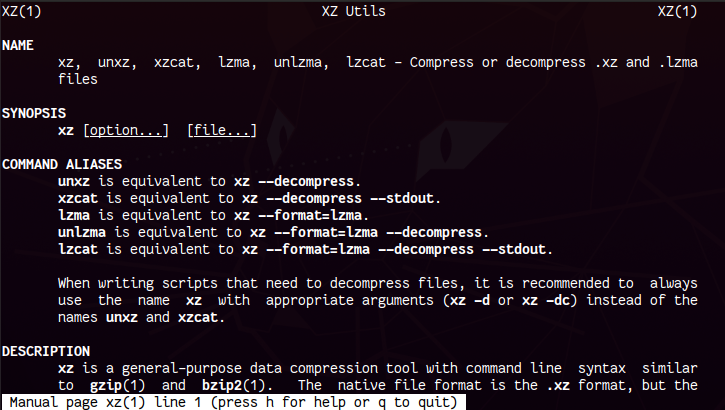
For more detailed information about the xz utility and its options, you can consult the manual page. This will display the complete documentation for xz, including advanced options and usage examples.
**Command:
man xz
**Output:
Difference between tar xz and zip
The following are the differences between tar xz and zip tools:
| Feature | tar xz | zip |
|---|---|---|
| **Compression Algorithm | It uses xz (LZMA2 algorithm) | It uses deflate algorithm |
| **File Handling | it combines multiple files into a single archive before compressing | It compresses files individually within a single archive |
| **Compression Ratio | it generally offers higher compression ratios | Typically lower compression ratios compared to xz |
| **Compatibility | Commonly used in Unix/Linux environments; requires additional tools on Windows | It is widely supported across all major operating systems including Windows, macOS, and Linux |
| **File Extension | It commonly results in .tar.xz files | It results in .zip files |
Use Cases of XZ Command
- **Archiving Log Files: It useful for compressing the large files to save the disk space.
- **Distributing Software Packages: It used for reducing download times and bandwidth usage by compressing the software packages.
- **Backup and Restore: It useful for minimizing the storage needs and to improve the transfer speeds for backups.
- **Embedded Systems: It is helps for optimizing the storage and performance by compressing the firmware and application files.