Enabling Authentication in MongoDB (original) (raw)
Last Updated : 20 Apr, 2026
Access control and authentication in MongoDB secure the database by verifying user identities and enforcing role-based permissions to prevent unauthorized access and protect data integrity.
- Enable authentication to allow access only to verified users and applications.
- Apply RBAC to enforce least-privilege permissions.
- Restrict actions to specific databases, collections, and operations.
- Protects sensitive data and reduces unauthorized or malicious changes.
Configuring MongoDB Access Control and User Authentication
To secure your MongoDB instance, follow these steps in the specified order to successfully enable authentication and access control.
Step 1: Start the MongoDB
Start the MongoDB server by opening the command prompt and running the following command.
mongod
**Output:
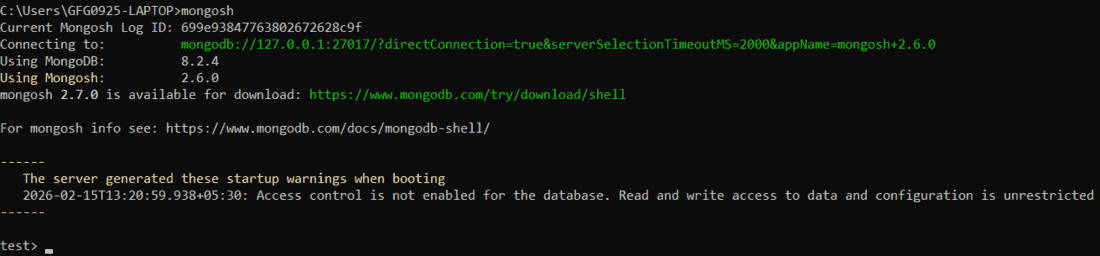
As we can see that the database has been started and we can access it.
Step 2: Create a Database and Add Documents
Create a database using the command prompt or MongoDB Compass to use GUI. The database is created automatically when you create your first collection.
use mydb //Creates database
db.createCollection("nameColletion")
**Output:
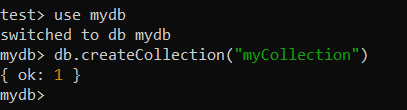
Once we have successfully created a database, it's time to insert few documents into the database.
db.myCollection.insertOne({ name: "Philips", age: 21})
**Output:
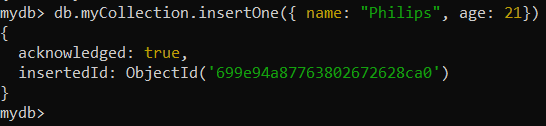
Using the same format, you can create database & collection and insert additional data as needed.
Step 3: Create a Database User with Proper Roles
To enable authentication, create users and assign them appropriate roles based on responsibilities. Avoid giving unnecessary privileges to application users.
use admin
db.createUser({
user: "Geek",
pwd: "abc123",
roles: [ { role: "userAdminAnyDatabase", db: "admin" } ]
})
**Output:
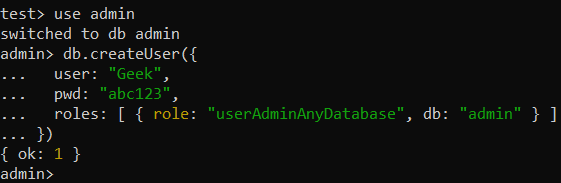
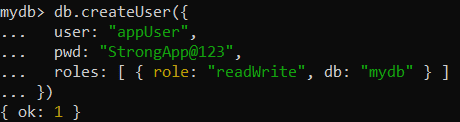
**Create an Application User (for data access)
use mydb
db.createUser({
user: "appUser",
pwd: "StrongApp@123",
roles: [ { role: "readWrite", db: "mydb" } ]
})
**Output:
Step 4: Change MongoDB Configuration to Enable Authentication
By default, MongoDB authentication is disabled, so you must edit mongod.conf to enable access control.
C:\Program Files\MongoDB\Server\8.2\bin
Open the mongod.conf file in any editor and write the following under security
security:
authorization: enabled
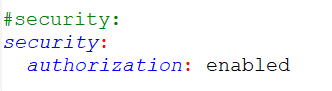
Save the changes and close the file. Once we have made the changes, Go to Services in Windows and find MongoDB and restart it.
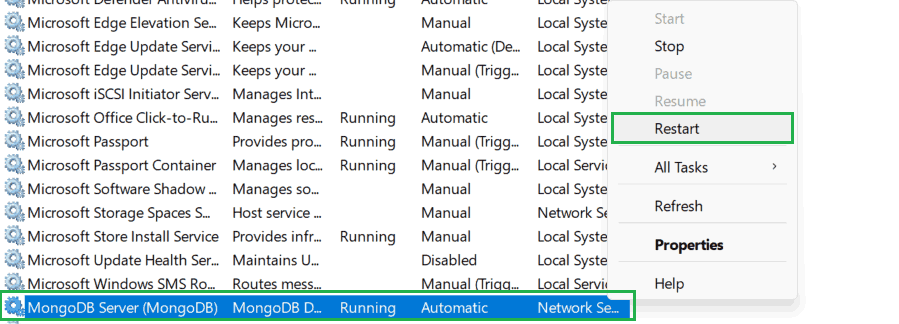
Step 5: Authenticate with the Created User
After restarting MongoDB, try accessing the data without authenticating. For example, attempt to fetch documents from the myCollection collection:
db.myCollection.find()
**Output:

This confirms that authentication and access control are enabled.
Now to see the data, let's first give theusername and password.
db.auth("appUser","StrongApp@123")
**Output:

Check for the available documents in the database.
db.myCollection.find()
**Output:

As we can see after successful authentication, we get access to the documents available in the MongoDB database.
Step 6: Set the MongoDB URL in the Repository Configuration
Set the MongoDB URI in your application’s configuration file to include the database credentials:
mongodb://appUser:StrongApp@123@hostname:27017/mydb
This allows the application to authenticate with MongoDB after access control is enabled.
Step 7: Restart the Repository
Restart the application to reload the updated configuration and apply the new MongoDB connection settings.
Exception for localhost
MongoDB provides a localhost exception that temporarily allows user creation without authentication when access control is enabled and no users exist.
- MongoDB permits unauthenticated access from localhost only if access control is enabled and no users have been created yet.
- This exception allows creating the first administrative user in the admin database.
- The localhost exception is automatically disabled after the first user is created.
- After that, all further user management requires authentication as a user administrator.