Introduction to MongoDB Atlas (original) (raw)
Last Updated : 13 Apr, 2026
MongoDB Atlas is a fully managed cloud database service that automates deployment, scaling, backups, and security across AWS, Google Cloud, and Azure, providing high availability and low-latency performance.
- Global cluster deployment.
- Advanced security (encryption, access control).
- Automated backups and recovery.
- Real-time performance monitoring.
- Easy integration with Compass, Shell, and drivers.
Getting Started with MongoDB Atlas
Follow the below steps to get started with MongoDB Atlas:
Step 1: Create a MongoDB Atlas Account
- To create a MongoDB Atlas Account, you need to visit the MongoDB Atlas website.
- Register yourself with an Email Id, Google or GitHub account.
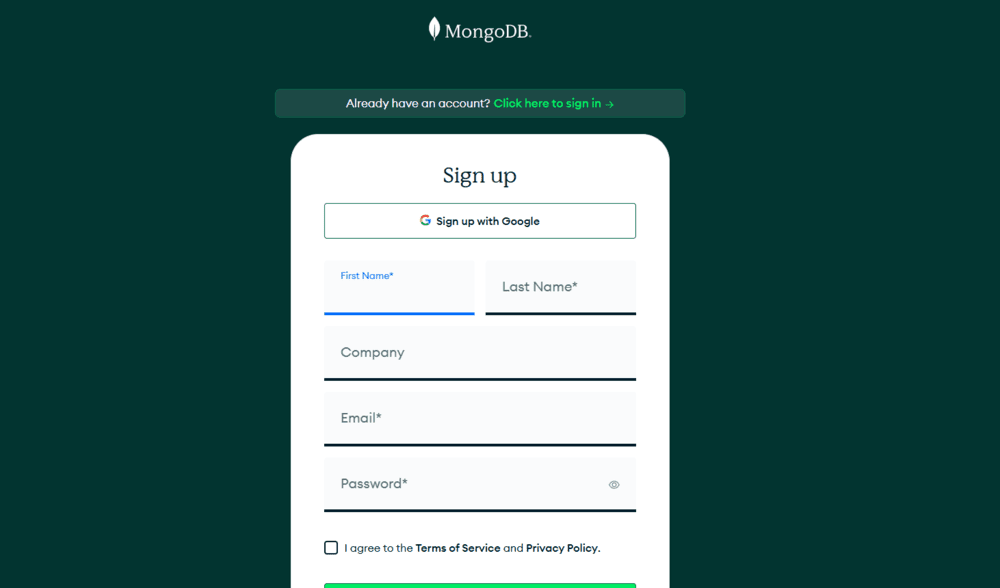
mongodb atlas
Step 2: Create a New Cluster
- After registration, set up a cluster by selecting a provider (AWS, Google Cloud, or Azure).
- Choose the M0 Free Tier for practice or select a paid plan for production use.
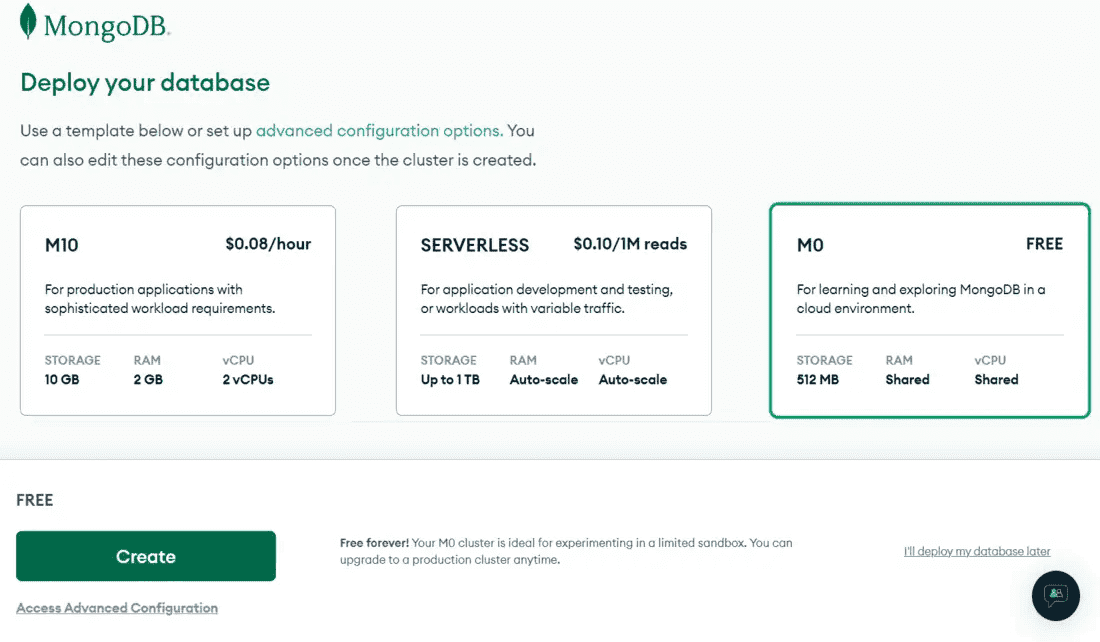
Setting Up a MongoDB User for Your Cluster
Here are the steps to set up a MongoDB user for your cluster.
Step 1: Navigate to the Database Access Page
- To create a new user, In Side Bar you will find a Database Access page in the Security section.
- Open that page and click on the ADD NEW DATABASE USER button on the top right hand side to create a new user.
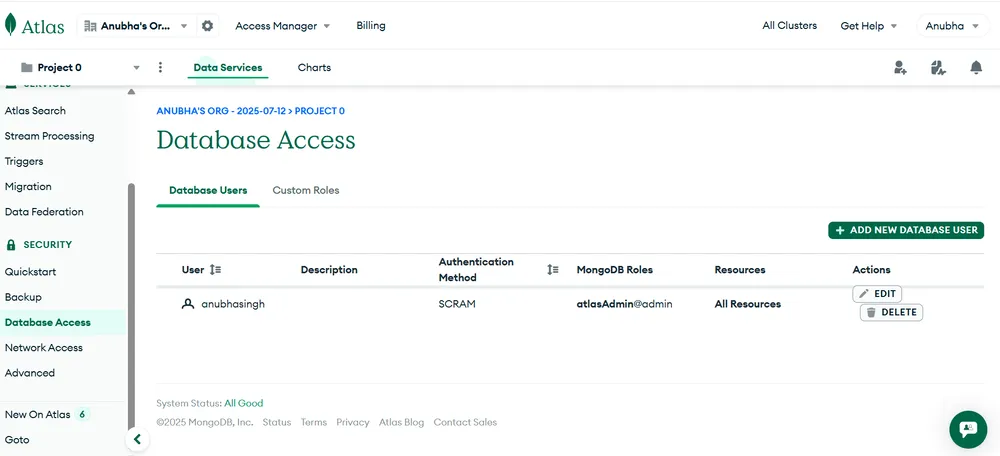
setting up MongoDB for your cluster
Step 2: Configuration of a new user
- After completing step 1 you have to enter a USERNAME and PASSWORD. then scroll down to Configure Database User Privileges.
- In Database User Privileges you have to choose the appropriate role for the user or create a temporary user if needed.
- After doing this click on Add User button to create a new user.
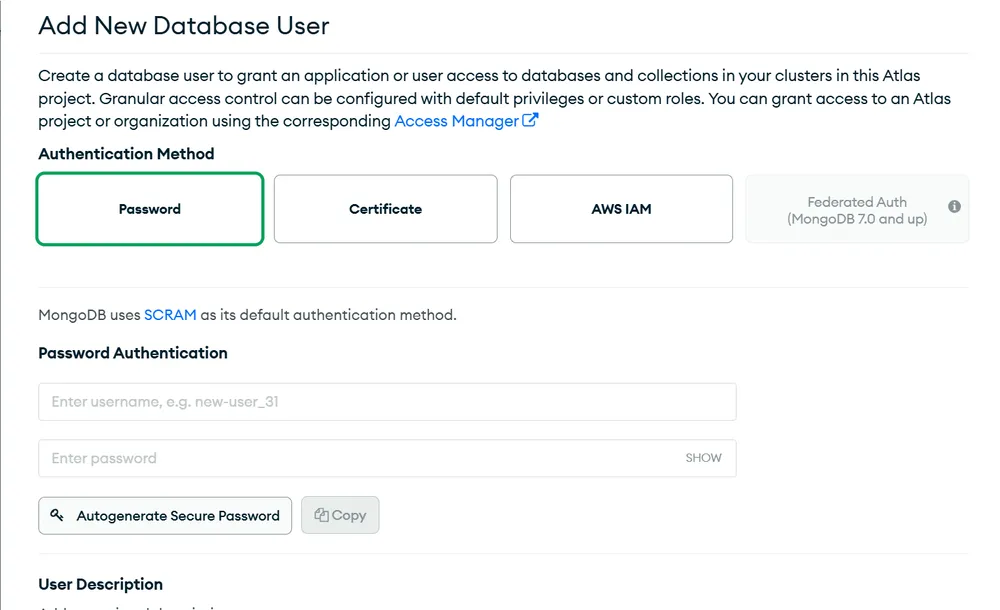
Configuration of a new user
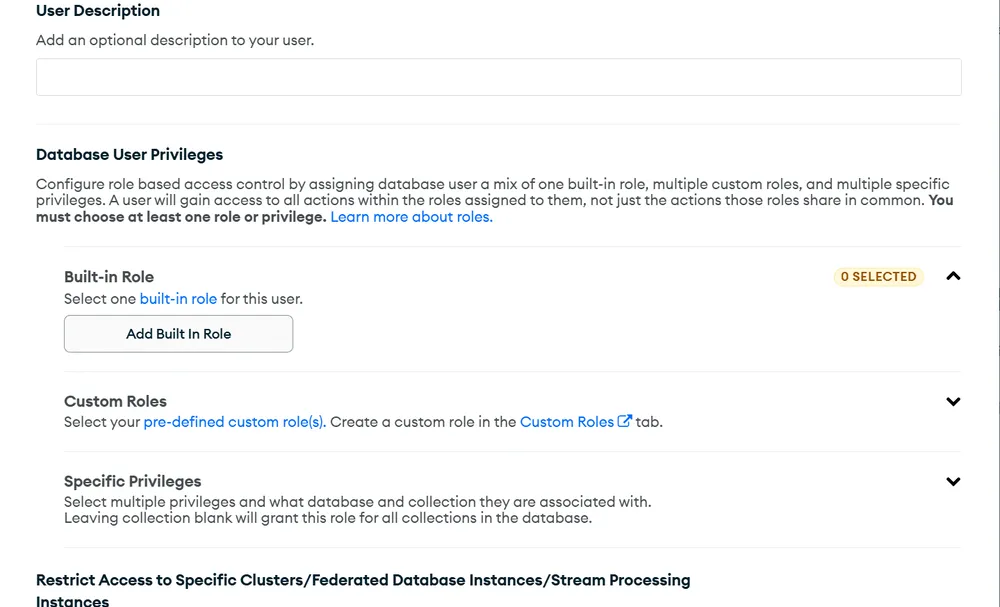
User Description
**Note: Make sure to save the username and password in a secure place. You will need these credentials later when connecting to MongoDB Atlas using tools like MongoDB Compass or when integrating with your application.
Configuring IP Whitelisting
To allow specific IP addresses to access your MongoDB cluster, follow these steps to configure IP whitelisting:
Step 1: Navigate to Network Access
- To configure this, In Side Bar you will find a Network Access page in the Security section.
- Open that page and click on the ADD IP ADDRESS button to add a new IP Address
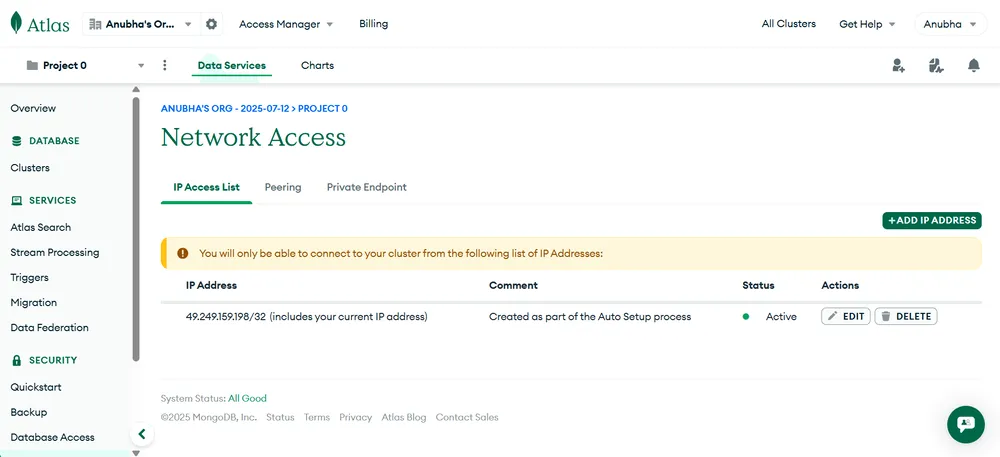
Add IP Address
Step 2: Add Access IP Address
- Click Add Current IP Address to whitelist your IP.
- Add 0.0.0.0/0 via Allow Access From Anywhere for access from any network (not recommended for production).
- You can set temporary IP access for a few hours, a day, or a week.
- Click Confirm to add the IP to the Access List.
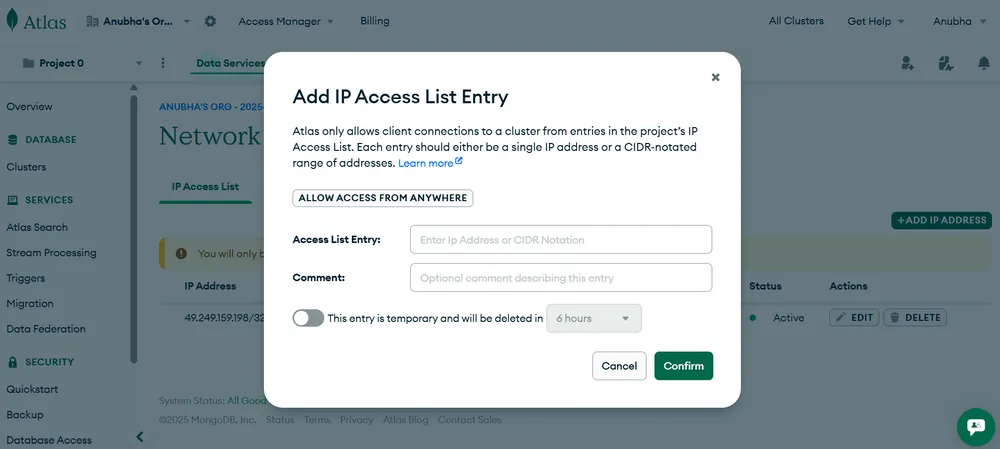
Add access IP address
Connecting to MongoDB Atlas
To connect your application or tools to a MongoDB Atlas cluster, follow these steps:
Step 1: Navigate to the Database Page
- To connect with your cluster, In Side Bar you will find a Clusters page in the Database section.
- Open that page and click on the Connect button to get all possible ways to connect with your MongoDB Atlas Cluster.
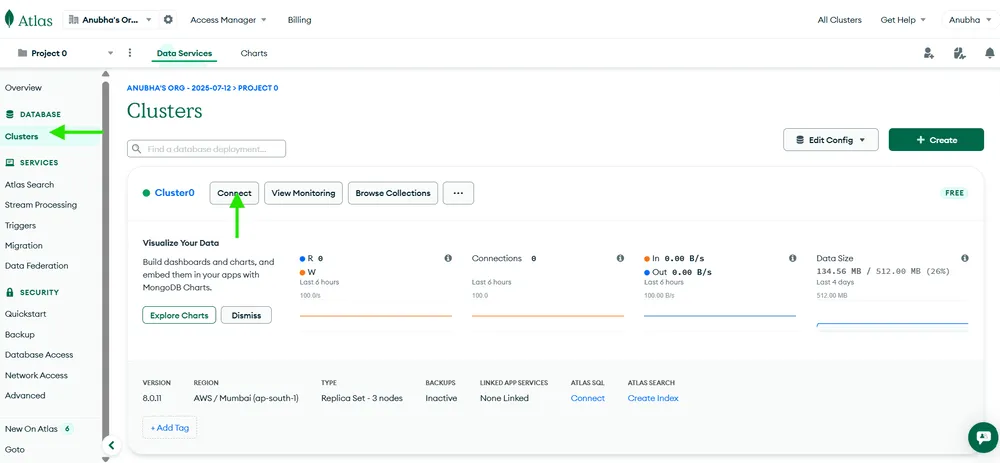
Navigate to the database Page
Step 2: Choose Your Connection Method
Choose a preferred connection method in MongoDB Atlas and follow the provided instructions to connect your cluster to your application using drivers.
- **Connect with Application: Use drivers for Node.js, Python, Java, etc.
- **MongoDB Compass: Connect via MongoDB’s GUI tool.
- **MongoDB Shell: Use the CLI to interact with your database.
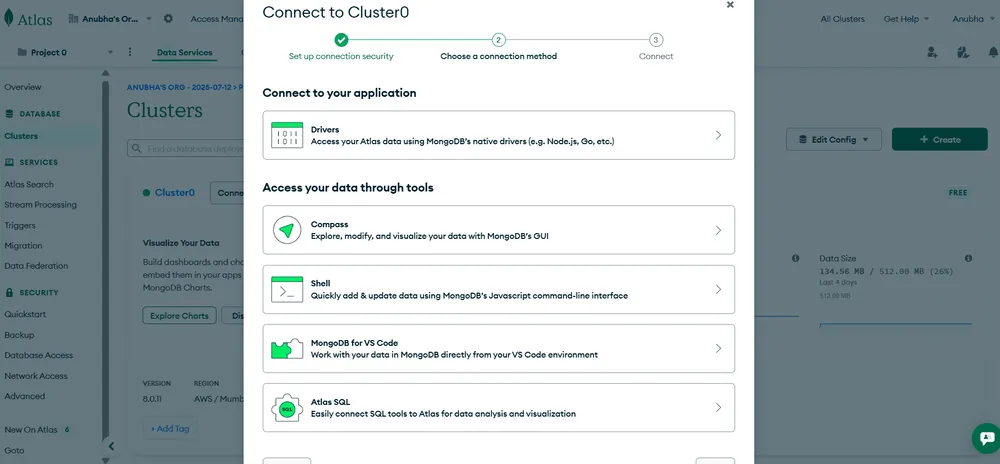
choose a connection method.
Difference between MongoDB and MongoDB Atlas
Here are the detailed comparison between MongoDB and MongoDB Atlas:
| MongoDB (Community/Enterprise) | MongoDB Atlas (cloud Service) |
|---|---|
| Open-source NoSQL database (self-managed). | Fully managed cloud based database service. |
| Installed on local servers or on-premises/cloud VMs. | Hosted on cloud Platforms(AWS,GCP, Azure). |
| User handles installation, setup, upgrades, and maintenance. | Automated setup, scaling, patching, and backups. |
| Manual scaling by adding servers. | Supports scaling with minimal configuration, though it may depend on cluster tier and settings |
| Requires external tools (e.g., Ops Manager, third-party). | Built-in monitoring and performance dashboards. |
| Manual backup configuration needed. | Automated continuous backups and point-in-time recovery. |
| Security must be configured manually (auth, encryption, firewall). | Built-in enterprise-grade security (encryption, network isolation, access control). |
| Free (Community Edition) or paid (Enterprise Edition license). | Pay-as-you-go model, depends on usage. |
| Best for developers needing full control and customization. | Best for teams needing a scalable, managed cloud solution. |