Installing MySQL on Windows (original) (raw)
Last Updated : 28 Apr, 2026
MySQL is a database engine that provides fast, secure and scalable solutions for both small and large applications. It is known for its reliability, scalability and ease of use, making it a popular choice for web developers and organizations worldwide. By installing MySQL on your Windows machine, you can:
- Store and manage data for various types of applications (websites, software, business systems).
- Use advanced SQL features for querying, filtering and modifying data.
- Integrate with popular programming languages such as PHP, Python, Java, and Node.js.
- Scale your applications seamlessly, handling thousands of transactions and concurrent users.
Before we start, ensure your system meets the following hardware and software requirements:
System Requirements
- **Operating System: Windows 11, 10, or Windows Server 2016/2019.
- **Hardware: At least 4 GB of RAM and 2 GB of free disk space (preferably more for optimal performance).
- **Software: Windows must be up-to-date. Make sure to uninstall any older versions of MySQL to avoid conflicts.
- **Network: An active internet connection to download the MySQL installer.
Steps to Download and Install MySQL
Now, Let's break down MySQL software downloading steps for a better understanding and see install MySQL on Windows 10 step by step.
Step 1: Visit the Official MySQL Website
Open your preferred web browser and navigate to the official MySQL website. Now, Simple click on first download button.

How to Install MySQL on Windows?
Step 2: Go to the Downloads Section
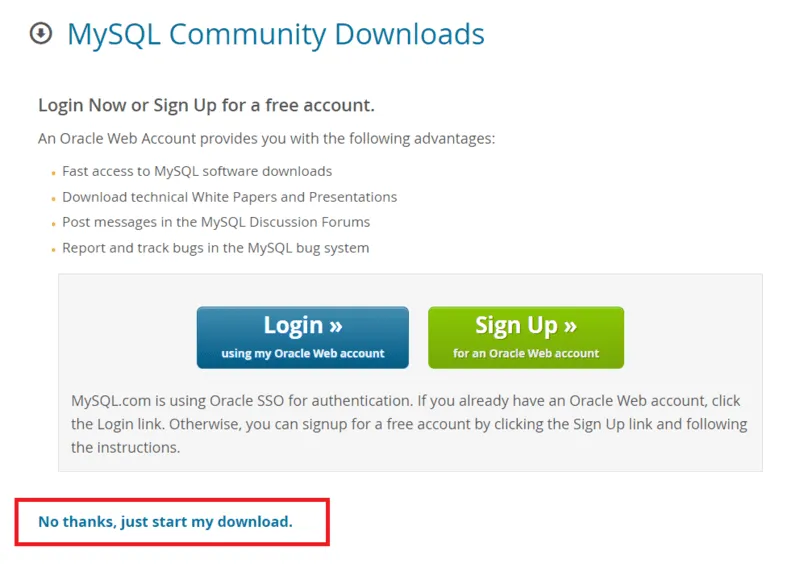
On the MySQL homepage, Click on the " No thanks, just start my download" link to proceed MySql downloading.
How to Install MySQL on Windows?
Step 3: Run the Installer
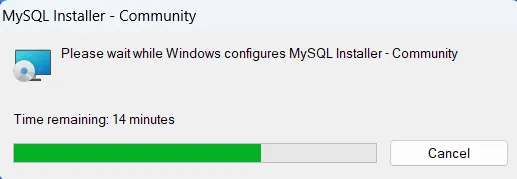
After downloading the MySQL installer (.exe file), go to your Downloads folder, find the file and double-click to run the installer.
How to Install MySQL on Windows?
Step 4: Choose Setup Type
The installer will instruct you to choose the setup type. For most users, the "Developer Default" is suitable. Click "Next" to proceed.
Step 5: Check Requirements
MySQL is a database engine that provides fast, secure and scalable solutions for both small and large applications. It is known for its reliability, scalability and ease of use, making it a popular choice for web developers and organizations worldwide. By installing MySQL on your Windows machine, you can:
- Store and manage data for various types of applications (websites, software, business systems).
- Use advanced SQL features for querying, filtering and modifying data.
- Integrate with popular programming languages such as PHP, Python, Java, and Node.js.
- Scale your applications seamlessly, handling thousands of transactions and concurrent users.
Before we start, ensure your system meets the following hardware and software requirements:
System Requirements
- **Operating System: Windows 11, 10, 8, 7, or Windows Server 2016/2019.
- **Hardware: At least 4 GB of RAM and 2 GB of free disk space (preferably more for optimal performance).
- **Software: Windows must be up-to-date. Make sure to uninstall any older versions of MySQL to avoid conflicts.
- **Network: An active internet connection to download the MySQL installer.
Steps to Download and Install MySQL
Now, Let's break down MySQL software downloading steps for a better understanding and see install MySQL on Windows 10 step by step.
Step 1: Visit the Official MySQL Website
Open your preferred web browser and navigate to the official MySQL website. Now, Simple click on first download button.
How to Install MySQL on Windows?
Step 2: Go to the Downloads Section
On the MySQL homepage, Click on the " No thanks, just start my download" link to proceed MySql downloading.
How to Install MySQL on Windows?
Step 3: Run the Installer
After downloading the MySQL installer (.exe file), go to your Downloads folder, find the file and double-click to run the installer.
How to Install MySQL on Windows?
Step 4: Choose Setup Type
The installer will instruct you to choose the setup type. For most users, the "Developer Default" is suitable. Click "Next" to proceed.
Step 5: Check Requirements
The installer will check for required dependencies such as the Microsoft Visual C++ Redistributable. It may automatically resolve missing components, but in some cases, manual installation may be required.

How to Install MySQL on Windows?
Step 6: MySQL Downloading
Now that you're in the download section, click "Execute" to start downloading the components you selected. Wait a few minutes until all items show tick marks, indicating completion, before moving forward.

How to Install MySQL on Windows?
Step 7: MySqL Installation
Now the downloaded components will be installed. Click "Execute" to start the installation process. MySQL will be installed on your Windows system. Then click Next to proceed.

How to Install MySQL on Windows?
Step 8: Navigate to Few Configuration Pages
Proceed to "Product Configuration" > "Type and Networking" > "Authentication Method" Pages by clicking the "Next" button.
Step 9: Create MySQL Accounts
Create a password for the MySQL root user. Ensure it's strong and memorable. Click "Next" to proceed.

How to Install MySQL on Windows?
Step 10: Connect To Server
Enter the root password, click Check. If it says "Connection succeed," you have successfully connected to the server.

How to Install MySQL on Windows?
Step 11: Complete Installation
Once the installation is complete, click "Finish." Congratulations! MySQL is now installed on your Windows system.

How to Install MySQL on Windows?
Step 12: Verify Installation
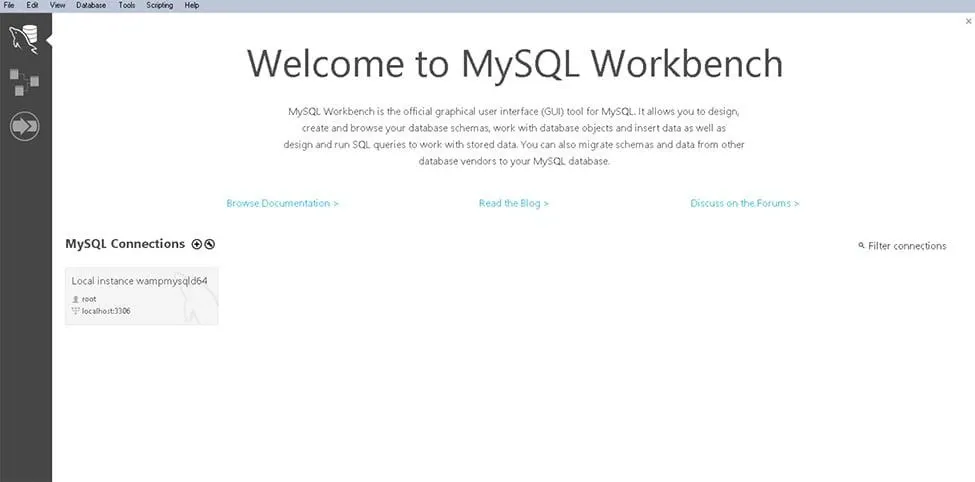
To ensure a successful installation of MySQL, open the MySQL Command Line Client or MySQL Workbench, both available in your Start Menu. Log in using the root user credentials you set during installation.
MySQL Workbench Is Ready To Use
MySQL is an open-source relational database management system that is based on SQL queries. MySQL is used for data operations like querying, filtering, sorting, grouping, modifying, and joining the tables present in the database.
How to Install MySQL on Windows?
Step 1: MySQL Downloading
Now that you're in the download section, click "Execute" to start downloading the components you selected. Wait a few minutes until all items show tick marks, indicating completion, before moving forward.
How to Install MySQL on Windows?
Step 2: MySqL Installation
Now the downloaded components will be installed. Click "Execute" to start the installation process. MySQL will be installed on your Windows system. Then click Next to proceed.
How to Install MySQL on Windows?
Step 3: Navigate to Few Configuration Pages
Proceed to "Product Configuration" > "Type and Networking" > "Authentication Method" Pages by clicking the "Next" button.
Step 4: Create MySQL Accounts
Create a password for the MySQL root user. Ensure it's strong and memorable. Click "Next" to proceed.
How to Install MySQL on Windows?
Step 5: Connect To Server
Enter the root password, click Check. If it says "Connection succeed," you have successfully connected to the server.
How to Install MySQL on Windows?
Step 6: Complete Installation
Once the installation is complete, click "Finish." Congratulations! MySQL is now installed on your Windows system.
How to Install MySQL on Windows?
Step 7: Verify Installation
To ensure a successful installation of MySQL, open the MySQL Command Line Client or MySQL Workbench, both available in your Start Menu. Log in using the root user credentials you set during installation.
MySQL Workbench Is Ready To Use
MySQL is an open-source relational database management system that is based on SQL queries. MySQL is used for data operations like querying, filtering, sorting, grouping, modifying, and joining the tables present in the database.
How to Install MySQL on Windows?
Troubleshooting Common MySQL Installation Issues
If you encounter any issues during the MySQL installation process, here are a few common solutions:
- **Error-Port 3306 is Already in Use: MySQL uses port 3306 by default. If another application is using this port, change the port number during the configuration step.
- MySQL Service Fails to Start: Ensure that your Windows firewall is not blocking the MySQL service. Check the Windows Services and verify that the MySQL Server is running.
- **Invalid Root Password: If you have forgotten your root password, you can reset it by following the appropriate steps from the MySQL documentation.