Integrate MongoDB in Next.js (original) (raw)
Last Updated : 11 Mar, 2026
Choosing the right tech stack ensures seamless integration, adaptability, and developer productivity. Next.js with MongoDB is an ideal combo for fast, efficient development and smooth data handling. This article shows how to connect MongoDB with Next.js to build a simple API for adding and fetching data.
- Choose tools that fit project needs and integrate well.
- Ensure flexibility for future updates.
- Next.js + MongoDB offers speed and scalability.
- Build an API to insert and retrieve data.
- Achieve smooth data flow from database to UI.
Integrate MongoDB
Now we have a basic understanding of what Next.js and MongoDB are and why it is a great choice to use them together. Let us explore in a step-by-step manner how to integrate MongoDB into Next.js. We will be building a simple UI with two buttons that will make an API call for adding data to the MongoDB collection and another API call for getting all data from the same collection.
Steps to Integrate MongoDB
Learn how to seamlessly connect MongoDB with your Next.js application for efficient data storage and retrieval.
**Step 1: Setting Up Your Next.js Environment
Make sure you have Node.js and npm (Node Package Manager) installed on your computer. Run the following commands to create a Next.js project, and then move into the directory using the second command.
npx create-next-app user_next_app
cd user_next_app
The above set of commands initialize a new Next.js project and changes the current working directory to the newly created project directory named user_website here.
Project Structure:
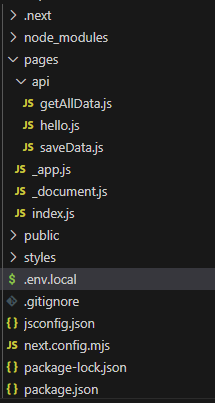
project structure
**Step 2: Installing Required Dependencies
We need to install some packages to connect our Next.js app to our MongoDB database. Run the following command to install the required dependency.
npm install mongodb
The above command tells npm to install the MongoDB package, which is the official MongoDB driver for Node.js. After running this command, MongoDB Package will be installed, which will allow it to interact with MongoDB databases from within the Next.js application. This will provide us with tools to connect, query, and interact with the MongoDB databases.
The updated dependencies in package.json file are:
"dependencies": {
"mongodb": "^6.8.0",
"next": "14.2.4",
"react": "^18",
"react-dom": "^18"
}
**Step 3: MongoDB Setup and Cluster Initialization
- We'll be utilizing MongoDB Atlas for our database needs. If you haven't registered with MongoDB yet, please go ahead and sign up. Once you've signed in, proceed to create a cluster.
- This cluster will serve as a dedicated space to store our database and collections.
- The advantage is that we can access them remotely without concerns about memory space limitations.
**Step 4: Obtaining Connection String and Connecting the Next.js App
- Visit the connection settings in your MongoDB cluster and copy the connection string.
- Think of it as a secure password for accessing your cluster; this ensures that only authorized users can access the cluster.
- Now to establish a connection between the Next.js application and MongoDB, create a file named .env.local in the root directory of the Next.js project, and inside the file.
add the connection string like this:
MONGODB_URI= "mongodb+srv://sam123:@cluster0.7cpxz.mongodb.net?retryWrites=true&w=majority"
Here, sam123 is the username; in your case, it will be your username for the MongoDB account. Place your MongoDB password in place of .
**Step 5: Setting up API Routes for Data Handling
- We will be using API routes to communicate with MongoDB. The API routes are going to handle our request data.
- We will be creating two files in the pages/api folder in our project.
- If it does not exist, create pages/api folders. Inside of it, create the files with the names saveData.js and getAllData.js.
- The API getAllData.js is going to get all the records in our database's collection, and saveData.js will save the inputted text into the specific database's specific collection. JavaScript `
// pages/api/getAllData.js
import { MongoClient } from "mongodb";
export default async function handler(req, res) { if (req.method === "GET") { const client = new MongoClient(process.env.MONGODB_URI, { useNewUrlParser: true, useUnifiedTopology: true, });
    try {
        await client.connect();

        // Choose a name for your database
        const database = client.db("user_data_db");

        // Choose a name for your collection
        const collection = database.collection("user_data_collection");
        const allData = await collection.find({}).toArray();

        res.status(200).json(allData);
    } catch (error) {
        res.status(500).json({ message: "Something went wrong!" });
    } finally {
        await client.close();
    }
} else {
    res.status(405).json({ message: "Method not allowed!" });
}
}
`
- In the above code, we have defined a Next.js API route, getAllData.js, which is going to respond to GET requests.
- It connects to the MongoDB database using the provided connection string.
- Upon a successful connection, it retrieved all documents from a specified collection (user_data_collection) within the database (user_data_db).
- The fetched data is sent as a JSON response with a status of 200.
- If there is an error during the process, a status code of 500 is sent.
- If the HTTP method is not received, then a status code of 405 is sent, stating the method is not allowed.
- The MongoDB connections are properly handled using asynchronous functions. JavaScript `
//pages/api/saveData.js
import { MongoClient } from "mongodb";
export default async function handler(req, res) { if (req.method === "POST") { const { data } = req.body;
    const client = new MongoClient(process.env.MONGODB_URI, {
        useNewUrlParser: true,
        useUnifiedTopology: true,
    });

    try {
        await client.connect();

        // Choose a name for your database
        const database = client.db("user_data_db");

        // Choose a name for your collection
        const collection = database.collection("user_data_collection");

        await collection.insertOne({ data });

        res.status(201).json({ message: "Data saved successfully!" });
    } catch (error) {
        res.status(500).json({ message: "Something went wrong!" });
    } finally {
        await client.close();
    }
} else {
    res.status(405).json({ message: "Method not allowed!" });
}
}
`
- In the above code, we have defined a Next.js API route known as saveData.js that handles POST requests.
- It connects to MongoDB using the provided connection string.
- Upon a successful connection, it retrieves data from the request.body and inserts it into a specified collection (user_data_collection) within the database (user_data_db).
- If the insertion is successful, it responds with a JSON object containing a success message and an HTTP status code of 201.
- If some error occurs during the process, a status of 500 as a response is sent.
- The MongoDB connection is properly managed with asynchronous functions, and the server is closed afterward.
**Step 6: Code to Save and Get Data from MongoDB
Create a file named index.js in the pages folder. This will have the UI code showing two buttons to save user inputted data into the database's collection and getAllData from the user_data_collection in the user_data_db.
JavaScript `
// pages/index.js import { useState, useEffect } from "react";
export default function Home() { const [inputData, setInputData] = useState(""); const [allData, setAllData] = useState([]);
// New state variable
const [showAllData, setShowAllData] = useState(false);

const handleSaveData = async () => {
    const response = await fetch("/api/saveData", {
        method: "POST",
        headers: {
            "Content-Type": "application/json",
        },
        body: JSON.stringify({ data: inputData }),
    });

    if (response.ok) {
        alert("Data saved successfully!");
        setInputData("");
    } else {
        alert("Something went wrong!");
    }
};

const fetchAllData = async () => {
    const response = await fetch("/api/getAllData");

    if (response.ok) {
        const data = await response.json();
        setAllData(data);
        setShowAllData(true);
    } else {
        alert("Failed to fetch data!");
    }
};

return (
    <div>
        <input type="text" value={inputData} onChange={(e) => setInputData(e.target.value)} />
        <button onClick={handleSaveData}>Save Data</button>

        {/* Call fetchAllData on button click */}
        <button onClick={fetchAllData}>Get All Data</button>

        {/* Conditionally render the div based on the state */}
        {showAllData && (
            <div>
                <h2>All Data</h2>
                <ul>
                    {allData.map((item) => (
                        <li key={item._id}>{item.data}</li>
                    ))}
                </ul>
            </div>
        )}
    </div>
);
}
`
The provided code is a React component (index.js) in a Next.js project, implementing functionality to interact with a MongoDB database. Key points:
- **State management: The component uses the useState hook to manage three state variables: inputData for user input, allData to store retrieved data from the database, and showAllData to control the visibility of fetched data.
- **Saving Data: The handleSaveData function sends a POST request to the "/api/saveData" endpoint with the input data. Upon a successful response, it triggers an alert indicating successful data saving, and clears the input field.
- **Fetching Data: The fetchAllData function sends a GET request to the "/api/getAllData" endpoint. Upon success, it updates the state with the fetched data and sets showAllData to true.
- **Rendering: The component renders an input field and two buttons(for saving and fetching of the data) and when Get All Data is button is clicked it renders all the records in an unordered list.
Overall, this code integrates a user interface with the Next.js API routes to save and retrieve data from a MongoDB database.
**Step 7: Start Your Next.js App
Finally, start your Next.js app using the following command:
npm run dev
Visit **http://localhost:3000 in your browser to see your Next.js app in action, now integrated with MongoDB.
**Must Read: