Install & Setup Tailwind CSS with Next.js (original) (raw)
Last Updated : 9 Mar, 2026
It allows developers to quickly build modern and responsive user interfaces using utility-first CSS classes. It integrates seamlessly with Next.js to provide fast styling and efficient development.
- **Utility-First Styling: Tailwind provides pre-built utility classes to style components directly in HTML or JSX.
- **Easy Integration: Can be installed and configured easily within a Next.js project.
- **Improved Development Speed: Helps create responsive and customizable UI designs faster.
Steps to Install & Setup Tailwind CSS
Before installing Tailwind CSS, make sure you have node and npm installed.
Step 1: Create a new Next Project
Create a new Next application using the command below.
npx create-next-app gfg
Step 2: Install Tailwind
After creating your Next.js project, navigate to the project’s root directory and install the Tailwind CSS dependencies using the following command.
npm install -D tailwindcss postcss autoprefixer
Step 3: Create Tailwind config file
Run the following command to create a tailwind config file, this file can be used to extend the tailwind's functionality.
npx tailwindcss init -p
The above command will create two configuration files in your project.
./tailwind.config.js `
module.exports = { content: [], theme: { extend: {}, }, plugins: [], }
./postcss.config.js
module.exports = { plugins: { tailwindcss: {}, autoprefixer: {}, }, }
`
Project Structure:
Following is the project structure after installing tailwind CSS.
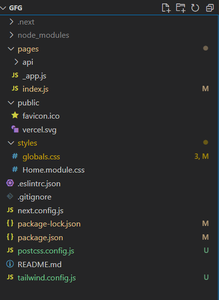
- ****.next/** : Generated build output by Next.js.
- **node_modules/ : Installed project dependencies.
- **pages/ : Handles routing (_app.js, index.js, etc.).
- **public/ : Static assets like images and icons (favicon.ico).
- **styles/ : Global styles and CSS Modules (globals.css, Home.module.css).
- **tailwind.config.js : Tailwind CSS configuration file.
- **postcss.config.js : PostCSS configuration for Tailwind processing.
- **next.config.js : Next.js configuration settings.
- **package.json / package-lock.json : Project metadata and dependencies.
- **README.md : Project documentation.
Step 4: Configure template paths
In tailwind.config.js file, add the following configuration.
/** @type {import('tailwindcss').Config} / module.exports = { content: [ "./pages/**/.{js,ts,jsx,tsx}", "./components//*.{js,ts,jsx,tsx}", "./src//*.{js,ts,jsx,tsx}", ], theme: { extend: {}, }, plugins: [], }
This configuration is only for pages and components directory, you can also configure your custom folders here.
Step 5: Add Tailwind directives
In /styles/globals.css file, add the layer directives of tailwind CSS.
@tailwind base; @tailwind components; @tailwind utilities;
Step 6: Testing Tailwind CSS
In the /pages/index.js file, we will first clean all the boilerplate code and test some utility classes from Tailwind CSS.
/pages/index.js `
import React from 'react'
const HomePage = () => { return (
export default HomePage
`
Run our next application using the following command.
npm run dev
Output: