File System Consistency Checker (FSCK) (original) (raw)
Last Updated : 6 Nov, 2025
File system integrity is critical for data safety and system stability in Linux. The File System Consistency Checker (FSCK) is a powerful utility that checks and repairs file system inconsistencies, ensuring your data remains accessible and secure.
Example:
**Command:
sudo fsck /dev/sda1
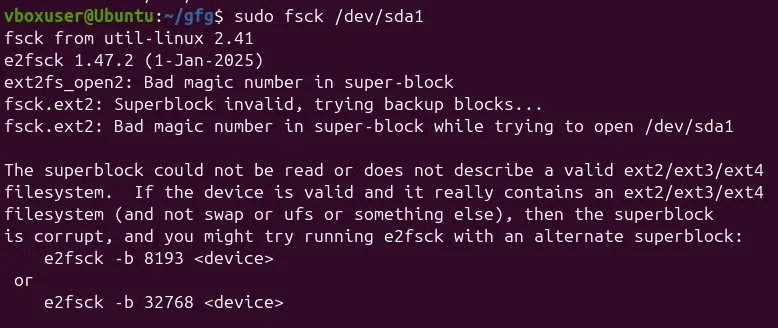
**What it does: Checks the filesystem on partition /dev/sda1 for errors.
FSCK Command Syntax in Linux
The basic syntax of the fsck command is:
fsck [OPTIONS] [FILESYSTEM]
**Where:
[OPTIONS]are flags that modify FSCK behavior[FILESYSTEM]is the device or partition to check (e.g.,/dev/sda1)
Common FSCK Options
| **Option | **Description |
|---|---|
| **-A | Check all filesystems listed in ****/etc/fstab** |
| **-a or **-y | Automatically repair errors without prompting |
| **-n | Check only, do not repair (dry run) |
| **-f | Force check even on clean filesystems |
| **-r | Interactive mode, prompts before each repair |
| **-t | Specify filesystem type (e.g., ext4, xfs) |
| **-V | Verbose mode, shows detailed output |
| **-C | Display progress bar during check |
Examples of FSCK Command
1. Check a Specific Filesystem
To check a specific partition:
**Command:
sudo fsck /dev/sda1
**What it shows:
This command scans the specified partition and displays a summary like "clean, 95/2240224 files, 3793506/4476416 blocks" if no errors are found. If errors exist, it will list them and ask for confirmation before fixing unless you add the -y flag.
**Important: The filesystem must be unmounted before running FSCK.
2. Unmount Before Checking
Unmount the filesystem first:
**Command:
sudo umount /dev/sda1 sudo fsck /dev/sda1
**What it shows: After unmounting successfully, FSCK runs and reports the filesystem status—either "clean" with file/block counts, or it will identify and attempt to repair errors. The command ensures safe checking by preventing conflicts with mounted filesystems.
3. Check All Filesystems
To check all filesystems listed in /etc/fstab:
**Command:
sudo fsck -A -y
**What it shows:
This scans every filesystem defined in /etc/fstab and displays results for each one sequentially, showing "clean" status or automatically repairing errors without prompting due to the -y flag. It's useful for comprehensive system-wide checks.
4. Automatically Repair Errors
To repair errors without prompting:
**Command:
sudo fsck -y /dev/sda1
**What it shows:
This command automatically attempts to fix any detected errors and displays messages like "recovering journal" or "fixing corrupted inode" as it repairs. At the end, it shows the final status with file and block counts.
5. Check with Progress Bar
Display a progress indicator:
**Command:
sudo fsck -C /dev/sda1
**What it shows:
This displays a real-time progress bar during the scan, showing the percentage completed for ext2/ext3/ext4 filesystems. After completion, it shows the standard summary with file counts and any errors found or fixed.
Running FSCK at Boot Time
**-> Schedule FSCK on Next Reboot
Force a filesystem check on the next boot:
**Command:
sudo touch /forcefsck sudo reboot
After reboot, FSCK will run automatically, and the /forcefsck file will be removed.
**-> Configure Automatic FSCK Interval
Edit /etc/fstab and modify the last field (pass number) to control FSCK behaviour:
**Command:
/dev/sda1 / ext4 defaults 0 1
- **0 = No automatic check
- **1 = Check root filesystem first
- **2 = Check after root filesystem
Why is FSCK Important?
FSCK is crucial because file system errors can accumulate over time due to various factors like improper shutdowns, hardware failures, power outages, or software bugs. Without regular checks, these errors can lead to:
- Data corruption and inaccessibility
- System boot failures
- Input/output errors
- Loss of critical files and directories
Running FSCK detects and fixes these issues, preventing further damage and preserving the integrity of your data.
When to Use FSCK
Use FSCK in the following situations:
- **System fails to boot: When the system cannot start due to filesystem errors.
- **Input/output errors: When you encounter I/O errors accessing files.
- **After unexpected shutdown: Following a crash or power failure.
- **Preventive maintenance: Scheduled checks to proactively identify issues.
- **External drive health checks: Testing USB drives, SD cards, or external HDDs.