What is PowerShell? Getting Started with PowerShell (original) (raw)
Last Updated : 23 Jul, 2025
Windows PowerShell is a powerful, versatile command-line interface (CLI) and scripting environment designed for system administration and automation. Initially released in 2006 by Microsoft, PowerShell has since evolved into a powerful tool used by IT professionals, developers, and sysadmins across the globe. Its ability to handle complex tasks, automate repetitive processes, and manage system configurations makes it indispensable in modern IT infrastructure.
Imagine being able to automate repetitive tasks like managing Active Directory, configuring network settings, or performing bulk file operations with a few lines of code. PowerShell makes this possible by combining the simplicity of shell commands with the flexibility of a scripting language. Its **cmdlets (pre-built commands) and support for complex scripts make it ideal for system administrators, developers, and IT professionals.
In this detailed article, we will explore what is PowerShell, its key features, common use cases, and how it benefits users across various industries.
Table of Content
- What is Windows PowerShell?
- PowerShell vs. Command Prompt: Key Differences
- Common Use Cases of PowerShell
- Getting Started with PowerShell
- Advanced PowerShell Techniques
- PowerShell for Developers
- Benefits of Using PowerShell

What is PowerShell
**What is PowerShell?
PowerShell is an **object-oriented scripting language and command-line shell built on the .NET framework. It allows users to interact with the operating system (OS) and perform a variety of administrative tasks such as automation, system management, and network monitoring.
PowerShell is more than just a shell, it is a full-fledged automation framework. Unlike traditional command-line interfaces, which primarily work with text, PowerShell handles **objects, enabling more **complex data manipulation and automation tasks. This gives system administrators and developers greater control over their environment and the ability to automate tasks at scale.

Powershell
History of PowerShell
PowerShell's roots trace back to Microsoft’s urge to create a more powerful command-line environment than the legacy Windows Command Prompt. The first version, PowerShell 1.0, was introduced in 2006 as an integral part of the Windows Management Framework. Over the years, Microsoft has significantly enhanced PowerShell’s functionality, incorporating support for **remoting, **parallel execution, **extensive modules, and **cross-platform compatibility.
**Why Use Windows PowerShell?
- **Automation: Automate repetitive tasks, such as creating user accounts, configuring network settings, or deploying software.
- **Remote Management: Manage multiple systems remotely, execute commands on distant machines, and automate administrative tasks.
- **System Administration: Perform advanced system administration tasks, including troubleshooting, security configuration, and performance tuning.
- **Scripting: Create custom scripts to streamline workflows and solve complex problems.
- **Integration with .NET: Leverage the vast .NET ecosystem to extend PowerShell's capabilities and build sophisticated tools.
**Key PowerShell Concepts
- **Cmdlets: Pre-built commands that perform specific actions, such as
Get-Process,Start-Service, andRemove-Item. - **Pipelines: Chain cmdlets together to create complex operations.
- **Scripting: Write scripts using PowerShell's scripting language to automate tasks.
- **Modules: Reusable collections of cmdlets, functions, and variables.
- **Providers: Extend PowerShell's file system navigation capabilities to work with various data sources, such as registry, WMI, and Active Directory.
PowerShell Vs. Command Prompt: Key Differences
While both PowerShell and Command Prompt are command-line interfaces (CLI), they serve different purposes and have distinct features:
| **Feature | **PowerShell | **Command Prompt (CMD) |
|---|---|---|
| **Introduction | Introduced in 2006, designed for advanced task automation and configuration management. | Introduced in 1987 as a simple command-line interpreter for DOS and Windows. |
| **Primary Use Case | Scripting, system administration, and managing complex IT environments. | Basic command-line tasks and file system navigation. |
| **Language Support | Uses its own scripting language, based on .NET, called PowerShell scripting. | Does not support scripting; uses basic batch (.bat) commands. |
| **Object Orientation | Handles data as objects (structured data). | Handles data as plain text. |
| **Pipeline Behavior | Passes objects between commands in the pipeline. | Passes plain text between commands in the pipeline. |
| **Cmdlets | Uses cmdlets (e.g., Get-Process, Set-ExecutionPolicy) for advanced functionality. | Uses traditional commands like dir, cd, and cls. |
| **Customization | Highly extensible with support for modules and custom scripts. | Limited extensibility and lacks modularity. |
| **Integration | Fully integrated with Windows Management Instrumentation (WMI) and .NET Framework. | Minimal integration with advanced management tools. |
| **Cross-Platform Support | Available on Windows, macOS, and Linux. | Primarily Windows-only. |
| **Output Formatting | Richly formats output, enabling easier parsing and readability. | Produces plain text output with limited formatting capabilities. |
| **Error Handling | Advanced error handling with structured exceptions. | Basic error messages with no structured handling. |
| **Automation | Ideal for automating complex administrative tasks, including cloud and Active Directory management. | Limited to basic automation via batch files. |
| **Built-In Commands | Over 100 cmdlets available out of the box, with extensibility for more. | Basic set of commands for file and directory operations. |
| **Learning Curve | Steeper learning curve due to its complexity and rich features. | Easier for beginners due to its simplicity. |
| **Community Support | Extensive documentation, community modules, and integration with tools like Git and Azure. | Basic documentation, mainly for legacy systems and basic users. |
| **Script File Extensions | .ps1 for PowerShell scripts. | .bat or .cmd for batch scripts. |
Common Use Cases of PowerShell
1. **System Administration
PowerShell simplifies the management of **Windows servers, **Active Directory, and **network devices. Administrators can automate tasks like:
- User account creation and management
- Server configuration and patch management
- File system management (e.g., backups, directory structure)
**Example: This command creates a new user in Active Directory.
New-ADUser -Name "John Doe" -SamAccountName "jdoe" -UserPrincipalName "jdoe@domain.com" -Path "OU=Users,DC=domain,DC=com"
2. **Cloud Management
PowerShell is integral to **Azure management and other cloud platforms. With PowerShell cmdlets for Azure, you can automate the deployment of resources, manage storage accounts, and scale virtual machines.
3. **Task Scheduling and Automation
By leveraging the Windows Task Scheduler and PowerShell scripts, IT professionals can automate maintenance tasks, such as server health checks or software updates, on a daily, weekly, or monthly basis.
4. **Network Configuration
You can use PowerShell to manage and automate network settings, such as IP address configurations, network interfaces, and firewall rules. For instance, configuring a static IP address on a machine can be done quickly with a simple script.
**Example:
New-NetIPAddress -InterfaceAlias "Ethernet" -IPAddress "192.168.1.100" -PrefixLength 24 -DefaultGateway "192.168.1.1"
5. **Data Retrieval and Parsing
PowerShell allows the retrieval and parsing of data from multiple sources such as files, databases, or APIs. This is especially useful for generating reports, auditing system states, or gathering performance metrics.
6. **Security and Compliance
PowerShell scripts can be used to audit system configurations and ensure compliance with internal or external security policies. For example, you can check whether all security patches are up to date, or verify that user permissions are correctly configured.
**Getting Started with PowerShell
**Step 1: Open PowerShell:
Search for "PowerShell" in the Start menu and open it.
**Basic PowerShell Commands List
Get-Help: Displays help information for cmdlets.Get-Command: Lists available cmdlets.Get-Process: Lists running processes.Stop-Process: Stops a running process.Get-Service: Lists running services.Start-Service: Starts a service.Stop-Service: Stops a service.
**Advanced PowerShell Techniques - Overview
- **Scripting: Use PowerShell's scripting language to write complex scripts that automate tasks.
- **Remote PowerShell: Manage remote computers using PowerShell remoting.
- **PowerShell Modules: Create custom modules to extend PowerShell's functionality.
- **PowerShell Profiles: Customize your PowerShell environment with profiles.
- **PowerShell Workflow: Build long-running, multi-step processes.
- **PowerShell Desired State Configuration (DSC): Define and enforce system configurations.
What is a PowerShell Function
A PowerShell function is a block of code that performs a specific task. It’s like a mini-script inside your script. Functions let you reuse code, make your scripts cleaner, and reduce repetition.
Basic PowerShell Function Example
Here it is basic example of powershell function:
function Get-Hello {
Write-Output "Hello, this is my first PowerShell function!"
}

PowerShell Function
Function with Parameters in powershell
function Greet-User($Name) {
Write-Output "Welcome, $Name!"
}
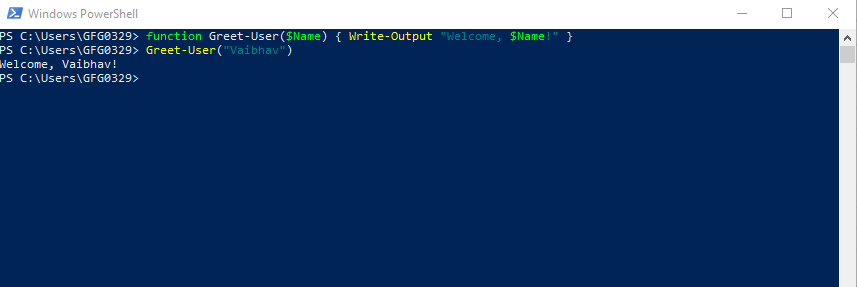
Function with Parameters in powershell
Why Use PowerShell Functions?
- **Reusability: Write once, use multiple times
- **Readability: Makes scripts more organized and easier to understand
- **Modularity: Break complex scripts into manageable parts
- **Maintainability: Easier to update a function than multiple lines across your script
What is a PowerShell Module?
A **PowerShell module is a **collection of functions, variables, aliases, and other PowerShell code **packaged together in a single file or folder. It’s like a toolbox — once imported, you can use all the tools (functions) inside.
There are **two types of modules:
- **Script modules (
.psm1files) - **Binary modules (compiled DLLs)
How to View Installed PowerShell Modules
Use this command:
Get-Module -ListAvailable
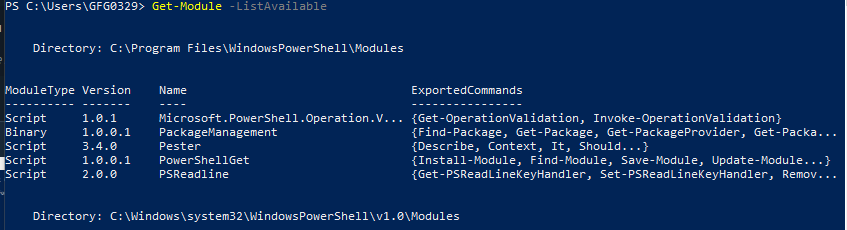
Modules of powershell
How to Install a PowerShell Module
You can install modules from the **PowerShell Gallery using:
Install-Module -Name Az
PowerShell for Developers
PowerShell is not only useful for system administrators but also for developers, particularly those working with Windows-based applications or Azure cloud services. Developers use PowerShell for:
- **Automating the build and deployment pipeline (CI/CD)
- **Managing databases (e.g., SQL Server)
- **Packaging and deploying software using tools like **MSBuild
Developers can also use PowerShell to manage versions and dependencies for .NET projects or integrate PowerShell scripts into their existing development workflows.
Benefits of Using PowerShell
1. **Enhanced Productivity
By automating repetitive tasks and providing access to advanced system management tools, PowerShell can dramatically improve productivity. Tasks that would traditionally take hours can now be completed in minutes.
2. **Scalability
With PowerShell, administrators can easily scale their processes, whether managing a few machines or thousands. PowerShell scripts can be run across multiple systems simultaneously, significantly reducing manual intervention.
3. **Ease of Learning
For users familiar with command-line interfaces, PowerShell is relatively easy to learn. Its use of clear syntax, object manipulation, and rich documentation makes it accessible to beginners, while still powerful for experienced users.
4. **Powerful Remoting and Administration Tools
PowerShell's remote capabilities allow sysadmins to manage systems across an entire enterprise without needing to physically access each device.
**Conclusion
Windows PowerShell is more than just a tool—it's an essential component of system administration, cloud management, and software development in the Windows ecosystem. With its powerful cmdlets, object-oriented nature, automation capabilities, and remote management features, PowerShell has solidified its place as one of the most adaptable command-line environments available today.
Whether you're a system administrator looking to streamline your daily tasks, a developer seeking to automate your CI/CD pipeline, or a business seeking more efficient IT management, Windows PowerShell offers a wealth of benefits. The continuous development of PowerShell Core, with cross-platform support, ensures that this powerful tool will remain a key asset in managing modern IT environments for years to come.