How to Read Excel Multiple Sheets in Python Pandas (original) (raw)
Last Updated : 23 Jan, 2026
Excel files often store related data across multiple sheets. Pandas provides a way to read all these sheets at once using the pd.read_excel() method. This approach allows us to load multiple sheets into Python and work with them as Pandas DataFrames.
**Note: For this article a sample multiple sheets "multi_sheet.xlsx" is used, to download click here.
**Example: This example shows how Pandas reads all sheets from an Excel file and stores them in a single object.
Python `
import pandas as pd data = pd.read_excel("multi_sheet.xlsx", sheet_name=None) print(data)
`
**Output
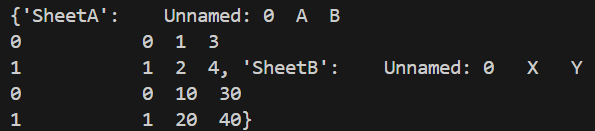
All sheets from the Excel file are displayed as key–value pairs.
**Explanation:
- pd.read_excel() reads the Excel file and sheet_name=None tells Pandas to load all sheets.
- data becomes a dictionary of DataFrames.
- Each key is a sheet name, and each value is the sheet’s DataFrame.
pd.read_excel()
The pd.read_excel() method is used to read Excel files in Pandas. When multiple sheets are read, it returns a dictionary instead of a single DataFrame. Below is the syntax:
pd.read_excel(excel_file, sheet_name=None)
**Parameters:
- **excel_file: Name or path of the Excel file
- **sheet_name: None - Reads all sheets, **List of names - Reads selected sheets and **Index number - Reads a specific sheet
Examples
**Example 1: This example reads all sheets from an Excel file and prints their contents one by one.
Python `
import pandas as pd sheets = pd.read_excel("multi_sheet.xlsx", sheet_name=None) for sheet_name, df in sheets.items(): print(f"Sheet Name: {sheet_name}") print(df) print()
`
**Output
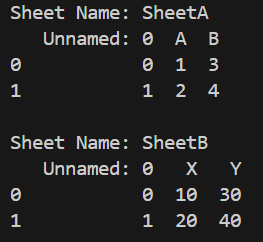
Each sheet name is shown along with its data.
**Explanation:
- sheets.items() allows access to each sheet.
- sheet_name stores the name of the sheet.
- df stores the DataFrame of that sheet.
**Example 2: This example shows how to get sheet names and work with their DataFrames.
Python `
import pandas as pd sheets = pd.read_excel("multi_sheet.xlsx", sheet_name=None) print("Available Sheets:", sheets.keys())
`
**Output

All sheet names from the Excel file are displayed.
**Explanation: sheets.keys() returns all sheet names.
**Example 3: This example demonstrates how to extract only one required sheet after loading all sheets.
Python `
import pandas as pd sheets = pd.read_excel("multi_sheet.xlsx", sheet_name=None) data = sheets["SheetA"] print(data)
`
**Output

Data from the selected sheet is displayed.
**Explanation:
- sheets["SheetA"] accesses the sheet named SheetA.
- data contains only the DataFrame of that sheet.