How to create admin login page using PHP? (original) (raw)
Last Updated : 12 Jul, 2025
In this article, we will see how we can create a login page for admin, connected with the database, or whose information to log in to the page is already stored in our database.
Follow the steps to create an admin login page using PHP:
Approach: Make sure you have XAMPP or WAMP installed on your windows machine. In case you're using Linux OS then install the LAMP server. In this article, we will be using the XAMPP server.
1. Create Database: First, we will create a database named 'geeksforgeeks' (you can give any name to your database). You can also use your existing database or create a new one.

create database "geeksforgeeks"
2. Create Table: Create a table named 'adminlogin' with 3 columns to store the data.

create table "adminlogin"
3. Create Table Structure: The table "adminlogin" contains three fields.
- id – primary key – auto increment
- username – varchar(100)
- password – varchar(100)
The datatype for username and password is varchar. The size can be altered as per the requirement. However, 100 is sufficient, and the datatype for "id" is int and it is a primary key.
A primary key also called a primary keyword is a key in a relational database that is unique for each record. It is a unique identifier, such as a driver's license number, telephone number (including area code), or vehicle identification number (VIN).
Your table structure should look like this.

table structure
Or copy and paste the following code into the SQL panel of your PHPMyAdmin.
DROP TABLE IF EXISTS adminlogin;
CREATE TABLE IF NOT EXISTS adminlogin (
id int(11) NOT NULL AUTO_INCREMENT,
username varchar(100) NOT NULL,
password varchar(100) NOT NULL,
PRIMARY KEY (id)
) ENGINE=MyISAM DEFAULT CHARSET=latin1;
To do this from SQL Panel refer to the following screenshot.

create a table from SQL panel
4. Insert admin login information: Here, we are inserting two records in our table. You can add as many as you want.

inserting records
Or copy and paste the following code to insert records into the SQL panel.
INSERT INTO adminlogin (id, username, password) VALUES (NULL, 'admin', 'admin'), (NULL, 'admin2', 'admin2');
After inserting the values, the table will look like this.

table records
5. Create a folder that includes the following files: The folder should be in "C:\xampp\htdocs\" (or where your XAMPP is installed). For the WAMP server, it should be in "C:\wamp64\www\" andon Linux "/opt/lampp/htdocs".
- Filename: index.php HTML `
Login
        <div class="textbox">
            <i class="fa fa-user" aria-hidden="true"></i>
            <input type="text" placeholder="Username"
                     name="username" value="">
        </div>

        <div class="textbox">
            <i class="fa fa-lock" aria-hidden="true"></i>
            <input type="password" placeholder="Password"
                     name="password" value="">
        </div>

        <input class="button" type="submit"
                 name="login" value="Sign In">
    </div>
</form>
`
- Filename: connection.php PHP `
`
- Filename: login.css CSS `
body { margin: 0; padding: 0; font-family: sans-serif; background: url() no-repeat; background-size: cover; }
.login-box { width: 280px; position: absolute; top: 50%; left: 50%; transform: translate(-50%, -50%); color: #191970; }
.login-box h1 { float: left; font-size: 40px; border-bottom: 4px solid #191970; margin-bottom: 50px; padding: 13px; }
.textbox { width: 100%; overflow: hidden; font-size: 20px; padding: 8px 0; margin: 8px 0; border-bottom: 1px solid #191970; }
.fa { width: px; float: left; text-align: center; }
.textbox input { border: none; outline: none; background: none; font-size: 18px; float: left; margin: 0 10px; }
.button { width: 100%; padding: 8px; color: #ffffff; background: none #191970; border: none; border-radius: 6px; font-size: 18px; cursor: pointer; margin: 12px 0; }
`
- Filename: validate.php PHP `
`
- Filename: adminpage.php Add anything that you want to display to the admin page. HTML `
Hello Admin
`
6. After completing all the above steps, now follow the steps:
- Run XAMPP server
- Start Apache and MySQL services from XAMPP Panel.
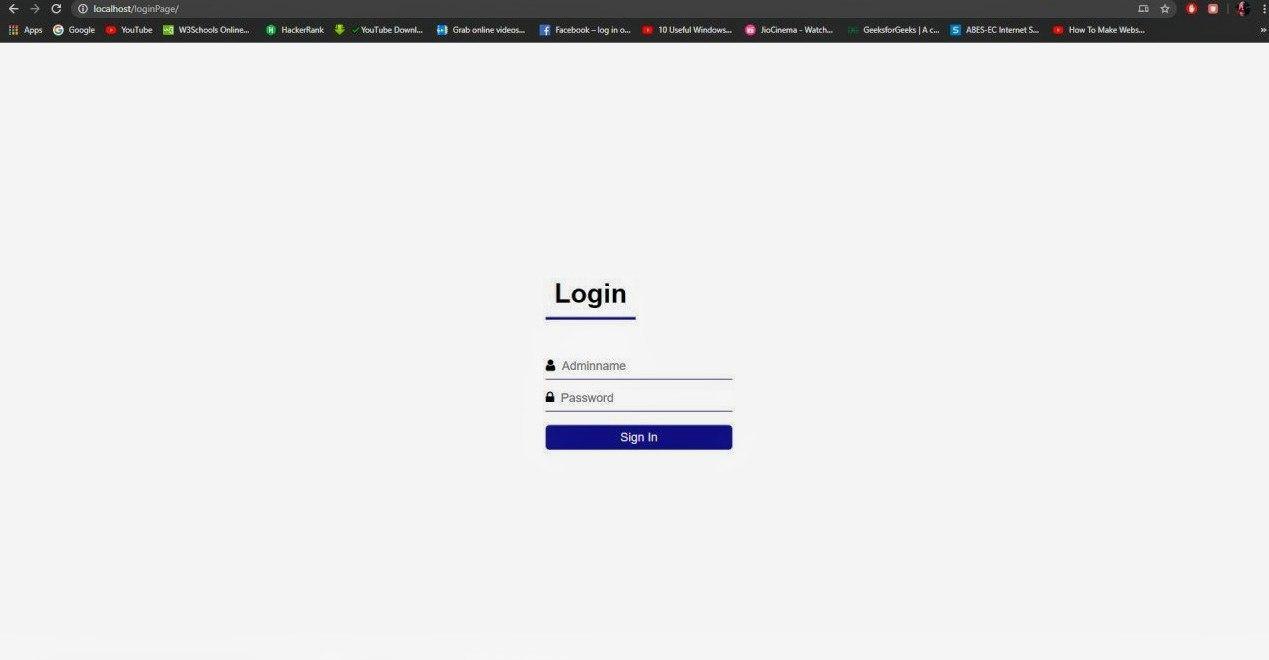
- Type http://localhost/loginPage/ in your browser.
You will get the following login page screen.
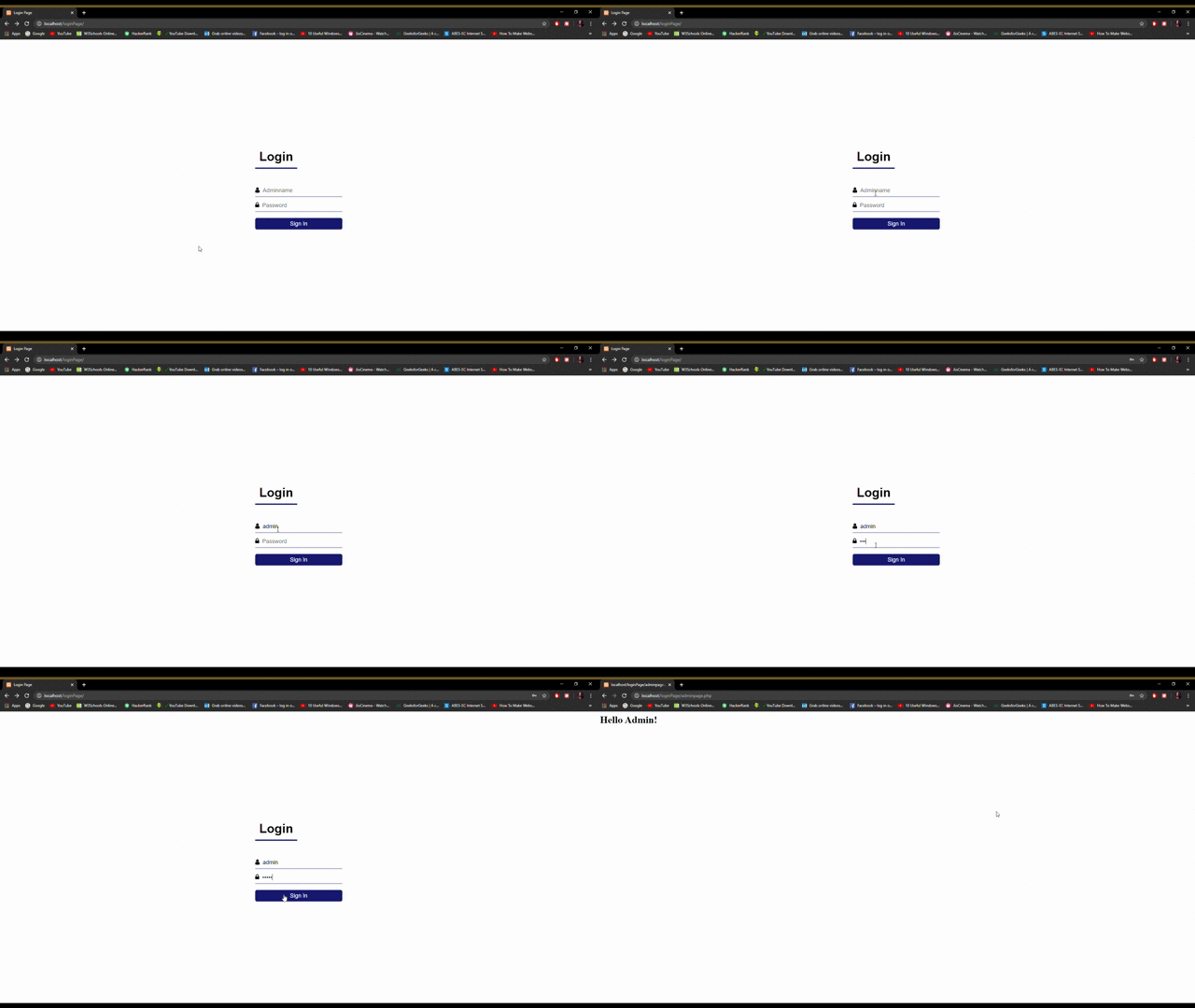
If you enter the correct credentials i.e. username and password, then you will be logged in to the "admin.php" page.
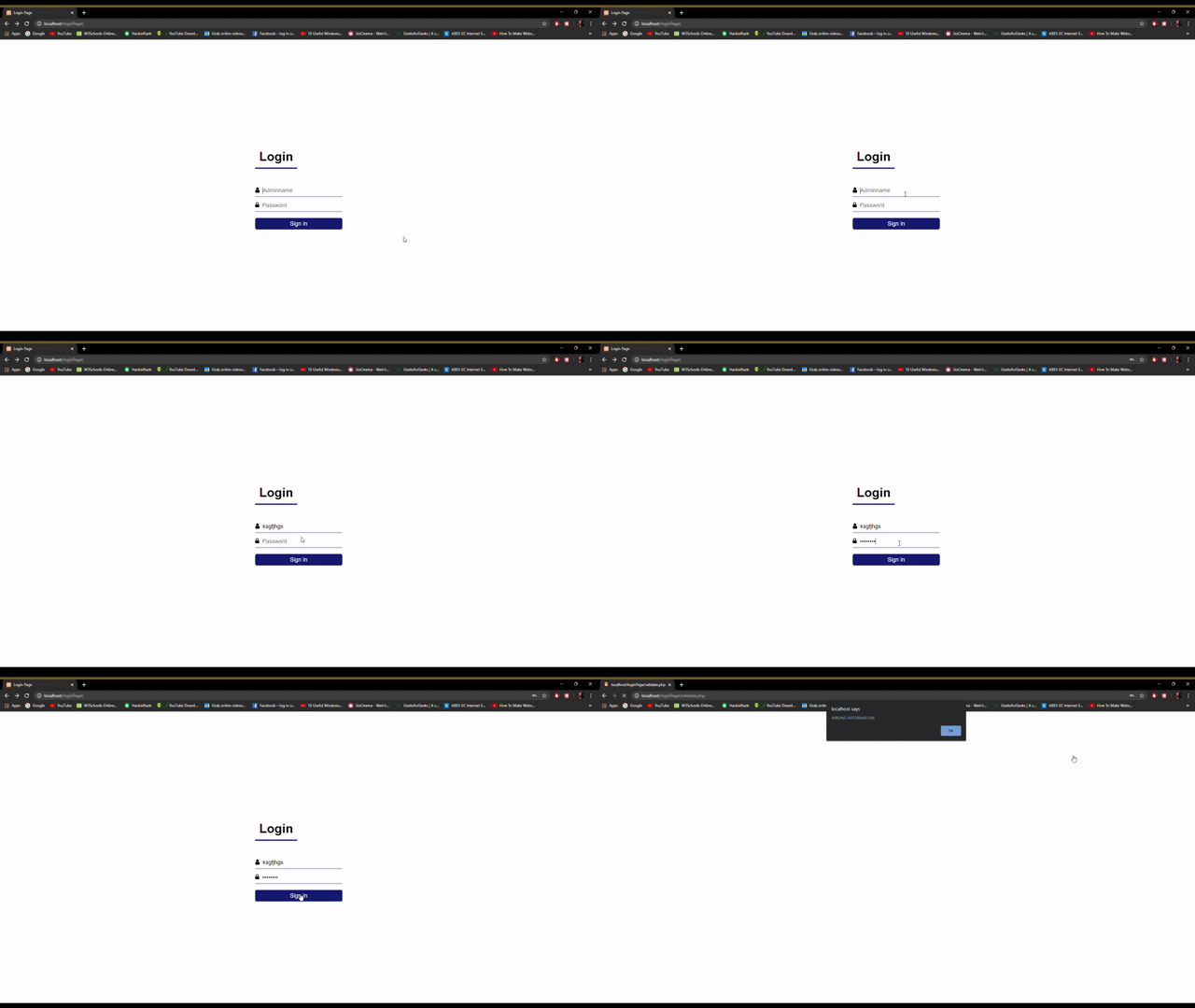
else, you get an error pop-up alert.
PHP is a server-side scripting language designed specifically for web development. You can learn PHP from the ground up by following this PHP Tutorial and PHP Examples.