How to Export WordPress Database Using phpMyAdmin? (original) (raw)
Last Updated : 23 Jul, 2025
Exporting your WordPress database is a must for backing up your website data, migrating your site to a new server or domain, or creating a local copy for development purposes. **phpMyAdmin, a popular tool included in most hosting control panels, makes this process simple and accessible. Here, we will take you through a step-by-step process to export your WordPress database using phpMyAdmin.
Why Export Your WordPress Database?
Before going into the steps, it's important to understand why we need to export our WordPress database, so let's see the importance.
- **Backup: Regularly backing up your database protects your site from data loss due to hacking, server failures, or human errors. A backup is your safety net, ensuring your site can be restored if something goes wrong.
- **Migration: When moving your website to a new hosting provider or domain, exporting and importing your database is a critical step. This allows you to transfer all your site’s content and settings without starting from scratch.
- **Development and Testing: Exporting your database lets you create a local copy of your site, enabling safe testing and development without affecting the live version.
Prerequisites for Exporting Your WordPress Database
Before starting, ensure you have the following:
- Access to your hosting control panel (like cPanel or Plesk).
- phpMyAdmin installed on your server.
- Administrative credentials to log in to phpMyAdmin.
Steps to Export Your WordPress Database Using phpMyAdmin
**Exporting the Database in phpMyAdmin to Local Storage: For exporting the database using the phpMyAdmin tool follow the steps given below.
**Step 1: Log in to phpMyAdmin:
- Access your hosting provider’s control panel.
- Navigate to the phpMyAdmin section.
- Select your WordPress database.
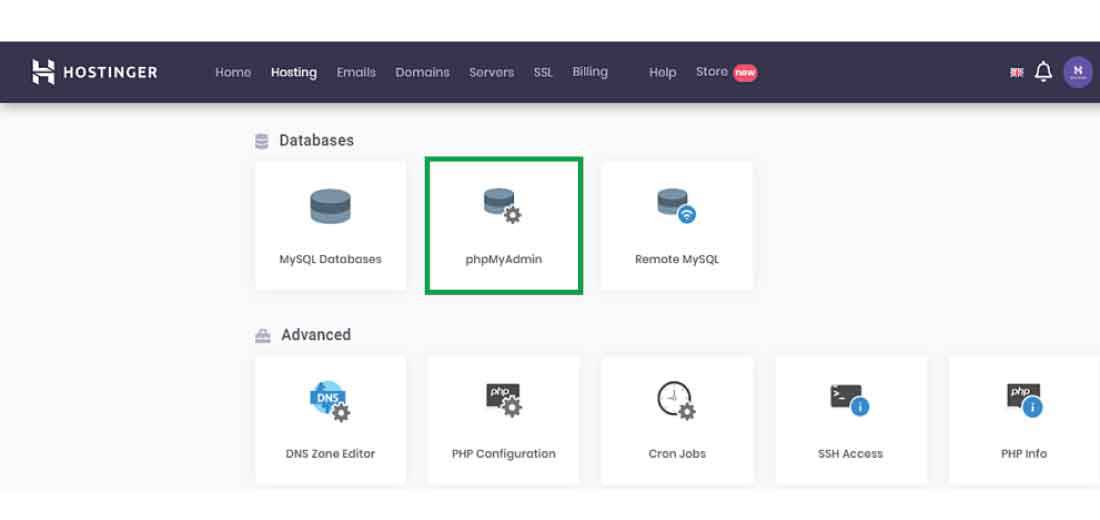
**Step 2: After clicking on the “__phpMyAdmin_” section, the phpMyAdmin window will appear on your screen like this:
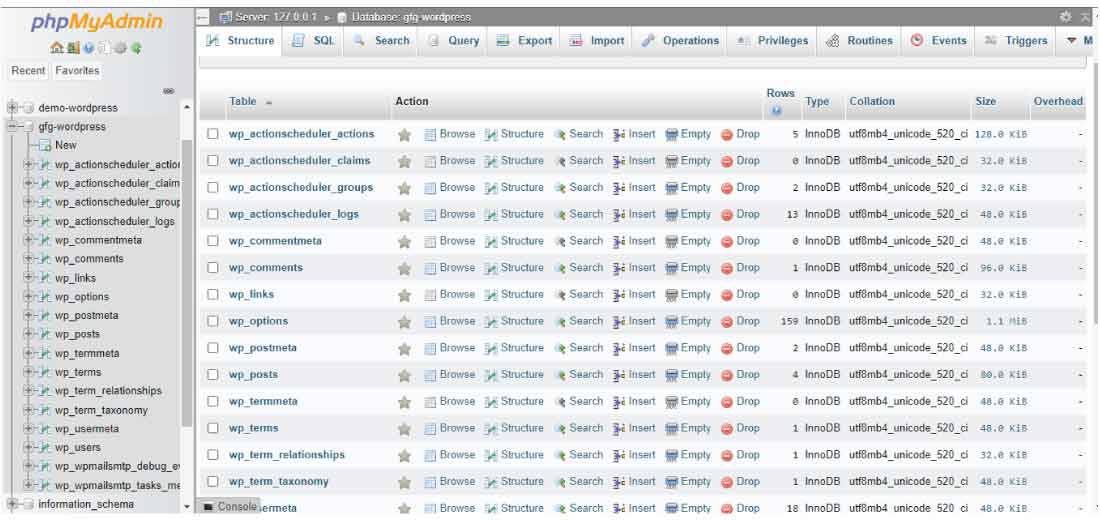
**Step 3: Choose the Export Option:
- Click the “Export” button.
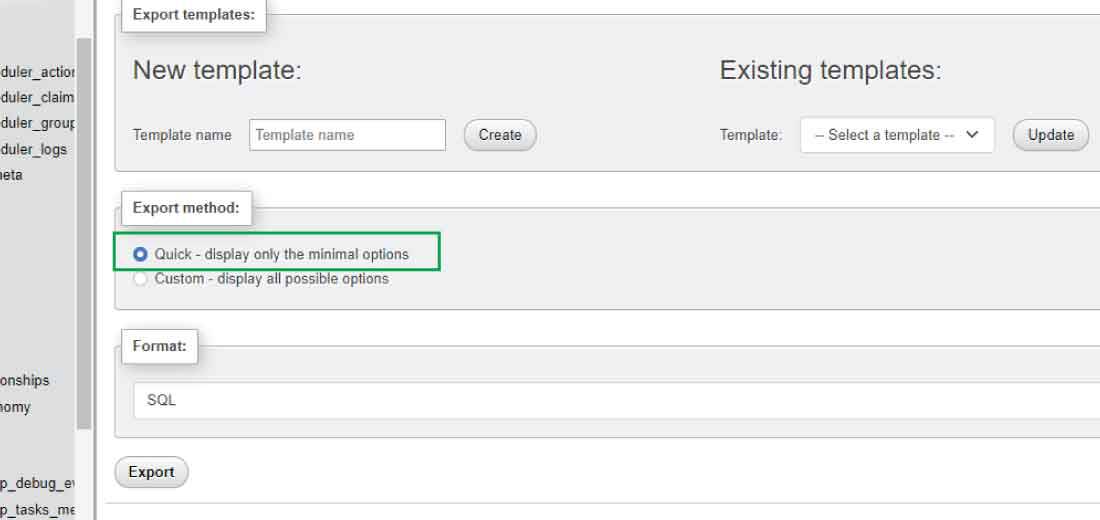
- Select the “Quick” export method.
- Choose the “SQL” format (or another format as needed).

**Step 4: After clicking on the “Export” button, it will show you the two options first one is the “Quick” option and the second one is the “Custom” option. If you are a beginner choose the “Quick” option.
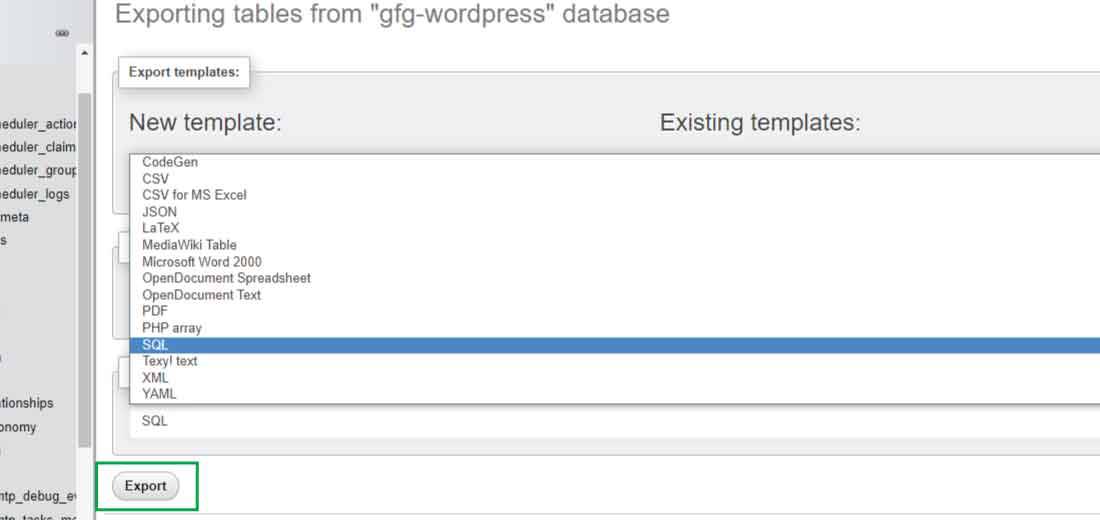
**Step 5: Now, choose the desired format in which you want to export your website data using the phpMyAdmin panel tool. Here for the demo purpose, we will choose the SQL format to export the database to our local storage. You can choose another format as per your requirement.
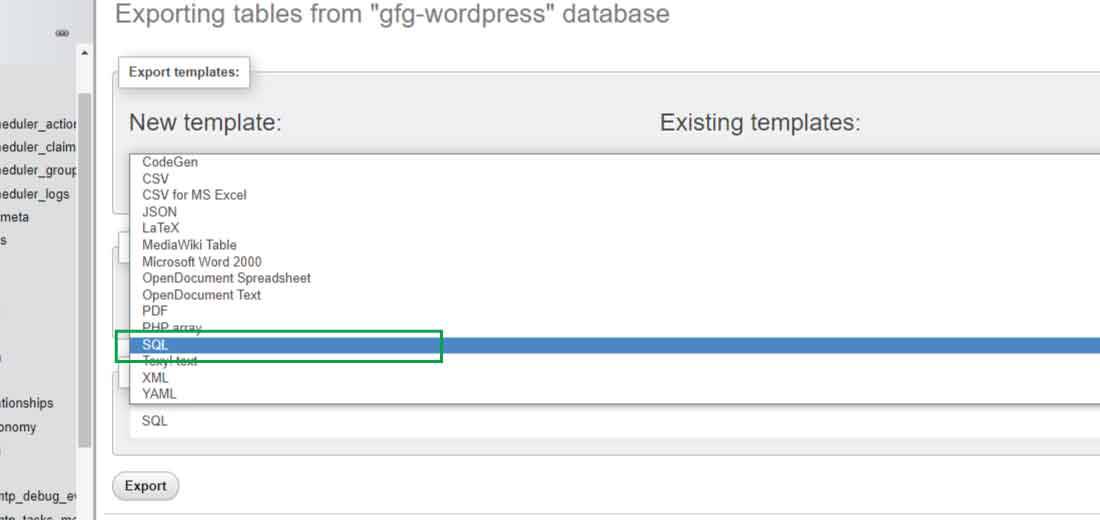
**Step 6: After choosing the format finally click on the “Export” button to export your database to your local storage.
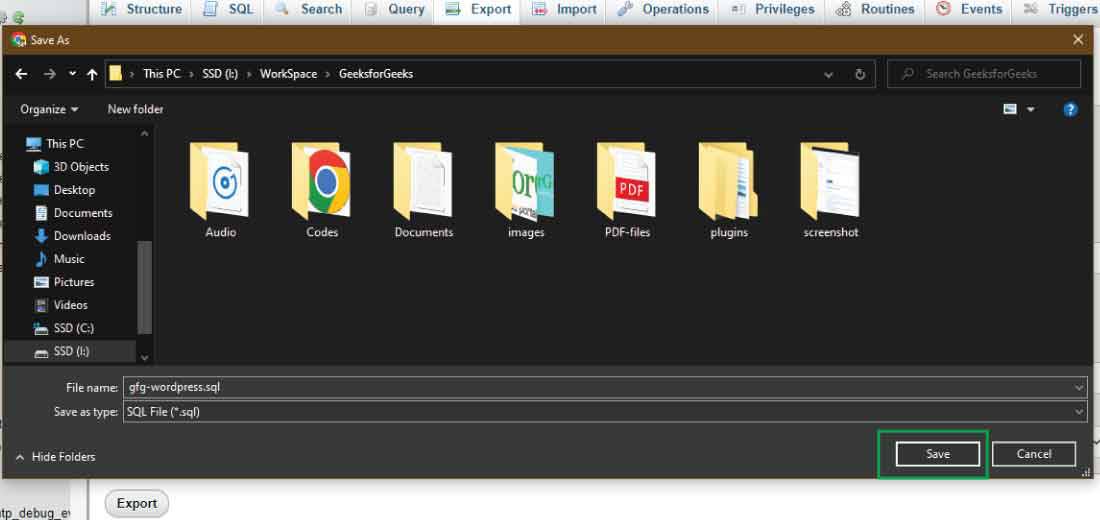
**Step 7: Choose the location in your local storage and then click on the “Save” button finally your website database is get securely downloaded to your desired storage.
In this way, we can export the Database in phpMyAdmin and take the backup of our WordPress website or another website that uses the MySQL database.
SEO Tips for Exporting WordPress Database
To ensure your article is SEO-friendly, consider the following tips:
- **Keyword Optimization: Use relevant keywords like "export WordPress database," "phpMyAdmin export database," and "WordPress backup."
- **Headings and Subheadings: Use clear and descriptive headings (H2, H3) to structure your content. This improves readability and SEO.
- **Internal Links: Link to related articles on your site, such as "How to Import WordPress Database" or "Best Practices for WordPress Backup."
- **External Links: Include links to authoritative sources, such as the official phpMyAdmin documentation or WordPress Codex.
- **Images and Alt Text: Add screenshots of the phpMyAdmin interface with descriptive alt text to enhance user experience and SEO.
Common Issues and Troubleshooting
If you encounter errors while exporting your database, consider these common issues:
- **Timeout Errors: Large databases may cause timeouts. To avoid this, increase the maximum execution time in your php.ini file or use the Custom export option to export in smaller parts.
- **Permission Errors: Ensure your user has the proper permissions to export the database. You might need to contact your hosting provider for assistance if permissions are limited.
Conclusion
Exporting the database of a WordPress website using phpMyAdmin is a straightforward process that can be invaluable for website management and troubleshooting. This process allows you to have a backup of your website data, which can be used for site migration, testing, or recovery from unforeseen issues. Remember, regular backups are a best practice for maintaining the integrity and longevity of your website. With the steps outlined in this article, you can confidently manage your WordPress website’s database, ensuring your site’s data is safe and accessible whenever you need it.