WordPress Discussion Setting (original) (raw)
Last Updated : 23 Jul, 2025
The WordPress Discussion Settings allow you to control how comments are managed and displayed on your site. In this article, we will explore how to navigate and configure the Discussion Settings in WordPress, helping you to manage your site's comments and interactions effectively.
What Are WordPress Discussion Settings?
WordPress Discussion Settings determine how comments are handled on your website. These settings give you control over various aspects of commenting, such as who can comment, how comments are moderated, and how they are displayed. Properly configuring these settings can enhance user engagement and maintain the quality of discussions on your site.
Steps to Go through WordPress Discussion Setting
Let’s see the steps to go through Discussion Settings in WordPress easily and quickly.
**Step 1: Log into Your WordPress Dashboard
- Go to your website's login page by adding /wp-login.php at the end of your website URL (e.g., yourwebsite.com/wp-login.php).
- Enter your username and password to access the WordPress Dashboard.

WordPress Login Panel
**Step 2: Navigate to Discussion Settings
- From the Dashboard, go to the left-hand menu.
- Click on Settings > Discussion to open the Discussion Settings page.
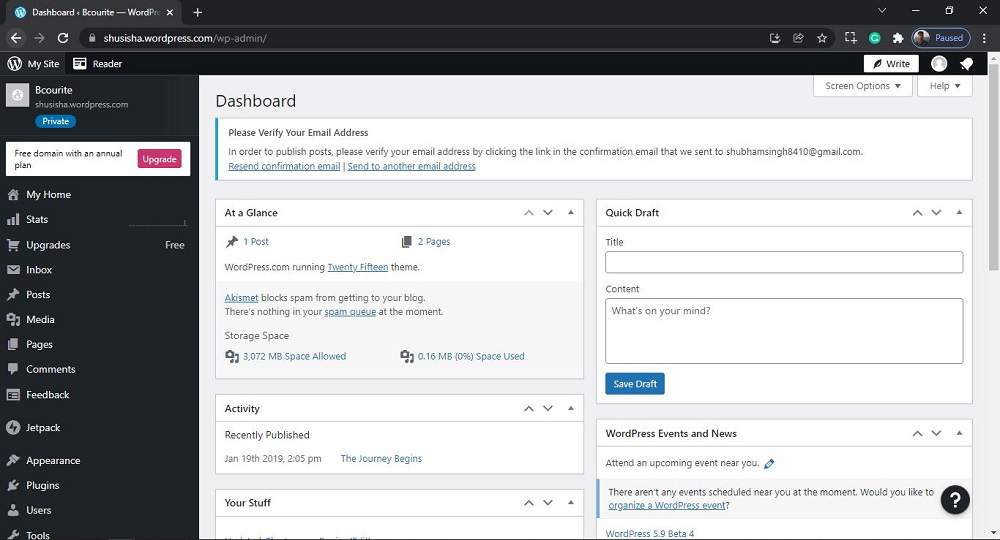
WordPress Dashboard
**Step 3: We have to search and open the Discussion setting. From the menu option on the left side of the wordPress page, Go to the **Settings>> **Discussion.

Opening the Discussion Section
**Step 4: After clicking on **discussion, you will see a similar page like the below.

Different Sections in WordPress Discussion Setting
There are many sections in the WordPress Discussion Setting. Each section is briefly discussed below.
**1. Default Article Settings
These settings control the default behavior for new posts and can be overridden for individual posts:
- **Attempt to notify any blogs linked to from the article: This setting sends a pingback to other blogs when you link to them in your post.
- **Allow link notifications from other blogs (pingbacks and trackbacks) on new articles: Enable this option to receive pingbacks and trackbacks from other blogs linking to your posts.
- **Allow people to submit comments on new posts: This setting enables or disables comments on new posts by default. You can override this setting for individual posts as needed.
**2. Other Comment Settings
These settings give you control over who can comment and how comments are managed:
- **Comment author must fill out name and email: Requires commenters to provide their name and email address before submitting a comment.
- **Users must be registered and logged in to comment: Restricts commenting to registered users only, adding a layer of control and security.
- **Automatically close comments on articles older than [X] days: Closes comments on posts after a specified number of days to prevent spam on older content.
- **Enable threaded (nested) comments [X] levels deep: Allows replies to comments to be nested up to a specified level, enhancing the structure of discussions.
- **Break comments into pages with [X] top-level comments per page and the [last/first] page displayed by default: Paginate comments to improve load times and organization, especially on posts with a large number of comments.
**3. Email Notifications
These settings help you stay updated on comment activity:
- **Anyone posts a comment: Sends an email notification whenever a new comment is posted on your site.
- **A comment is held for moderation: Notifies you when a comment is held for moderation, allowing you to review comments before they are published.

**4. Before a Comment Appears
- Requires all comments to be manually approved before they appear on your site.
- Automatically approves comments from authors who have previously had comments approved, streamlining the moderation process.
**5. Comment Moderation and Blacklist
- Holds comments with a specified number of links for moderation, as comments with many links are often spam.
- Automatically move comments containing specific words, URLs, IP addresses, or email addresses to the trash.

**6. Disallowed comments
When these words are present in the comment. These comments will be put in the trash automatically. You have now successfully learned how to go through the 8. 8. **Discussion Settings in the wordpress website.
Best Practices for WordPress Discussion Settings
- **Encourage Engagement: Allow comments to foster discussion and engagement with your audience.
- **Moderate Effectively: Use moderation settings to keep spam and inappropriate comments in check.
- **Respect Privacy: Require minimal information from commenters to respect their privacy.
- **Manage Notifications: Set up email notifications to stay on top of comment activity without getting overwhelmed.
Conclusion
One of the key features of WordPress is its ability to facilitate interaction between bloggers and visitors through the Discussion Settings. In conclusion, understanding WordPress Discussion Settings is important for managing interactions on your website. If you can learn to configure these settings, you would be able to control **comments and **interactions, making your site more **user-friendly and **secure. Follow the steps provided to easily navigate and adjust your WordPress Discussion Settings for the best experience.