WordPress Plugin Setting (original) (raw)
Last Updated : 23 Jul, 2025
Setting up your **WordPress plugins correctly makes your website run smoothly and efficiently. WordPress plugins are one of the most important parts of WordPress it is just like the **apps on mobile phones which add extra functionality to your mobile phone like WordPress plugins add new and more features to your WordPress website. Plugins help you to create your WordPress website more dynamically increase the functionality and improve SEO.
Plugins **modify and **customize the WordPress website easily. It also extends and expands the functionality of WordPress. WordPress plugins are used to make the work easier and reduce the time in making the website hence increasing the performance of the website. This article will guide you to add, upload, deactivate, and delete **WordPress plugins. By the end of this guide, you'll be able to confidently manage your **WordPress plugin settings for a better website experience.
Why Use WordPress Plugins?
Plugins allow you to easily modify, customize, and extend your WordPress site. They help you add new features, improve SEO, enhance security, and increase the overall functionality of your site without needing to code. By using the right plugins, you can significantly improve the performance and usability of your WordPress website.
Table of Content
**How to Add Plugins to WordPress
Adding plugins to WordPress is a straightforward process. Follow these steps to install plugins from the WordPress directory:
Step 1: Access the Plugins Section
- From your WordPress dashboard, hover over the **Plugins menu on the left sidebar.
- Click on **Add New.
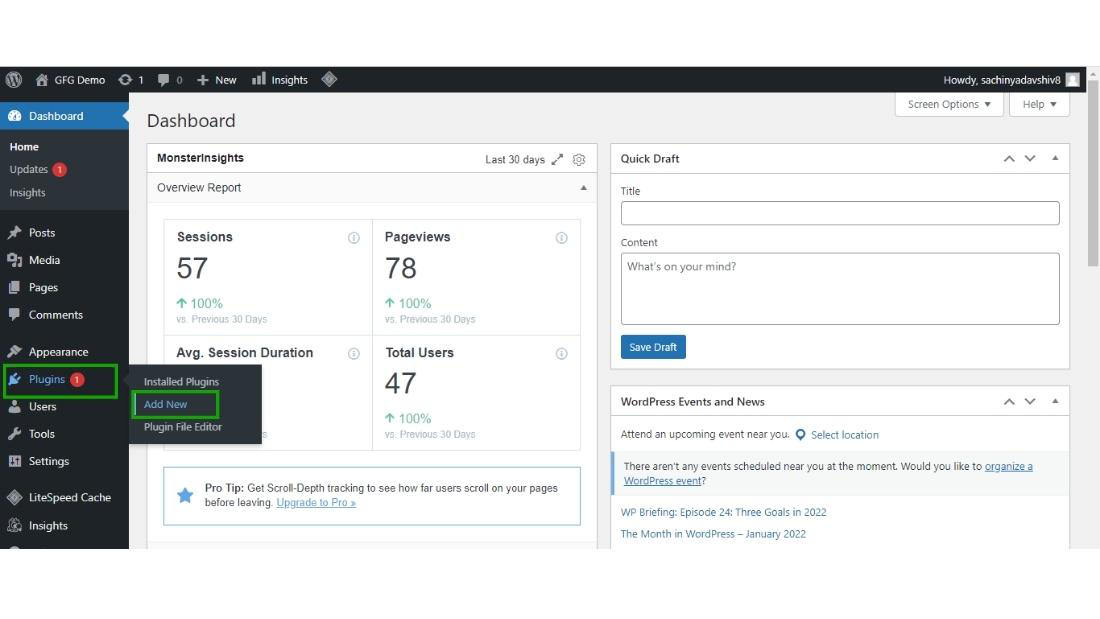
**Step 2: Install a Plugin from the WordPress Directory
- In the Add Plugins page, you can either upload a plugin in .zip format or search for a plugin from the WordPress directory.
- To install a plugin from the directory, type the plugin name in the search box (e.g., "MonsterInsights").
- Click Install Now on the desired plugin.
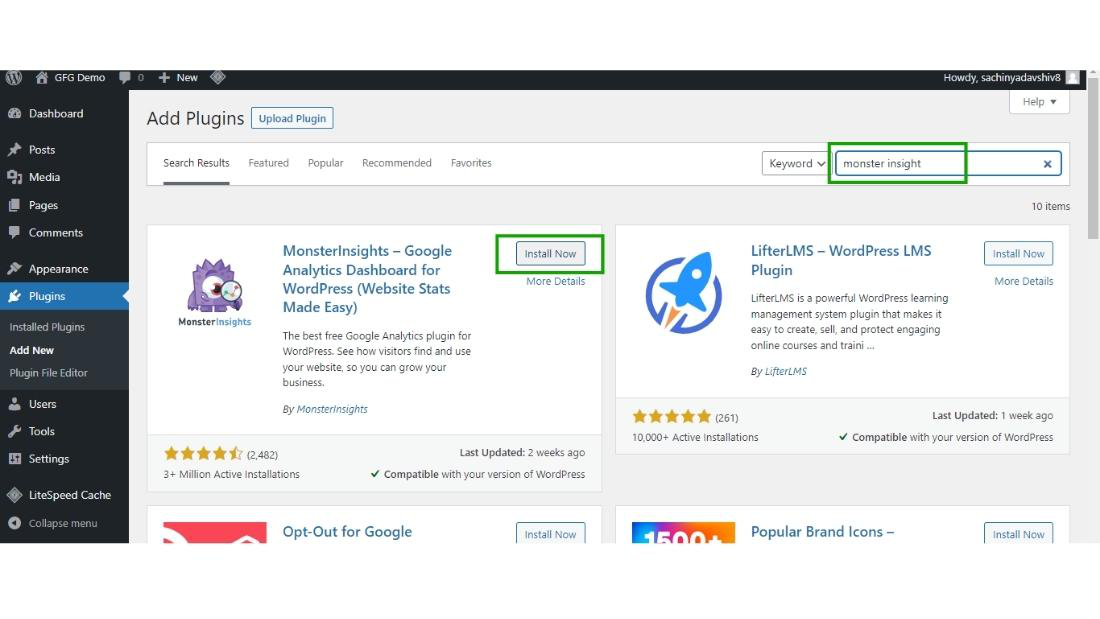
Here for the demo purpose, I'm going to install the "**MonsterInsight" plugin but the process for installing any plugins is the same.
Step 3: Activate the Plugin
- Once the plugin is installed, click on the **Activate button.
- Your plugin is now installed and activated on your WordPress site.
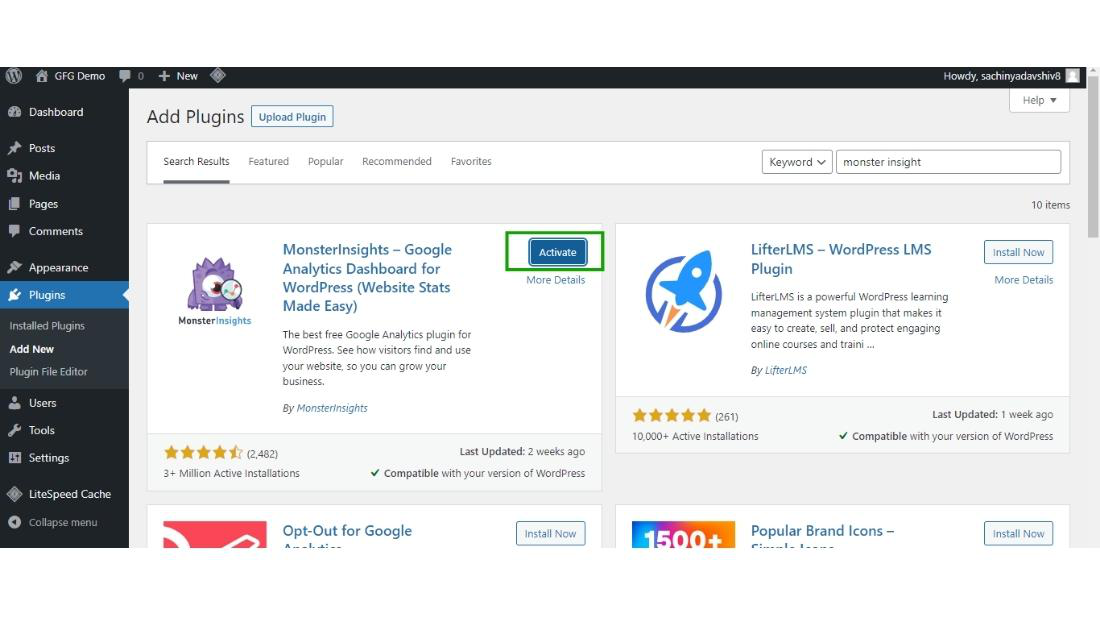
Now your plugin gets successfully Installed and Activated on your WordPress website.
Step 4: Locate Installed Plugins
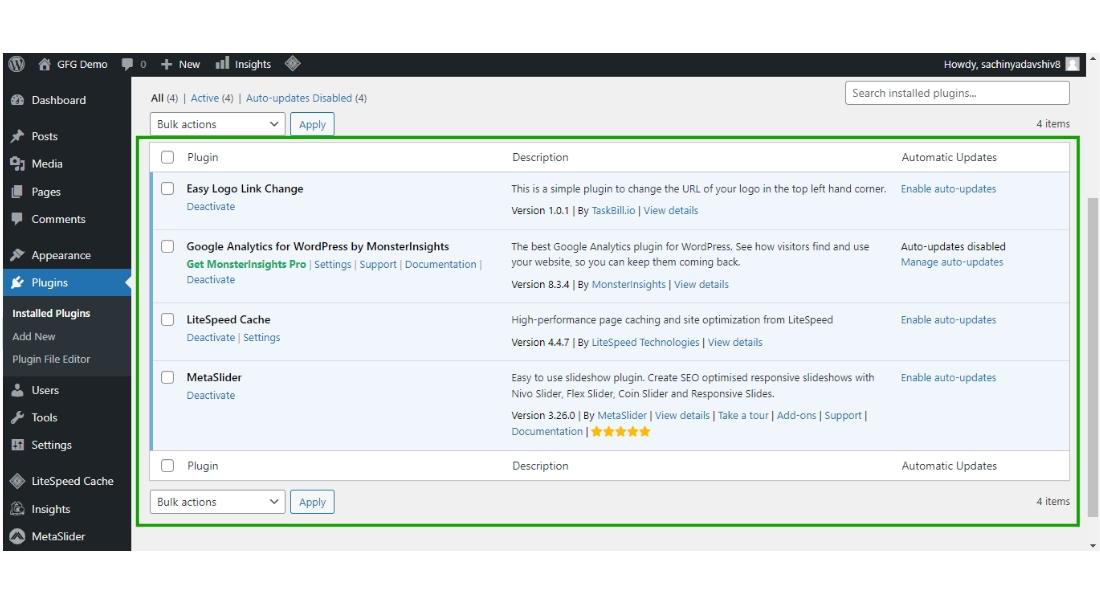
- After activation, the plugin will appear in your WordPress dashboard under the **Installed Plugins section.
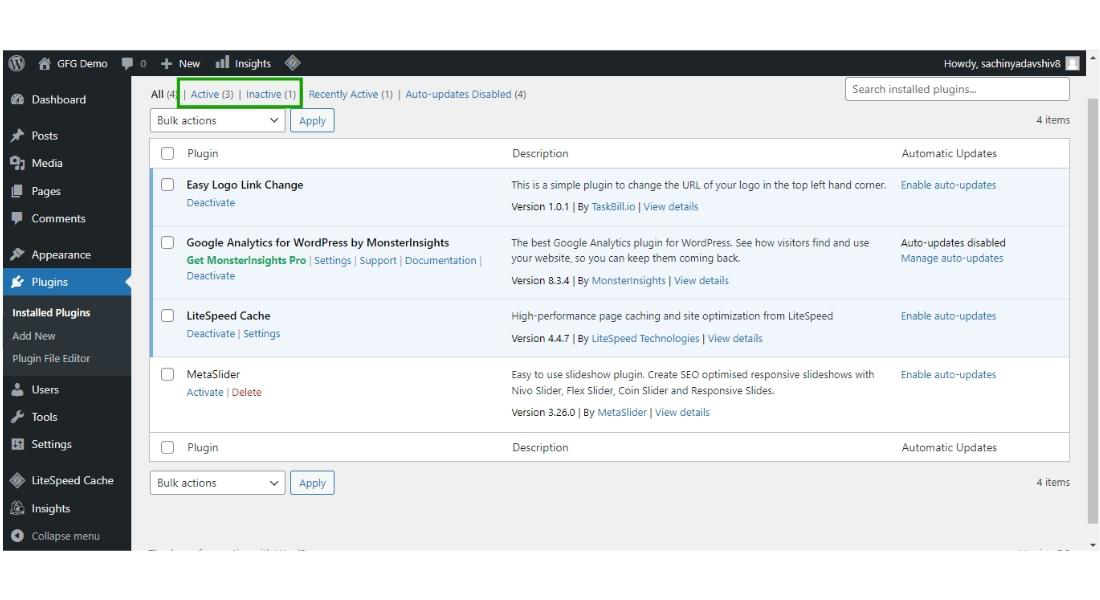
- You can also view all active plugins by clicking on the **Active link at the top of the Installed Plugins page.
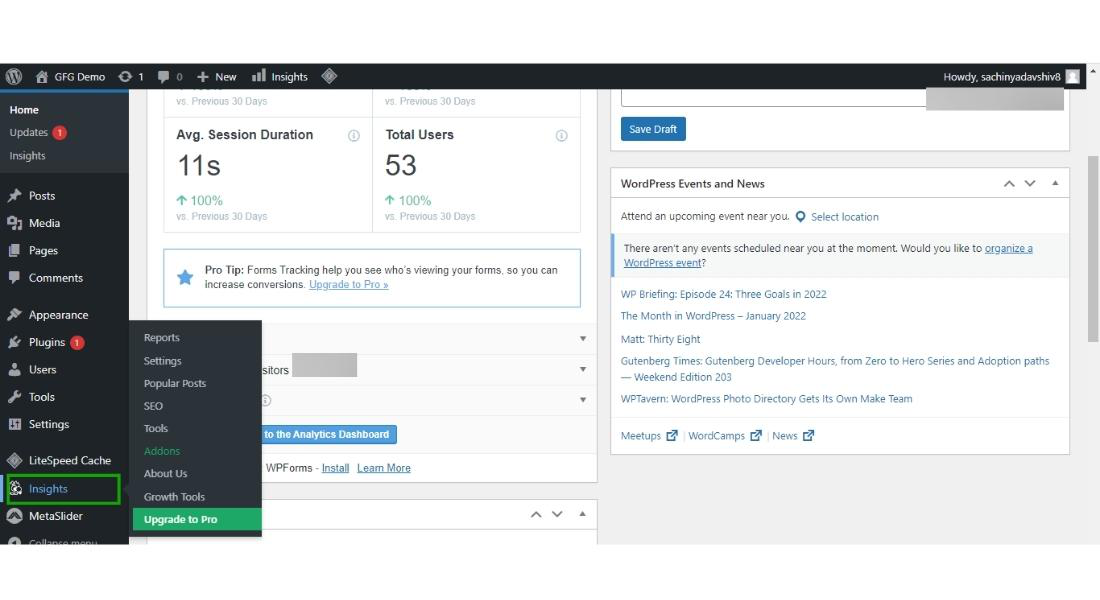
It will also appear in the Installed plugin sections.
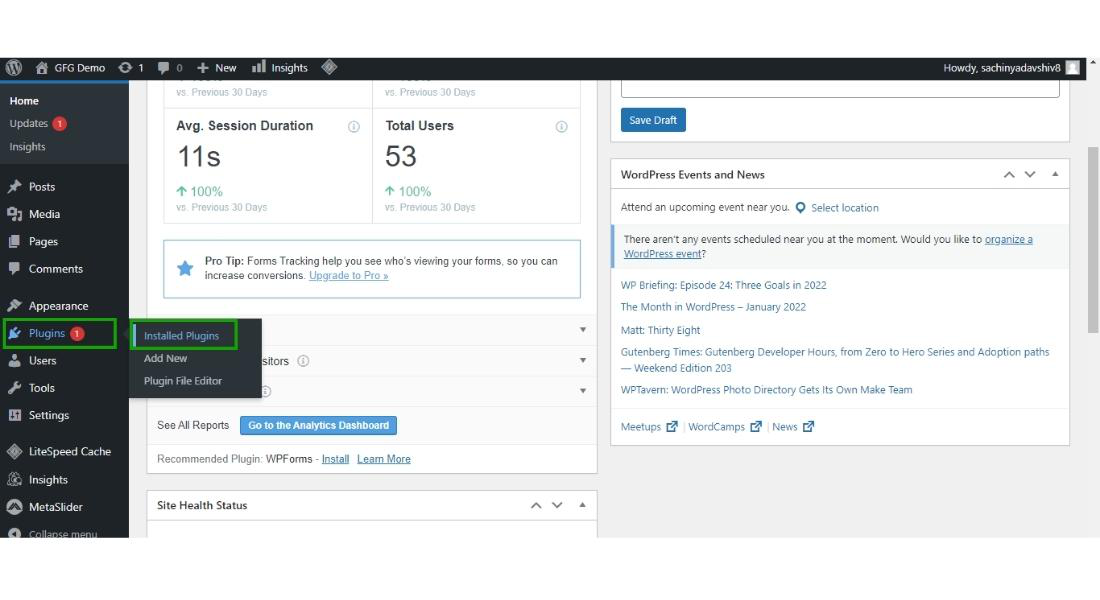
All the Installed will appear here in the dashboard of the installed plugins.
**Step 5: You can also check the active plugins from the active button link on the top and also the **inactive plugins from the **top inactive link.
**How to Upload a Plugin from Your Computer
If you have downloaded a plugin from another website or received one from a developer, you can upload it directly to WordPress:
Step 1: Access the Upload Plugin Option
- From the WordPress dashboard, hover over **Plugins and click on **Add New.
- Click on the **Upload Plugin button at the top of the page.
**Step 2: Upload the Plugin
- Click on Choose File and select the plugin file in .zip format from your computer.
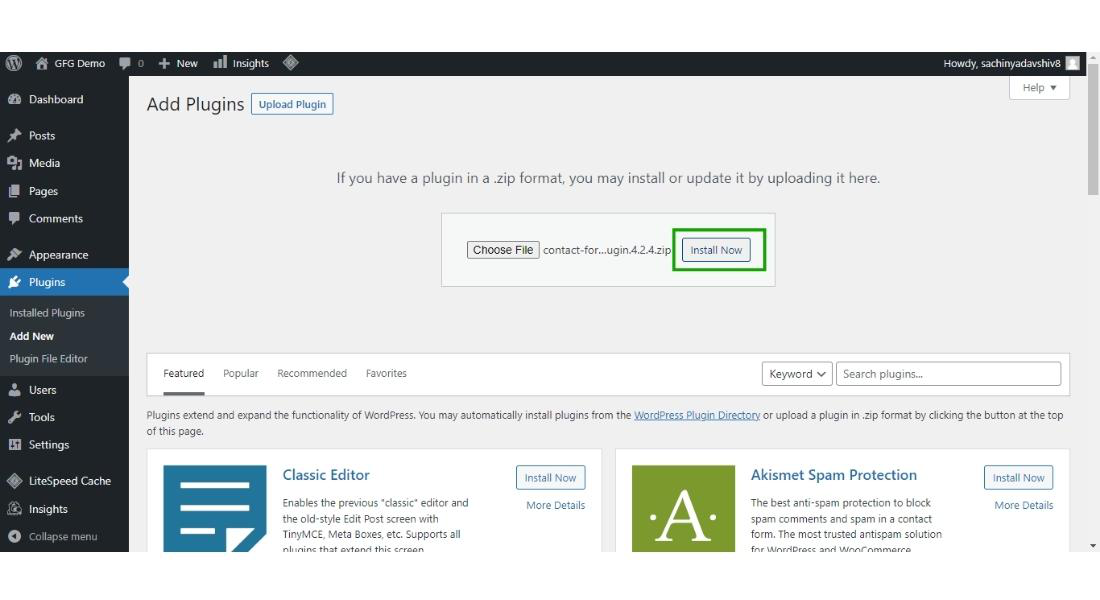
- Click Install Now.
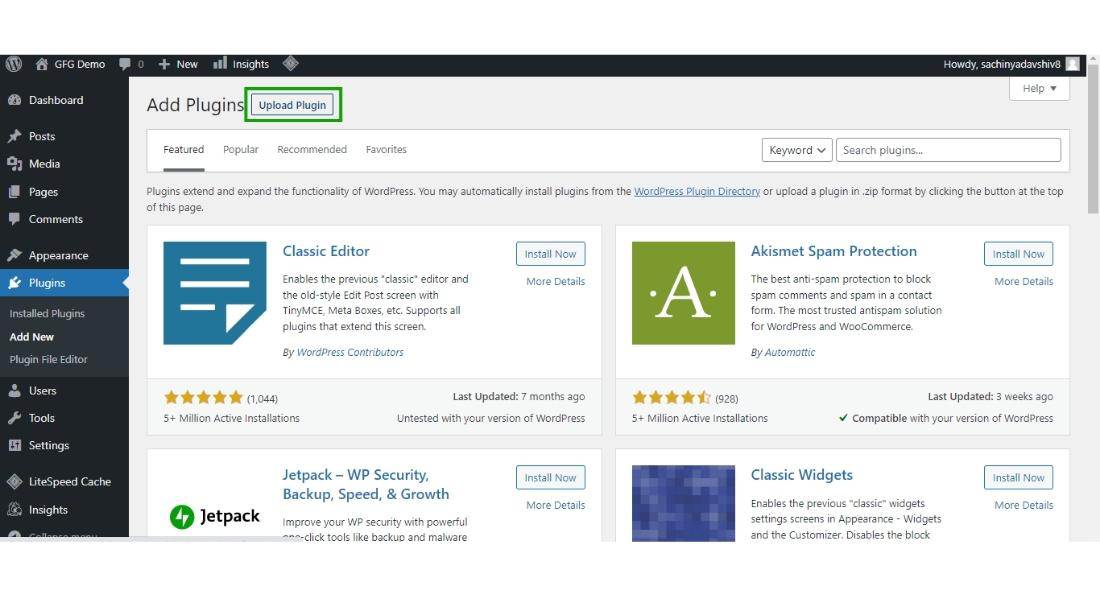
Now click on **choose file to choose the file from your computer.
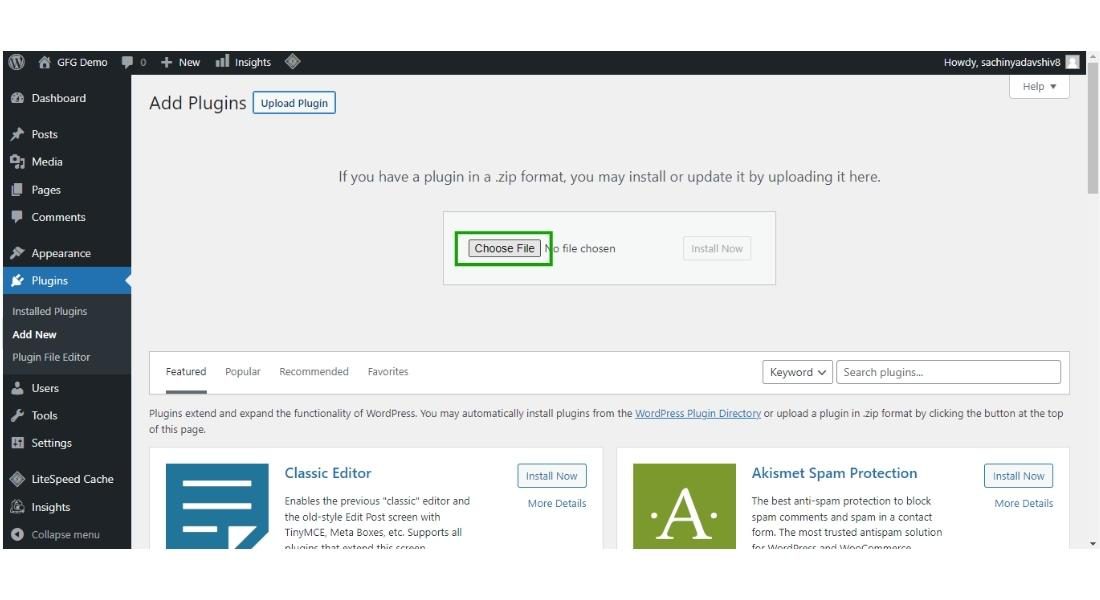
Step 3: Activate the Plugin
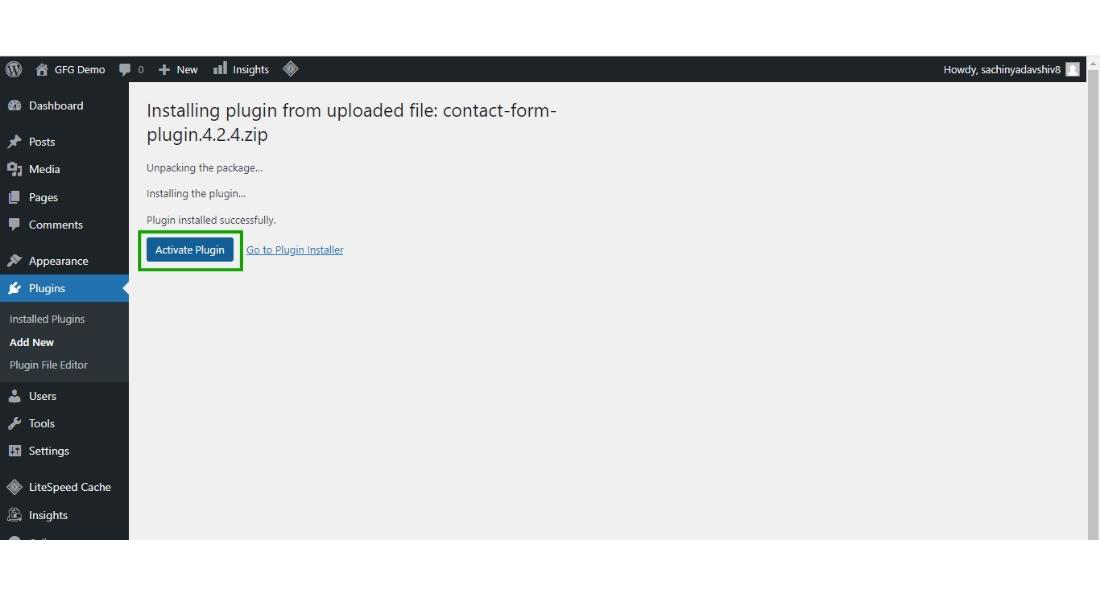
- After installation, click on the **Activate Plugin button.
- Your uploaded plugin will now be ready to use and will appear in the **Installed Plugins section.
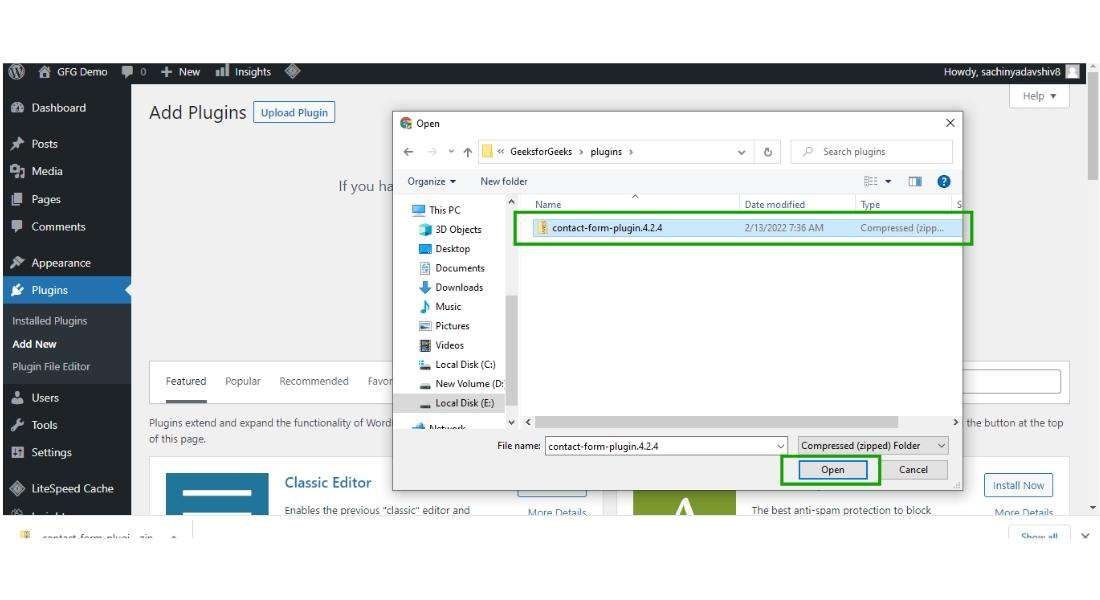
**Step 4: Now click on the "**Install Now" button to install the plugin on your WordPress website.
**Step 5: After the installation of the plugin click on the "**Activate Plugin" to activate the plugin.
**Step 6: After activating the plugin your **plugin is now ready to use and starts appearing in the Installed plugin section of the WordPress dashboard.
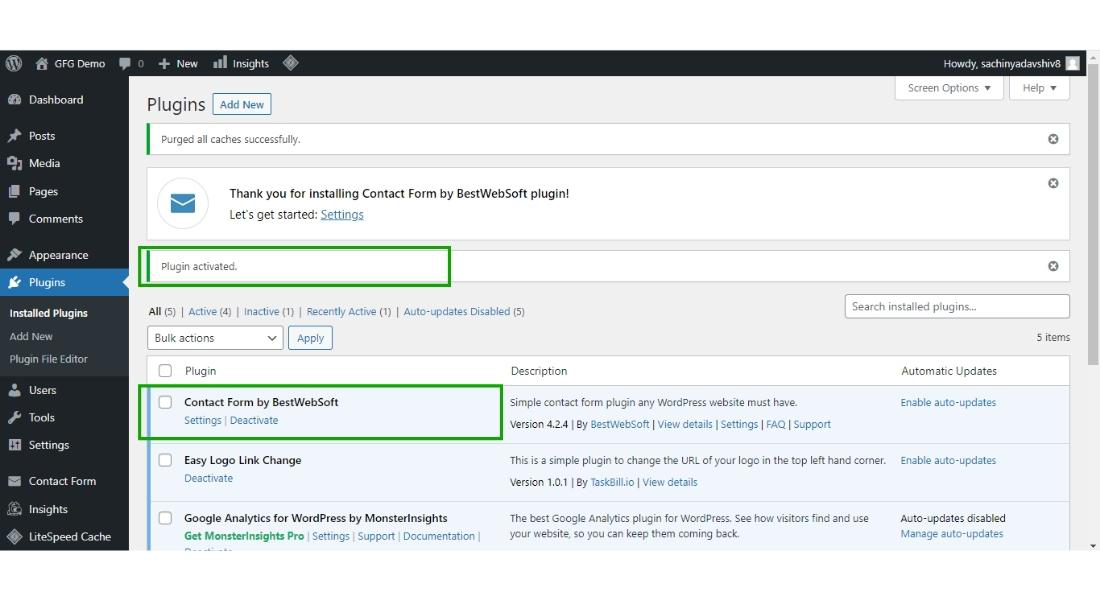
This is how you can upload the plugin to your WordPress website.
**How to Deactivate & Delete the plugin
Sometimes what happens after using the plugin, there is no use of that plugin in your WordPress website so we want to remove the plugin. So to remove the plugin what we have to do is simply deactivate the plugin and then delete the plugin.
let's see how we can deactivate and delete the plugin step by step:
**Step 1: Hover over the plugin section and then click on the installed plugin.
**Step 2: Then click on deactivate link to deactivate the plugin.
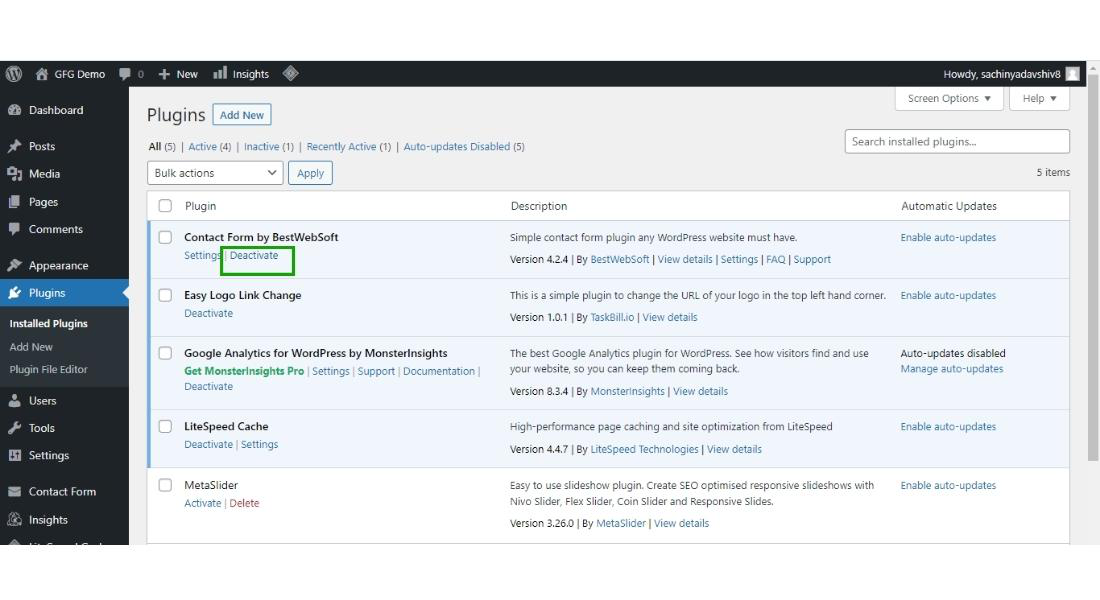
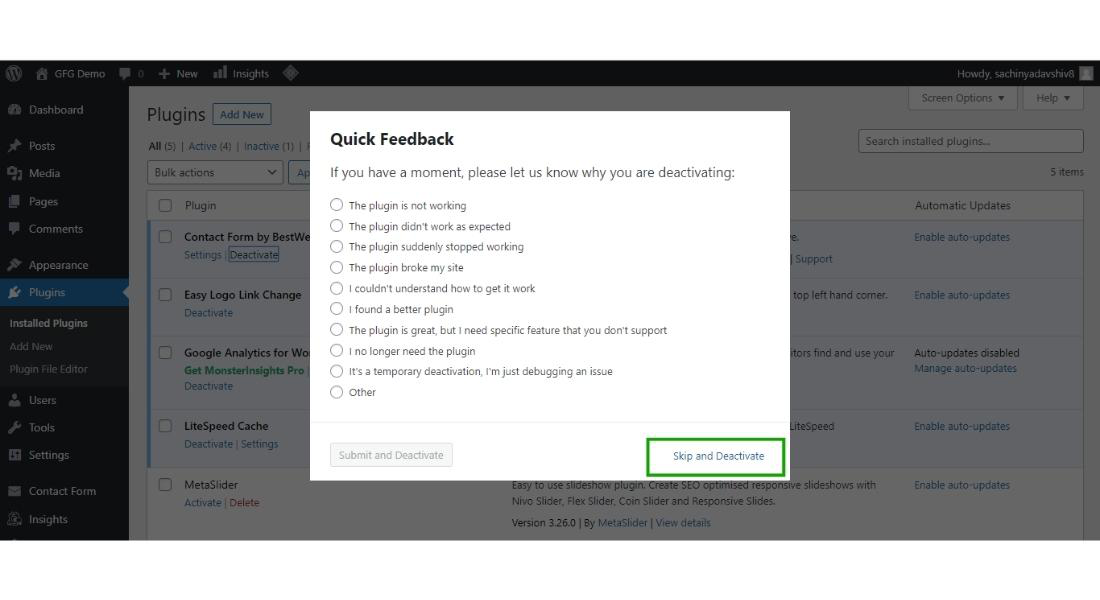
After clicking on deactivate, the **pop-up will appear asking for the reason to deactivate the plugin you can simply click on **skip and **deactivate the plugin.
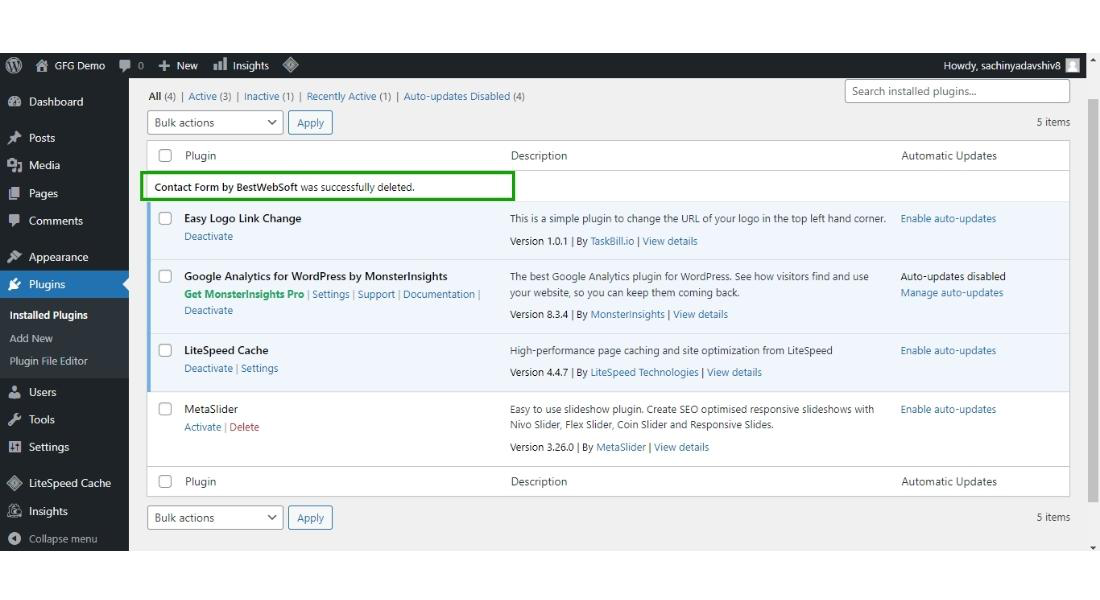
**Step 3: After deactivating the plugin click the "**Delete" to completely delete the plugin.

Now your plugin has successfully get deleted from your **WordPress website.
Conclusion
In conclusion, configuring your **WordPress Plugin Settings is crucial for optimizing your website's performance and functionality. By correctly setting up these plugins, you can enhance your site's **SEO, improve **security, and add valuable features that engage your visitors.
Using the **best WordPress plugins for your needs ensures that your site runs smoothly and efficiently. Remember, each plugin should be regularly updated to maintain compatibility and security. To get the most out of your **WordPress plugins, take the time to explore and understand each setting. This will help you create a better user experience and keep your site competitive. By doing so, you can fully **utilize the power of **WordPress plugins to achieve your website goals.