WordPress Writing Setting (original) (raw)
Last Updated : 23 Jul, 2025
The Writing Settings in WordPress offer a range of configurations that help you control your content creation and publishing experience. These settings are important for managing how you add and edit posts, pages, and other types of content, as well as for optimizing how your content is delivered to your audience.
**What are WordPress Writing Settings?
WordPress Writing Settings allow you to customize various aspects of the content creation process on your website. These settings influence how posts and pages are composed, how content is published remotely, and how updates are sent out.
Features of WordPress Writing Settings
- Adding and Editing Posts, Pages, and Custom Post Types: Customize how you write and manage your content in WordPress.
- Remote Publishing: Enable the ability to publish content remotely using external applications.
- Post via Email: Allows content to be published directly from email.
- Update Services: Notifies search engines when you publish new content.
Steps to Configure Your WordPress Writing Settings
Follow these steps to easily navigate and configure your WordPress Writing Settings:
Step 1: Log in to Your WordPress Dashboard
Go to your WordPress login panel by appending /wp-login.php to your site’s URL (e.g., yourwebsite.com/wp-login.php).
Enter your username and password, then click Log In .
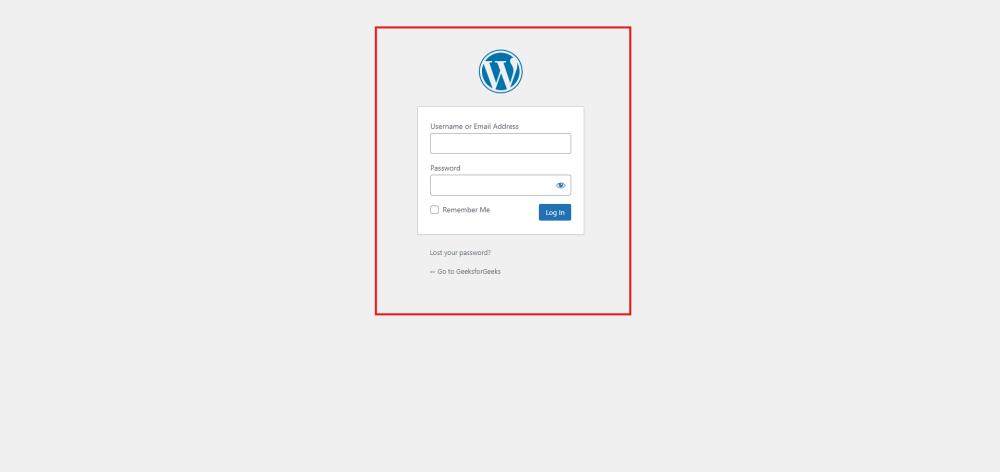
WordPress Login
After login into your own WordPress, you will be able to see a dashboard in a similar way to this:
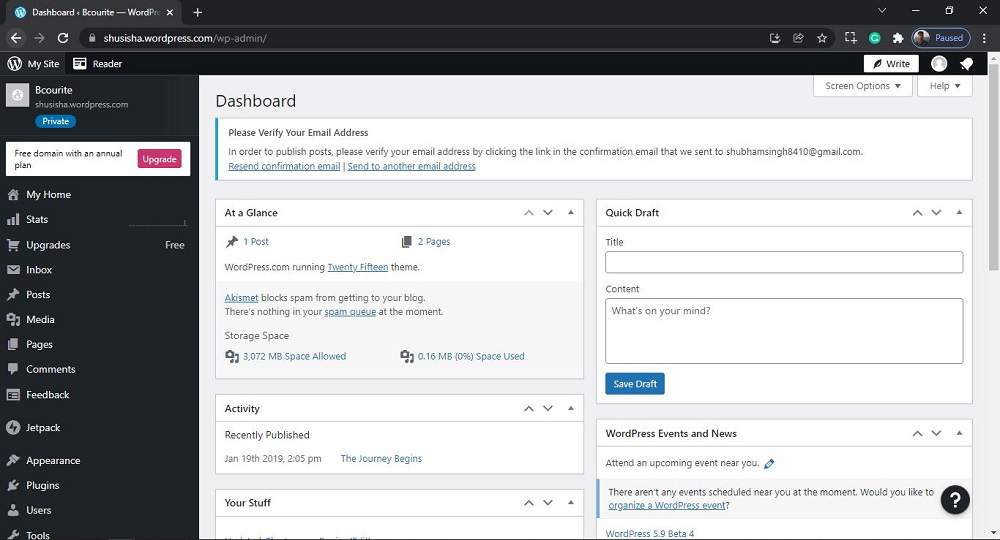
WordPress Dashboard
Step 2: Access the Writing Settings
In the WordPress Dashboard, locate the Settings menu on the left-hand side.
Click on Settings, then select Writing.

After clicking on Writing, you will see a similar Page like this:

**Step 3: Explore the Writing Settings Sections
The Writing Settings page is divided into several sections, each controlling different aspects of your writing and content publishing experience. Here’s a detailed breakdown:
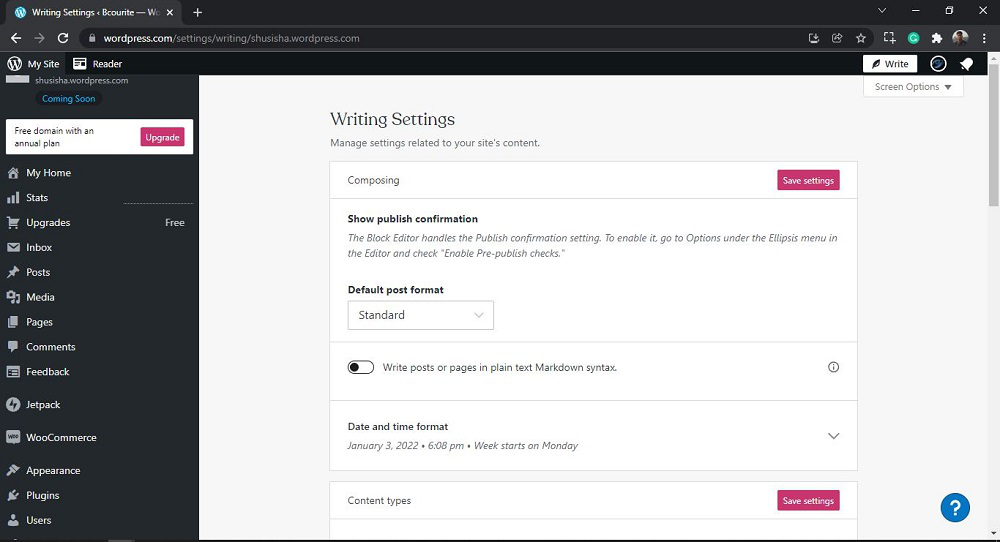
**1. Composing:
- This section includes options related to the Block Editor, including settings for publish confirmations.
- Enable Pre-publish Checks: To enable this feature, go to the Options under the Ellipsis menu in the Editor and check “Enable Pre-publish checks.” This provides a review step before publishing content, helping to catch errors.
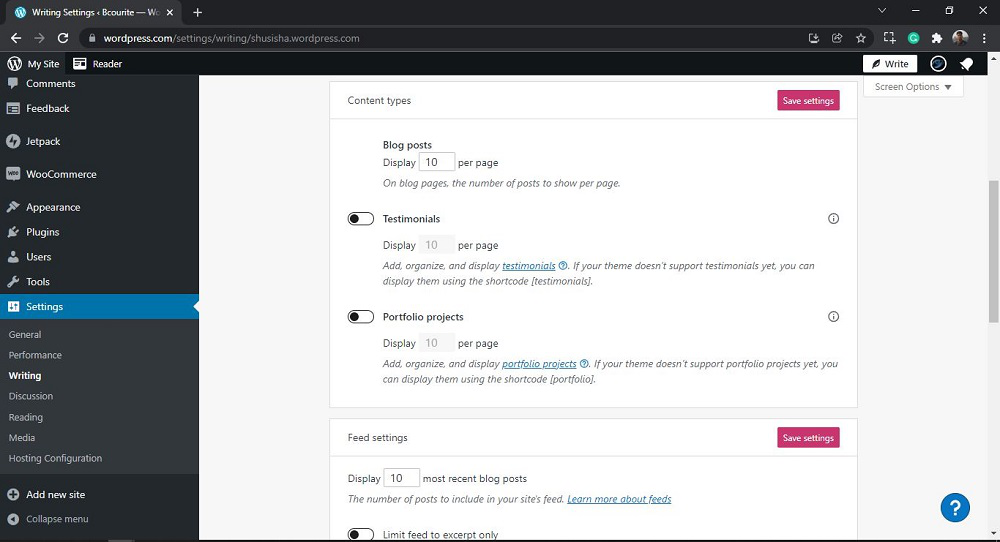
2. Content types: Here you can manage Blog posts, Testimonials, and Portfolio projects.
- Blog posts: It manages the number of posts to show per page.
- Testimonials: Using this we can add, organize, and display testimonials. If the theme doesn’t support testimonials yet, you can display them using the shortcode (testimonials).
- Portfolio projects: Using this we can add, organize, and display portfolio projects. If the theme doesn’t support portfolio projects yet, you can display them using the shortcode (portfolio).
**3. Feed settings: Here you can manage the number of posts to include in the site's feed.
- Limit feed to excerpt only: Using this we can include only an excerpt of your content. It allows users to visit the site to view their posts/pages' full content.
**4. Podcasting: This writing setting is used to set site visibility, currently it is set to Private.
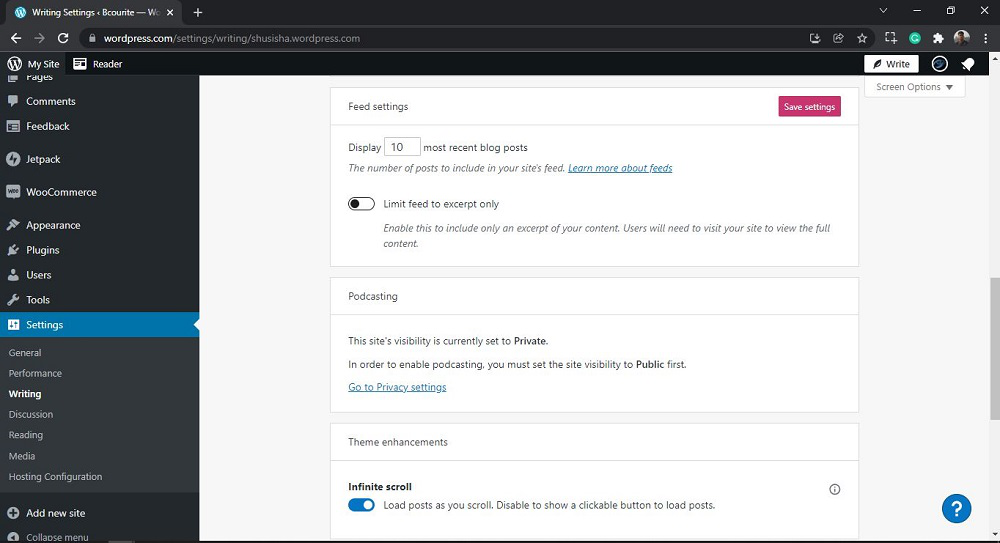
**5. Theme enhancements:
- Infinite scroll: This allows you to load posts as you scroll. In order to show a clickable button to load posts, you need to disable the button.
Press This: Press This is one of the writing settings and it allows you to copy text, images, and video from any web page and add them to a new post on your site, along with an automatic citation. This topic will be discussed with screenshots in a different article.
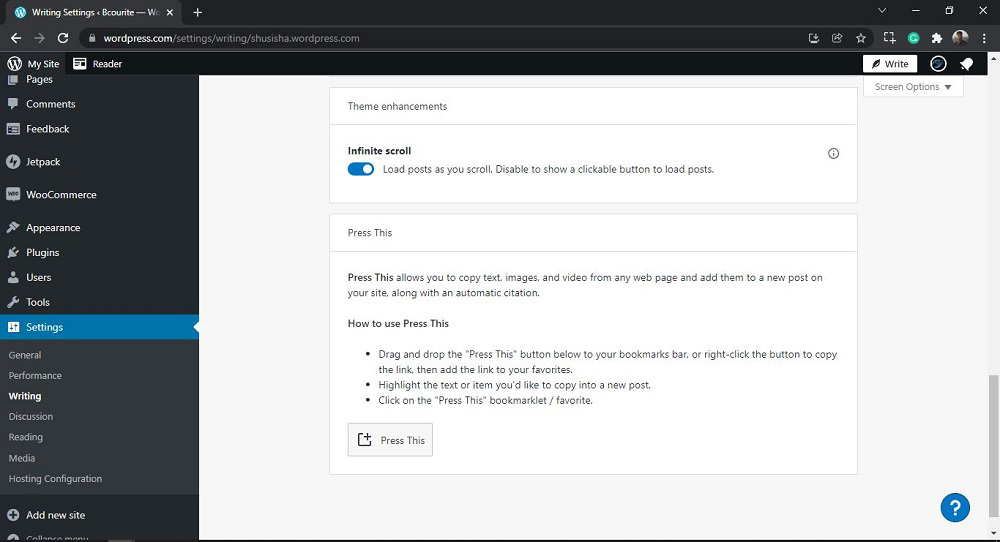
That’s it, you have now successfully learned how to go through the Writing Settings in the WordPress website.
**Conclusion
WordPress writing setting plays a crucial role in tailoring your website’s content management experience. By understanding and configuring these settings, you can enhance your editorial workflow, improve SEO, and create a seamless reading experience for your audience.
Remember to optimize your permalinks , choose the right default post category , and set up post formats if needed. Additionally, consider enabling distraction-free writing mode for a focused writing environment.
Whether you’re a blogger, journalist, or business owner, mastering the WordPress Writing Setting will empower you to create compelling and engaging content that resonates with your readers. Happy writing!
People Also View: