Conditional Formatting in Power BI (original) (raw)
Last Updated : 16 Jan, 2026
Conditional formatting visually enhances and customize our data's appearance based on certain conditions or rules. It helps us highlight important data by applying colors, style and symbols based on rules or conditions. It makes our reports more readable, insightful and visually attractive.
Types of conditional formatting
Here are the five main types of conditional formatting:
**1. Font color
- It change the color of the text inside a cell based on its value and draws attention to numbers that are very high or very low.
- For example, you can make scores above 90 appear in green to highlight top performers and scores below 40 appear in red to quickly spot those who may need improvement.
**2. Background color
- This type of formatting changes the background color of a cell depending on the value inside it. It helps you visually separate important data points.
- For instance you can fill cells with blue if sales are high and yellow if scores are low. This makes it easier to notice trends or outliers just by looking at the color of each cell.
**3. Data bars
- Data bars add horizontal bars inside cells that grow in length based on the value in the cell. The larger the number the longer the bar. This visual representation allows you to quickly compare data and see which values are the highest or lowest.
- For example if you're comparing monthly revenue you can instantly see which months did best by the size of the bars.
**4. Icons
- Icon formatting uses symbols like arrows, checkmarks or warning signs to represent how values change or where they stand. This is great for showing performance or progress.
- For example you can use an up arrow for sales that have increased and a down arrow for sales that have dropped. These small visuals make it easy to spot patterns quickly.
**5. Web URL
- This formatting turns regular text into clickable links. It's useful when you want to connect your data to external sources or webpages.
- For example if you have a list of product names you can link each name to its product page on your website. Wit this anyone can view it easily and can get more information by clicking the link.
How to Apply Conditional Formatting in Power BI
To apply conditional formatting in power bi you can use the following below steps:
**Step 1: Open your PowerBI desktop. Click on the Get Data button. By following these steps you can start importing data into your Power BI project.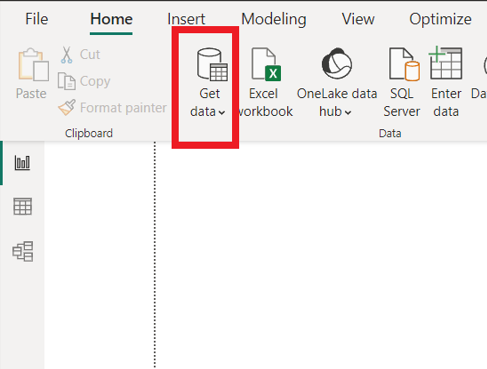
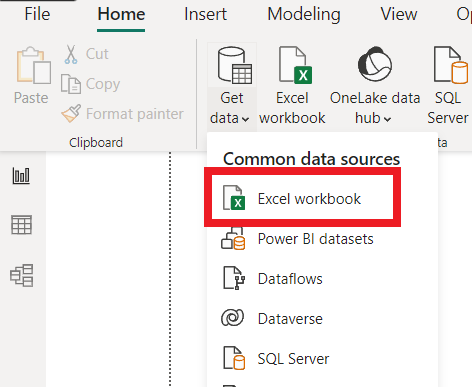
**Step 2: A drop-down appears. To add data click on the Excel Workbook and select file and click on load. It will import the data from your Excel file into Power BI.
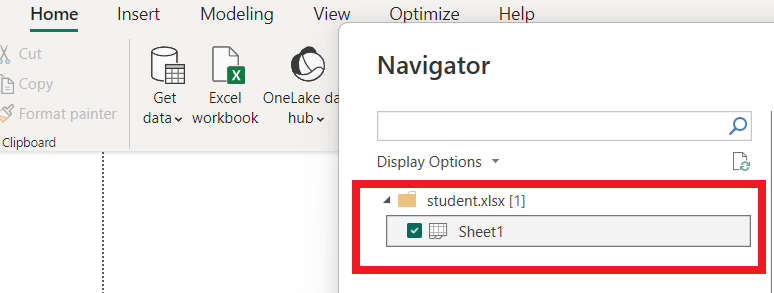
**Step 3: After clicking on the "Load" button in Step 2, you will see this Power BI data view. Here, you will see a list of tables or sheets from the Excel file you recently uploaded.
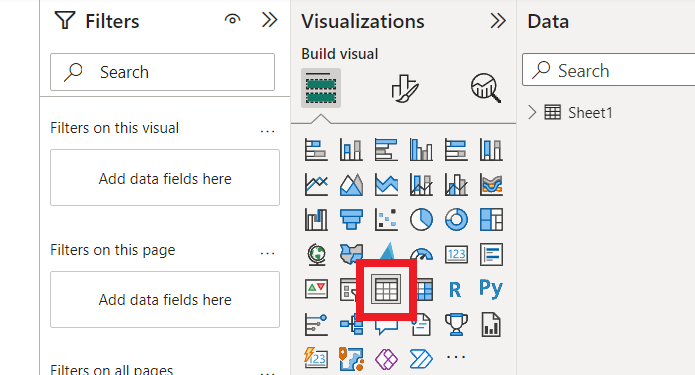
**Step 4: Now that you have selected the data from Step 3, it's time to create a table visualization to display the data in a tabular format. So select table from visualization section then Power BI will automatically generate a basic table with your selected data, displaying the columns and rows from the dataset.
**Step 5: After adding table you will see a list of available fields on right side of Power BI window. Here you can choose which data from your uploaded file you want to include in the table.
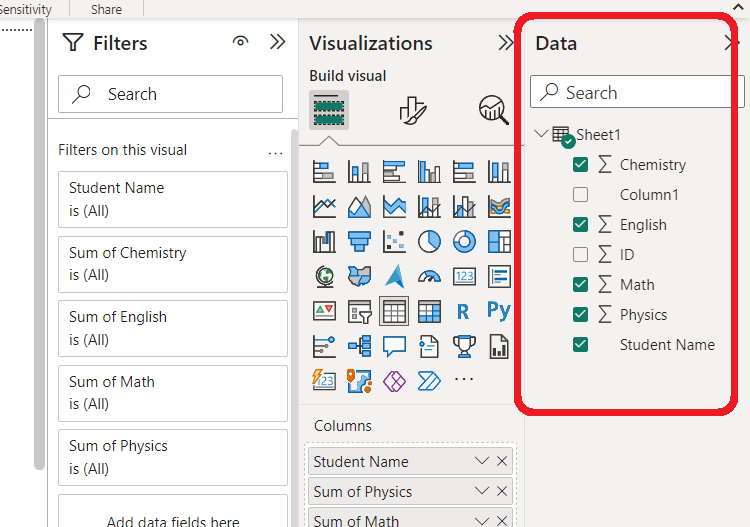
**Step 6: You can now apply conditional formatting to make the data stand out and easier to understand. Here's how you can do it:
- In the table visualization, click on any column header to select it.
- After selecting the column, right-click on it. A context menu will appear.
- In the context menu, you will see an option called "Conditional formatting." Click on it.
- Inside the "Conditional formatting" menu you'll find five different options to format your data: Background color, Font color, Data bars, icons and Web URLs.
- Choose the appropriate option that best fits your data and the insights you want to emphasize. You can customize the conditions and formatting styles according to your preferences.
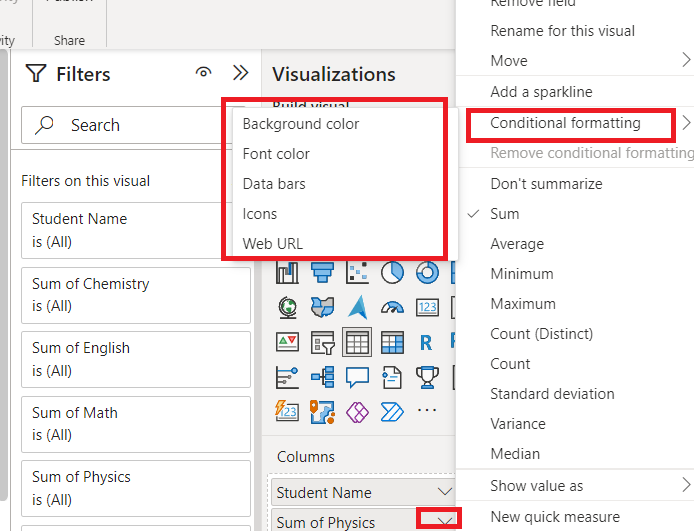
Examples:
**1) Background Color:
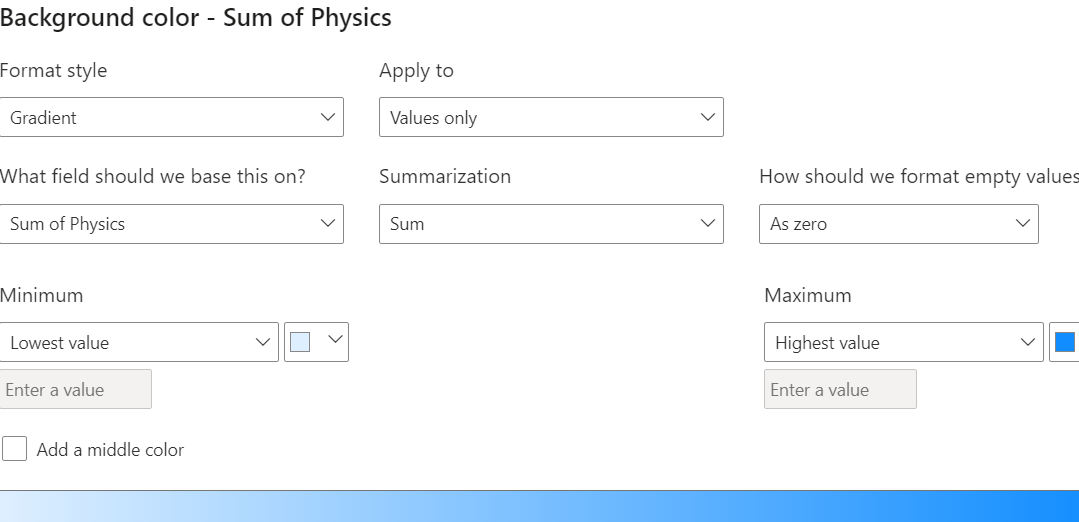
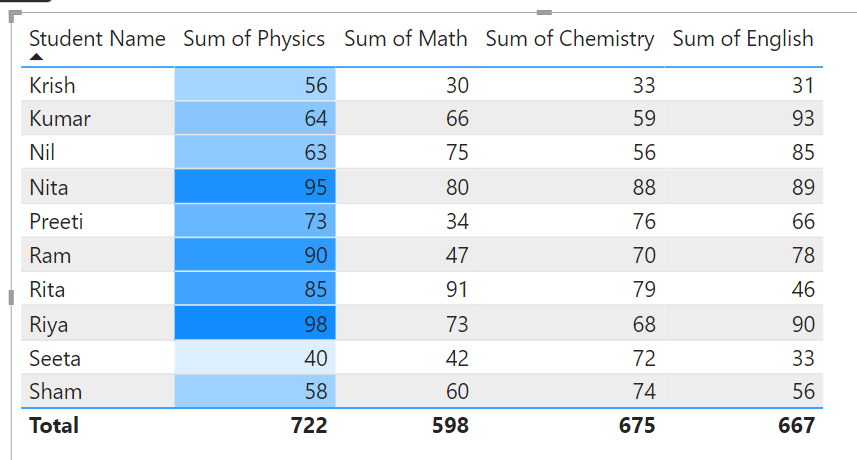
In this step we will apply a background color to the "Sum of Physics" column in our table visualization. This allows us to highlight specific data based on certain conditions. Now you have several choices to apply the background color based on different conditions.
Here's how you can do it:
- **By field: You can apply background color based on the values in the selected field.
- **By rules: You can use this option to create custom rules to apply background colors.
- **Color scale: You can choose a color scale that fits your data best.
- **By comparison: This option allows you to compare the selected field's value with another field.
After selecting the appropriate option you can customize the colors and rules according to your preference.
**Output:
2) Data Bars
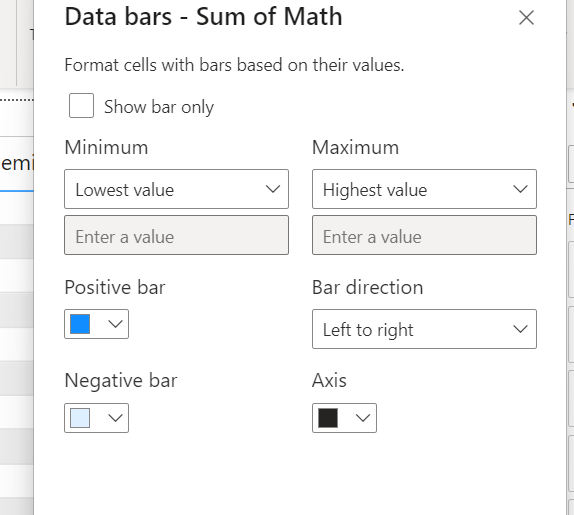
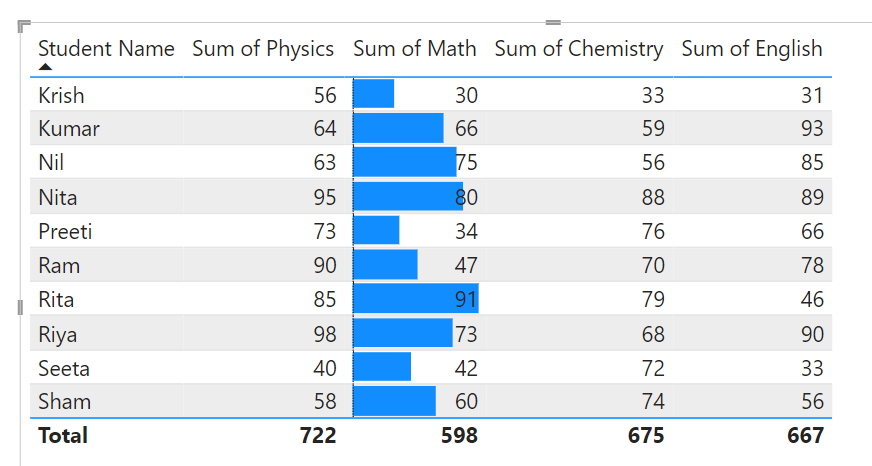
Let's apply data bars to the "Sum of Maths" section in our table visualization. Data bars will visually represent the values in this column as horizontal bars and allow us to quickly compare the magnitude of each value.
Here Power BI will automatically add data bars to the cells in the "Sum of Maths" column also you can customize the appearance of the data bars by adjusting the formatting options such as changing the color or size of the bars.
**Output:
3) Icons
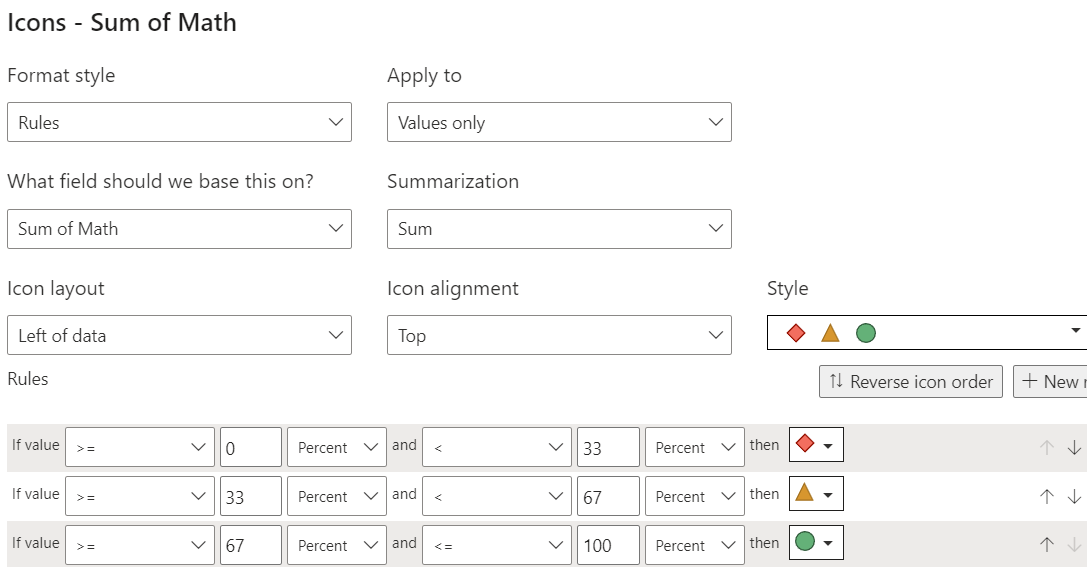
We will use arrows or shapes to indicate data trends or categories like Up arrow for positive change and down arrow for negative.
**Output:
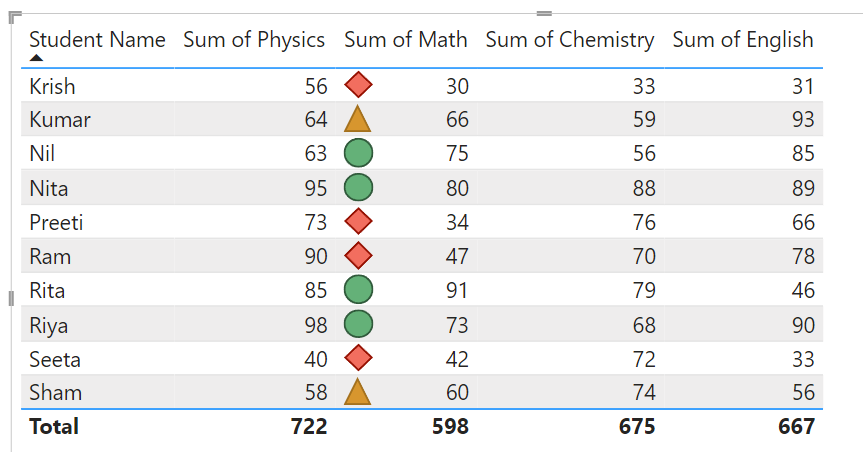
By using conditional formatting you can make your reports more meaningful and easier to interpret without any extra charts or visuals.