Power BI DAX Math Functions (original) (raw)
Last Updated : 5 Sep, 2025
Power BI help users to visualize and interpret data easily and DAX Math Functions helps us to perform mathematical operations on data such as creating custom calculations for our reports and dashboards. In this article, we’ll see some commonly used DAX Math Functions that can be applied to real-world datasets.
Let's practice some of the commonly used DAX Math Functions on a sample dataset of library supply companies. The screenshot of the dataset is given below:
You can download dataset from here.
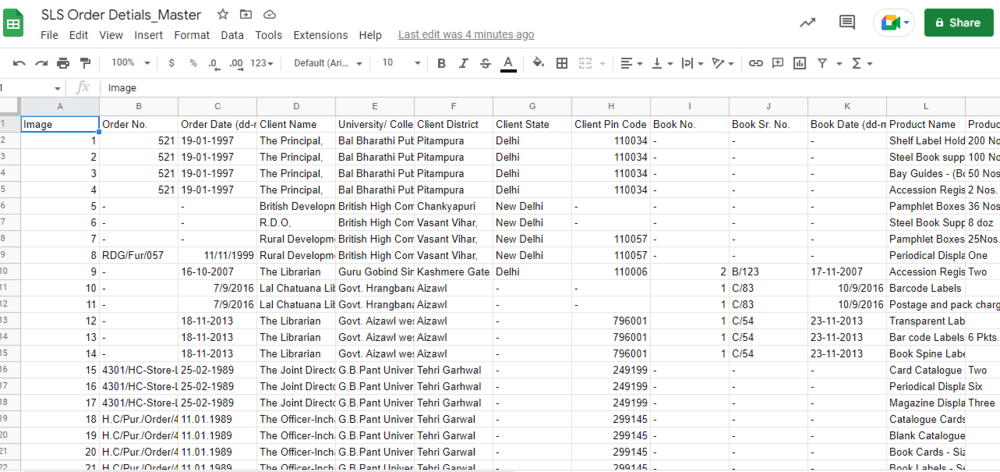
Dataset
Now go to the Power BI desktop to load the dataset from excel.
Let's now understand the important DAX math functions in detail:
1. DAX ABS Math Function
The ABS function in DAX returns the absolute value of a number. This means it removes the sign of a number, converting negative numbers to positive ones while keeping positive numbers unchanged. Whether we're working with whole numbers or decimals, it checks that the result is always a non-negative value. It is useful when nested in other functions that require positive numbers.
**Syntax:
**ABS()
- **number: The number (or column reference) from which we want to get the absolute value.
**Example Use Case: Calculating the difference between the Sum of the Tax amount (INR) and the Sum of the Total amount (INR).

Calculating the difference
**Example: ABS = ABS(572369.5499999996 - 6943454.36)

DAX ABS Math Function
In this example the difference between 572369.55 and 6943454.36 is calculated and the absolute value of the result is returned. If the difference were negative, it would be converted into a positive value.
2. DAX Ceiling Math Function
The CEILING function in DAX rounds a number up to the nearest integer or multiple of a specified significance. It’s useful when we need to ensure that a number is rounded up when dealing with quantities or pricing that needs to adhere to certain standards such as rounding to the nearest whole unit or predefined increment.
**Syntax:
**CEILING(, )
- **number: Number we want to round.
- **significance: Multiple to which we want to round. For example 1 to round to the nearest integer.
**Example: ceiling = CEILING(572369.5499999996, 0.01)

DAX Ceiling Math Function
This rounds 572369.55 up to the nearest 0.01.
3. DAX Convert Math Function
The CONVERT function allows us to transform an expression into a specific data type. This is helpful when we need to change the format of a value, for example converting a date into an integer or a number into text.
**Syntax:
**CONVERT(, )
- **Expression: Any valid DAX expression.
- **Datatype: The data type to convert to such as INTEGER, DOUBLE, STRING, BOOLEAN, CURRENCY, DATETIME etc.
**Example: convert = CONVERT(DATE(1997,12,23), INTEGER)

DAX Convert Math Function
This converts the date December 23, 1997 into an integer.
4. DAX Currency Math Function
The CURRENCY function is used to convert a value into a currency format which is important for financial reports and calculations.
**Syntax: CURRENCY()
- **value: A scalar value that needs to be converted to a currency format.
**Example: currency = CURRENCY(23.44)

DAX Currency Math Function
This returns the value 23.44 formatted as currency.
5. DAX Degrees Math Function
The DEGREESfunction converts an angle from radians to degrees. This is useful when we need to work with angle measurements that are not in radians
**Syntax: DEGREES (angle)
- **angle: The angle in radians that we want to convert to degrees.
**Example: degrees = DEGREES(PI())
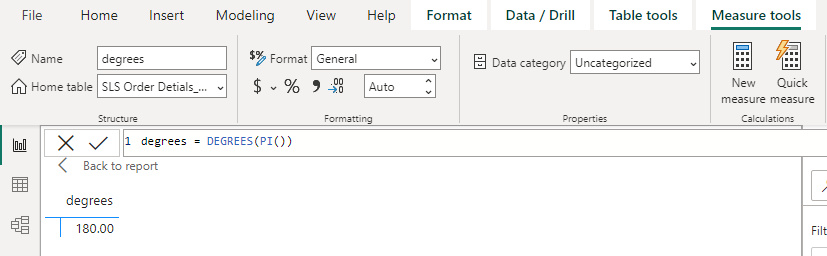
DAX Degrees Math Function
This converts the value of Pi (π) from radians to degrees.
6. DAX Divide Math Function
The DIVIDE function divides two numbers and returns a result. If the denominator is zero, it returns a blank value (or an alternate result, if provided).
**Syntax:
**DIVIDE(, , [])
- **numerator: Number we want to divide.
- **denominator: Number by which we are dividing.
- **alternate result: (Optional) A value returned when division by zero occurs.
**Example: divide = DIVIDE(234,12)
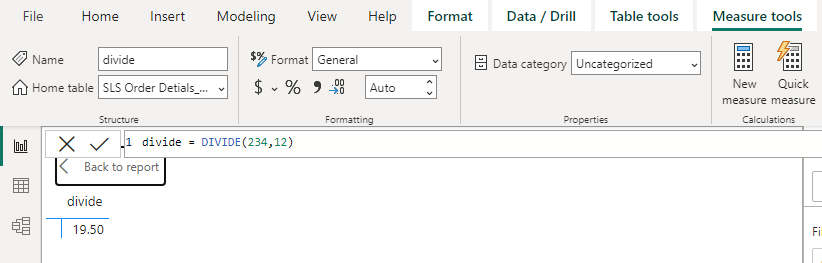
DAX Divide Math Function
This divides 234 by 12 and returns the result.
7. DAX Even Math Function
The EVENfunction rounds a number to the nearest even integer. This can be helpful for certain calculations such as grouping items in pairs.
**Syntax:
**EVEN()
- **number: Number we want to round to the nearest even integer.
**Example: even = EVEN(23.44)
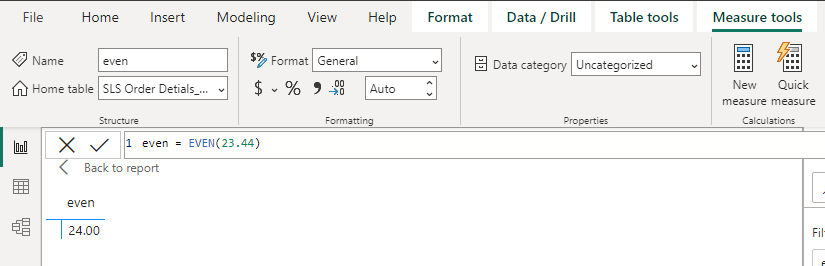
DAX Even Math Function
This rounds 23.44 up to the nearest even number which is 24.
8. DAX Exp Math Function
The EXP function returns the value of **e raised to the power of the specified number. The constant **e is approximately 2.71828 and is used in exponential growth and decay calculations.
**Syntax:
**EXP()
- **number: The exponent to which the base e is raised.
**Example: exp = EXP(4)

DAX Exp Math Function
This returns the value of e raised to the power of 4.
9. DAX Fact Math Function
The FACTfunction returns the factorial of a number which is the product of all positive integers up to that number. This is useful in combinatorics, statistics and probability.
**Syntax:
**FACT()
- **number: The positive, non-negative number that we want to find the factorial for.
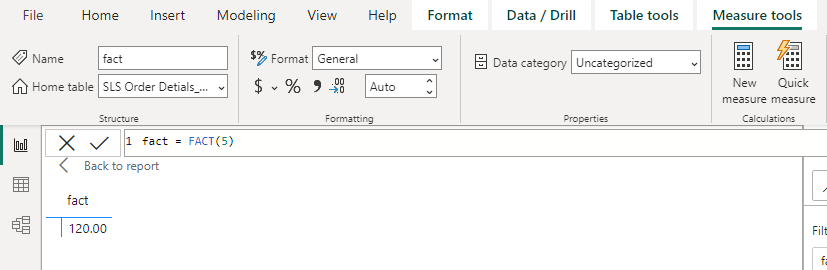
**Example: fact = FACT(5)
DAX Fact Math Function
This returns the factorial of 5 which is 120 (5 * 4 * 3 * 2 * 1).
10. DAX Floor Math Function
The FLOORfunction rounds a number down to the nearest multiple of a specified significance. This is helpful when we want to ensure that values are rounded down such as when working with pricing or measurements.
**Syntax:
**FLOOR(, )
- **number: The number we want to round.
- **significance: The multiple to which we want to round.
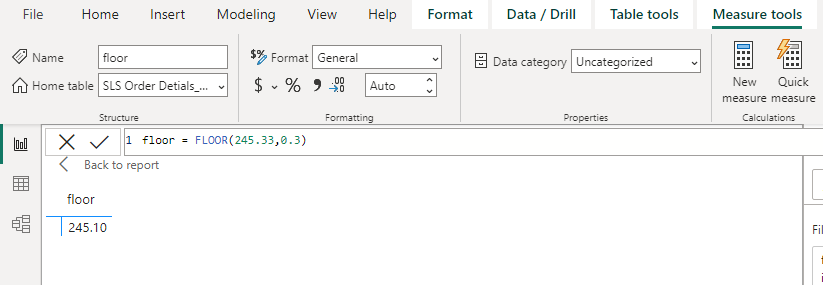
**Example: floor = FLOOR(245.33,0.3)
DAX Floor Math Function
This rounds 245.33 down to the nearest multiple of 0.3.
11. DAX GCD Math Function
The GCD function returns the greatest common divisor of two or more integers. This is useful for simplifying fractions or finding the largest number that divides both numbers without a remainder.
**Syntax:
**GCD(, [, ...])
- **number1: First number.
- **number2: (Optional) Additional numbers for which we want to find the greatest common divisor.
**Example: gcd = GCD(122,4)

DAX GCD Math Function
This returns the greatest common divisor of 122 and 4 which is 2.
12. DAX INT Math Function
The INTfunction rounds a number down to the nearest integer. This is useful when we need to discard the decimal portion of a number.
**Syntax:
**INT()
- **number: Number we want to round down to the nearest integer..
**Example: int = INT(55.44)

DAX INT Math Function
This rounds 55.44 down to 55.
13. DAX Iso.Ceiling Math Function
The ISO.CEILING function behaves similarly to the CEILING function but follows ISO standards for rounding numbers. It rounds a number up to the nearest multiple of a specified significance.
**Syntax:
ISO.CEILING(, [])
- number: Number we want to round.
- significance: Multiple to which we want to round.
**Example: iso.ceiling = ISO.CEILING(2.999,0.2)

DAX Iso.Ceiling Math Function
This rounds 2.999 up to the nearest multiple of 0.2.
14. DAX LCM Math Function
The LCM function returns the least common multiple of two or more integers. This is useful when working with fractions that have different denominators.
**Syntax:
**LCM(, [, ...])
- **number1: First number.
- **number2: (Optional) Additional numbers for which we want to find the least common multiple.
**Example: lcm = LCM(45,56)

DAX LCM Math Function
This finds the least common multiple of 45 and 56.
15. DAX LN Math Function
The LN function returns the natural logarithm of a number. The natural logarithm uses e (approximately 2.71828) as its base.
**Syntax:
**LN()
- **number: Positive integer whose natural logarithm we want to find.
**Example: ln = LN(0.004)

DAX LN Math Function
This returns the natural logarithm of 0.004.
16. DAX LOG Math Function
The LOG function returns the logarithm of a number to a specified base. If no base is provided, the function defaults to base 10. This function is useful when working with exponential data or scaling numbers in a logarithmic scale.
**Syntax:
**LOG(, )
- **number: Positive number for which we want to calculate the logarithm.
- **base: Logarithm's base (default is 10 if not provided).
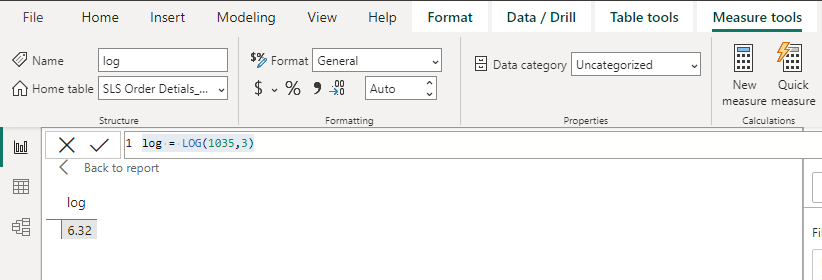
**Example: log = LOG(1035,3)
DAX LOG Math Function
This returns the logarithm of 1035 to base 3.
17. DAX LOG10 Math Function
The LOG10 function returns the base-10 logarithm of a number. It’s typically used when we want to scale or normalize data on a logarithmic scale with a base of 10.
**Syntax:
**LOG10()
- **number: A positive number for which we want the base-10 logarithm.
**Example: log10 = LOG10(1035)

DAX LOG10 Math Function
This returns the base-10 logarithm of 1035.
18. DAX MOD Math Function
The MOD function returns the remainder after dividing a number by a divisor. It is useful when we need to calculate remainders or distribute items into groups.
**Syntax:
**MOD(, )
- **number: The figure for which we need to calculate the divisional remainder.
- **divisor: The number by which we divide the number.
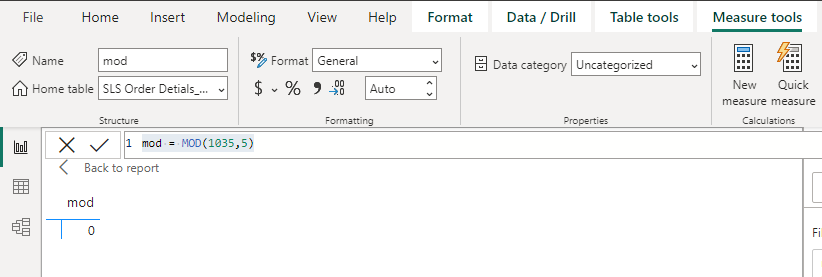
**Example: mod = MOD(1035,5)
DAX MOD Math Function
This returns the remainder when 1035 is divided by 5.
19. DAX MROUND Math Function
The MROUNDfunction rounds a number to the nearest multiple of a specified value. This can be used to round prices, measurements or other values to a required standard.
**Syntax:
**MROUND(, )
- **number: Number we want to round.
- **multiple: The significant multiple that we want to round the number to.
**Example: mround = MROUND(455.6,5)

DAX MROUND Math Function
This rounds 455.6 to the nearest multiple of 5.
20. DAX ODD Math Function
The ODD function rounds a number to the nearest odd integer. This can be helpful when dealing with objects or quantities that need to be in odd numbers.
**Syntax:
**ODD (number)
- **number: Number we want to round to the nearest odd integer.
**Example: odd = ODD(455.6)
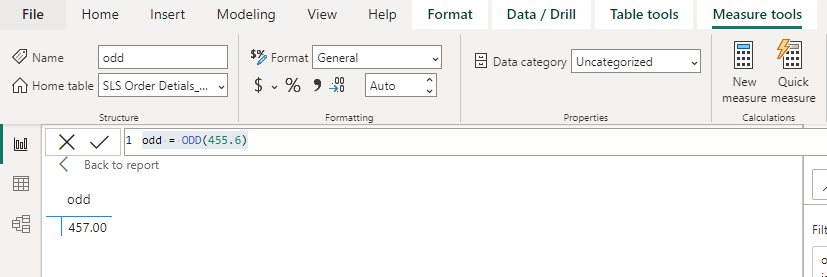
DAX ODD Math Function
This rounds 455.6 to the nearest odd number which is 457.
21. DAX Pi Math Function
The PI function returns the value of Pi in decimal form with 15-digit precision. Pi is a constant used in various mathematical calculations such as those involving circles.
**Syntax:
**PI()
- No parameters required.
**Example: pi = PI()
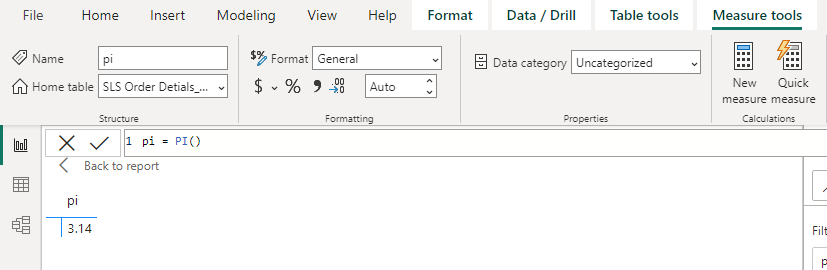
DAX Pi Math Function
This returns the value of Pi approximately 3.14.
22. DAX Power Math Function
The POWER function raises a base number to a given exponent. It’s useful when we want to calculate exponential growth or other power-related operations.
**Syntax:
**POWER(, )
- **number: Any real number can act as the base number.
- **power: Higher exponent from the base number.
**Example: power = POWER(5,3)
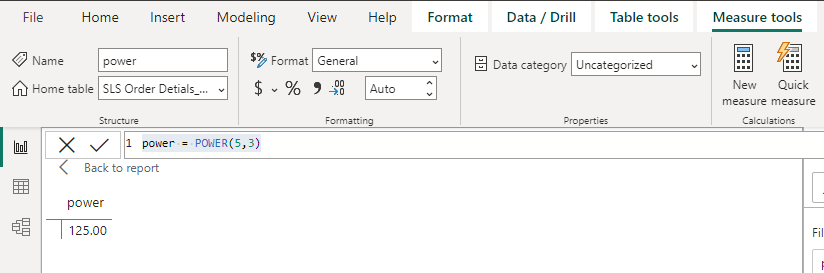
DAX Power Math Function
This returns 5 raised to the power of 3 (125).
23. DAX Quotient Math Function
The QUOTIENTfunction returns the integer part of a division. This is useful when we need to discard the remainder or fractional part from a division operation.
**Syntax:
**QUOTIENT(, )
- **numerator: Division factor (or dividend).
- **denominator: Number by which the numerator is divided.
**Example: quotient = QUOTIENT(234,3)

DAX Quotient Math Function
This returns the integer part of 234 divided by 3 (78).
24. DAX Radians Math Function
The RADIANS function converts an angle from degrees to radians which is necessary for various mathematical and trigonometric functions that work with radians.
**Syntax:
**RADIANS (angle)
- **angle: An angle that we want to convert from degrees to radians.
**Example: radians = RADIANS(90)
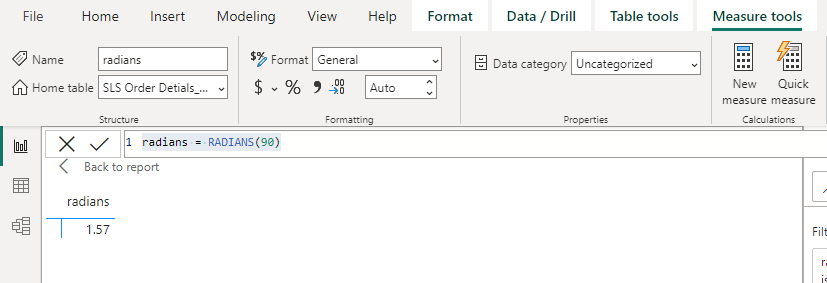
DAX Radians Math Function
This converts 90 degrees to radians (approximately 1.57).
25. DAX Rand Math Function
The RAND function generates a random number between 0 and 1. It’s useful for simulations, random data generation or testing.
**Syntax:
**RAND ()
- No parameters required.
To avoid mistakes like division by zero, the RAND function cannot return a value of zero.
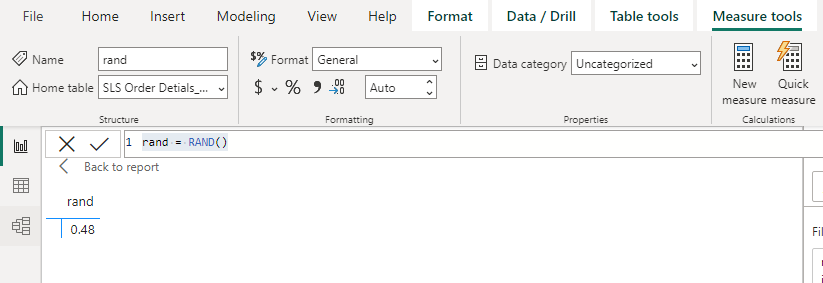
**Example: rand = RAND()
DAX Rand Math Function
This generates a random number between 0 and 1 (e.g 0.48).
26. DAX RandBetween Math Function
The RANDBETWEENfunction generates a random integer between two specified values. It is useful when we need random integers for simulations or tests.
**Syntax:
**RANDBETWEEN(, )
- **bottom: Smallest integer that will be returned by the function.
- **top: Function will return the greatest possible integer.
**Example: randbetween = RANDBETWEEN(23,44)

DAX RandBetween Math Function
This generates a random integer between 23 and 44 i.e 31.
27. DAX Round Math Function
The ROUNDfunction rounds a number to a specified number of digits. This is used in financial calculations to round prices, quantities or other data points to the nearest decimal place.
- The number is rounded to the specified number of decimal places if num digits are higher than zero.
- The number is rounded to the nearest integer if the num digit is 0.
- The number is rounded to the left of the decimal point if the num digits are less than 0.
**Syntax:
**ROUND(, <num_digits>)
- **number: Value we want to round.
- **num_digits: Number of digits we want to round to. A value of zero rounds to the nearest integer.
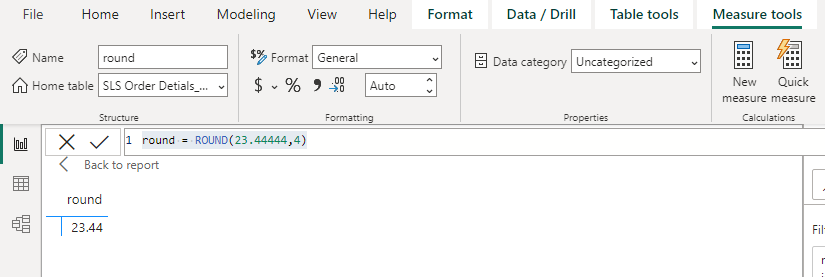
**Example: round = ROUND(23.44444,4)
DAX Round Math Function
This rounds 23.44444 to 4 decimal places (23.44).
28. DAX RoundDown Math Function
The ROUNDDOWN function rounds a number down to the nearest specified digit. Unlike ROUND which rounds based on the decimal it will always round down toward zero.
- The value in number is rounded down to the provided number of decimal places if the num digits are more than zero.
- The value in number is rounded to the nearest integer if the num digits are 0.
- The value in number is rounded to the left of the decimal point if the num digits are less than 0.
**Syntax:
**ROUNDDOWN(, <num_digits>)
- **number: Value to be rounded down.
- **num_digits: Number of digits to round to.
**Example: round down = ROUNDDOWN(23.44444,1)

DAX RoundDown Math Function
This rounds 23.44444 down to 23.40.
29. DAX RoundUp Math Function
The ROUNDUPfunction rounds a number up, away from zero, to the specified number of digits. It is useful when we need to ensure values are always rounded up.
- The number is rounded up to the provided number of decimal places if the num digits are larger than 0 (zero).
- The number is rounded up to the nearest integer if the num digit is 0.
- The number is rounded to the left of the decimal point if the num digits are less than 0.
**Syntax:
**ROUNDUP(, <num_digits>)
- **number: Value to be rounded up.
- **num_digits: Number of digits to round to.
**Example: round up = ROUNDUP(23.44444,1)

DAX RoundUp Math Function
This rounds 23.44444 up to 23.50.
30. DAX Sign Math Function
The SIGNfunction identifies the sign of a number. It returns 1 for positive numbers, 0 for zero and -1 for negative numbers.
**Syntax:
**SIGN()
- **number: A real number or an expression that evaluates to a number.
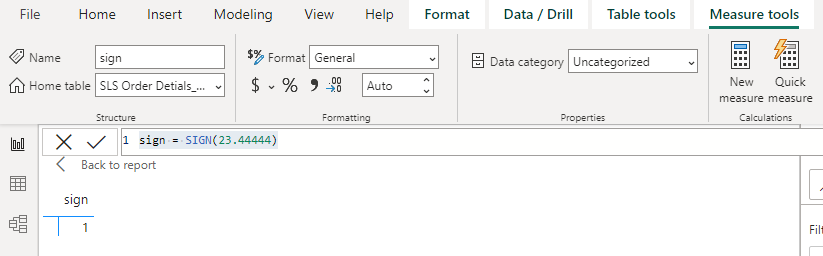
**Example: sign = SIGN(23.44444)
DAX Sign Math Function
This returns 1 because the number is positive.
31. DAX Sqrt Math Function
The SQRTfunction returns the square root of a number. This is helpful when working with geometric calculations or any situation requiring square roots.
**Syntax:
**SQRT()
- **number: Number for which we want to calculate the square root.
**Example: sqrt = SQRT(23.44444)

DAX Sqrt Math Function
This returns the square root of 23.44444.
32. DAX SqrtPi Math Function
The SQRTPI function returns the square root of the product of a number and Pi. This is useful for certain geometric and statistical calculations.
**Syntax:
**SQRTPI (number)
- number: Value to be multiplied by Pi before taking the square root.
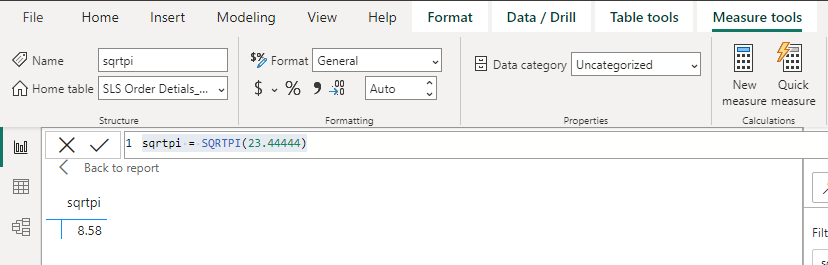
**Example: sqrtpi = SQRTPI(23.44444)
DAX SqrtPi Math Function
This returns the square root of 23.44444 * Pi i.e 8.58.
33. DAX Trunc Math Function
The TRUNC function removes the decimal portion of a number, truncating it to the specified number of digits. It is useful when we need to eliminate fractional values.
**Syntax: TRUNC(, <num_digits>)
- **number: Value we want to truncate.
- **num_digits: Number of digits to which we want to truncate. If omitted the default is 0 (rounds to the nearest integer).
**Example: truncate = TRUNC(45.0000345,6)

DAX Trunc Math Function
This truncates 45.0000345 to 6 decimal places (45.00).
By mastering these DAX Math Functions we can enhance our data analysis capabilities in Power BI which helps in more precise calculations and better insights for our reports and dashboards.