Power BI How to Create a Treemap? (original) (raw)
Last Updated : 6 Sep, 2025
A TreeMap in Power BI is a visualization that helps us to display hierarchical data through a set of nested rectangles. Each rectangle represents a category or subcategory and their size reflects the value they represent.
- Larger values are shown as larger rectangles making it easy to identify trends and patterns in the data.
- They are useful for displaying parent-child relationships and data distribution across categories.
Use of a Treemap
Here are a few reasons why we should consider using a TreeMap:
- **Visualize Hierarchy: TreeMaps are ideal for displaying hierarchical data which helps in showing how smaller categories fit within larger ones. This helps understand the relationship between different levels of data.
- **Spot Patterns Quickly: The size and color of each rectangle help highlight key trends or outliers in our data which makes it easier to analyze large datasets and spot anomalies.
- **Compact Representation: Instead of using multiple charts or visuals, a TreeMap consolidates everything into a single view. This compact representation makes it easier to compare categories and subcategories in a clear and simple way.
Implementing TreeMap in Power BI
Lets see a real-life example by using a dataset of employees for better understanding.
**Step 1: Prepare the Dataset
For this example, we will use the employee dataset which includes columns like:
- Department
- Employee Name
- Salary
- Bonus.
Dataset can be downloaded from here
**Step 2: Visualizations section, click on the Treemap chart.

Visualizations section
**Step 3: An empty treemap will be created. This treemap does not contain any fields. Our next task is to add columns to it.

empty treemap
**Step 4: Drag the Department column and drop it into the Category field of the TreeMap. At this point, we will not see any rectangles but this will be resolved in later steps.

Category field
**Step 5: Under the values section, drag and drop the Salary column. We can see that a treemap is created with three rectangles in it which represents the 3 departments.

Salary column
**Step 6: Details section can be used to form a child of the parent i.e category.
- Drag and drop Employee Name into the Details section.
- Now, we can observe that for each department, we have the names of the employees separately showing their Salary.
- Here Employee's Name is the child and Department is the parent.
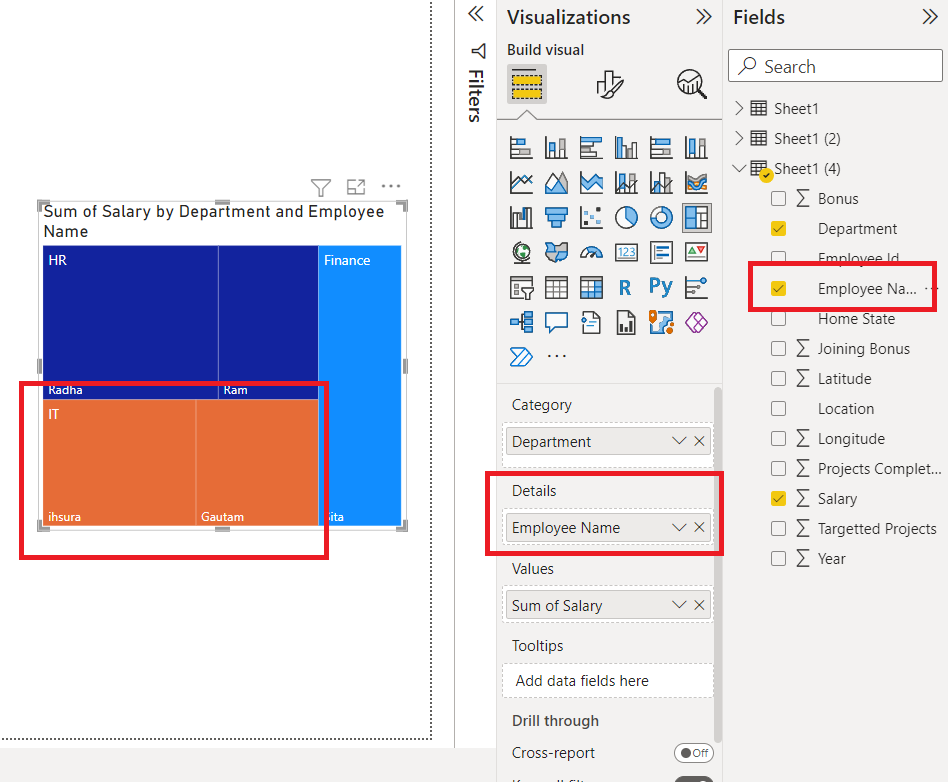
Details section
**Step 7: Our next task is:
- To add Tooltips to the map. Tooltips provide additional information whenever we hover at a data point in our TreeMap.
- In the below image, we can see that we have hovered at the employee ihsura and we view the previously added tooltips i.e Department IT, Employee Name ihsura, Sum of Salary 50K.
- These tooltips appeared as we have added these measures previously.
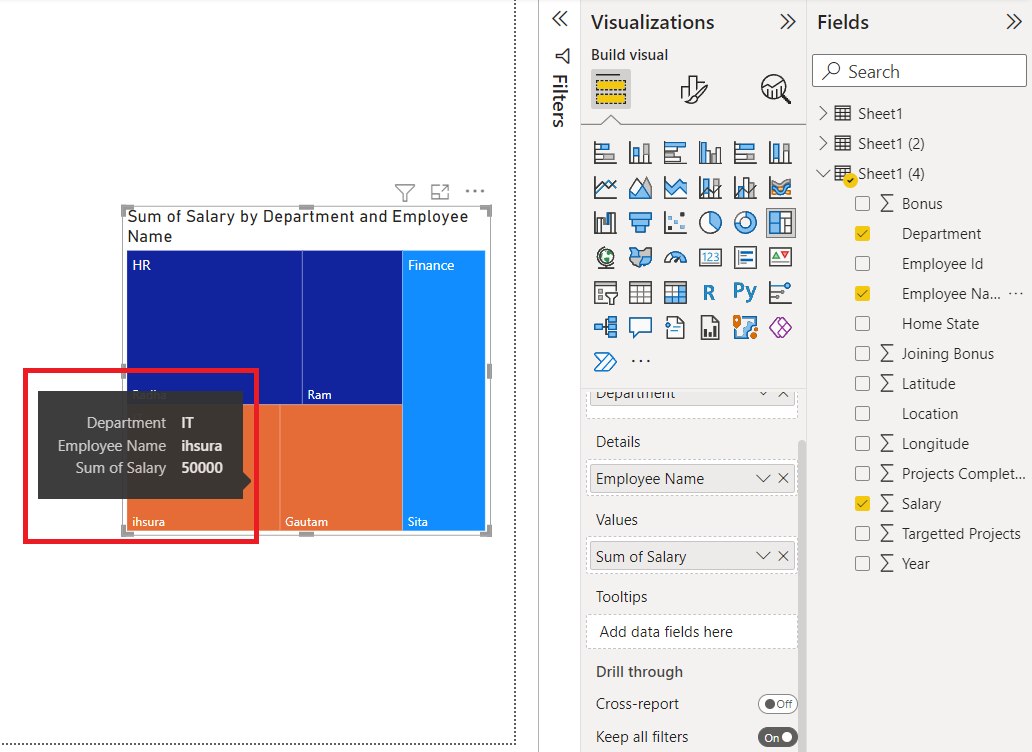
Tooltips
Now think what if we want to add a Bonus to this list. Drag and drop Bonus under Tooltips. Now again hover at employee ihsura. We can see that a Bonus of 50K is added.
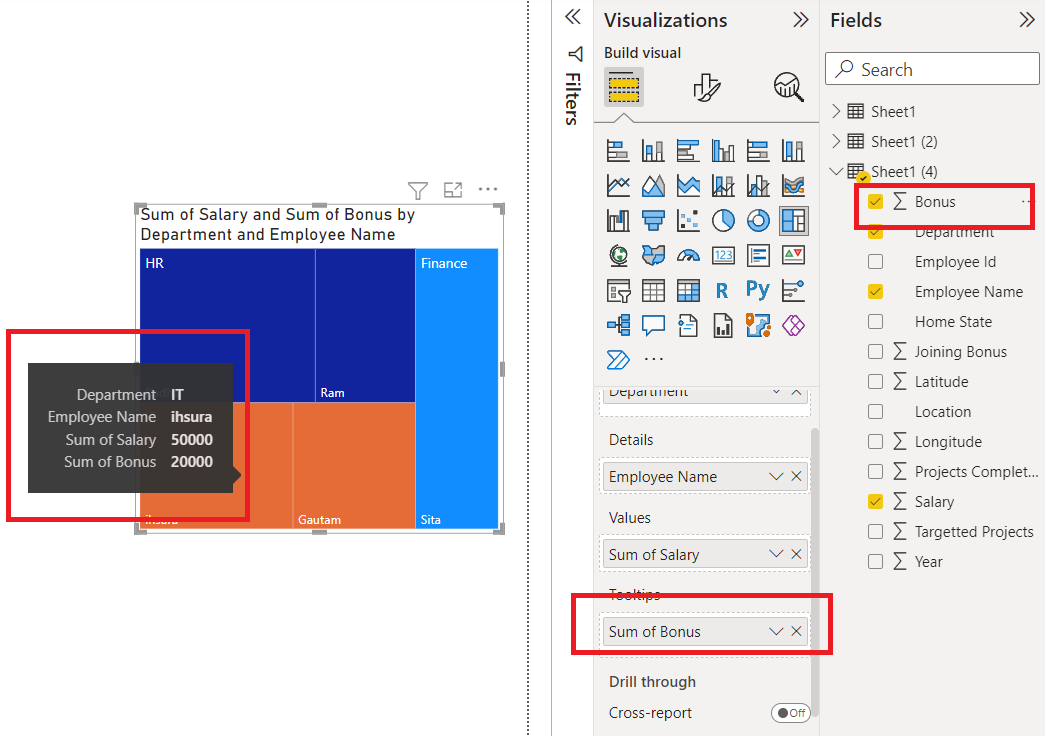
Bonus