Working with Numbers in Power BI (original) (raw)
Last Updated : 23 Sep, 2025
Working with numbers is central to data analysis. It involves collecting, organizing and calculating data to reveal patterns, trends and insights. From finance to research, numbers form the foundation for understanding information and making informed decisions. In this article, we will work with Numbers in Power BI.
We are using Superstore dataset for this tutorial. To download the dataset click here.
Importing Numerical Data
Before you can work with numbers in Power BI, you need to import your numerical data. This can come from a variety of sources including databases, Excel spreadsheets, web services and more. Power BI allows you to connect to these sources and load data into your project.
-(3).jpg)
Once the data is imported, Power BI will automatically recognize numerical fields and format them accordingly. This data can then be used in visualizations, calculations and aggregations.
For example, here’s the loaded Superstore dataset (13 columns):
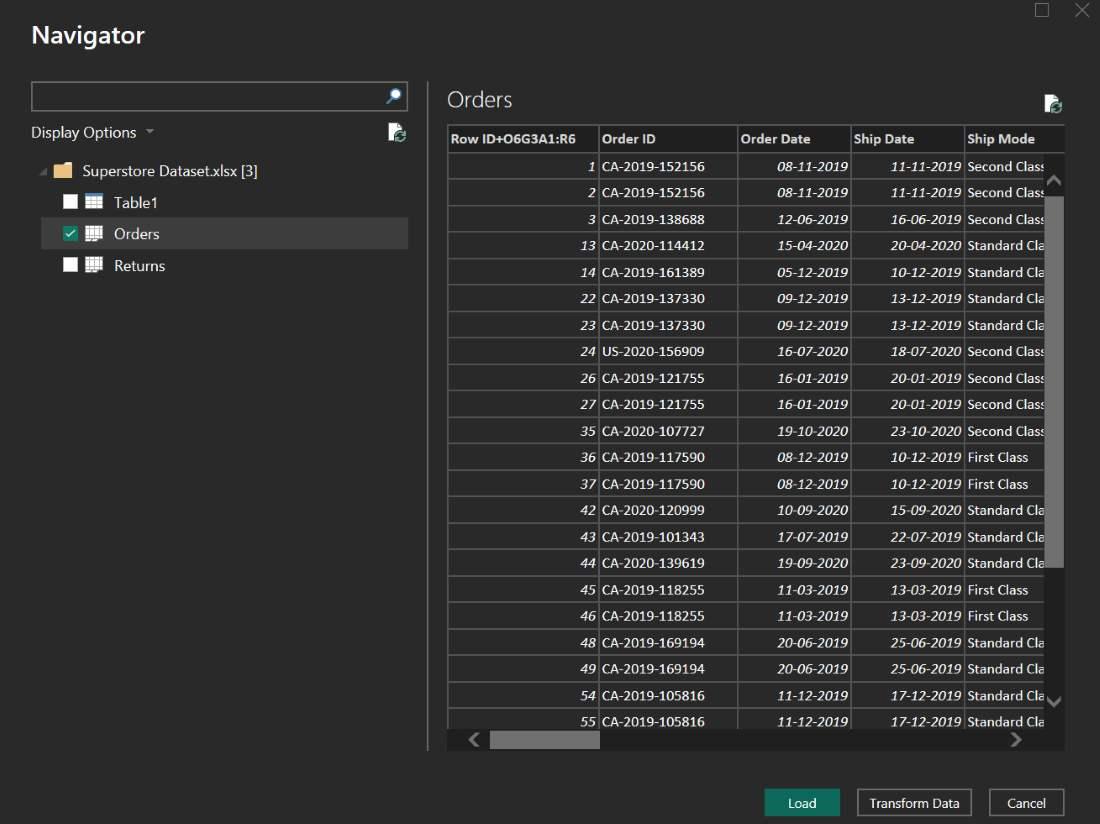
Dataset
Aggregating Numerical Data
One of the primary ways you work with numerical data in Power BI is by aggregating it. Aggregation involves summarizing large datasets into more manageable and meaningful values. Here are some common aggregation functions used in Power BI:
Sum
This function adds up all the values in a numerical column, useful for calculating total sales, revenue or quantities.
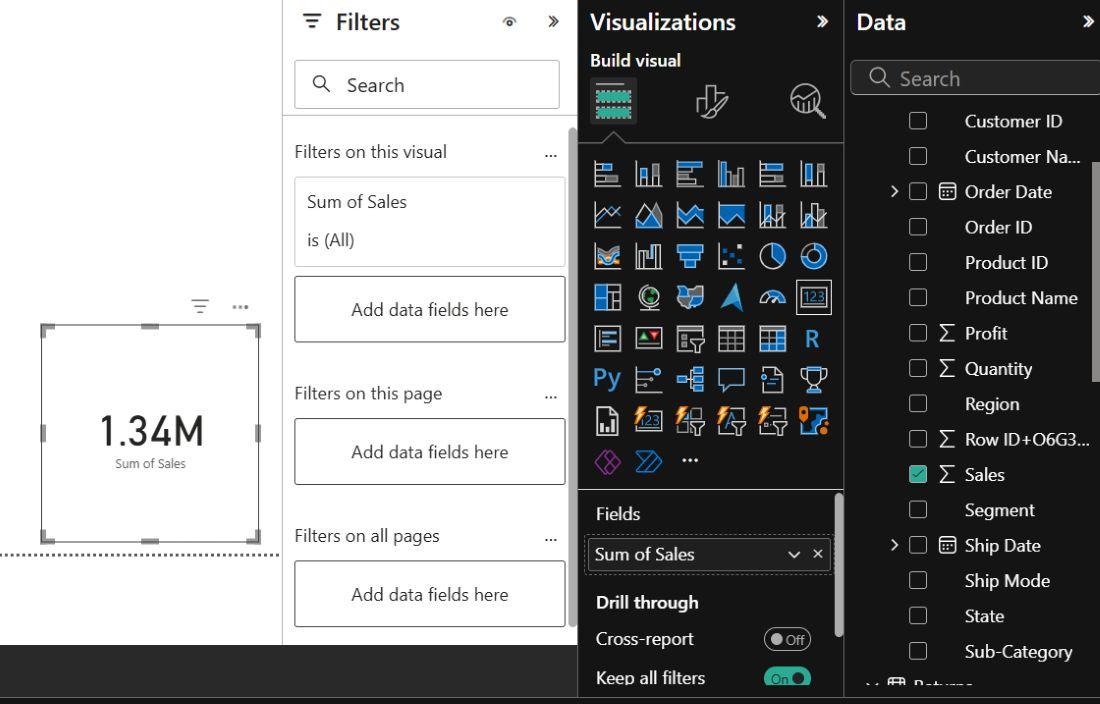
Sum
Average
Calculates the mean or average value of a numerical column which can help you understand typical values in your data.
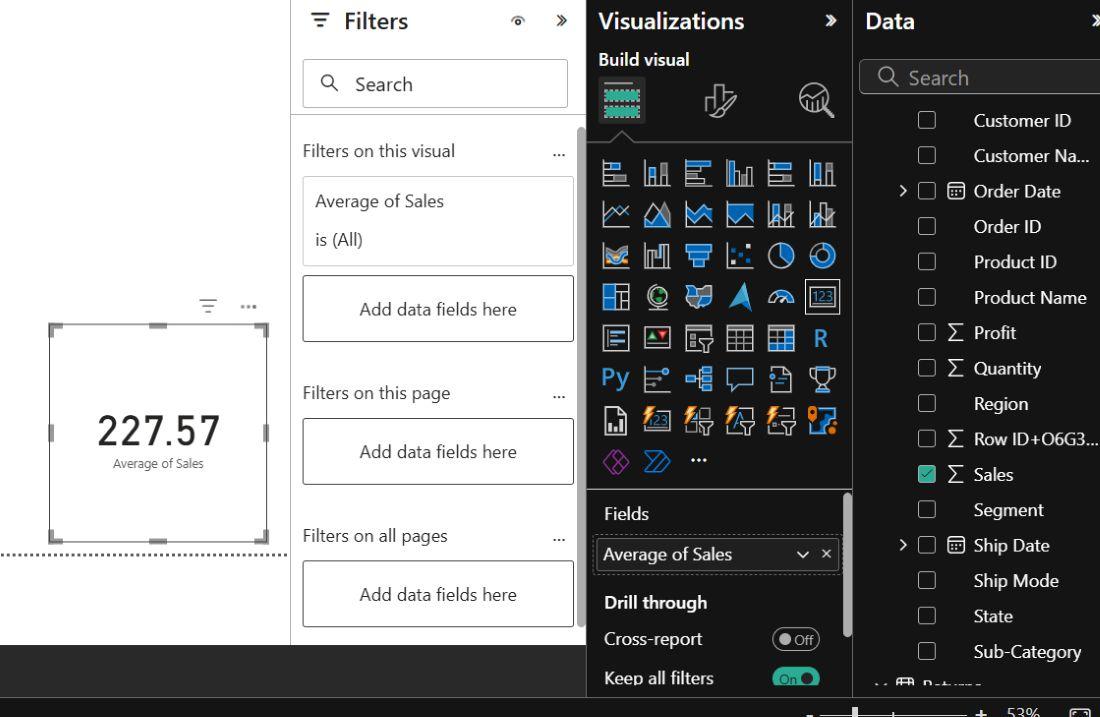
Average
Count
Counts the number of records in a column which can be useful for understanding the volume of data or the number of occurrences of a specific item.
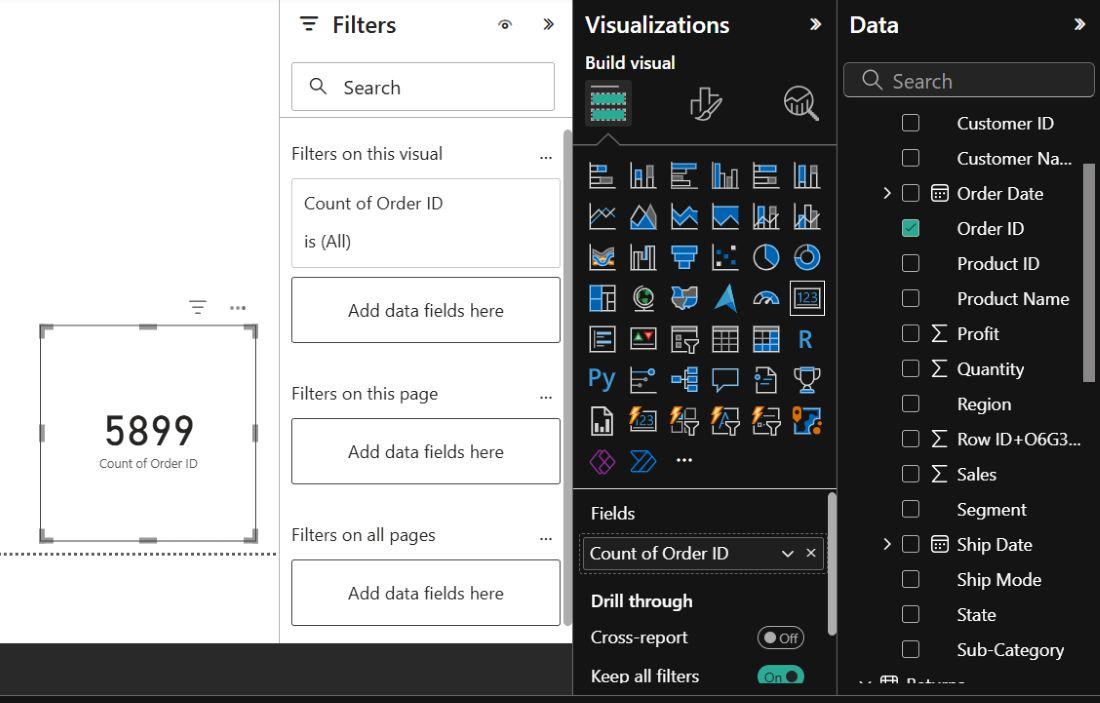
Count
Minimum and Maximum
These functions find the smallest and largest values in a column, helping identify extremes in your data.
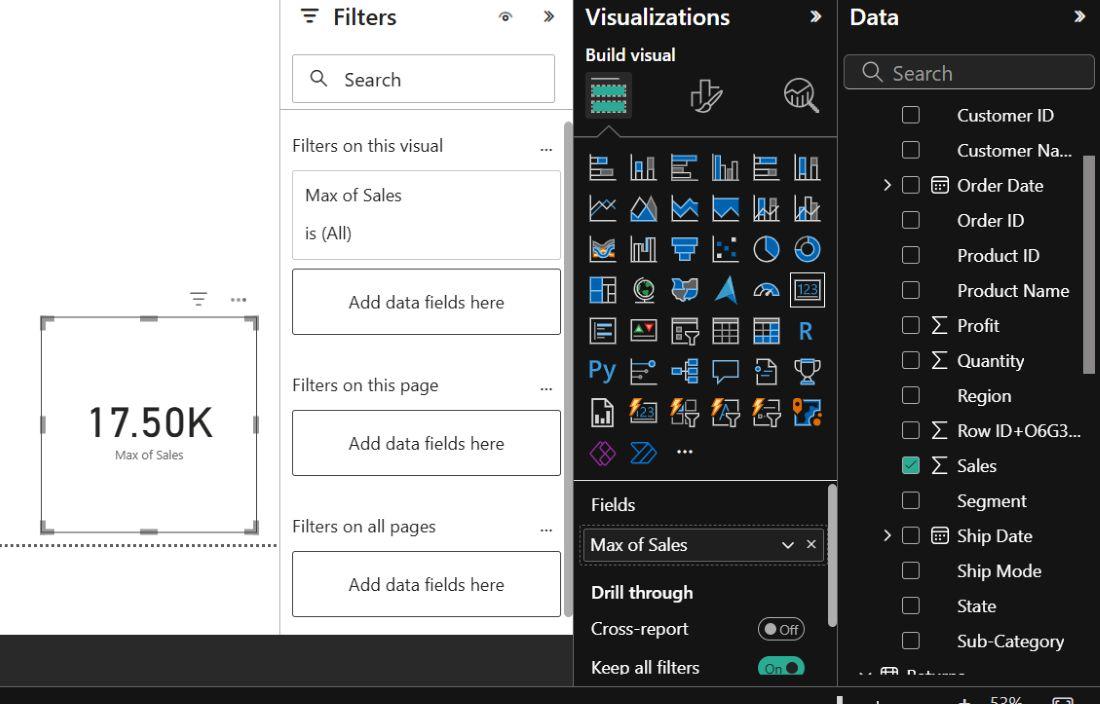
MAX
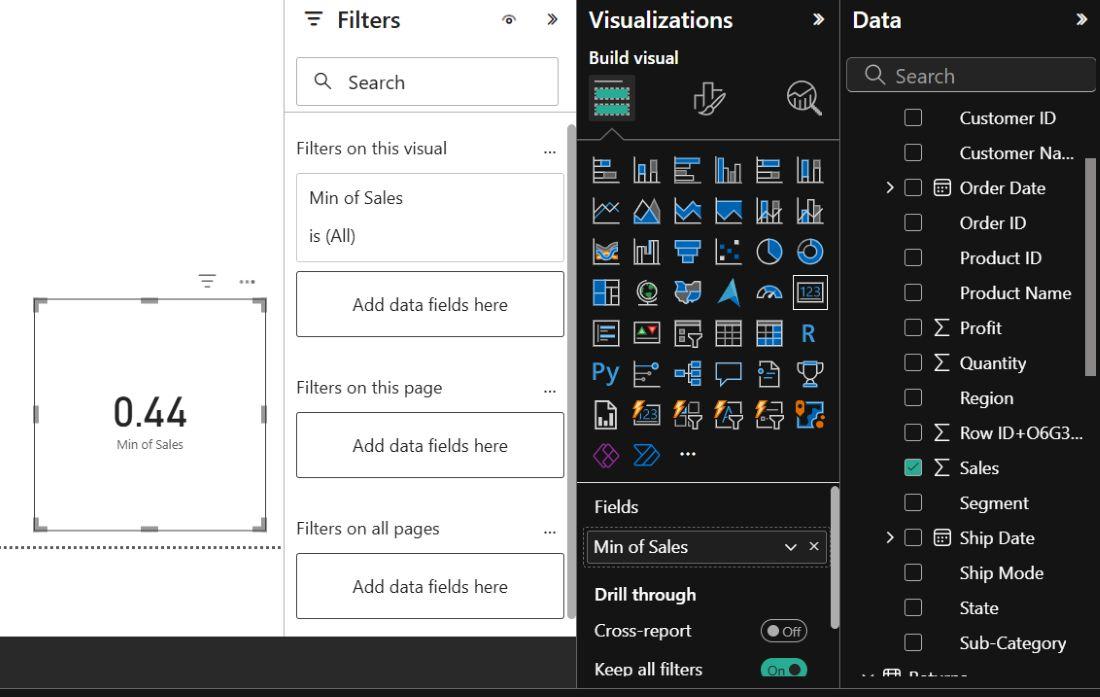
MIN
Median and Quartiles
Useful for finding the middle value and dividing data into quartiles which can provide insights into the data's distribution.
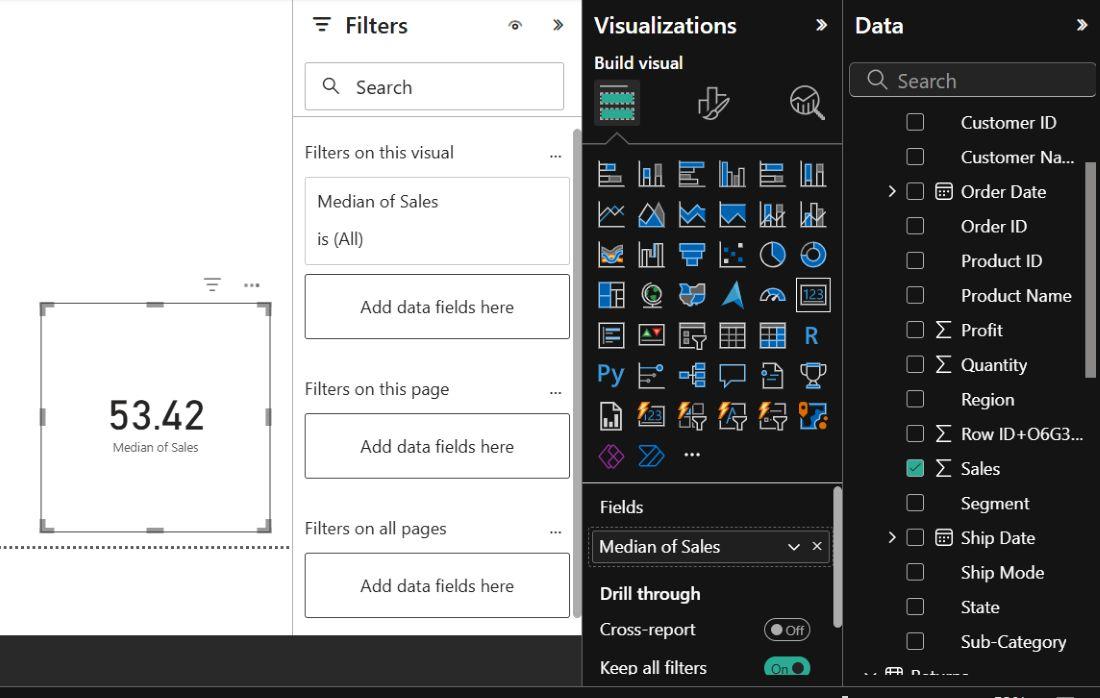
Median and Quartiles
Creating Calculated Columns
Power BI offers the ability to create calculated columns using Data Analysis Expressions (DAX). This feature allows you to generate new numerical columns based on existing data. Common use cases for calculated columns include:
For Calculated Columns or Customized Columns:
Click on transform data,

TRANSFORM-DATA
It will take you to Power Query Editor.

Here we calculated the custom column of Delivery Days by subtracting Ship Data and Order Date

Calculated columns are a crucial feature in Power BI for working with numbers. You can create new columns based on calculations using DAX (Data Analysis Expressions).

Now we'll change the data type of column .

Lastly the column with changed datatype :

Representation With Graphs
Numerical data becomes more meaningful when visualized. Power BI offers various charts to represent aggregated numbers.
.jpg)
CLUSTERED GRAPH
DASHBOARD
- **Derived Metrics: You can create columns that calculate metrics like profit margins, growth rates or any other custom calculations based on your numerical data.
- **Categorization: Transform numerical values into categories or buckets for easier analysis. For instance, you could categorize ages into age groups.
- **Date Calculations: If you're working with date-related numerical data, you can create calculated columns to derive information such as year, quarter or month from a date field.
- **Ranking: You can create calculated columns to rank data, such as ranking products by sales or customers by spending.
.jpg)
Formatting numeric data in Power BI
Formatting numeric data in Power BI is essential for presenting data in a clear and meaningful way to users. Power BI offers various formatting options, data types and custom number formats to help you achieve this. Below are some examples of how to format numeric data in Power BI:
Formatting Options
Power BI provides several formatting options for numeric data. To apply these formats:
- **Decimal Places: You can specify the number of decimal places to display for decimal numbers. For example, you might want to show 2 decimal places for sales values.
- **Thousand Separator: You can choose whether to display a thousand separator (e.g., comma) in large numbers for better readability.
- **Negative Numbers in Red: You can make negative numbers appear in red for emphasis.
- **Currency Symbol: Customize the currency symbol and position (e.g., $1,000 or 1,000 USD).
- **Date/Time Format: Specify the date and time format, such as "MM/DD/YYYY" or "HH:mm:ss."
Custom Number Formats
Power BI allows you to create custom number formats using the following symbols:
- ****'0':** Displays a digit, even if it's a leading or trailing zero.
- ****'#':** Displays a digit, but doesn't show leading or trailing zeros.
- ****'%':** Converts the number to a percentage.
- ****',':** Adds a thousand separator.
- ****'.00':** Specifies the number of decimal places.
For example, you can create a custom number format like "$#,##0.00" to format a currency value with a thousand separator and two decimal places.