Adding Text on Image using Python PIL (original) (raw)
Last Updated : 15 Sep, 2021
In Python to open an image, image editing, saving that image in different formats one additional library called Python Imaging Library (PIL). Using this PIL we can do so many operations on images like create a new Image, edit an existing image, rotate an image, etc. For adding text we have to follow the given approach.
Approach
- Import module
- Open targeted image
- Add text property using image object
- Show that edited Image
- Save that image
Syntax: obj.text( (x,y), Text, font, fill)
Parameters:
- (x, y): This X and Y denotes the starting position(in pixels)/coordinate of adding the text on an image.
- Text: A Text or message that we want to add to the Image.
- Font: specificfont type and font size that you want to give to the text.
- Fill: Fill is for to give the Font color to your text.
Other than these we required some module from PIL to perform this task. We need ImageDraw that can add 2D graphics ( shapes, text) to an image. Also, we required the ImageFont module to add custom font style and font size. Given below is the Implementation of add text to an image.
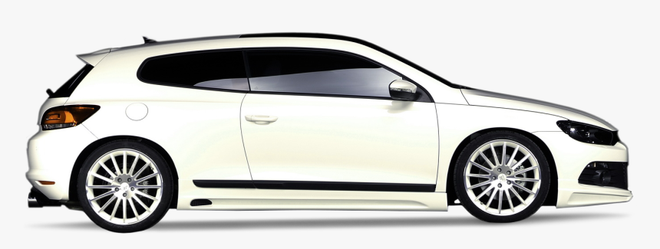
Image Used:
Example 1: Add a simple text to an image. ( without custom Font style)
Python3 `
Importing the PIL library
from PIL import Image from PIL import ImageDraw
Open an Image
img = Image.open('car.png')
Call draw Method to add 2D graphics in an image
I1 = ImageDraw.Draw(img)
Add Text to an image
I1.text((28, 36), "nice Car", fill=(255, 0, 0))
Display edited image
img.show()
Save the edited image
img.save("car2.png")
`
Output:
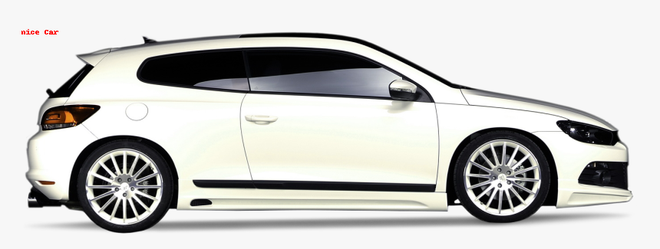
Here You can see that we successfully add text to an image but it not properly visible so we can add the Font parameter to give a custom style.
Example 2: Add a simple text to an image. ( With custom Font style)
Python3 `
Importing the PIL library
from PIL import Image from PIL import ImageDraw from PIL import ImageFont
Open an Image
img = Image.open('car.png')
Call draw Method to add 2D graphics in an image
I1 = ImageDraw.Draw(img)
Custom font style and font size
myFont = ImageFont.truetype('FreeMono.ttf', 65)
Add Text to an image
I1.text((10, 10), "Nice Car", font=myFont, fill =(255, 0, 0))
Display edited image
img.show()
Save the edited image
img.save("car2.png")
`
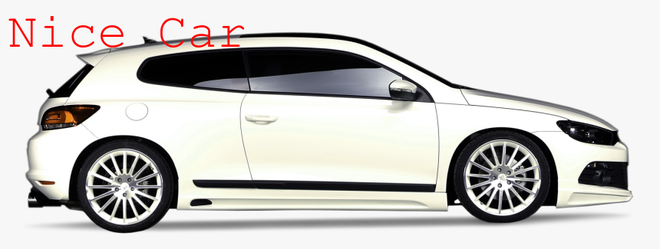
Output: