Automate Instagram Messages using Python (original) (raw)
Last Updated : 11 Dec, 2022
In this article, we will see how to send a single message to any number of people. We just have to provide a list of users. We will use selenium for this task.
Packages needed
- Selenium: It is an open-source tool that automates web browsers. It provides a single interface that lets you write test scripts in programming languages like Ruby, Java, NodeJS, PHP, Perl, Python, and C#, among others. I personally prefer Python as it's very easy to write code in python. A browser-driver then executes these scripts on a browser-instance on your device. To install this module run this command into your terminal.
pip install selenium
- webdriver-manager: It provides a way to automatically manage drivers for different browsers. To install this module run this command into your terminal.
pip install webdriver-manager
- ChromeDriver: ChromeDriver is a separate executable that Selenium WebDriver uses to control Chrome.
- Google Chrome
Step 1: Importing all the necessary libraries.
Python3 `
from selenium import webdriver import os import time from selenium.webdriver.common.by import By from selenium.webdriver.support.ui import WebDriverWait from selenium.webdriver.support import expected_conditions from selenium.webdriver.common.keys import Keys from webdriver_manager.chrome import ChromeDriverManager
`
Step 2: Using chrome with this code will always work (no need to worry about updating chromedriver version)
Python3 `
driver = webdriver.Chrome(ChromeDriverManager().install())
`
Step 3: Before declaring a Class we will make a list of users( any no. of users in this code I am using three users.) in that list you have to send the username of the person you want to send a message to and the message we want to send to all the users.
Python3 `
you can take any valid username
audience = [ 'sundarpichai','virat.kholi','rudymancuso'] message = "testing of a bot"
`
Step 4: Here I am creating a class function all the code will be written inside this class so, In the end, we just have to just call this class. Let's create an __init__ function that can be called when an object is created from the class,__init__ will provide the access that is required to initialize the attributes of the class.
Python3 `
class bot:
def __init__(self, username, password, audience, message):

    # initializing the username
    self.username = username

    # initializing the password
    self.password = password

    # passing the list of user or initializing
    self.user = user

    # passing the message of user or initializing
    self.message = message

    # initializing the base url.
    self.base_url = 'https://www.instagram.com/'

    # here it calls the driver to open chrome web browser.
    self.bot = driver

    # initializing the login function we will create
    self.login()
`
Step 5: Creating a Login function where all the steps will be written
Python3 `
def login(self):
self.bot.get(self.base_url)

# ENTERING THE USERNAME FOR LOGIN INTO INSTAGRAM
enter_username = WebDriverWait(self.bot, 20).until(
    expected_conditions.presence_of_element_located((By.NAME, 'username')))

enter_username.send_keys(self.username)

# ENTERING THE PASSWORD FOR LOGIN INTO INSTAGRAM
enter_password = WebDriverWait(self.bot, 20).until(
    expected_conditions.presence_of_element_located((By.NAME, 'password')))
enter_password.send_keys(self.password)

# RETURNING THE PASSWORD and login into the account
enter_password.send_keys(Keys.RETURN)
time.sleep(5)
`
Note: for finding the XPath right-click on the element then you see the inspect option on a web browser.
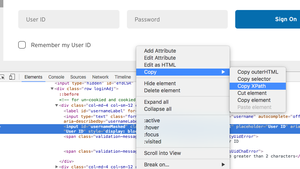
Selecting xpath
Step 6: HANDLING POP-UP BOXES - When you log in to Instagram you will come across two pop-up boxes as shown in the images. The first one will be asking about do you want to save info or not it will click on not now. The second one will be asking you to turn off the notifications or not so we will again click on not now as shown in the given code.
Python3 `
first pop-up box
self.bot.find_element_by_xpath( '//*[@id="react-root"]/section/main/div/div/div/div/button').click() time.sleep(3)
2nd pop-up box
self.bot.find_element_by_xpath( '/html/body/div[4]/div/div/div/div[3]/button[2]').click()
time.sleep(4)
`
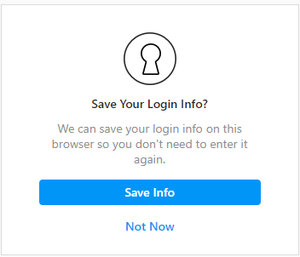
1st pop-up box
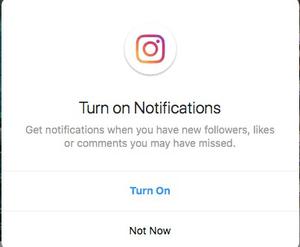
2nd pop-up box
Step 7: Clicking on the message option on the right corner
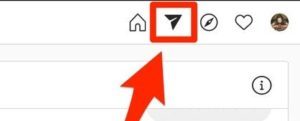
Message button(Direct button)
Note: This will click on the message(direct) option.
Python3 `
this will click on message(direct) option.
self.bot.find_element_by_xpath( '//a[@class="xWeGp"]/*[name()="svg"][@aria-label="Direct"]').click()
time.sleep(3)
`
Step 8: Clicking on the pencil option here we type the user's name.
Python3 `
This will click on the pencil icon as shown in the figure.
self.bot.find_element_by_xpath( '//*[@id="react-root"]/section/div/div[2]/div/div/div[2]/div/button').click() time.sleep(2)
`
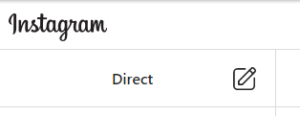
Step 9: Here is the main part of the code where we take a username from the list search for it and message that person. This process is in the loop to take username.
Python3 `
for i in user:
# enter the username
self.bot.find_element_by_xpath(
    '/html/body/div[4]/div/div/div[2]/div[1]/div/div[2]/input').send_keys(i)
time.sleep(2)

# click on the username
self.bot.find_element_by_xpath(
    '/html/body/div[4]/div/div/div[2]/div[2]/div').click()
time.sleep(2)

# next button
self.bot.find_element_by_xpath(
    '/html/body/div[4]/div/div/div[1]/div/div[2]/div/button').click()
time.sleep(2)

# click on message area
send = self.bot.find_element_by_xpath(
    '/html/body/div[1]/section/div/div[2]/div/div/div[2]/div[2]/div/div[2]/div/div/div[2]/textarea')

# types message
send.send_keys(self.message)
time.sleep(1)

# send message
send.send_keys(Keys.RETURN)
time.sleep(2)

# clicks on pencil icon
self.bot.find_element_by_xpath(
    '/html/body/div[1]/section/div/div[2]/div/div/div[1]/div[1]/div/div[3]/button').click()
time.sleep(2)
# here will take the next username from the user's list.
`
Step 10: We have finally completed the code. It's time to create a function where we will pass the username and the password of the account in which we want to login and call our class here.
Python3 `
def init():
# you can even enter your personal account.
bot('username', 'password', user, message_)
input("DONE")
`
Step 11: Let's call our function
Python3 `
calling this function will message everyone's
that is on your user's list...:)
init()
`
Let's put all the code together
Python3 `
importing module
from selenium import webdriver import os import time from selenium.webdriver.common.by import By from selenium.webdriver.support.ui import WebDriverWait from selenium.webdriver.support import expected_conditions from selenium.webdriver.common.keys import Keys from webdriver_manager.chrome import ChromeDriverManager
driver = webdriver.Chrome(ChromeDriverManager().install())
enter receiver user name
user = ['User_name', 'User_name '] message_ = ("final test")
class bot: def init(self, username, password, user, message): self.username = username self.password = password self.user = user self.message = message self.base_url = 'https://www.instagram.com/' self.bot = driver self.login()
def login(self):
    self.bot.get(self.base_url)

    enter_username = WebDriverWait(self.bot, 20).until(
        expected_conditions.presence_of_element_located((By.NAME, 'username')))
    enter_username.send_keys(self.username)
    enter_password = WebDriverWait(self.bot, 20).until(
        expected_conditions.presence_of_element_located((By.NAME, 'password')))
    enter_password.send_keys(self.password)
    enter_password.send_keys(Keys.RETURN)
    time.sleep(5)

    # first pop-up
    self.bot.find_element(By.XPATH,
                          '/html/body/div[1]/div/div/div/div[1]/div/div/div/div[1]/div[1]/div[2]/section/main/div/div/div/div/button').click()
    time.sleep(5)

    # 2nd pop-up
    self.bot.find_element(By.XPATH,
                          '/html/body/div[1]/div/div/div/div[2]/div/div/div[1]/div/div[2]/div/div/div/div/div[2]/div/div/div[3]/button[2]').click()
    time.sleep(5)

    # direct button
    self.bot.find_element(By.XPATH,
                          '/html/body/div[1]/div/div/div/div[1]/div/div/div/div[1]/div[1]/div[1]/div/div/div/div/div[2]/div[4]/div/a').click()
    time.sleep(3)

    # clicks on pencil icon
    self.bot.find_element(By.XPATH,
                          '/html/body/div[1]/div/div/div/div[1]/div/div/div/div[1]/div[1]/div/div[2]/div/section/div/div/div/div/div[1]/div[1]/div/div[3]/button').click()
    time.sleep(2)
    for i in user:

         # enter the username
        self.bot.find_element(By.XPATH,
                              '/html/body/div[1]/div/div/div/div[2]/div/div/div[1]/div/div[2]/div/div/div/div/div[2]/div/div[2]/div[1]/div/div[2]/input').send_keys(i)
        time.sleep(3)

        # click on the username
        self.bot.find_element(By.XPATH,
                              '/html/body/div[1]/div/div/div/div[2]/div/div/div[1]/div/div[2]/div/div/div/div/div[2]/div/div[2]/div[2]/div[1]/div/div[3]/button').click()
        time.sleep(4)

        # next button
        self.bot.find_element(By.XPATH,
                              '/html/body/div[1]/div/div/div/div[2]/div/div/div[1]/div/div[2]/div/div/div/div/div[2]/div/div[1]/div/div[3]/div/button').click()
        time.sleep(4)

        # click on message area
        send = self.bot.find_element(By.XPATH,
                                     '/html/body/div[1]/div/div/div/div[1]/div/div/div/div[1]/div[1]/div/div[2]/div/section/div/div/div/div/div[2]/div[2]/div/div[2]/div/div/div[2]/textarea')

        # types message
        send.send_keys(self.message)
        time.sleep(1)

        # send message
        send.send_keys(Keys.RETURN)
        time.sleep(2)

        # clicks on direct option or pencil icon
        self.bot.find_element(By.XPATH,
                              '/html/body/div[1]/div/div/div/div[1]/div/div/div/div[1]/div[1]/div/div[2]/div/section/div/div/div/div/div[1]/div[1]/div/div[3]/button').click()
        time.sleep(4)
def init(): bot('username', 'password', user, message_)
# when our program ends it will show "done".
input("DONE")
calling the function
init()
`