Collapsible Pane in Tkinter | Python (original) (raw)
Last Updated : 13 Oct, 2022
A collapsible pane, as the name suggests, is a pane which can be collapsed. User can expand pane so that they can perform some task and when task is completed, pane can be collapsed.
In Tkinter, Collapsible pane is a container with an embedded button-like control which is used to expand or collapse this container.
Prerequisites:
Frame Class Checkbutton Class Styling in widgets configure() method
CollapsiblePane class -
CollapsiblePane widget is used to store any other widgets inside of it. It can be toggled on or off, so widgets inside of it aren't always shown.
Parameters:
parent = The parent of the widget.
expanded_text = The text shown on the Button when the pane is open.
collapsed_text = The text shown on the Button when the pane is closed.
Functions:
_activate() = Checks the value of variable and shows or hides the Frame.
toggle() = Switches the LabelFrame to the opposite state.
Widgets:
self_button = The Button that toggles the Frame.
frame = The Frame that holds the widget.
_separator = The Separator.
Python3 `
Implementation of Collapsible Pane container
importing tkinter and ttk modules
import tkinter as tk from tkinter import ttk
class CollapsiblePane(ttk.Frame): """ -----USAGE----- collapsiblePane = CollapsiblePane(parent, expanded_text =[string], collapsed_text =[string])
collapsiblePane.pack()
button = Button(collapsiblePane.frame).pack()
"""

def __init__(self, parent, expanded_text ="Collapse <<",
                           collapsed_text ="Expand >>"):

    ttk.Frame.__init__(self, parent)

    # These are the class variable
    # see a underscore in expanded_text and _collapsed_text
    # this means these are private to class
    self.parent = parent
    self._expanded_text = expanded_text
    self._collapsed_text = collapsed_text

    # Here weight implies that it can grow it's
    # size if extra space is available
    # default weight is 0
    self.columnconfigure(1, weight = 1)

    # Tkinter variable storing integer value
    self._variable = tk.IntVar()

    # Checkbutton is created but will behave as Button
    # cause in style, Button is passed
    # main reason to do this is Button do not support
    # variable option but checkbutton do
    self._button = ttk.Checkbutton(self, variable = self._variable,
                        command = self._activate, style ="TButton")
    self._button.grid(row = 0, column = 0)

    # This will create a separator
    # A separator is a line, we can also set thickness
    self._separator = ttk.Separator(self, orient ="horizontal")
    self._separator.grid(row = 0, column = 1, sticky ="we")

    self.frame = ttk.Frame(self)

    # This will call activate function of class
    self._activate()

def _activate(self):
    if not self._variable.get():

        # As soon as button is pressed it removes this widget
        # but is not destroyed means can be displayed again
        self.frame.grid_forget()

        # This will change the text of the checkbutton
        self._button.configure(text = self._collapsed_text)

    elif self._variable.get():
        # increasing the frame area so new widgets
        # could reside in this container
        self.frame.grid(row = 1, column = 0, columnspan = 2)
        self._button.configure(text = self._expanded_text)

def toggle(self):
    """Switches the label frame to the opposite state."""
    self._variable.set(not self._variable.get())
    self._activate()
`
Program to demonstrate use of CollapsiblePane -
Python3 `
Importing tkinter and ttk modules
from tkinter import * from tkinter.ttk import *
Importing Collapsible Pane class that we have
created in separate file
from collapsiblepane import CollapsiblePane as cp
Making root window or parent window
root = Tk() root.geometry('200x200')
Creating Object of Collapsible Pane Container
If we do not pass these strings in
parameter the default strings will appear
on button that were, expand >>, collapse <<
cpane = cp(root, 'Expanded', 'Collapsed') cpane.grid(row = 0, column = 0)
Button and checkbutton, these will
appear in collapsible pane container
b1 = Button(cpane.frame, text ="GFG").grid( row = 1, column = 2, pady = 10)
cb1 = Checkbutton(cpane.frame, text ="GFG").grid( row = 2, column = 3, pady = 10)
mainloop()
`
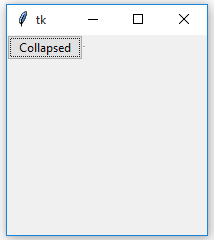
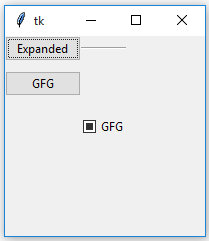
Output: