Disable Kivy Button (original) (raw)
Last Updated : 12 Jul, 2025
In this article, we will learn how to disable a button in kivy, there are some places where we need to disable the buttons So in this article you will learn how to do that.
The Button is a Label with associated actions that are triggered when the button is pressed (or released after a click/touch). We can add functions behind the button and style the button.But to disable the button we have a property name :
disabled that must be true
this property will help in disabling the button i.e. button will be there but is of no use as it is disabled no functionality of button will work.
Note: disabled property was introduced in version 1.8.0. If you want to use it you need to actualize your framework.
Basic Approach to follow while creating and disabling button : -> import kivy -> import kivy App -> import button -> set minimum version(optional) -> Extend the class -> Add and return a button -> Add disabled = true to disable button -> Run an instance of the class
Firstly, let's see how to create a fully working button and then see how to disable it and its functionality.Code #1: How to create fully working button
Python3 `
def build(self): # use a (r, g, b, a) tuple btn = Button(text ="Push Me !", font_size ="20sp", background_color =(1, 1, 1, 1), color =(1, 1, 1, 1), size =(32, 32), size_hint =(.2, .2), pos =(300, 250))
return btn`
Output: 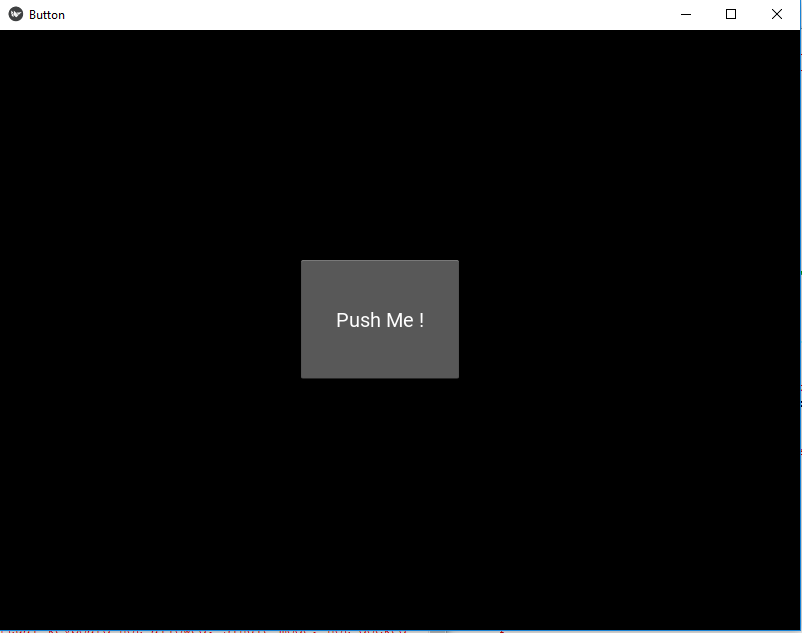 Code #2: How to disable the button
Python3 `
def build(self): # use a (r, g, b, a) tuple btn = Button(text ="Push Me !", font_size ="20sp", background_color =(1, 4, 6, 1), color =(1, 1, 1, 1), size =(32, 32), size_hint =(.2, .2), pos =(300, 250),
                 # Disabling the button
                 disabled = True

                 )
`
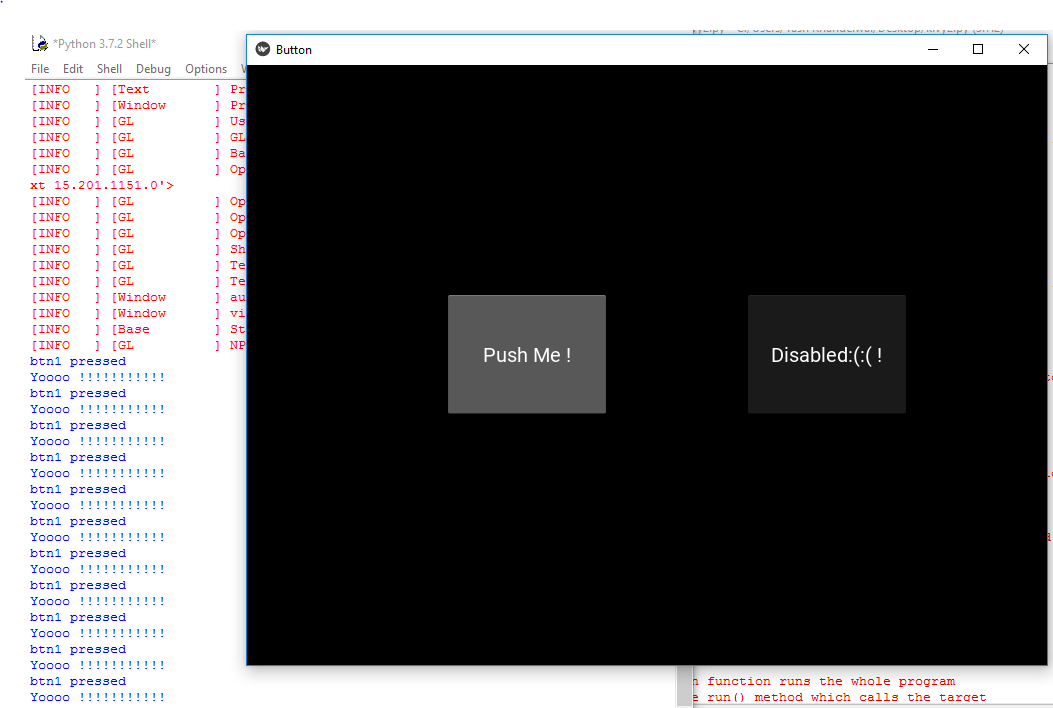
Output: 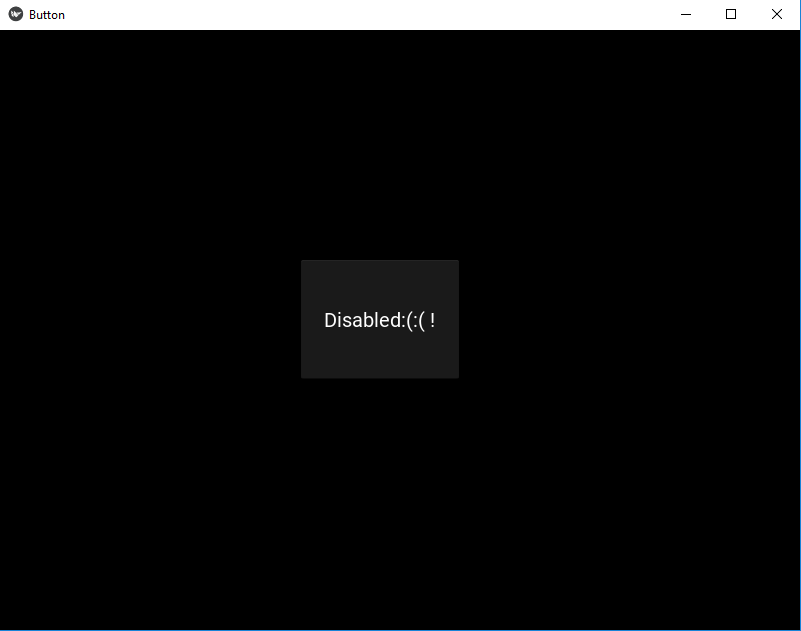 Code #3: Both disable and working button together
Python3 `
import kivy module
import kivy
this restrict the kivy version i.e
below this kivy version you cannot
use the app or software
kivy.require("1.9.1")
base Class of your App inherits from the App class.
app:always refers to the instance of your application
from kivy.app import App
creates the button in kivy
if not imported shows the error
from kivy.uix.button import Button
This layout allows you to set relative coordinates for children.
from kivy.uix.relativelayout import RelativeLayout
class in which we are creating the button
class ButtonApp(App):
def build(self):

    r1 = RelativeLayout()


    # working button
    btn1 = Button(text ="Push Me !",
               font_size ="20sp",
               background_color =(1, 1, 1, 1),
               color =(1, 1, 1, 1),
               size =(32, 32),
               size_hint =(.2, .2),
               pos =(200, 250))

    # disabled button
    btn2 = Button(text ="Disabled:(:( !",
               font_size ="20sp",
               background_color =(1, 1, 1, 1),
               color =(1, 1, 1, 1),
               size =(32, 32),
               size_hint =(.2, .2),
               pos =(500, 250),

               # Add disabled property true to disabled button
               disabled = True)

    r1.add_widget(btn1)
    r1.add_widget(btn2)

    # bind() use to bind the button to function callback
    btn1.bind(on_press = self.callback)
    return r1

# callback function tells when button pressed
def callback(self, event):
    print("button pressed")
    print('Yoooo !!!!!!!!!!!')
creating the object root for ButtonApp() class
root = ButtonApp()
run function runs the whole program
i.e run() method which calls the target
function passed to the constructor.
root.run()
`
Output: