Django Sign Up and login with confirmation Email | Python (original) (raw)
Django provides a built-in authentication system that handles users, login, logout, and registration. In this article, we will implement a user registration and login system with email confirmation using Django and django-crispy-forms for elegant form rendering.
Install crispy forms using the terminal:
pip install --upgrade django-crispy-forms
Step 1: Create a New Django Project and App
Start a new Django project and move into the project directory:
django-admin startproject project
cd project
Create a new app called user:
python manage.py startapp user
Step 2: Set Up Templates Folder
Navigate to your user app folder and create a templates/user directory. Inside this folder, create the following HTML files:
- index.html
- login.html
- register.html
- Email.html
Your project structure should look like this:

Project Structure
Step 3: Configure settings.py
Open your project/settings.py file and make the following changes:
1. Add 'user' and 'crispy_forms' to your installed apps:
INSTALLED_APPS = [
# Default Django apps...
'crispy_forms',
'user',
]
2. Add the crispy forms template pack setting at the end of the file:
CRISPY_TEMPLATE_PACK = 'bootstrap4'
3. Configure your email settings by adding your email credentials (replace placeholders):
EMAIL_BACKEND = 'django.core.mail.backends.smtp.EmailBackend'
EMAIL_HOST = 'smtp.gmail.com'
EMAIL_PORT = 587
EMAIL_USE_TLS = True
EMAIL_HOST_USER = 'your_email@gmail.com'
EMAIL_HOST_PASSWORD = 'your_email_password' # Use app password if 2FA enabled
Step 4: Configure Project URLs
Edit the project-level **urls.py (project/urls.py) to route authentication URLs:
Python `
from django.contrib import admin from django.urls import path, include from user import views as user_view from django.contrib.auth import views as auth
urlpatterns = [
path('admin/', admin.site.urls),

##### user related path##########################
path('', include('user.urls')),
path('login/', user_view.Login, name ='login'),
path('logout/', auth.LogoutView.as_view(template_name ='user/index.html'), name ='logout'),
path('register/', user_view.register, name ='register'),
]
`
Step 5: Configure App URLs
Create user/urls.py if it does not exist and add:
Python `
from django.urls import path, include from django.conf import settings from . import views from django.conf.urls.static import static
urlpatterns = [ path('', views.index, name ='index'), ]
`
Step 6: Create User Registration Form
Create a forms.py file inside the user app and add the following:
Python `
from django import forms from django.contrib.auth.models import User from django.contrib.auth.forms import UserCreationForm
class UserRegisterForm(UserCreationForm): email = forms.EmailField() phone_no = forms.CharField(max_length = 20) first_name = forms.CharField(max_length = 20) last_name = forms.CharField(max_length = 20) class Meta: model = User fields = ['username', 'email', 'phone_no', 'password1', 'password2']
`
Step 7: Define Views for Registration and Login
Edit user/views.py to handle user registration, login, and rendering pages:
Python `
from django.shortcuts import render, redirect from django.contrib import messages from django.contrib.auth import authenticate, login from django.contrib.auth.decorators import login_required from django.contrib.auth.forms import AuthenticationForm from .forms import UserRegisterForm from django.core.mail import send_mail from django.core.mail import EmailMultiAlternatives from django.template.loader import get_template from django.template import Context
#################### index####################################### def index(request): return render(request, 'user/index.html', {'title':'index'})
########### register here ##################################### def register(request): if request.method == 'POST': form = UserRegisterForm(request.POST) if form.is_valid(): form.save() username = form.cleaned_data.get('username') email = form.cleaned_data.get('email') ######################### mail system #################################### htmly = get_template('user/Email.html') d = { 'username': username } subject, from_email, to = 'welcome', 'your_email@gmail.com', email html_content = htmly.render(d) msg = EmailMultiAlternatives(subject, html_content, from_email, [to]) msg.attach_alternative(html_content, "text/html") msg.send() ################################################################## messages.success(request, f'Your account has been created ! You are now able to log in') return redirect('login') else: form = UserRegisterForm() return render(request, 'user/register.html', {'form': form, 'title':'register here'})
################ login forms################################################### def Login(request): if request.method == 'POST':
    # AuthenticationForm_can_also_be_used__

    username = request.POST['username']
    password = request.POST['password']
    user = authenticate(request, username = username, password = password)
    if user is not None:
        form = login(request, user)
        messages.success(request, f' welcome {username} !!')
        return redirect('index')
    else:
        messages.info(request, f'account done not exit plz sign in')
form = AuthenticationForm()
return render(request, 'user/login.html', {'form':form, 'title':'log in'})
`
Step 8: Create HTML Templates
index.html
This template includes navigation, login/logout links, and dynamic welcome messages.
HTML `
{% load static %} {% load crispy_forms_tags %}
{{title}}{% if messages %} {% for message in messages %}
{% endfor %} {% endif %}
<!-- navbar-->
<nav class="navbar navbar-inverse navbar-fixed-top">
  <div class="container-fluid">
    <div class="navbar-header">
      <button class="navbar-toggle" data-toggle="collapse" data-target="#mainNavBar">
        <span class="icon-bar"></span>
        <span class="icon-bar"></span>
        <span class="icon-bar"></span>
        <span class="icon-bar"></span>
      </button>
      <a class="navbar-brand" class="styleheader" href="{% url "index" %}">project</a>
    </div>
    <div class="collapse navbar-collapse" id="mainNavBar">
      <ul class="nav navbar-nav navbar-right">
        <li><a href="{% url "index" %}">Home</a></li>

        {% if user.is_authenticated %}
        <li><a href="{% url "logout" %}"><span class="glyphicon glyphicon-log-out"></span>   Logout</a></li>
        {% else %}
        <li><a href="{% url "register" %}"><span class="glyphicon glyphicon-user"></span>   Sign up</a></li>
        <li><a href="{% url "login" %}"><span class="glyphicon glyphicon-log-in"></span>   Log in</a></li>
        {% endif %}

      </ul>
    </div>
  </div>
</nav>welcome back {{user.username}}!
{% else %}log in, plz . . .
{% endif %} {% endblock %}`
Email.html
The provided HTML code is an email template for a registration confirmation message. It uses the Roboto font, has a centered thank-you message with user-specific content (username), and a horizontal line for separation. This template is designed to deliver a visually pleasing and informative confirmation email to users.
HTML `
Thank you to registration
Hi {{username}}, we have received your details and will process soon.
`
Login.html
Inside this block, it creates a centered login form with specific styling, including a black border, padding, and a rounded border. The form includes a CSRF token for security and uses the crispy filter to render form fields with enhanced formatting, along with a login button and a link to the registration page.
HTML `
{% extends "user/index.html" %} {% load crispy_forms_tags %} {% block start %}
don't have account,sign up
`
Register.html
This file creates a centered sign-up form with specific styling, including a black border, padding, and rounded corners. The form includes a CSRF token for security and uses the crispy filter for enhanced form field rendering, along with a sign-up button and a link to the login page for users with existing accounts.
Python `
{% extends "user/index.html" %} {% load crispy_forms_tags %} {% block start %}
Already have an account ?
`
Step 9: How to Generate a Gmail App Password (For Sending Emails)
To securely send emails through Gmail SMTP from your Django application, you need to generate an App Password and set up email confirmation to verify users during registration.
Generating a Gmail App Password
**1. Go to your Google Account security settings:
Open this URL in your browser:
**2. Verify that 2-Step Verification is enabled:
- Under “Signing in to Google”, check if 2-Step Verification is ON.
- If it is not enabled, click on it and follow the instructions to enable it for your account.
**3. Create an App Password:
- After enabling 2-Step Verification, return to the Security page.
- Click on App passwords (this option appears only if 2FA is enabled).
- Under Select app, choose Other (Custom name).
- Enter a name such as Django App and click Generate.
- Google will generate a 16-character app password (e.g., abcd efgh ijkl mnop).
- Copy this app password carefully and remove any spaces when you paste it into your Django settings.
**4. Use the App Password in your Django settings.py:
EMAIL_HOST_USER = 'your_email@gmail.com'
EMAIL_HOST_PASSWORD = 'your_16_character_app_password_without_spaces'
Step 10: Make Migrations and Run Server
Run migrations:
python manage.py makemigrations
python manage.py migrate
Run your server:
python manage.py runserver
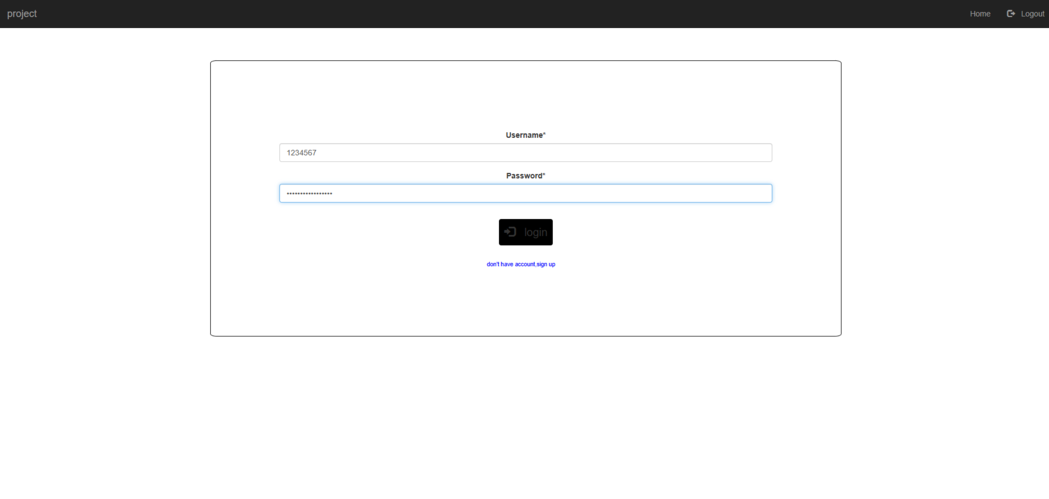
Login Page
**Verification mail after successful login:

Confirmation Mail