find_elements_by_xpath() driver method Selenium Python (original) (raw)
Last Updated : 12 Jul, 2025
Selenium's Python Module is built to perform automated testing with Python. Selenium Python bindings provides a simple API to write functional/acceptance tests using Selenium WebDriver. After you have installed selenium and checked out - Navigating links using get method, you might want to play more with Selenium Python. After one has opened a page using selenium such as geeksforgeeks, one might want to click some buttons automatically or fill a form automatically or any such automated task. This article revolves around how to grab or locate elements in a webpage using locating strategies of Selenium Web Driver. More specifically, find_elements_by_xpath() is discussed in this article. This method returns a list with type of elements specified. XPath is the language used for locating nodes in an XML document. As HTML can be an implementation of XML (XHTML), Selenium users can leverage this powerful language to target elements in their web applications. To grab a single first element, checkout - find_element_by_xpath() driver method – Selenium Python Syntax -
driver.find_elements_by_xpath("xpath")
Example - For instance, consider this page source:
html `
`
Now after you have created a driver, you can grab an element using -
login_form = driver.find_elements_by_xpath('//input[@name='username']')
How to use driver.find_elements_by_xpath() method in Selenium?
Let's try to practically implement this method and get a element instance for "https://www.geeksforgeeks.org/". Let's try to grab search form input using its name "articleTitle". Create a file called run.py to demonstrate find_elements_by_xpath method -
Python3 1== `
Python program to demonstrate
selenium
import webdriver
from selenium import webdriver
create webdriver object
driver = webdriver.Firefox()
enter keyword to search
keyword = "geeksforgeeks"
get geeksforgeeks.org
driver.get("https://www.geeksforgeeks.org/")
get elements
elements = driver.find_elements_by_xpath("//div[@name ='articlePath']")
print complete elements list
print(element)
`
Now run using -
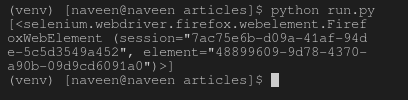
Python run.py
First, it will open firefox window with geeksforgeeks, and then select the element and print it on terminal as show below.Browser Output - 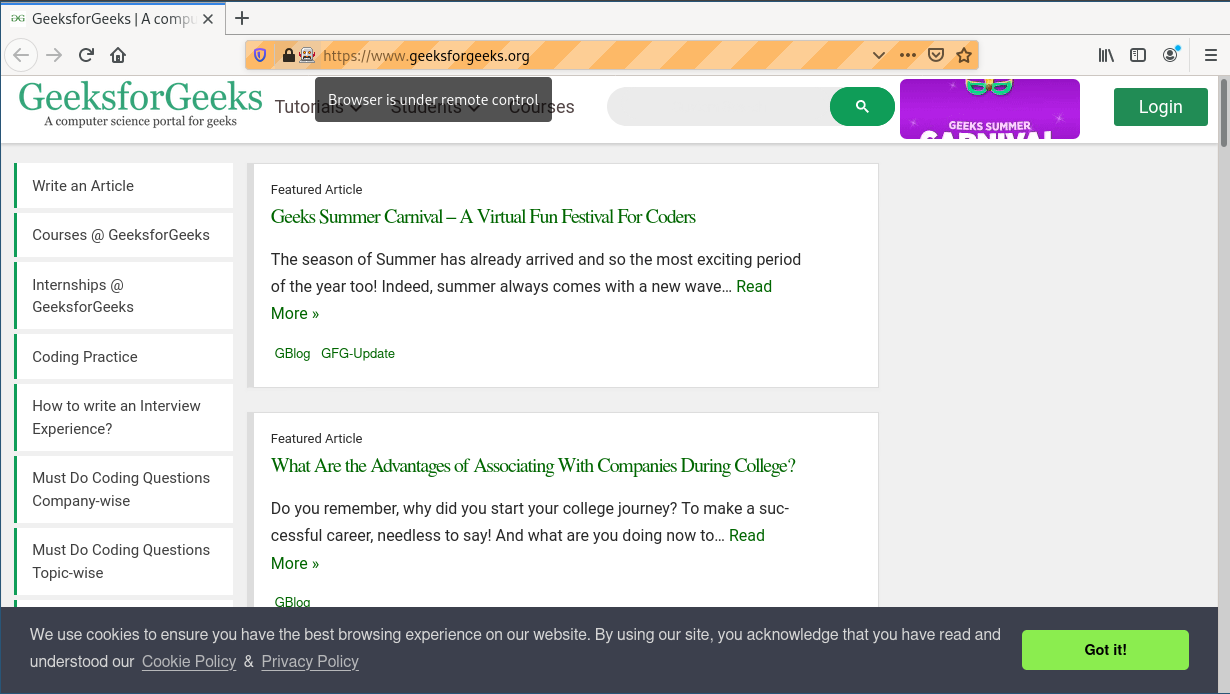 Terminal Output -