Generate Word Clouds Of Any Shape In Python (original) (raw)
In this article, we will discuss how to create word clouds of any shape in Python.
The term WordCloud refers to a data visualization technique for showing text data in which the size of each word indicates its frequency or relevance. To create a word cloud of any shape, use Python'sMatplotlib, word cloud, NumPy, and PIL packages.
Stepwise Implementation
Let's have a look at the step-by-step implementation -
Step 1: Install the following modules as listed below-
pip install matplotlib pip install wordcloud
Step 2: Import the following modules as listed below-
import matplotlib.pyplot as plt from wordcloud import WordCloud, STOPWORDS import numpy as np from PIL import Image
Step 3: Follow the steps below-
- Give the full path to the text file you intend to use.
- In read mode, open the text file.
- Finally, encode and read it.
- In this article following text file will be used- Text
text = open(r'C:\Users\Dell\Desktop\Wordcloud\Text.txt', mode='r', encoding='utf-8').read()
Step 4: Follow the steps below-
- Give the entire image path that we will use to get our output in the same shape.
- Then, using the image.open function, open the image.
- After that, use NumPy to create the image's array.
- The below image will be used in this article for the desired shape

mask = np.array(Image.open(r'C:\Users\Dell|Downloads\Garbage\GFG.png'))
Step 5: Create a wordcloud by integrating a stopword, a mask, a background color, the maximum number of wordsin the wordcloud, the height of the mask, and the width of the mask.
- stopwords- It is used to avoid unnecessary characters such as './-[{)*&^%~@!#%^&].
- mask- Mask is the shape to which we will convert our wordcloud.
- background_color- We can use whatever background color we like, such as black, green, and so on.
- max_words- It is the maximum number of words that a wordcloud can contain.
- max_font- It's maximum font size.
- The width and height of the wordcloud are represented by Width and Height.
wc = WordCloud(stopwords = STOPWORDS, mask = mask, background_color = "white", max_words = 2000, max_font_size = 500, random_state = 42, width = mask.shape[1], height = mask.shape[0])
Step 6:
- Now, using the generate function, we will create a wordcloud from the provided text.
- To display image data, use the imshow function.
- We will try to off the x and y-axis.
- Finally, we will display the generated wordcloud using the show function defined within matplotlib.
wc.generate(text) plt.imshow(wc, interpolation="None") plt.axis('off') plt.show()
Below is the complete implementation.
Python3 `
Python3 program to implement
the above approach
Import the following modules
pip install matplotlib
import matplotlib.pyplot as plt
pip install wordcloud
from wordcloud import WordCloud, STOPWORDS
import numpy as np
from PIL import Image
Give the whole path of the text file,
open it, read it, and encode it.
text = open(r'C:\Users\Dell\Desktop\Wordcloud\Text.txt', mode = 'r', encoding = 'utf-8').read()
The Image shape in which you wanna convert it to.
mask = np.array(Image.open( r'C:\Users\Dell\Downloads\Garbage\GFG.png'))
Now inside the WordCloud, provide some functions:
stopwords - For stopping the unuseful words
like [,?/"]
font_path - provide the font path to which you
wanna convert it to.
max_words - Maximum number of words in the
output image. Also provide height and width
of the mask
wc = WordCloud(stopwords = STOPWORDS, mask = mask, background_color = "white", max_words = 2000, max_font_size = 500, random_state = 42, width = mask.shape[1], height = mask.shape[0])
Finally generate the wordcloud of the given text
wc.generate(text)
plt.imshow(wc, interpolation = "None")
Off the x and y axis
plt.axis('off')
Now show the output cloud
plt.show()
`
Output:
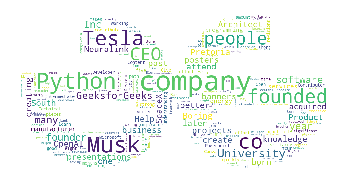
Change Font Size
Follow the steps below to change the font size of the words in the word cloud-
- First, select a font from this collection.
- Download the font file—you see that it is in .zip format.
- Open the zip file and extract the TTF or otf file from it.
- Now just provide the full path of the TTF or otf file.
path = r'C:\Users\Dell\Downloads\Garbage\Candy Beans.otf'
Complete Code:
Python3 `
Python3 program to implement
the above approach
Import the following modules
pip install matplotlib
import matplotlib.pyplot as plt
pip install wordcloud
from wordcloud import WordCloud, STOPWORDS
import numpy as np
from PIL import Image
Give the whole path of the text file,
open it, read it, and encode it.
text = open(r'C:\Users\Dell\Desktop\Wordcloud\Text.txt', mode = 'r', encoding = 'utf-8').read()
For changing the fonts of wordcloud fonts
path = r'C:\Users\Dell\Downloads\Garbage\Candy Beans.otf'
The Image shape in which you wanna convert it to.
mask = np.array(Image.open( r'C:\Users\Dell\Downloads\Garbage\GFG.png'))
Now inside the WordCloud, provide some functions:
stopwords - For stopping the unuseful words
like [,?/"]
font_path - provide the font path to which
you wanna convert it to.
max_words - Maximum number of words in
the output image.
Also provide height and width of the mask
wc = WordCloud(stopwords = STOPWORDS, font_path = path, mask = mask, background_color = "white", max_words = 2000, max_font_size = 500, random_state = 42, width = mask.shape[1], height = mask.shape[0])
Finally generate the wordcloud of the given text
wc.generate(text)
plt.imshow(wc, interpolation = "None")
Off the x and y axis
plt.axis('off')
Now show the output cloud
plt.show()
`
Output:

Change the Font Color
Follow the steps below to change the font color of the text in a word cloud-
- Create a function to change the font color.
- Because the HSL of each color is unique, just pass the HSL and return it.
Complete Code:
Python3 `
Python3 program to implement
the above approach
Import the following modules
pip install matplotlib
import matplotlib.pyplot as plt
pip install wordcloud
from wordcloud import WordCloud, STOPWORDS
import numpy as np
from PIL import Image
Function for changing the color of the text
def one_color_func(word = None, font_size = None, position = None, orientation = None, font_path = None, random_state = None):
This HSL is for the green color
h = 99
s = 62
l = 45
return "hsl({}, {}%, {}%)".format(h, s, l)
Give the whole path of the text file,
open it, read it, and encode it.
text = open(r'C:\Users\Dell\Desktop\Text.txt', mode = 'r', encoding = 'utf-8').read()
For changing the fonts of wordcloud fonts
path = r'C:\Users\Dell\Downloads\Garbage\Candy Beans.otf'
The Image shape in which you wanna convert it to.
mask = np.array(Image.open( r'C:\Users\Dell\Downloads\Garbage\GFG!.png'))
Now inside the WordCloud, provide some functions:
stopwords - For stopping the unuseful words
like [,?/"]
font_path - provide the font path to which
you wanna convert it to.
max_words - Maximum number of words in
the output image.
Also provide height and width of the mask
wc = WordCloud(stopwords = STOPWORDS, font_path = path, mask = mask, background_color = "white", max_words = 2000, max_font_size = 500, random_state = 42, width = mask.shape[1], height = mask.shape[0], color_func = one_color_func)
Finally generate the wordcloud of
the given text
wc.generate(text)
plt.imshow(wc, interpolation = "None")
Off the x and y axis
plt.axis('off')
Now show the output cloud
plt.show()
`