How to create a text input box with Pygame? (original) (raw)
Last Updated : 26 Mar, 2021
In this article, we will discuss how to create a text input box using PyGame.
Installation
Before initializing pygame library we need to install it. This library can be installed into the system by using pip tool that is provided by Python for its library installation. Pygame can be installed by writing these lines into the terminal.
We can install Pygame using command :
pip install pygame
Pygame can be used to create a text input box which will be explained step by step further in this article.
Approach
- Use pygame.init() which will initialize all imported modules.
- Set screen size.
- Set font of the text which user will type.
- Create a condition according to user key.
- Also, declare two variable which will contain color name which will be further used for input color.
- Also, store input in a variable to display on screen.
- Now draw rectangle and pass argument which should be on screen.
- Also, set the size of screen to be rendered.
- Use clock.tick() which means that for every second at most given frames should be passed.
Functions Used
| Function | Description |
|---|---|
| clock.tick() | It is used to refresh the frame in given second |
| pygame.exit() | It is used to quit game |
| pygame.init() | It is used to initialize all imported module |
| pygame.font.Font | Create a new Font object from a file |
| pygame.display.flip() | It will update only a portion of the screen to updated, not full area |
| screen.fill((r, g, b, a)) | It will set the background color of the screen. The range is between 0 and 255. |
Implementation
Python3 `
import sys module
import pygame import sys
pygame.init() will initialize all
imported module
pygame.init()
clock = pygame.time.Clock()
it will display on screen
screen = pygame.display.set_mode([600, 500])
basic font for user typed
base_font = pygame.font.Font(None, 32) user_text = ''
create rectangle
input_rect = pygame.Rect(200, 200, 140, 32)
color_active stores color(lightskyblue3) which
gets active when input box is clicked by user
color_active = pygame.Color('lightskyblue3')
color_passive store color(chartreuse4) which is
color of input box.
color_passive = pygame.Color('chartreuse4') color = color_passive
active = False
while True: for event in pygame.event.get():
  # if user types QUIT then the screen will close
    if event.type == pygame.QUIT:
        pygame.quit()
        sys.exit()

    if event.type == pygame.MOUSEBUTTONDOWN:
        if input_rect.collidepoint(event.pos):
            active = True
        else:
            active = False

    if event.type == pygame.KEYDOWN:

        # Check for backspace
        if event.key == pygame.K_BACKSPACE:

            # get text input from 0 to -1 i.e. end.
            user_text = user_text[:-1]

        # Unicode standard is used for string
        # formation
        else:
            user_text += event.unicode

# it will set background color of screen
screen.fill((255, 255, 255))

if active:
    color = color_active
else:
    color = color_passive

# draw rectangle and argument passed which should
# be on screen
pygame.draw.rect(screen, color, input_rect)

text_surface = base_font.render(user_text, True, (255, 255, 255))

# render at position stated in arguments
screen.blit(text_surface, (input_rect.x+5, input_rect.y+5))

# set width of textfield so that text cannot get
# outside of user's text input
input_rect.w = max(100, text_surface.get_width()+10)

# display.flip() will update only a portion of the
# screen to updated, not full area
pygame.display.flip()

# clock.tick(60) means that for every second at most
# 60 frames should be passed.
clock.tick(60)
`
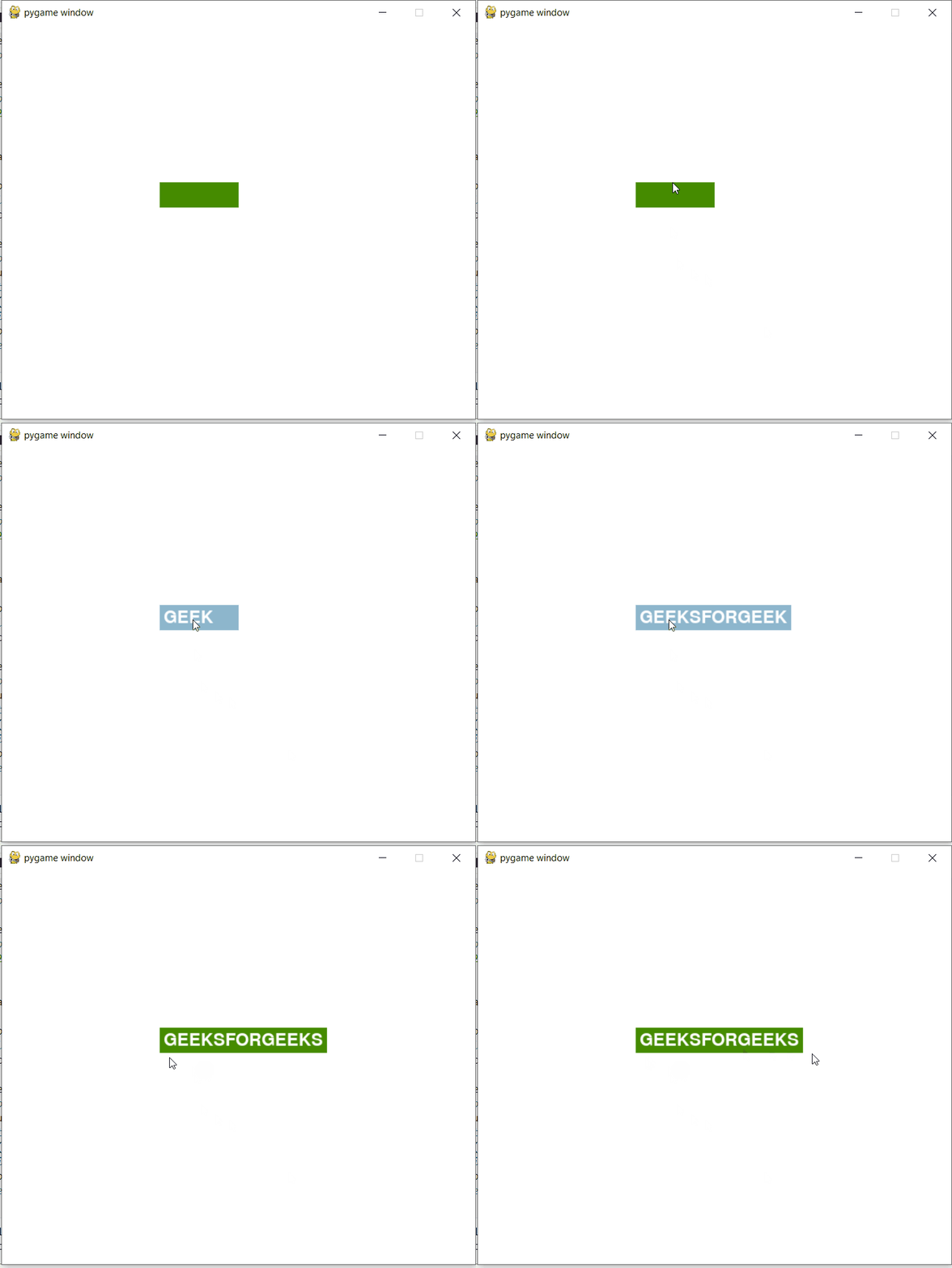
Output: