How to draw rectangle in Pygame? (original) (raw)
Last Updated : 13 Jun, 2025
**Pygame is a popular Python library for game development and multimedia, built on top of the SDL library. One of the most basic graphical operations in Pygame is drawing shapes, such as rectangles. **Rectangles are essential for making buttons, frames, game objects and more. It's key functions for drawing rectangles.
| Function | Purpose |
|---|---|
| pygame.display.set_mode() | Initializes the display window or surface where graphics are rendered. Takes window size as parameter. |
| pygame.display.flip() | Updates the entire display to show any changes drawn on the surface. |
| pygame.draw.rect() | Draws a rectangle shape on a given surface. Takes surface, color, rectangle coordinates and optional border width. |
The basic syntax for drawing a rectangle is:
pygame.draw.rect(surface, color, rect, width=0)
**Parameters:
- **surface: The surface or screen where the rectangle will be drawn.
- **color: The color of the rectangle in RGB format. For example, (255, 0, 0) is red.
- **rect: A pygame.Rect object or a tuple specifying (x, y, width, height).
- **width (optional): Thickness of the border. If width=0 (default), the rectangle is filled with color. If a positive number, only the border is drawn.
Examples
**Example 1: Here, we draw a filled pink square at position (30, 30) with width and height of 60 pixels.
Python `
import pygame
pygame.init()
surface = pygame.display.set_mode((400, 300)) # window
color = (255, 192, 203)
pygame.draw.rect(surface, color, pygame.Rect(30, 30, 60, 60))
pygame.display.flip()
pygame.time.wait(3000) # Pause for 3 seconds
pygame.quit()
`
**Output

Filled pink square
**Explanation:
- **pygame.draw.rect(surface, color, pygame.Rect(30, 30, 60, 60)) draws a filled rectangle at position (30, 30) with width 60 and height 60.
- **pygame.display.flip() updates the screen to display the drawn rectangle.
- **pygame.time.wait(3000) keeps the window open for 3 seconds.
**Example 2: Here, we draw a red rectangle with only a 2-pixel thick border and no fill inside.
Python `
import pygame pygame.init() surface = pygame.display.set_mode((400, 300)) # window color = (255, 0, 0)
Draw rectangle border (width=2)
pygame.draw.rect(surface, color, pygame.Rect(30, 30, 60, 60), 2)
pygame.display.flip() pygame.time.wait(3000) pygame.quit()
`
**Output
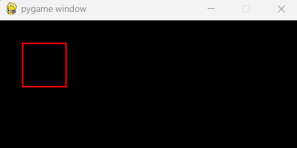
Red rectangle border
**Explanation:
- **pygame.draw.rect(....) draws a rectangle border (not filled) at position (30, 30) with width 60 and height 60. The 2 specifies the border thickness in pixels.
- Updates the screen to show the rectangle, waits for 3 seconds and then closes the Pygame window.
**Example 3: Here, we draw three rectangles: one filled red, one with a green 5-pixel border, and one with a blue 10-pixel border.
Python `
import pygame pygame.init() surface = pygame.display.set_mode((500, 400))
colors
red = (255, 0, 0) green = (0, 255, 0) blue = (0, 0, 255)
pygame.draw.rect(surface, red, pygame.Rect(50, 50, 100, 80)) pygame.draw.rect(surface, green, pygame.Rect(200, 50, 100, 80), 5) pygame.draw.rect(surface, blue, pygame.Rect(350, 50, 100, 80), 10)
pygame.display.flip() pygame.time.wait(4000) pygame.quit()
`
**Output
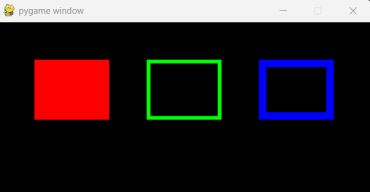
Multiple rectangles shown
**Explanation:
- **pygame.draw.rect(...) draws three rectangles at the top of the screen, a filled red rectangle, a green rectangle with 5px border and a blue rectangle with 10px border, each with position and size specified using **pygame.Rect().
- Displays all rectangles on the window, keeps the window open for 4 seconds and then closes it.
**Example 4: Here, we animate a blue rectangle moving from left to right across the screen in a loop.
Python `
import pygame pygame.init() w, h = 600, 200 # size s = pygame.display.set_mode((w, h)) c_white, c_blue = (255,255,255), (0,0,255) # colors x, y, rw, rh, spd = 0, 50, 60, 40, 5 # rect params clk = pygame.time.Clock() # clock
run = True
while run:
for e in pygame.event.get():
if e.type == pygame.QUIT:
run = False
s.fill(c_white)
pygame.draw.rect(s, c_blue, (x, y, rw, rh))
x = (x + spd) % (w + rw) - rw
pygame.display.flip()
clk.tick(30)
pygame.quit()
`
**Output
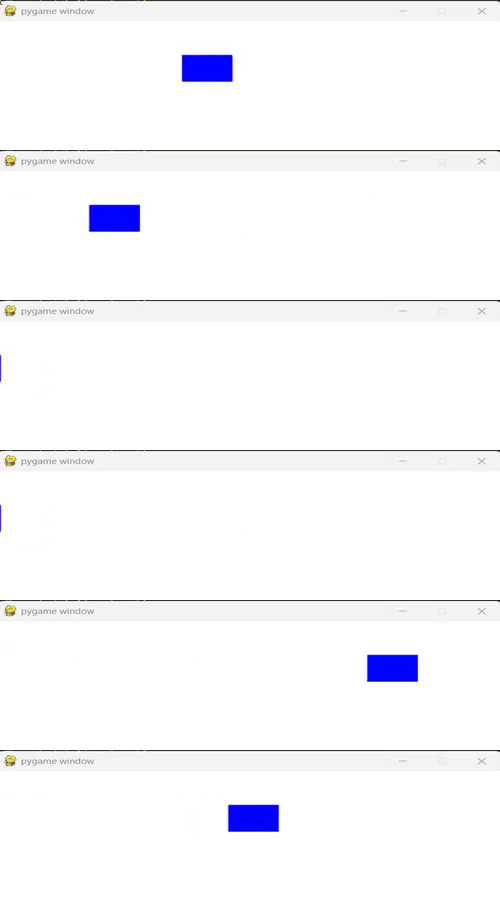
Animated moving rectangle
**Explanation:
- **while loop keeps the program active until the window is closed, handling events and updating the screen by clearing it and drawing the moving blue rectangle that wraps around horizontally.
- **pygame.display.flip() refreshes the display each frame, while **clk.tick(30) limits the frame rate to 30 FPS for smooth animation.