How to Get Column Names in Pandas Dataframe (original) (raw)
Last Updated : 11 Jul, 2025
While analyzing the real datasets which are often very huge in size, we might need to get the pandas column names in order to perform certain operations. The simplest way to get column names in Pandas is by using the .columns attribute of a DataFrame. Let's understand with a quick example:
Python `
import pandas as pd
df = pd.DataFrame({ 'Name': ['Avery Bradley', 'Jae Crowder', 'John Holland'], 'Team': ['Boston Celtics'] * 3, 'Number': [0.0, 99.0, 30.0], })
Get column names
res = df.columns print(res)
`
Output
Index(['Name', 'Team', 'Number'], dtype='object')
This returns an Index object containing all the column names. If you need the column names as a list, you can convert this Index object using the tolist() method or Python's built-in list() function.
Python `
res = list(data.columns) print(res)
`
**Output:
['Name', 'Team', 'Number']
In this article, we’ll dive deeper into different methods to access column names and discuss their use cases. Additionally, we’ll expand the DataFrame size to reflect real-world scenarios better.
Loading Dataset and Viewing Column Names
To demonstrate these methods clearly, we'll use an NBA player statistics dataset. It contains columns like player names, team, age, college, and salary.
Python `
import pandas as pd
df = pd.read_csv("https://media.geeksforgeeks.org/wp-content/uploads/nba.csv")
df.head()
`
**Output:
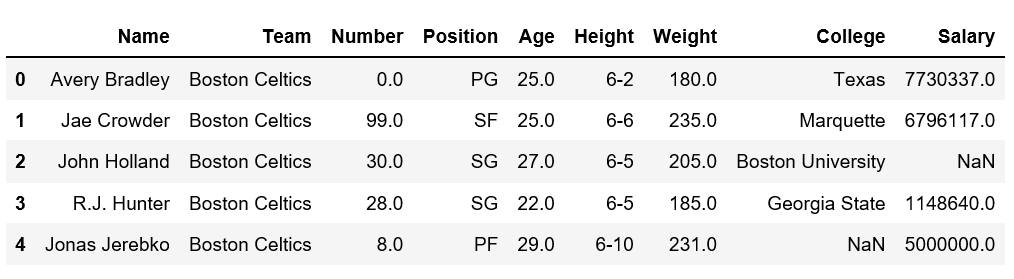
Column Names in Pandas
You can access this dataset directly from this link: NBA Dataset on GeeksforGeeks. It includes information about players, such as their names, teams, positions, ages, heights, weights, colleges, and salaries. Now let’s try to get the columns name from above dataset.
Get a List of Column Names using .columns Attribute
We can use the Pandas DataFrame .columns property to get all column names as an Index object. To convert it into a list.
Python `
list(df.columns)
`
**Output:
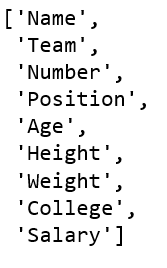
Column Names in Pandas
Pandas List Column Names using .tolist() Method
If you prefer working with a Python list instead of an Index object, you can convert it using .tolist():
Python `
column_list
res = df.columns.tolist() print(res)
`
**Output:
['Name', 'Team', 'Number', 'Position', 'Age', 'Height', 'Weight', 'College', 'Salary']
Using keys() Method
The .keys() method behaves similarly to .columns and returns an Index object containing the column names.
Python `
column_keys
res = df.keys() print(res)
`
**Output:
Index(['Name', 'Team', 'Number', 'Position', 'Age', 'Height', 'Weight',
'College', 'Salary'],
dtype='object')
Using .columns.values for Numpy Array Output
If you need the column names as a NumPy array, you can access them through .columns.values. This can be particularly useful when working with NumPy functions that expect arrays.
Python `
column_array
res = df.columns.values print(res)
`
**Output :
['Name' 'Team' 'Number' 'Position' 'Age' 'Height' 'Weight' 'College',' Salary']
Sorting Column Names with sorted()
If you want the column names in alphabetical order, you can use Python’s built-in sorted() function.
Python `
sorted_columns
res = sorted(df.columns) print(res)
`
**Output :
['Age', 'College', 'Height', 'Name', 'Number', 'Position', 'Salary', 'Team', 'Weight']
Iterating Over Column Names
Sometimes, you may want to iterate over the column names for tasks like renaming or applying functions to each column. This approach allows to perform operations on each column name individually.
Python `
for col in df.columns: print(col)
`
**Output:
Name
Team
Number
Position
Age
Height
Weight
College
Salary
Key Takeaways:
- ****.columns** attribute is the primary way to access column names in Pandas.
- You can convert the output of .columns into a list using ****.tolist()** or list(), depending on your preference.
- The ****.keys()** method works similarly to ****.columns**, returning an Index object.
- For NumPy array output, use ****.columns.values.**
- If you need sorted column names, apply Python’s built-in sorted() function.
- You can also iterate over columns using a simple for loop.