How to make a Python auto clicker? (original) (raw)
**Auto-clickers are tools that simulate mouse clicks automatically at a given location and interval. Whether you're automating repetitive tasks in games, productivity applications, or testing graphical user interfaces (GUIs), creating an auto-clicker in Python is both a fun and practical project. In this article, we’ll walk you through building a fully functional auto-clicker using the pynput module to monitor keyboard input and simulate mouse clicks.
Requirements
We’ll be using the pynput module, a cross-platform library for controlling and monitoring input devices (mouse/keyboard). To install pynput, run the following command in your terminal or command prompt:
pip install pynput
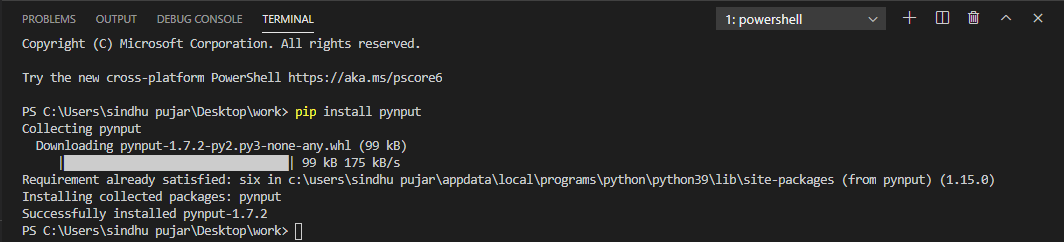
Installation of pynput module
**Note: If you're stuck on how to set up python-pip package on your system then click here
After installing this module, we need to verify whether it has been installed correctly. Open your Python shell or IDLE and type:
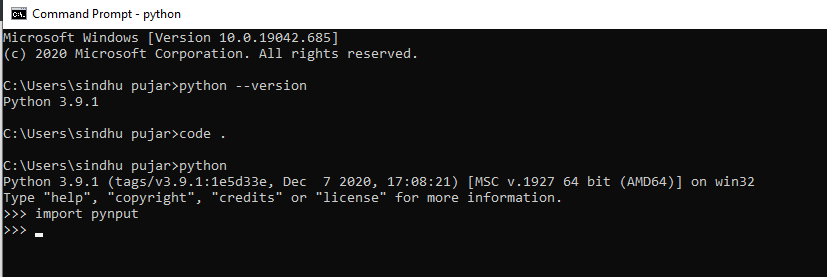
Verifying module installation
Step by step implementaion
Let's now proceed with the code that is required to build an **Auto-clicker using Python. Follow the below steps to create an auto-clicker:
**Step 1: Start by importing the necessary modules. These allow us to work with time delays, threads for background execution and to control keyboard and mouse inputs.
Python `
import time import threading
from pynput.mouse import Button, Controller from pynput.keyboard import Listener, KeyCode
`
**Step 2: We set up key variables that determine how the clicker behaves:
- **d: Time gap between each click.
- **btn: Which mouse button to click.
- **start_key: Hotkey to start or stop clicking.
- **exit_key: Hotkey to exit the program. Python `
Config variables
d = 0.001
btn = Button.left
Hotkeys
start_key = KeyCode(char='a')
exit_key = KeyCode(char='b')
`
**Step 3: We use Python’s **threading.Thread to run the auto-clicker in the background so it doesn't block keyboard input.
Python `
class AutoClicker(threading.Thread): def init(self, d, btn): super().init() self.d = d # Delay self.btn = btn # Button self.clicking = False self.active = True
def start_click(self):
    self.clicking = True

def stop_click(self):
    self.clicking = False

def exit(self):
    self.stop_click()
    self.active = False

def run(self):
    while self.active:
        while self.clicking:
            mouse.click(self.btn)
            time.sleep(self.d)
`
**Step 4: We create a Controller instance to simulate mouse actions, and then start the thread we just defined.
Python `
mouse = Controller() c = ClickMouse(d, btn) c.start()
`
**Step 5: This function listens for key presses. If the user presses a, the clicker toggles on or off. Pressing b exits the application.
Python `
def on_press(k): if k == start_key: if clicker.clicking: clicker.stop_click() print("[INFO] Clicker Stopped.") else: clicker.start_click() print("[INFO] Clicker Started.") elif k == exit_key: clicker.exit() print("[INFO] Exiting.") return False # Stop listener
`
**Step 6: Creating an instance for the mouse controller, then create **ClickMouse thread. Start the instance to move into the loop inside the run method.
Python `
instance of mouse controller is created
mouse = Controller() click_thread = ClickMouse(delay, button) click_thread.start()
`
**Step 7: Now we start the keyboard listener, which keeps the program running and listens for hotkey presses.
Python `
with Listener(on_press=on_press) as listener: listener.join()
`
Full Source code
Python `
import time import threading
from pynput.mouse import Button, Controller from pynput.keyboard import Listener, KeyCode
Config variables
d = 0.001 # Delay between clicks btn = Button.left # Mouse button to click
Hotkeys
start_key = KeyCode(char='a') # Start/stop key exit_key = KeyCode(char='b') # Exit key
class AutoClicker(threading.Thread): def init(self, d, btn): super().init() self.d = d self.btn = btn self.clicking = False self.active = True
def start_click(self):
    self.clicking = True

def stop_click(self):
    self.clicking = False

def exit(self):
    self.stop_click()
    self.active = False

def run(self):
    while self.active:
        while self.clicking:
            mouse.click(self.btn)
            time.sleep(self.d)
Create mouse controller
mouse = Controller()
Create and start the auto-clicker thread
clicker = AutoClicker(d, btn) clicker.start()
Keyboard listener function
def on_press(k): if k == start_key: if clicker.clicking: clicker.stop_click() print("[INFO] Clicker Stopped.") else: clicker.start_click() print("[INFO] Clicker Started.") elif k == exit_key: clicker.exit() print("[INFO] Exiting.") return False # Stop listener
Start listening for keyboard events
with Listener(on_press=on_press) as listener: listener.join()
`
Now let's execute the python program we've written and then press the **start (a) and **stop (a) keys in order to initiate the auto clicker.
**Output: