Image Filtering Using Convolution in OpenCV (original) (raw)
Last Updated : 5 Aug, 2025
Image filtering is a process used to modify or improve digital images through mathematical operations. Filters can smooth out noise, highlight edges or change the way an image looks by applying a set of rules to each pixel and its neighbours. It adjusts digital images by applying mathematical operations to each pixel, allowing for effects such as smoothing, sharpening or edge detection.
Below are the main types of image filters using convolution in OpenCV:
1. Identity Kernel
Identity Kernel is the simplest and the most basic kernel operation that could be performed. The output image produced is exactly like the image that is given as the input. It does change the input image. It is a square matrix with the center element equal to 1. All the other elements of the matrix are 0.
**When to Use:
- As a testing baseline for our pipeline.
- To demonstrate the mechanics of convolution without altering our data.
The image used can be download from here.

Python `
img = cv2.imread('input_image.png')
identity_kernel = np.array([ [0, 0, 0], [0, 1, 0], [0, 0, 0] ])
identity_img = cv2.filter2D(src=img, ddepth=-1, kernel=identity_kernel) show_img('Identity Filter', identity_img)
`
**Output:
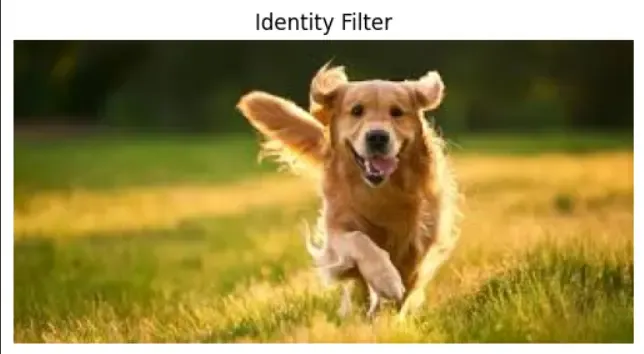
Identity Kernel
2. Box Blur
The box blur uses a kernel where all values are equal. Each pixel is averaged with its neighbors, softening sharp transitions and reducing noise.
**When to Use:
- Quick noise reduction on fundamentally clean images.
- Preprocessing before lower-precision tasks, such as image downsampling. Python `
box_blur_kernel = np.ones((3, 3), np.float32) / 9 box_blur = cv2.filter2D(src=img, ddepth=-1, kernel=box_blur_kernel) show_img('Box Blur', box_blur)
`
**Output:
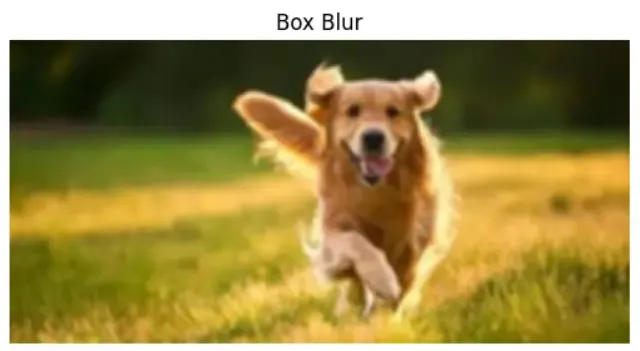
Box Blur
3. Gaussian Blur
Gaussian blur gives a natural smoothing effect. The kernel is weighted according to a Gaussian (bell curve). Pixels near the center contribute more, preserving overall shapes better than a box blur.
**When to Use:
- Preprocessing for edge detection (removing random speckles before finding boundaries).
- Mimicking depth-of-field or creating “dreamy” photo effects. Python `
gaussian_blur = cv2.GaussianBlur(src=img, ksize=(5, 5), sigmaX=1) show_img('Gaussian Blur', gaussian_blur)
`
**Output:
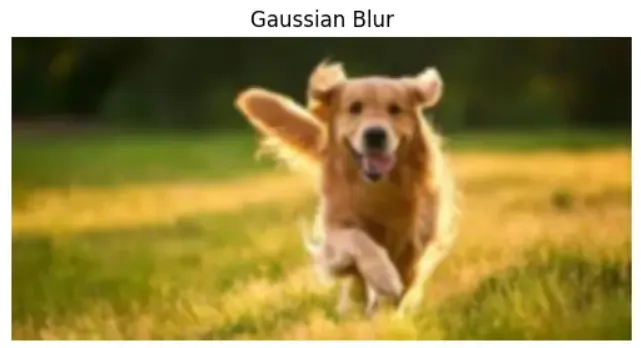
Gaussian Blur
Median blur replaces each pixel with the median value of its surrounding neighborhood. This is excellent for removing isolated noise while preserving edges.
**When to Use:
- Cleaning up “salt-and-pepper” (random single-pixel) noise.
- Restoring archival photos or scanned documents speckled with dirt. Python `
median_blur = cv2.medianBlur(src=img, ksize=5) show_img('Median Blur', median_blur)
`
**Output:
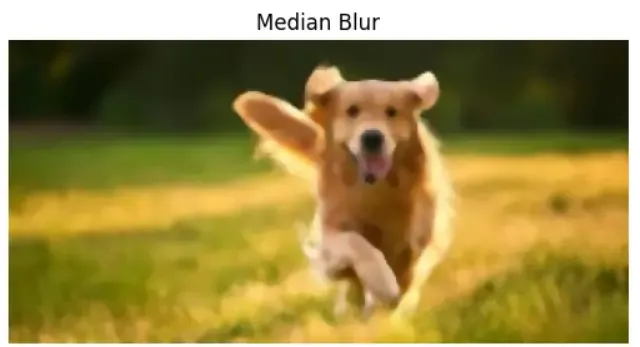
Median Blur
5. Sharpen Filter
A sharpening kernel increases contrast at edges, making image details stand out and appear crisp.
**When to Use:
- Making blurry or soft images crisp.
- Highlighting details before feature extraction or texture analysis. Python `
sharpen_kernel = np.array([ [0, -1, 0], [-1, 5, -1], [0, -1, 0] ])
sharpened_img = cv2.filter2D(src=img, ddepth=-1, kernel=sharpen_kernel) show_img('Sharpened Image', sharpened_img)
`
**Output:
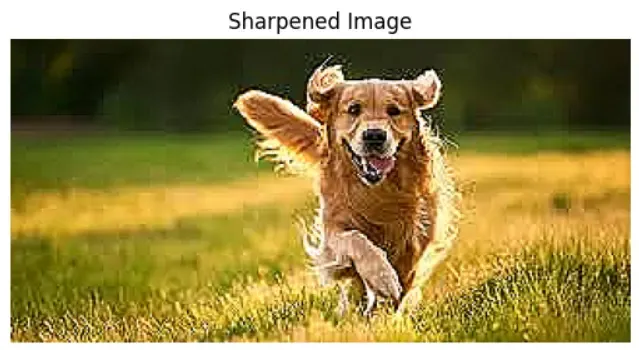
Sharpen Filter
6. Emboss Filter
The emboss filter highlights edges in a particular direction, giving a "raised" or metallic look, like the image is embossed onto a surface.
**When to Use:
- Artistic rendering (metallic or stamp-like effects).
- Visualizing texture maps in graphic design. Python `
emboss_kernel = np.array([ [-2, -1, 0], [-1, 1, 1], [0, 1, 2] ])
embossed_img = cv2.filter2D(src=img, ddepth=-1, kernel=emboss_kernel) show_img('Embossed Image', embossed_img)
`
**Output:
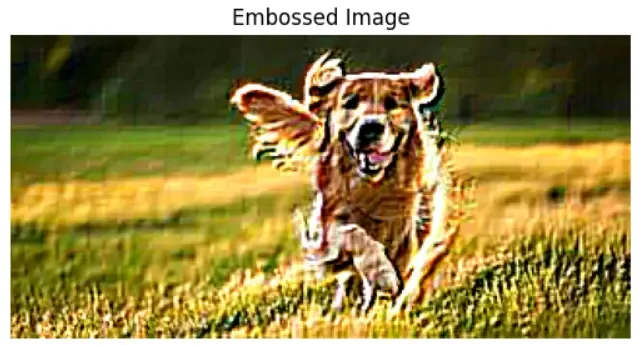
7. Edge Detection (Sobel Operator)
Sobel filters detect dramatic intensity changes (edges) in horizontal and vertical directions. These kernels are building blocks for object boundary analysis.
**When to Use:
- Object detection and shape extraction in vision systems.
- Automating boundary tracking for industrial inspection or robotics. Python `
sobelx = cv2.Sobel(src=img, ddepth=cv2.CV_64F, dx=1, dy=0, ksize=3) sobely = cv2.Sobel(src=img, ddepth=cv2.CV_64F, dx=0, dy=1, ksize=3)
plt.figure(figsize=(10, 4)) plt.subplot(1, 2, 1) plt.imshow(cv2.convertScaleAbs(sobelx), cmap='gray') plt.title('Sobel X - Horizontal Edges') plt.axis('off')
plt.subplot(1, 2, 2) plt.imshow(cv2.convertScaleAbs(sobely), cmap='gray') plt.title('Sobel Y - Vertical Edges') plt.axis('off') plt.show()
`
**Output:
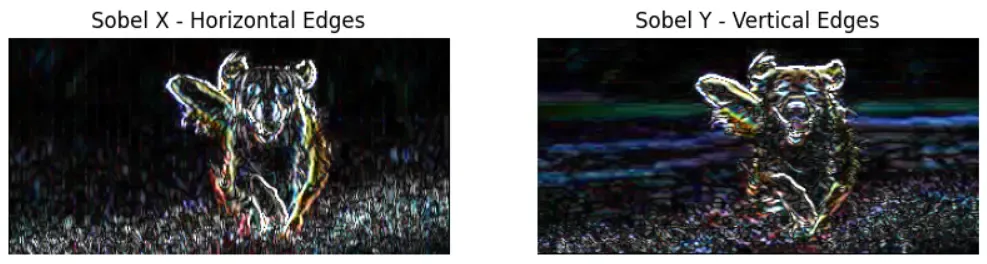
Image filtering using convolution in OpenCV is a key technique for modifying and analyzing digital images. By applying various filters such as blurring, sharpening or edge detection, we can enhance important features, remove unwanted noise or reveal hidden structures in images.