Interacting with Webpage Selenium Python (original) (raw)
Selenium’s Python module is designed for automating web testing tasks in Python. It provides a straightforward API through Selenium WebDriver, allowing you to write functional and acceptance tests. To open a webpage, you can use the get() method for navigation. However, the true power of Selenium lies in interacting with web pages—specifically, the HTML elements within them—rather than just visiting URLs. This enables you to perform more meaningful tasks like filling forms, clicking buttons, and extracting data.
Interacting with Webpage using Python Selenium
In Python Selenium we first need to find a driver. WebDriver offers several ways to find elements. For example, given an element defined as:
html `
`
To interact with elements in Selenium, various locating strategies can be used. For example, you can locate elements by ID, name, or XPath:
element = driver.find_element(By.ID, "passwd-id") element = driver.find_element(By.NAME, "passwd") element = driver.find_element(By.XPATH, "//input[@id='passwd-id']")
If you need to find multiple elements, use:
elements = driver.find_elements(By.NAME, "passwd")
To find a link by its text, ensure the text is an exact match:
element = driver.find_element(By.LINK_TEXT, "Link Text")
Be cautious when using XPath. If more than one element matches your query, only the first one will be returned. If no element is found, a NoSuchElementException will be raised.
Selenium WebDriver employs an "Object-based" API, meaning all element types are represented by the same interface. While many methods may appear when using an IDE's auto-complete feature, not all methods will be relevant or valid for every element. You can refer to **Locator Strategies - Selenium Python for details on available methods.
After Locating an Element – What’s Next?
If you want to input text into a field, you can use:
element.send_keys("some text")
You can also simulate pressing arrow keys or other keys using the Keys class:
element.send_keys(" and some", Keys.ARROW_DOWN)
It’s worth noting that you can call send_keys on any element, which makes it possible to test keyboard shortcuts, like those used in Gmail. To clear the contents of a text field or textarea, use the clear method:
element.clear()
This structure allows for more efficient interaction with web elements using Selenium WebDriver.
**Project Example:
Let us try to search for something automatically at geeksforgeeks.
In the below code we will do:
- First, we import the WebDriver to open the browser. In this case Firefox is used but you can choose any browser like Chrome or Edge.
- Next we use the get() method to open the specified webpage in the browser.
- Then we maximize the browser window to ensure proper visibility of all elements on the page.
- We wait for a few seconds to give the page enough time to load fully before interacting with it. Then we handle iframes by switching the focus to the iframe. This step is essential if an iframe is present on the page like a login overlay.
- Next we interact with elements inside the iframe. In this case we locate the "close" button inside the iframe and click it to dismiss the overlay.
- Now we locate the search icon element on the webpage using its XPath and wait for a short time to ensure that any animations or transitions such as opening the search box are completed.
- Next we locate the search input field where the query will be entered.
- Then we use send_keys() to type the search query ("Data Structure") into the input field.
- Finally we simulate pressing the "Enter" key to submit the search query and trigger the search results. Python `
Import the necessary modules from Selenium
from selenium import webdriver from selenium.webdriver.common.by import By from selenium.webdriver.common.keys import Keys # Added import for Keys from selenium.webdriver.support.ui import WebDriverWait # To wait for elements from selenium.webdriver.support import expected_conditions as EC # For expected conditions import time
Create a webdriver object. Here we use Firefox, but you can choose other browsers like Chrome, Edge, etc.
driver = webdriver.Firefox()
Navigate to the GeeksforGeeks website
driver.get("https://www.geeksforgeeks.org/")
Maximize the browser window
driver.maximize_window()
Wait for 3 seconds to ensure the page is loaded
time.sleep(3)
Handle iframe if one exists (e.g., an overlay)
iframe_element = driver.find_element(By.XPATH, "//iframe[contains(@src,'accounts.google.com')]") driver.switch_to.frame(iframe_element)
Close the overlay (e.g., Google sign-in iframe)
closeele = driver.find_element(By.XPATH, "//*[@id='close']") closeele.click()
Wait for the iframe action to complete
time.sleep(3)
Switch back to the main content
driver.switch_to.default_content()
Locate the search icon element using XPath
searchIcon = driver.find_element(By.XPATH, "//span[@class='flexR gs-toggle-icon']")
Wait for 3 seconds before interacting with the search input
time.sleep(3)
Locate the input field for search text using XPath
enterText = driver.find_element(By.XPATH, "//input[@class='gs-input']")
Enter the search query "Data Structure" into the input field
enterText.send_keys("Data Structure")
Send the RETURN key to submit the search query
enterText.send_keys(Keys.RETURN)
`
**Output:
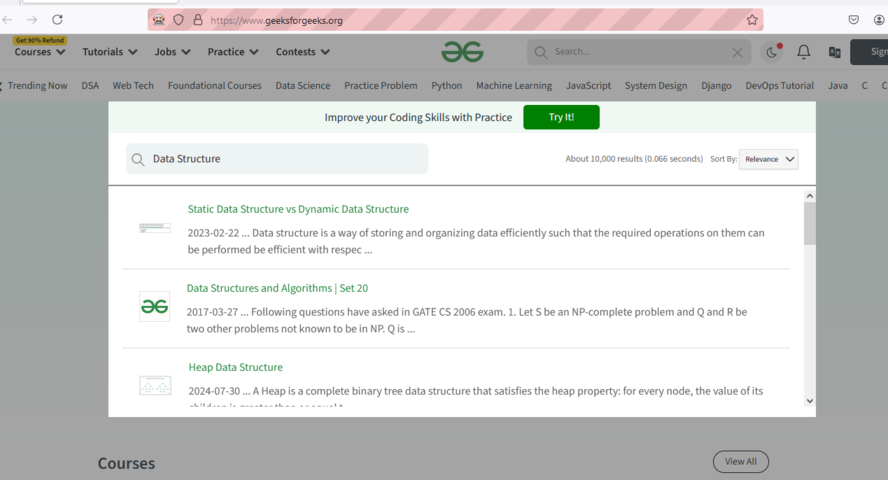
Interacted webpage
Here we can see our code is working fine.