PyCharm Introduction (original) (raw)
Last Updated : 25 May, 2026
PyCharm is a IDE for Python development known for its tools and developer-friendly features. It is widely used for writing, debugging and managing Python projects efficiently. PyCharm is available in both free (Community) and paid (Professional) editions.
- Smart code assistance with auto-completion and error detection
- Built-in debugging tools with version control (Git) integration
- Cross-platform support for Windows, macOS and Linux, with Community and Professional editions
Overview of PyCharm
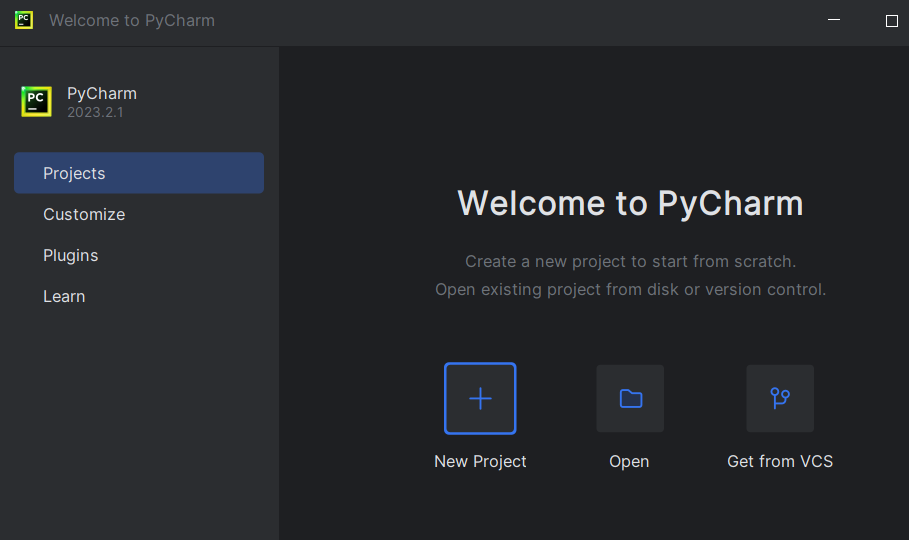
Navigate to your Applications folder, find PyCharm and double-click it to launch the IDE. Here you get an option for creating a new project or opening an existing project.
**Note: Before proceeding, you must first install PyCharm on your system. Refer to the installation guide here Installation of PyCharm.
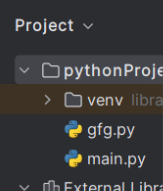
Here you can see the hierarchy of file that are present in proper order with there file extension.
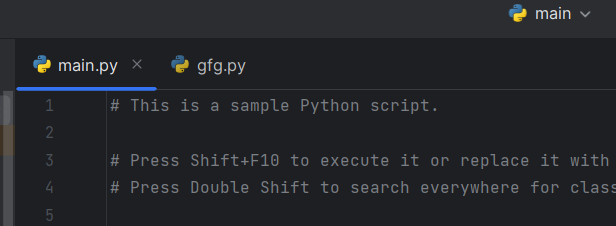
Here you can see the working file and easily navigated by clicking on that tab.
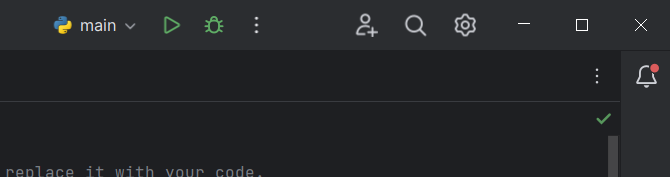
The green play button to run your code and the bug sign represent code DEBUGGING.
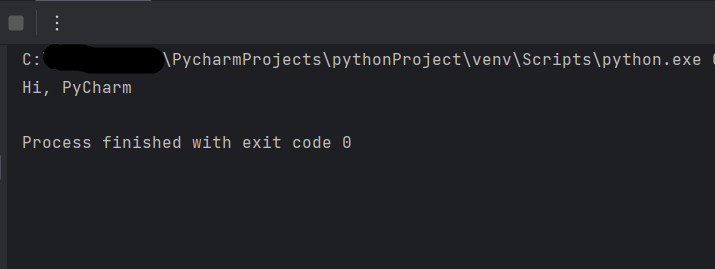
This is the terminal where we see output of the running program.
When you move your your cursor and right click you will get many option to create new file or folder, cut, move, paste and many option according to your need.
.png)
By clicking on upper ribbon, you can access a wide range of features and functions within PyCharm. Depending on your specific development needs, you may find yourself frequently using options from the "File" menu for project management, the "Edit" menu for code editing and the "View" menu for customizing your workspace.
.png)
Here are some common settings and configurations you can adjust using the Settings button:
- **Editor Settings: Customize code formatting, indentation, code style and various editor behaviors.
- **Interpreter Settings: Configure Python interpreters for your projects, including virtual environments and external interpreters.
- **Version Control: Set up version control systems like Git, configure repositories and define commit and push behaviors.
- **Appearance & Behavior: Adjust themes, fonts and UI-related settings. You can also enable or disable features like code inspections and code folding.
- **Keymap: Customize keybindings and keyboard shortcuts to match your preferred coding style.
- **Plugins: Manage and install additional plugins and extensions to extend PyCharm's functionality.
- **Project Settings: Configure project-specific settings like project structure, deployment options and run/debug configurations.
- **Build, Execution, Deployment: Control how your code is built, executed and deployed. You can specify run configurations, deployment servers and more.
.png)