Pygal Tooltip (original) (raw)
Last Updated : 23 Jul, 2025
As you know Nowadays data visualization plays an important role in presenting different data sets with accuracy so with the help of the **Pygal tooltip, we can find information with each data point. In this article, we will explore more about pygal tooltip.
Tooltips in Pygal
**Pygal tooltips help to make your data visualizations more attractive and help developers to work on more complex data easily. **Tooltips are small informational textboxes that generally appear when a user hovers over various elements in a Pygal Chart. Tooltip in Pygal using Python adds another layer of interaction of the user interaction. It provides important information about each data point, these tooltips make it possible to view and understand data at a granular level and this method doesn't affect the visual simplicity of the overall Pygal chart such as line chart, Bar chart, Donut Chart Pygal and so on.
To Implement Tooltips using Pygal in Python. We need the Pygal library to be installed in Python Environment. So, we need to install the Pygal Library using the terminal command.
pip install pygal
Use of Pygal Tooltips
- It provides Interactive Engagement and detailed information upon hovering on a Pygal tooltip.
- Tooltips can represent a specific value, labels, and many other different information as per choices.
- It can be customized to include an automated way that allows data presentation.
- Pygal library of Python can handle tooltips in an automated way.
Implementing Tooltips in Pygal using Python
Tooltip comes built-in with the creation of a chart, and it is not needed to add any additional coding to use this. Here's a basic example:
In this given code we import the **pygal library. we can create a line chart object. Then we set the chart title and x-axis labels. Add data to the chart using the **add method and Then the first argument is the tooltip (in this case, "**GeeksforGeeks"), and the second argument is the list of y- values. Then finally we can render the given chart to an SVG file.
Python3 `
import pygal
line_chart = pygal.Line() line_chart.title = 'Revenue Changes(in %)' line_chart.x_labels = map(str, range(2002, 2023)) line_chart.add('GeeksforGeeks', [None, None, 0, 16.6, 25, 31, 36.4, 45.5, 46.3, 42.8, 37.1, None]) line_chart.render_to_file('line_chart.svg')
`
**Output:
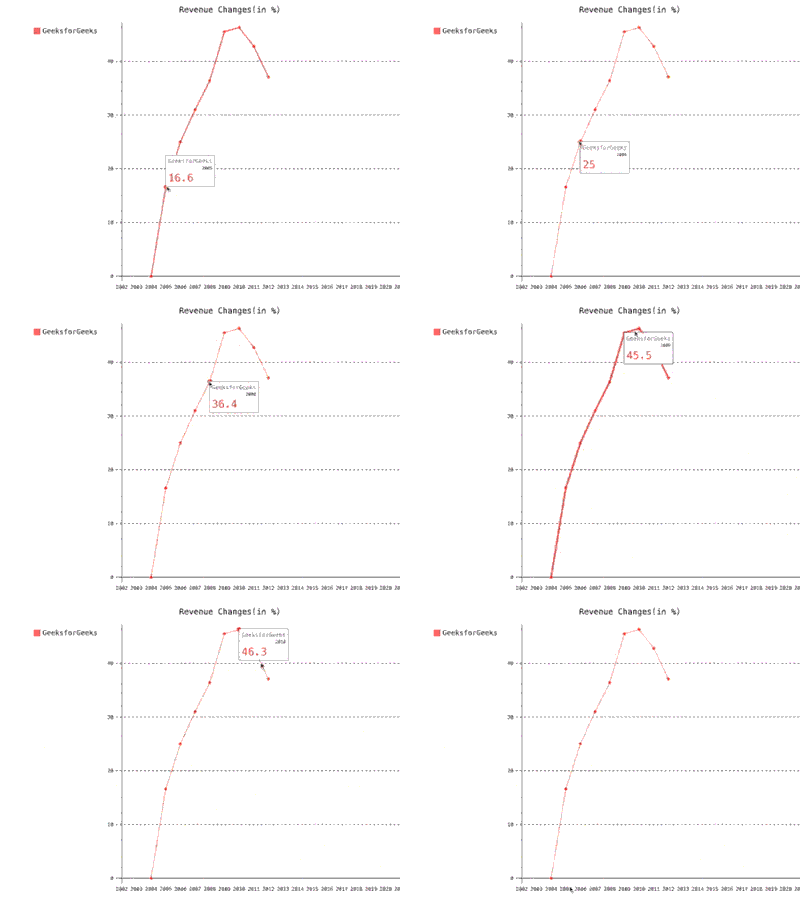
Output in browser
On opening the **SVG file in a web browser and hovering over the data points, You can see tooltips will display the Corresponding year and percentage of results for each topic.
Customizing Tooltip Size
The Pygal library in Python allows you to change or modify the tooltip font size directly by defining your style and passing it to the chart. You can do this by defining the **style class from Pygal.
Here's an example of **How to change the tooltip font size in Pygal. In this code, **tooltip_font_size is usedto change the font size of the tooltip text. The value **16 here sets the font size to 16 pixels. Replace it with your desired font size.
Python3 `
import pygal from pygal.style import Style
Define your own style
custom_style = Style(tooltip_font_size = 16,)
Use this style
chart = pygal.Bar(style=custom_style) chart.add('GeeksforGeeks Results', [1, 3, 3, 7]) chart.render_to_file('bar_chart.svg')
`
**Output:

Output in browser
The tooltip features might not be working in expected SGV viewers that don't support JavaScript or CSS. Additionally, the exact usage of the style class might vary on the version of Pygal in your system. Always refer to the latest updated documentation of Pygal.