Python | Adding image in Kivy using .kv file (original) (raw)
Last Updated : 11 Jul, 2025
Kivy is a platform independent GUI tool in Python. As it can be run on Android, IOS, linux, and Windows, etc. It is basically used to develop the Android application, but it does not mean that it can not be used on Desktops applications.
Image Widget:
The Image widget is used to display an image. To use the image widget you must have to import :
from kivy.uix.image import Image, AsyncImage (not necessary while working with .kv file)
because the module kivy.uix.image have all the functionality related to images.
Images can be loaded to the Application via two types:
1) Synchronous Loading: Loading image from the system (must be from the folder in which .py and .kv file is saved)
2) Asynchronous Loading: To load an image asynchronously (for example from an external webserver)
Note: By default, the image is centered and fits inside the widget bounding box. If you don’t want that, you can set allow_stretch to True and keep_ratio to False.
Basic Approach to create multiple layout in one file:
- import kivy
- import kivyApp
- import image
- import BoxLayout
- set minimum version(optional)
- Create the Layout class
- Create App class
- Create .kv file: 1) Add BoxLayout 2) Add Label 3) Add Image 4) Resizing, Positioning etc of Image
- return instance of the layout class
- Run an instance of the class
So in the below code, we will explain How to load Synchronous and Asynchronous images. Also How to resize, Positioning, Label, etc the image with some more stuff.
.py file -
Python3 `
Sample Python application demonstrating the
working with images in Kivy using .kv file
##################################################
import kivy module
import kivy
base Class of your App inherits from the App class.
app:always refers to the instance of your application
from kivy.app import App
this restrict the kivy version i.e
below this kivy version you cannot
use the app or software
kivy.require('1.9.0')
BoxLayout arranges children in a vertical or horizontal box.
or help to put the children at the desired location.
from kivy.uix.boxlayout import BoxLayout
to change the kivy default settings we use this module config
from kivy.config import Config
0 being off 1 being on as in true / false
you can use 0 or 1 && True or False
Config.set('graphics', 'resizable', True)
creating the root widget used in .kv file
class Imagekv(BoxLayout): ''' no need to do anything here as we are building things in .kv file ''' pass
class in which name .kv file must be named My.kv.
class MyApp(App): # define build() function def build(self): # returning the instance of Imagekv class return Imagekv()
run the App
if name == 'main': MyApp().run()
`
.kv file implementation -
Python3 `
How to use images in kivy using .kv
root widget of Imagekv Class
:
# Giving orientation to Box Layout
orientation:'vertical'
###############################################
# Adding Box Layout
BoxLayout:

    padding:5

    # Adding image from the system
    Image:
        source: 'download.jpg'

        # Giving the size of image
        size_hint_x: 0.4

        # allow stretching of image
        allow_stretch: True

    # Giving Label to images
    Label:
        text:"Python"
        font_size:11
        bold:True

    Label:
        text:"Programming Language"
        font_size:10
###############################################
Drawing the line between the multiples
Label:
    canvas.before:
        Color:
            rgba: (1, 1, 1, 1)
        Rectangle:
            size: self.size
            pos: self.pos
    size_hint_y: None
    height: 1
################################################
# Another Box Layout
BoxLayout:
    padding:5
    Image:
        source:"downloading.jpg"
        size_hint_x: 0.4
        allow_stretch: True

    Label:
        text:"Image"
        font_size:11
        bold:True

    Label:
        text:"Python Image"
        font_size:10
#############################################
# Drawing the line between the multiples
Label:
    canvas.before:
        Color:
            rgba: (1, 1, 1, 1)
        Rectangle:
            size: self.size
            pos: self.pos
    size_hint_y: None
    height: 1
###############################################
# Adding next Box Layout
BoxLayout:
    padding:5

    # To load an image asynchronously
    # (for example from an external webserver)
    AsyncImage:
        source: 'https://kivy.org/logos/kivy-logo-black-64.png'
        width: 100
        allow_stretch: True

    Label:
        text:" Asynchronous Image "
        font_size:11
        bold:True

    Label:
        text:"Kivy Logo"
        font_size:10
####################################################
# Drawing the line between the multiples
Label:
    canvas.before:
        Color:
            rgba: (1, 1, 1, 1)
        Rectangle:
            size: self.size
            pos: self.pos
    size_hint_y: None
    height: 1
#####################################################
# LAst Box Layout
BoxLayout:
    padding:5

    AsyncImage:
        size_hint_y: None
        source: 'https://kivy.org/slides/kivypictures-thumb.jpg'
        width: 100
        allow_stretch: True

    Label:
        text:"Asynchronous Image "
        font_size:11
        bold:True

    Label:
        text:" Webserver image "
        font_size:10
`
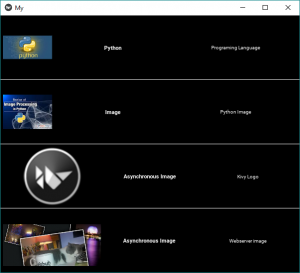
Output: