Canvas in Kivy Python (original) (raw)
Last Updated : 4 Nov, 2025
A Canvas in Kivy is a container used for drawing shapes, colors, and images on a widget. Each widget has its own canvas by default and you can add instructions like Rectangle, Color, or Line to display custom graphics.
Let's see how to add a simple drawing to a Kivy window.
**For Example: This example shows a simple rectangle drawn on the window using the widget’s canvas.
Python `
from kivy.app import App from kivy.uix.widget import Widget from kivy.graphics import Rectangle, Color
class BasicCanvas(Widget): def init(self, **kwargs): super().init(**kwargs) with self.canvas: Color(0.5, 0.7, 0.2, 1) # greenish color Rectangle(pos=(100, 100), size=(200, 100))
class CanvasApp(App): def build(self): return BasicCanvas()
if name == 'main': CanvasApp().run()
`
**Output

Canvas
**Explanation:
- **Color(): sets the color for the next shape.
- **Rectangle(pos=..., size=...): draws a rectangle at the specified position and size.
- **with self.canvas: adds instructions to the widget’s canvas.
Syntax
with widget.canvas:
Color(r, g, b, a)
Rectangle(pos=(x, y), size=(w, h), source='image.jpg')
**Key points:
- **pos: position of the shape relative to the window or widget.
- **size: width and height of the shape.
- **source: optional; image file to display inside the rectangle.
- **Color(r, g, b, a): sets the color (0–1 values for red, green, blue, alpha).
- Bind **pos and **size if you want shapes to adjust when the widget changes.
Examples
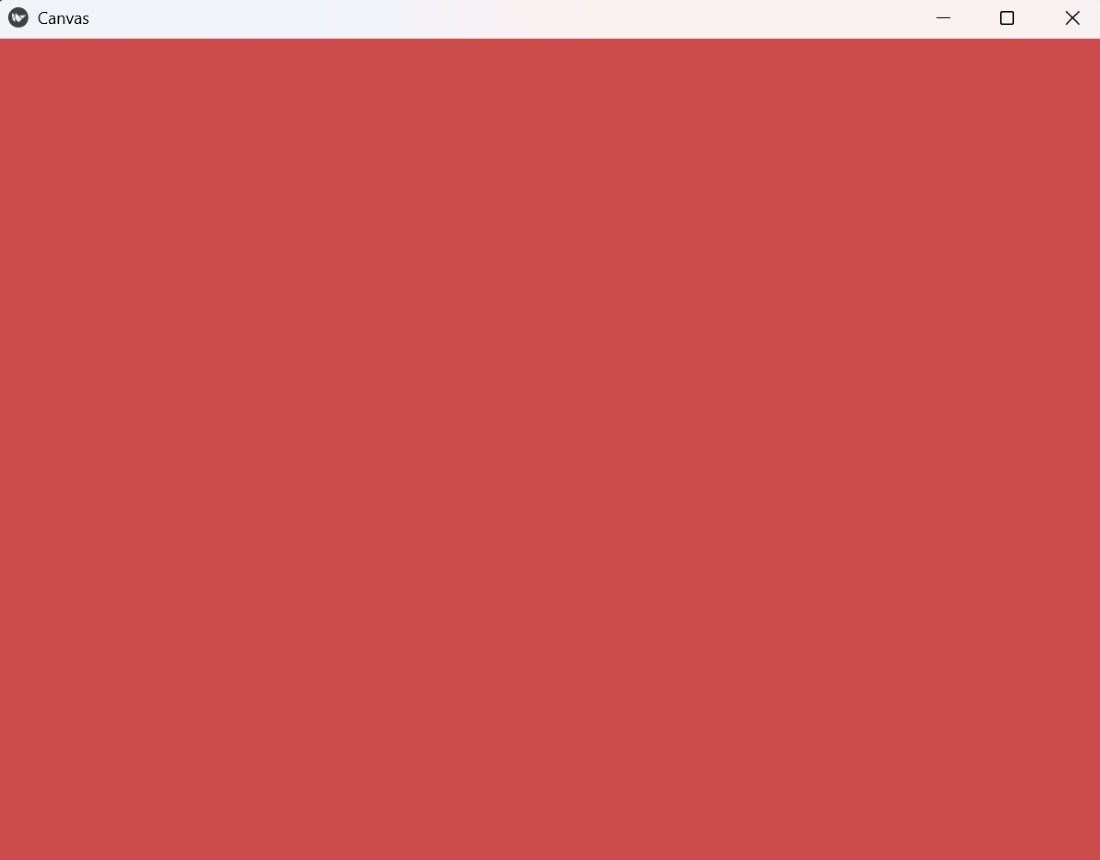
**Example 1: In this example, the rectangle automatically adjusts its position and size when the window is resized.
Python `
from kivy.app import App from kivy.uix.widget import Widget from kivy.graphics import Rectangle, Color
class ResponsiveCanvas(Widget): def init(self, **kwargs): super().init(**kwargs) with self.canvas: Color(0.8, 0.3, 0.3, 1) self.rect = Rectangle(pos=self.pos, size=self.size) self.bind(pos=self.update_rect, size=self.update_rect)
def update_rect(self, *args):
    self.rect.pos = self.pos
    self.rect.size = self.size
class CanvasApp(App): def build(self): return ResponsiveCanvas()
if name == 'main': CanvasApp().run()
`
**Output
Canvas
**Explanation:
- **self.rect = Rectangle(pos=self.pos, size=self.size): initial rectangle matching widget size.
- **self.bind(pos=self.update_rect, size=self.update_rect): updates rectangle on window resize.
- **update_rect(): sets rectangle’s pos and size to match the widget.
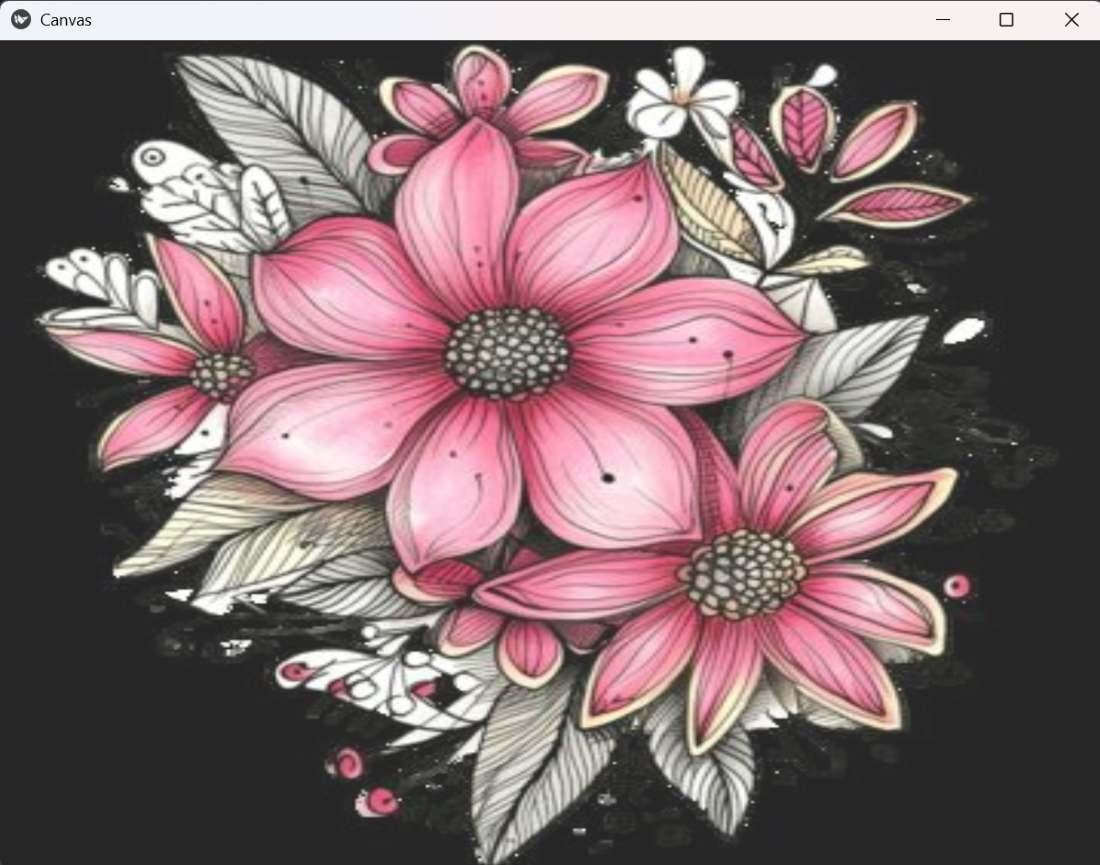
**Example 2: This program shows an image on the canvas with a semi-transparent color overlay. For this example below image is used:

Image Used
Python `
from kivy.app import App from kivy.uix.widget import Widget from kivy.graphics import Rectangle, Color
class ImageCanvas(Widget): def init(self, **kwargs): super().init(**kwargs) with self.canvas: self.rect = Rectangle(source='flower.jpg', pos=self.pos, size=self.size) Color(1, 1, 1, 0.15) self.overlay = Rectangle(pos=self.pos, size=self.size) self.bind(pos=self.update_rect, size=self.update_rect)
def update_rect(self, *args):
    self.rect.pos = self.pos
    self.rect.size = self.size
    self.overlay.pos = self.pos
    self.overlay.size = self.size
class CanvasApp(App): def build(self): return ImageCanvas()
if name == 'main': CanvasApp().run()
`
**Output
Output
**Explanation:
- **Rectangle(source='flower.jpg', pos=self.pos, size=self.size): Draws the image on the widget canvas.
- **Color(1, 1, 1, 0.15): Adds a subtle white overlay with 15% opacity to make the image look soft and bright.
- **self.bind(pos=..., size=...): Keeps the image and overlay aligned with the widget when the window is resized.