Carousel Widget In Kivy Python (original) (raw)
Last Updated : 8 Oct, 2025
A Carousel in Kivy provides a mobile-friendly swipeable view where users can move between slides. Each slide can contain any widget, such as images, videos or custom layouts. The carousel supports horizontal or vertical swipes, looping and transition animations.
Let's add a simple Carousel to a Kivy window.
This example creates a simple carousel with 2 slides. Each slide contains a label displaying its number.
Python `
from kivy.app import App from kivy.uix.carousel import Carousel from kivy.uix.label import Label from kivy.uix.boxlayout import BoxLayout from kivy.graphics import Color, Rectangle
class BasicCarousel(App): def build(self): carousel = Carousel(direction='right') colors = [(1, 0, 0, 1), (0, 0, 1, 1)]
    for i, color in enumerate(colors):
        layout = BoxLayout()
        lbl = Label(text=f"Slide {i+1}", font_size=40, color=(1,1,1,1))

        with layout.canvas.before:
            Color(0,0,0,1)
            rect = Rectangle(pos=layout.pos, size=layout.size)

        layout.bind(pos=lambda inst, val, r=rect: setattr(r, 'pos', inst.pos))
        layout.bind(size=lambda inst, val, r=rect: setattr(r, 'size', inst.size))
        layout.add_widget(lbl)
        carousel.add_widget(layout)
    return carousel
if name == 'main': BasicCarousel().run()
`
**Output
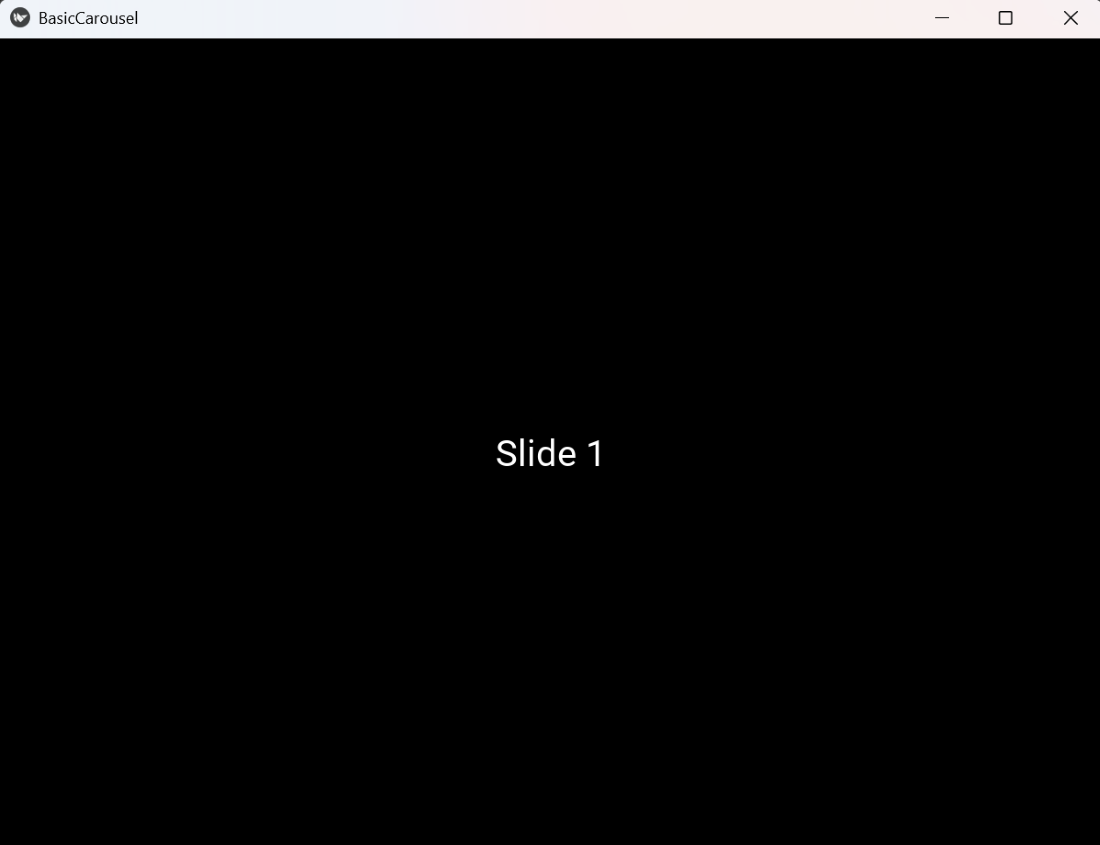
Slide 1 of Carousel Widget
**Explanation:
- **Carousel(direction='right'): Creates the carousel widget and sets swipe direction.
- **BoxLayout(): Container for each slide.
- **Label(): Adds text to each slide.
- **with layout.canvas.before: Adds graphical instructions executed before child widgets.
- **Color(): Sets the color for the rectangle.
- **Rectangle(pos=..., size=...): Draws a rectangle to cover the slide.
- **bind(pos=..., size=...): Ensures rectangle updates size/position if the layout changes.
- **add_widget(): Adds label or layout to parent widget.
Syntax
Carousel(direction='right', loop=True, scroll_timeout=55, scroll_distance=20)
**Parameters:
- **direction: 'right', 'left', 'top', or 'bottom' (swipe direction).
- **loop: If True, carousel loops infinitely.
- **scroll_timeout: Maximum time for a swipe gesture.
- **scroll_distance: Minimum distance for a swipe to be recognized.
Examples
**Example 1: This program creates a carousel containing 2 slides with same images loaded asynchronously using AsyncImage.
Python `
from kivy.app import App from kivy.uix.carousel import Carousel from kivy.uix.image import AsyncImage
class ImageCarousel(App): def build(self): carousel = Carousel(direction='right') urls = ["https://via.placeholder.com/480x270.png?text=Slide+1", "https://via.placeholder.com/480x270.png?text=Slide+2"]

![https://via.placeholder.com/480x270.png?text=Slide+2"]](https://via.placeholder.com/480x270.png?text=Slide+2)
    for url in urls:
        img = AsyncImage(source=url, allow_stretch=True)
        carousel.add_widget(img)

    return carousel
if name == 'main': ImageCarousel().run()
`
**Output
Slide 1 of above Carousel
**Explanation:
- **AsyncImage(source=url, allow_stretch=True): Loads image asynchronously; **allow_stretch=True makes the image fit the container.
- **Carousel(direction='right'): Creates the carousel.
- **add_widget(img): Adds the image to the carousel.
**Example 2: This example demonstrates a vertical carousel with 2 slides.
Python `
class VerticalCarousel(App):
def build(self):
carousel = Carousel(direction='top')
colors = [(0, 1, 0, 1), (1, 1, 0, 1)]
    for i, color in enumerate(colors):
        layout = BoxLayout()

        with layout.canvas.before:
            Color(*color)
            rect = Rectangle(size=layout.size, pos=layout.pos)

        layout.bind(size=lambda inst, val, r=rect: setattr(r, 'size', inst.size))
        layout.bind(pos=lambda inst, val, r=rect: setattr(r, 'pos', inst.pos))

        lbl = Label(text=f"Slide {i+1}", font_size=40, color=(0,0,0,1))
        layout.add_widget(lbl)
        carousel.add_widget(layout)
    return carousel
if name == 'main': VerticalCarousel().run()
`
**Output
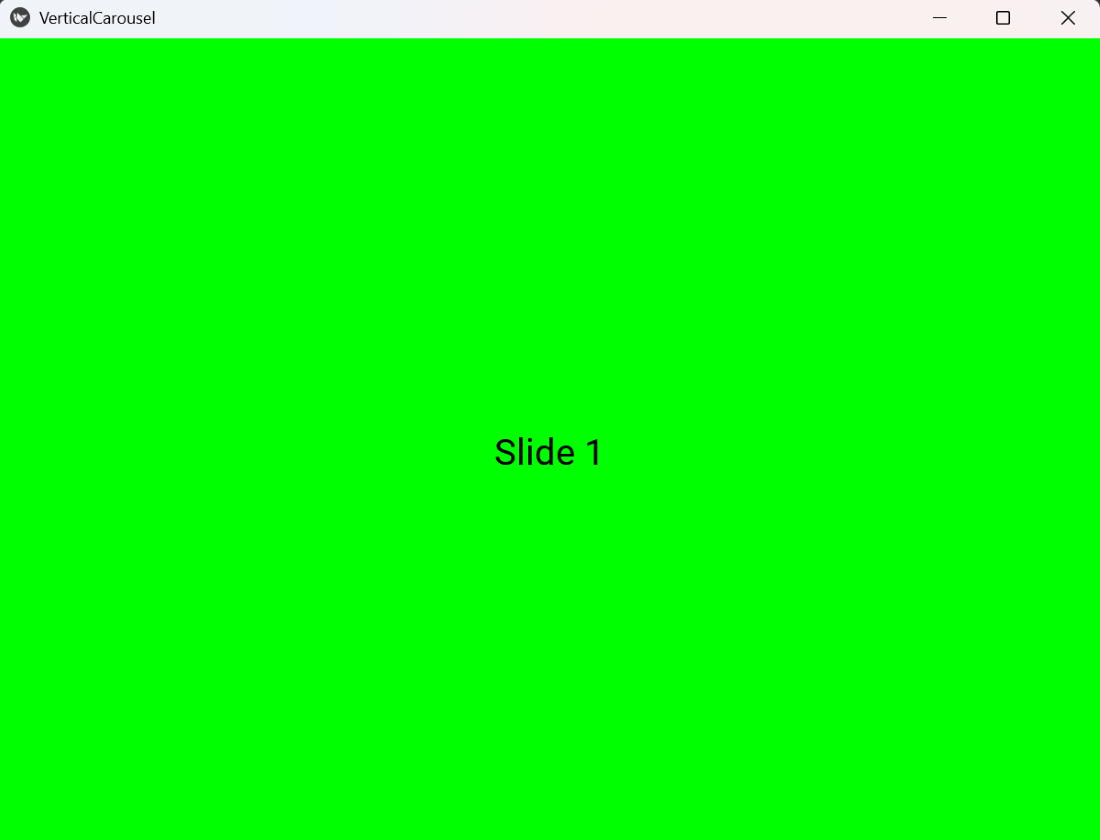
Slide 1 of the Vertical Carousel
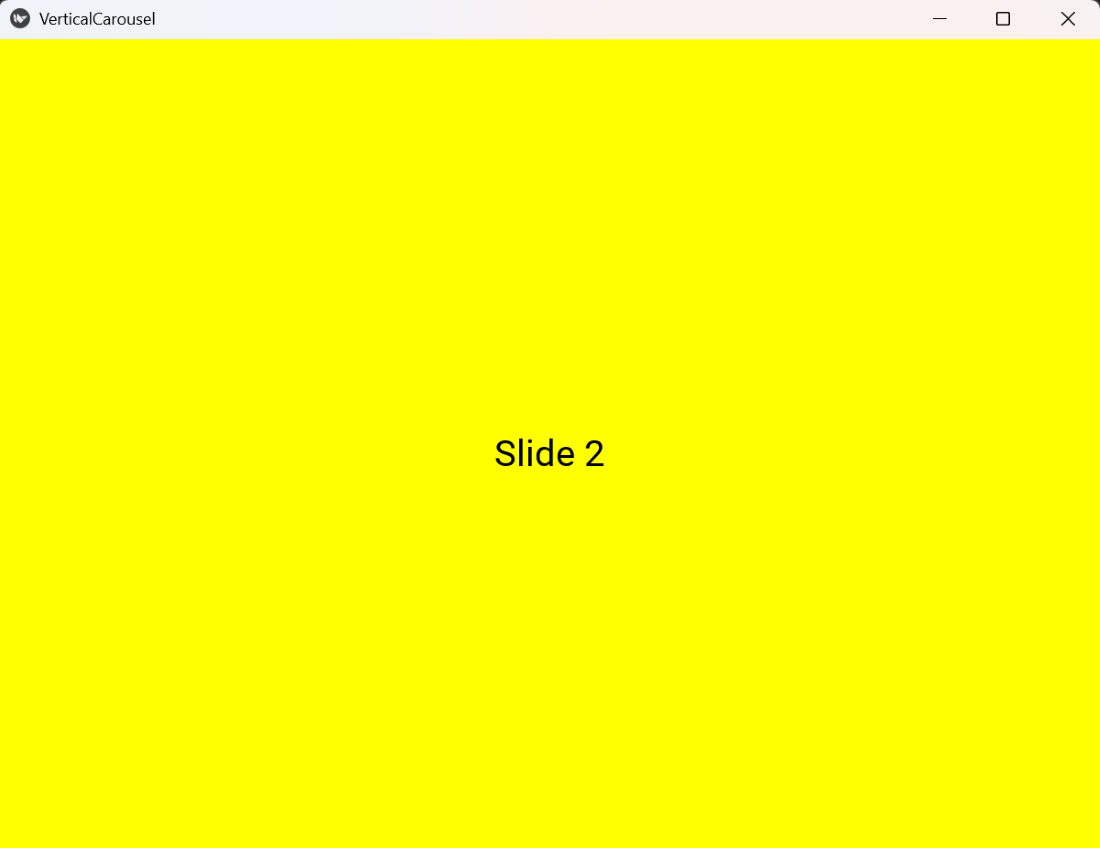
Slide 2 of the Vertical Carousel
**Explanation:
- **Carousel(direction='top'): Creates a carousel with vertical swipe.
- **BoxLayout(): Container for each slide.
- **Label(): Displays the slide number.
- **canvas.before: Draws the rectangle before adding child widgets.
- **Color(*color): Sets the rectangle color to match slide background.
- **Rectangle(size=..., pos=...): Draws the background rectangle.
- **bind(size=..., pos=...): Ensures rectangle covers the entire layout dynamically.
- **add_widget(): Adds label or layout to the carousel.