Python | Creating a Simple Drawing App in kivy (original) (raw)
Last Updated : 12 Jul, 2025
Kivy is a platform-independent GUI tool in Python. As it can be run on Android, IOS, Linux and Windows, etc. It is basically used to develop the Android application, but it does not mean that it can not be used on Desktop applications.
Drawing App:
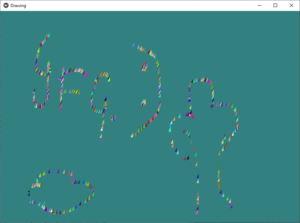
In this we are going to create a simple drawing App with the help of kivy initially we are just making a canvas and a paintbrush so that by moving the cursor you can just feel like a drawing Application.
In this, the widgets are added dynamically. If widgets are to be added dynamically, at run-time, depending on user interaction, they can only be added in the Python file.
We are using widgets, layout, random to make it good.
Now Basic Approach of the App:
- import kivy
- import kivy App
- import Relativelayout
- import widget
- set minimum version(optional)
- Create widget class as needed
- Create Layout class
- create the App class
- create .kv file
- return the widget/layout etc class
- Run an instance of the class
Implementation of the Code:
# .py file:
Python3 `
Program to explain how to create drawing App in kivy
import kivy module
import kivy
base Class of your App inherits from the App class.
app:always refers to the instance of your application
from kivy.app import App
this restrict the kivy version i.e
below this kivy version you cannot
use the app or software
kivy.require('1.9.0')
Widgets are elements of a
graphical user interface that
form part of the User Experience.
from kivy.uix.widget import Widget
This layout allows you to set relative coordinates for children.
from kivy.uix.relativelayout import RelativeLayout
Create the Widget class
class Paint_brush(Widget): pass
Create the layout class
where you are defining the working of
Paint_brush() class
class Drawing(RelativeLayout):
# On mouse press how Paint_brush behave
def on_touch_down(self, touch):
    pb = Paint_brush()
    pb.center = touch.pos
    self.add_widget(pb)

# On mouse movement how Paint_brush behave
def on_touch_move(self, touch):
    pb = Paint_brush()
    pb.center = touch.pos
    self.add_widget(pb)
Create the App class
class DrawingApp(App): def build(self): return Drawing()
DrawingApp().run()
`
Code Explanation:
- The code starts with importing the kivy module.
- The code then defines a base class of your App inheriting from the App class.
- This restricts the kivy version i.e below this kivy version you cannot use the app or software.
- The next line is where we create Paint_brush() class which is a Widget and it's layout, Drawing().
- In order to define how paint brush behaves when touched on screen, we have defined two methods in its layout: on_touch_down() and on_touch_move().
- These are called when user touches down or moves their mouse over it respectively.
- In order to create an instance of your application, you need to call build() method in your App class which returns a widget object that can be added as child element in RelativeLayout (Drawing).
- The code is a simple example of how to create a drawing app in kivy.
- First, we import the kivy module.
- Next, we define our base class as App and then we have defined the Widget class which inherits from the App class.
- We create a layout class where you are defining the working of Paint_brush() class and then finally we create our application which is DrawingApp().
# .ky file:
Python3 `
Drawing.kv implementation
for assigning random color to the brush
#:import rnd random
Paint brush coding
: size_hint: None, None size: 25, 50 canvas: Color: rgb: rnd.random(), rnd.random(), rnd.random() Triangle: points: (self.x, self.y, self.x + self.width / 4, self.y, self.x + self.width / 4, self.y + self.height / 4)
Drawing pad creation
: canvas: Color: rgb: .2, .5, .5 Rectangle: size: root.size pos: root.pos
`
Code Explanation:
- The code starts with the import statement.
- This imports the random module into our program.
- The next line is a Paint_brush class definition that has size_hint and size properties, but no canvas property.
- The next line creates an empty 25x50 rectangle on the screen by using root as its parent object (the window).
- It then assigns it a random color from rnd.random(), rnd.random(), and rnd.random().
- The last two lines create a triangle shape at self's x coordinate, y coordinate, x + width/4, y + height/4 coordinates on the screen in green color using self as its parent object (the window).
- The code attempts to assign a random color to the brush when drawing.
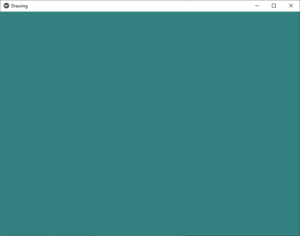
Output: