Python | Display images with PyGame (original) (raw)
Last Updated : 29 Apr, 2026
Pygame is a cross-platform set of Python modules designed for writing video games. It includes computer graphics and sound libraries designed to be used with the Python programming language. Now, it’s up to the imagination or necessity of the developer, what type of game he/she wants to develop using this toolkit.
Command to install pygame :
pip install pygame
How to display images with PyGame?
There are four basic steps to displaying images on the pygame window :
- Create a display surface object using display.set_mode() method of pygame.
- Create a Image surface object i.e. surface object in which image is drawn on it, using image.load() method of pygame.
- Copy the image surface object to the display surface object using blit() method of pygame display surface object.
- Show the display surface object on the pygame window using pygame.display.update() or pygame.display.flip().
**Note: pygame.display.flip() updates the entire display surface, while pygame.display.update() can update specific portions of the screen. When called without arguments, both behave similarly.
Display images using PyGame
Here we are first importing the required library and then setting the width and height of the image then creating the display surface for that size then give the path of the required image in then image.load() function and then finally iterate over the list of event objects.
Python `
importing required library
import pygame
activate the pygame library .
pygame.init() X = 600 Y = 600
create the display surface object
of specific dimension..e(X, Y).
scrn = pygame.display.set_mode((X, Y))
set the pygame window name
pygame.display.set_caption('image')
create a surface object, image is drawn on it.
imp = pygame.image.load("C:\Users\DELL\Downloads\gfg.png").convert()
Using blit to copy content from one surface to other
scrn.blit(imp, (0, 0))
paint screen one time
pygame.display.flip() status = True while (status):
iterate over the list of Event objects
that was returned by pygame.event.get() method.
for i in pygame.event.get():

    # if event object type is QUIT
    # then quitting the pygame
    # and program both.
    if i.type == pygame.QUIT:
        status = False
deactivates the pygame library
pygame.quit()
`
**Output:
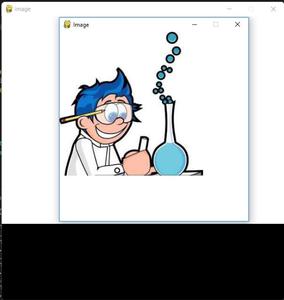
Display images with PyGame
Displaying Images at Different Sizes and Positions
In many applications, images need to be displayed at different sizes and positions. This can be done using pygame.transform.scale() for resizing and blit****()** for positioning. The blit() method takes a tuple (x, y) to specify the display coordinates.
**Example:
Python `
import pygame
pygame.init()
create display surface
screen = pygame.display.set_mode((800, 600)) pygame.display.set_caption("Scaling and Positioning")
load image
img = pygame.image.load("C:\Users\DELL\Downloads\gfg.png").convert_alpha()
resize images
img_small = pygame.transform.scale(img, (100, 100)) img_large = pygame.transform.scale(img, (200, 200))
running = True while running: # fill background screen.fill((255, 255, 255))
# display images at different positions
screen.blit(img_small, (50, 50))
screen.blit(img_large, (300, 200))

# update display
pygame.display.flip()

for event in pygame.event.get():
    if event.type == pygame.QUIT:
        running = False
pygame.quit()
`