Dropdown List in Kivy Python (original) (raw)
Last Updated : 8 Oct, 2025
A Dropdown list in Kivy allows you to display a list of selectable items under a displayed widget. The selected item can be used to update another widget like a Label or TextInput. Dropdown items must be added as widgets (e.g., Label) and manually positioned inside the dropdown.
Let’s see how to add a basic dropdown in a Kivy window.
This example shows a simple dropdown where selecting an item updates a TextInput.
Python `
from kivy.app import App from kivy.uix.dropdown import DropDown from kivy.uix.textinput import TextInput from kivy.uix.button import Button from kivy.uix.widget import Widget from kivy.core.window import Window
Window.clearcolor = (1, 1, 1, 1) # white background
class TopDropdown(Widget): def init(self, **kwargs): super().init(**kwargs) center_x = Window.width / 2
    self.input = TextInput(text='Select',size_hint=(None,None), width=200, height=40,pos=(center_x - 150, Window.height - 60))
    self.add_widget(self.input)

    dropdown = DropDown()
    for val in ['Option 1','Option 2','Option 3']:
        btn = Button(text=val, size_hint_y=None, height=40)
        btn.bind(on_release=lambda btn, v=val: dropdown.select(v))
        dropdown.add_widget(btn)

    mainbtn = Button(text='Choose', size_hint=(None,None), width=100, height=40,pos=(center_x + 60, Window.height - 60))
    mainbtn.bind(on_release=dropdown.open)
    dropdown.bind(on_select=lambda instance, x: setattr(self.input,'text',x))
    self.add_widget(mainbtn)
class DropdownApp(App): def build(self): return TopDropdown()
if name == 'main': DropdownApp().run()
`
**Output
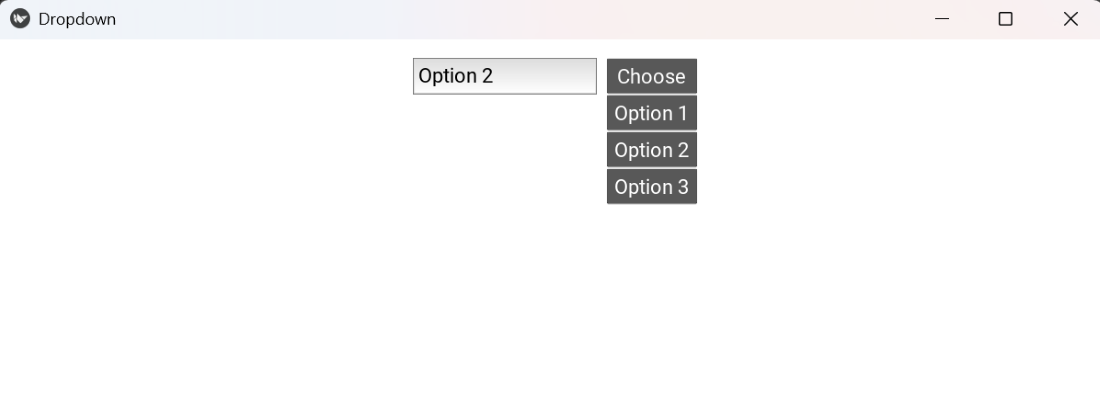
**Explanation:
- **Window.clearcolor=(1,1,1,1): white background.
- **TextInput(...): displays selected dropdown item.
- **DropDown(): container for dropdown items.
- **Button(...): required for interactive dropdown items.
- **mainbtn opens dropdown; **on_select updates TextInput.
Syntax
DropDown(auto_width=True, max_height=None)
**Parameters:
- **auto_width: True to match the width of the widest child.
- **max_height: Maximum height before scrolling.
**Common Methods
- **add_widget(widget): Adds an item to the dropdown.
- **bind(on_select=callback): Executes callback when item is selected.
- **select(value): Programmatically select an item.
- **dismiss(): Closes the dropdown.
Examples
**Example 1: This code places a dropdown at the top. Selecting an item updates a Label.
Python `
Window.clearcolor = (0.95, 0.95, 0.95, 1)
class DropdownLabelExample(Widget): def init(self, **kwargs): super().init(**kwargs) center_x = Window.width / 2
    self.lbl = Label(text='Selected: None', color=(0, 0, 0, 1),pos=(center_x - 50, Window.height - 140))
    self.add_widget(self.lbl)

    dropdown = DropDown()
    for val in ['Red', 'Green', 'Blue']:
        btn = Button(text=val, size_hint_y=None, height=40)
        btn.bind(on_release=lambda btn, v=val: dropdown.select(v))
        dropdown.add_widget(btn)

    mainbtn = Button(text='Select Color', size_hint=(None, None), width=120, height=40,pos=(center_x - 60, Window.height - 190))
    mainbtn.bind(on_release=dropdown.open)

    dropdown.bind(on_select=lambda instance, x: setattr(self.lbl, 'text', f'Selected: {x}'))
    self.add_widget(mainbtn)
class DropdownApp(App): def build(self): return DropdownLabelExample()
if name == 'main': DropdownApp().run()
`
**Output
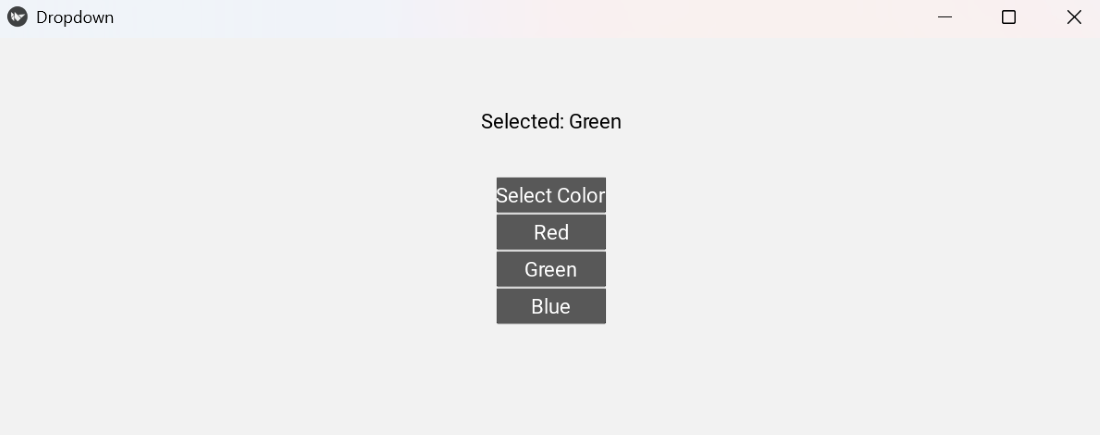
**Explanation: Label shows which color was chosen. DropDown() holds the selectable color buttons. Each button is added to dropdown with add_widget(). When an option is chosen, dropdown.select() triggers on_select. The label text is updated dynamically.
**Example 2: This program updates a TextInput when a dropdown item is selected.
Python `
Window.clearcolor = (0.9, 0.9, 1, 1)
class DropdownTextInputExample(Widget): def init(self, **kwargs): super().init(**kwargs) center_x = Window.width / 2
    self.input = TextInput(text='', size_hint=(None,None), width=200, height=40,pos=(center_x - 150, Window.height - 60))
    self.add_widget(self.input)

    dropdown = DropDown()
    for val in ['Apple', 'Banana', 'Cherry']:
        btn = Button(text=val, size_hint_y=None, height=40)
        btn.bind(on_release=lambda btn, v=val: dropdown.select(v))
        dropdown.add_widget(btn)

    mainbtn = Button(text='Select Fruit', size_hint=(None,None), width=120, height=40,pos=(center_x + 60, Window.height - 60))
    mainbtn.bind(on_release=dropdown.open)
    dropdown.bind(on_select=lambda instance, x: setattr(self.input, 'text', x))
    self.add_widget(mainbtn)
class DropdownApp(App): def build(self): return DropdownTextInputExample()
if name == 'main': DropdownApp().run()
`
**Output
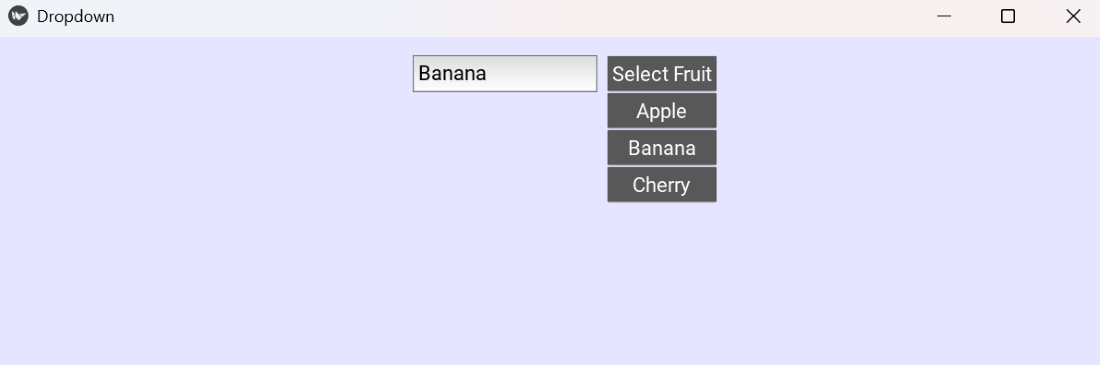
**Explanation: TextInput displays the selected fruit. DropDown() manages the fruit options. Each fruit button is added manually. Clicking “Select Fruit” opens the dropdown. On selection, chosen fruit name is shown in the TextInput.