Python | How to dynamically change text of Checkbutton (original) (raw)
Last Updated : 11 Jul, 2025
Tkinter is a GUI (Graphical User interface) module which is used to create various types of applications. It comes along with the Python and consists of various types of widgets which can be used to make GUI more attractive and user-friendly. Checkbutton is one of the widgets which is used to select multiple options.Checkbutton can be created as follows:
chkbtn = ttk.Checkbutton(parent, value = options, ...)
Code #1:
Python3 1== `
This will import tkinter and ttk
from tkinter import * from tkinter import ttk
root = Tk()
This will set the geometry to 200x100
root.geometry('200x100')
text1 = StringVar() text2 = StringVar()
These text are used to set initial
values of Checkbutton to off
text1.set('OFF') text2.set('OFF')
chkbtn1 = ttk.Checkbutton(root, textvariable = text1, variable = text1, offvalue = 'GFG Not Selected', onvalue = 'GFG Selected')
chkbtn1.pack(side = TOP, pady = 10) chkbtn2 = ttk.Checkbutton(root, textvariable = text2, variable = text2, offvalue = 'GFG Average', onvalue = 'GFG Good') chkbtn2.pack(side = TOP, pady = 10)
root.mainloop()
`
Output #1: When you run application you see the initial states of Checkbutton as shown in output.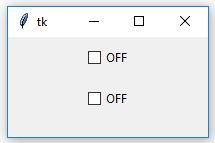 Output #2: As soon as you select the Checkbutton you'll see that text has been changed as in output.
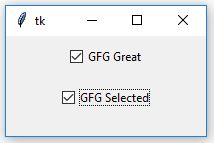 Output #3: When you deselect the Checkbutton you'll again observe following changes.
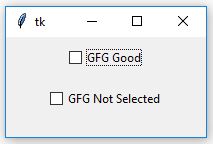 Code #2: Commands can be integrate with the Checkbutton which can be execute when checkbutton is selected or deselected depending upon conditions.
Python3 1== `
Importing tkinter, ttk and
_show method to display
pop-up message window
from tkinter import * from tkinter import ttk from tkinter.messagebox import _show
root = Tk() root.geometry('200x100')
text1 = StringVar() text1.set('OFF')
This function is used to display
the pop-up message
def show(event): string = event.get() _show('Message', 'You selected ' + string)
chkbtn1 = ttk.Checkbutton(root, textvariable = text1, variable = text1, offvalue = 'GFG Good', onvalue = 'GFG Great', command = lambda : show(text1)) chkbtn1.pack(side = TOP, pady = 10)
root.mainloop()
`
Output: 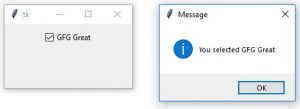 Note: In above code offvalue and onvalue are used to set the values of Checkbutton of non-selected state and selected state respectively.