Python PIL | Image.convert() Method (original) (raw)
Last Updated : 26 Jul, 2019
PIL is the Python Imaging Library which provides the python interpreter with image editing capabilities. The Image module provides a class with the same name which is used to represent a PIL image. The module also provides a number of factory functions, including functions to load images from files, and to create new images.**Image.convert()** Returns a converted copy of this image. For the “P” mode, this method translates pixels through the palette. If mode is omitted, a mode is chosen so that all information in the image and the palette can be represented without a palette.
Syntax: Image.convert(mode=None, matrix=None, dither=None, palette=0, colors=256)Parameters: mode – The requested mode. See: Modes.matrix – An optional conversion matrix. If given, this should be 4- or 12-tuple containing floating point values.dither – Dithering method, used when converting from mode “RGB” to “P” or from “RGB” or “L” to “1”. Available methods are NONE or FLOYDSTEINBERG (default).palette – Palette to use when converting from mode “RGB” to “P”. Available palettes are WEB or ADAPTIVE.colors – Number of colors to use for the ADAPTIVE palette. Defaults to 256.Returns: An Image object.
Image Used: 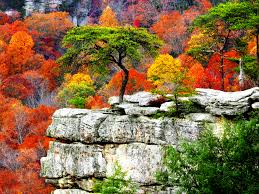
Python3 1== `
importing image class from PIL package
from PIL import Image
creating image object
img = Image.open(r"C:\Users\System-Pc\Desktop\scene3.jpg")
using convert method for img1
img1 = img.convert("L") img1.show()
using convert method for img2
img2 = img.convert("1") img2.show()
`
Output1: 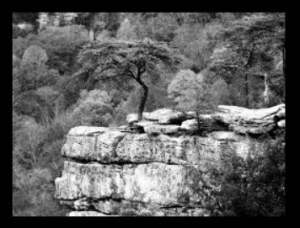 Output2:
 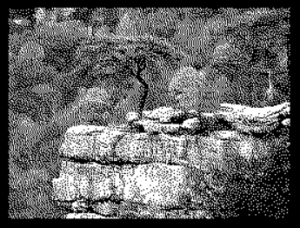 Another Example: Taking another image.Image Used: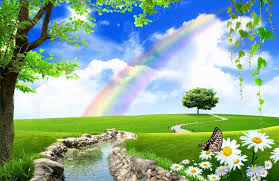
Python3 1== `
importing image class from PIL package
from PIL import Image
creating image object
img = Image.open(r"C:\Users\System-Pc\Desktop\scene4.jpg")
using convert method for img1
img1 = img.convert("L") img1.show()
using convert method for img2
img2 = img.convert("1") img2.show()
`
Output1: 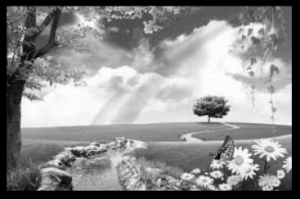 Output2: