Slider widget in Kivy Python (original) (raw)
Last Updated : 8 Oct, 2025
A Slider is a widget that lets the user choose a numeric value by dragging a handle along a track. It supports horizontal and vertical orientations and reports a value you can bind to update other widgets.
Let’s see how to add a basic slider in a Kivy window.
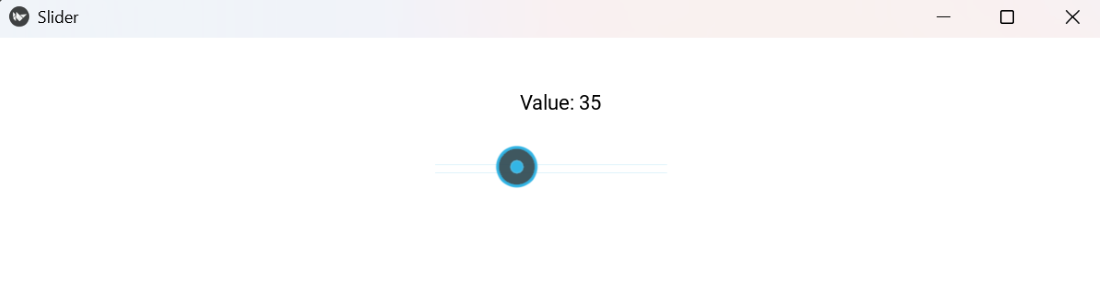
This example shows a horizontal slider at the top that updates a Label with the current integer value.
Python `
from kivy.app import App from kivy.uix.slider import Slider from kivy.uix.label import Label from kivy.uix.widget import Widget from kivy.core.window import Window
Window.clearcolor = (1, 1, 1, 1)
class BasicSlider(Widget): def init(self, **kwargs): super().init(**kwargs) cx = Window.width / 2
    self.lbl = Label(text='Value: 0', color=(0,0,0,1),pos=(cx - 40, Window.height - 120))
    self.add_widget(self.lbl)

    self.s = Slider(min=0, max=100, value=0,size_hint=(None, None), width=300, height=40,pos=(cx - 150, Window.height - 160))
    self.s.bind(value=self.on_value)
    self.add_widget(self.s)

def on_value(self, inst, val):
    self.lbl.text = f'Value: {int(val)}'
class SliderApp(App): def build(self): return BasicSlider()
if name == 'main': SliderApp().run()
`
**Output
**Explanation:
- **Window.clearcolor = (1,1,1,1): set a white background for visibility.
- **Label(...) pos=(...): place a label near the top to show the slider value.
- **Slider(min=0, max=100, value=0, pos=(...)): horizontal slider placed just below the label.
- **bind(value=self.on_value): call on_value whenever slider moves.
- **on_value(): updates the label text with the integer slider value.
Syntax
Slider(min=0, max=100, value=None, step=None, orientation='horizontal', size_hint=(1, None), width=200, height=40)
**Parameters:
- **min/max: numeric range for the slider.
- **value: initial value (within [min, max]).
- **step: set step size (e.g., step=1) for discrete values.
- **orientation: 'horizontal' (default) or 'vertical'.
- **size_hint/width/height: use size_hint=(None,None) + width/height for manual placement.
**Common methods / events: bind(value=callback), read .value, set .value programmatically.
Examples
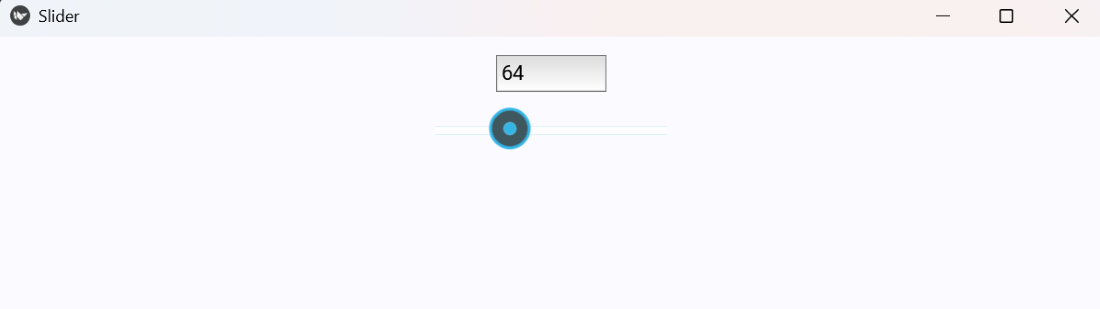
**Example 1: This code updates a TextInput with the slider value
Python `
Window.clearcolor = (0.98, 0.98, 1, 1)
class SliderToInput(Widget): def init(self, **kwargs): super().init(**kwargs) cx = Window.width / 2
    self.inp = TextInput(text='0', size_hint=(None,None),width=120, height=40,pos=(cx - 60, Window.height - 60))
    self.add_widget(self.inp)

    self.s = Slider(min=0, max=200, value=0,size_hint=(None,None), width=300, height=40,pos=(cx - 150, Window.height - 120))
    self.s.bind(value=self.on_val)
    self.add_widget(self.s)

def on_val(self, inst, v):
    self.inp.text = str(int(v))
class SliderApp(App): def build(self): return SliderToInput()
if name == 'main': SliderApp().run()
`
**Output
**Explanation:
- **TextInput(...) pos=(..., Window.height-60): top-centered input displays numeric value.
- **Slider(min=0, max=200, pos=(..., Window.height-120)): slider below the input.
- **bind(value=self.on_val): calls on_val on changes.
- **on_val(): sets TextInput.text to the integer slider value.
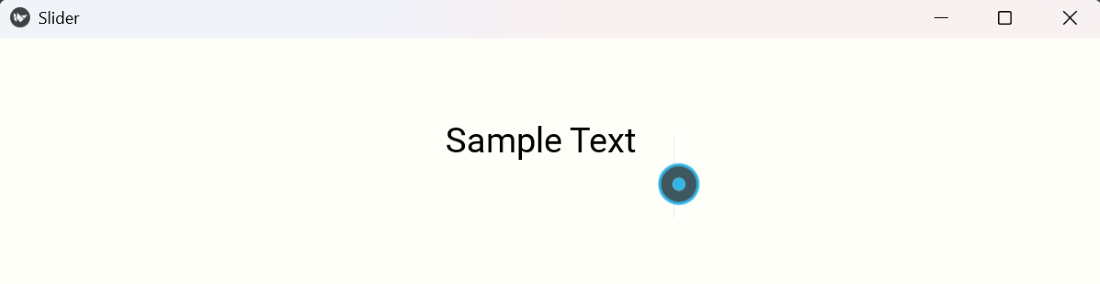
**Example 2: This program uses a vertical slider to change label font size
Python `
Window.clearcolor = (1, 1, 0.98, 1)
class VerticalSliderFont(Widget): def init(self, **kwargs): super().init(**kwargs) cx = Window.width / 2
    self.sample = Label(text='Sample Text', color=(0,0,0,1),pos=(cx - 60, Window.height - 160))
    self.sample.font_size = 20
    self.add_widget(self.sample)

    self.vs = Slider(min=10, max=80, value=20, orientation='vertical',size_hint=(None,None), width=40, height=140,pos=(cx + 120, Window.height - 220))
    self.vs.bind(value=self.on_font)
    self.add_widget(self.vs)

def on_font(self, inst, v):
    self.sample.font_size = v
class SliderApp(App): def build(self): return VerticalSliderFont()
if name == 'main': SliderApp().run()
`
**Output
**Explanation:
- **Label(...): shows sample text whose font size will change.
- **Slider(orientation='vertical', min=10, max=80): vertical slider placed to the right and slightly lower.
- **bind(value=self.on_font): call on_font when slider moves.
- **on_font(): assigns the slider value to label.font_size, changing the text size live.