Python Tkinter Canvas Widget (original) (raw)
Tkinter is a GUI toolkit used in python to make user-friendly GUIs.Tkinter is the most commonly used and the most basic GUI framework available in python. Tkinter uses an object-oriented approach to make GUIs.
Note: For more information, refer to Python GUI – tkinter
Canvas widget
The Canvas widget lets us display various graphics on the application. It can be used to draw simple shapes to complicated graphs. We can also display various kinds of custom widgets according to our needs.
Syntax:
C = Canvas(root, height, width, bd, bg, ..)
Optional parameters:
- root = root window.
- height = height of the canvas widget.
- width = width of the canvas widget.
- bg = background colour for canvas.
- bd = border of the canvas window.
- scrollregion (w, n, e, s)tuple defined as a region for scrolling left, top, bottom and right.
- highlightcolor colour shown in the focus highlight.
- cursor It can be defined as a cursor for the canvas which can be a circle, a do, an arrow etc.
- confine decides if canvas can be accessed outside the scroll region.
- relief type of the border which can be SUNKEN, RAISED, GROOVE and RIDGE.
Some common drawing methods:
- Creating an Oval
oval = C.create_oval(x0, y0, x1, y1, options)
- Creating an arc
arc = C.create_arc(20, 50, 190, 240, start=0, extent=110, fill="red")
- Creating a Line
line = C.create_line(x0, y0, x1, y1, ..., xn, yn, options)
- Creating a polygon
oval = C.create_polygon(x0, y0, x1, y1, ...xn, yn, options)
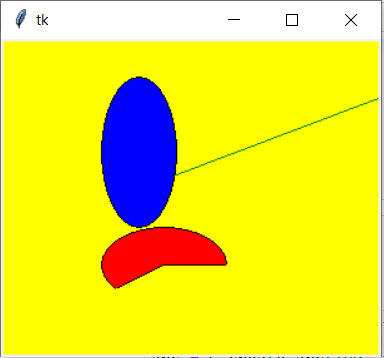
Example 1: Simple Shapes Drawing
Python3 `
from tkinter import *
root = Tk()
C = Canvas(root, bg="yellow", height=250, width=300)
line = C.create_line(108, 120, 320, 40, fill="green")
arc = C.create_arc(180, 150, 80, 210, start=0, extent=220, fill="red")
oval = C.create_oval(80, 30, 140, 150, fill="blue")
C.pack() mainloop()
`
Output:
Example 2: Simple Paint App
Python3 `
from tkinter import *
root = Tk()
Create Title
root.title( "Paint App ")
specify size
root.geometry("500x350")
define function when
mouse double click is enabled
def paint( event ):
# Co-ordinates.
x1, y1, x2, y2 = ( event.x - 3 ),( event.y - 3 ), ( event.x + 3 ),( event.y + 3 )

# Colour
Colour = "#000fff000"

# specify type of display
w.create_line( x1, y1, x2,
              y2, fill = Colour )
create canvas widget.
w = Canvas(root, width = 400, height = 250)
call function when double
click is enabled.
w.bind( "", paint )
create label.
l = Label( root, text = "Double Click and Drag to draw." ) l.pack() w.pack()
mainloop()
`