Python Tkinter Scale Widget (original) (raw)
Last Updated : 12 Jul, 2025
Tkinter is a GUI toolkit used in python to make user-friendly GUIs.Tkinter is the most commonly used and the most basic GUI framework available in python. Tkinter uses an object-oriented approach to make GUIs.Note: For more information, refer to Python GUI – tkinter
Scale widget
The Scale widget is used whenever we want to select a specific value from a range of values. It provides a sliding bar through which we can select the values by sliding from left to right or top to bottom depending upon the orientation of our sliding bar.Syntax:
S = Scale(root, bg, fg, bd, command, orient, from_, to, ..)
Optional parameters
- root - root window.
- bg - background colour
- fg - foreground colour
- bd - border
- orient - orientation(vertical or horizontal)
- from_ - starting value
- to - ending value
- troughcolor - set colour for trough.
- state - decides if the widget will be responsive or unresponsive.
- sliderlength - decides the length of the slider.
- label - to display label in the widget.
- highlightbackground - the colour of the focus when widget is not focused.
- cursor - The cursor on the widget which could be arrow, circle, dot etc.
Methods
- set(value) - set the value for scale.
- get() - get the value of scale.
Example 1: Creating a horizontal bar
Python3 1== `
Python program to demonstrate
scale widget
from tkinter import *
root = Tk()
root.geometry("400x300")
v1 = DoubleVar()
def show1():
sel = "Horizontal Scale Value = " + str(v1.get())
l1.config(text = sel, font =("Courier", 14))
s1 = Scale( root, variable = v1, from_ = 1, to = 100, orient = HORIZONTAL)
l3 = Label(root, text = "Horizontal Scaler")
b1 = Button(root, text ="Display Horizontal", command = show1, bg = "yellow")
l1 = Label(root)
s1.pack(anchor = CENTER) l3.pack() b1.pack(anchor = CENTER) l1.pack()
root.mainloop()
`
Output: 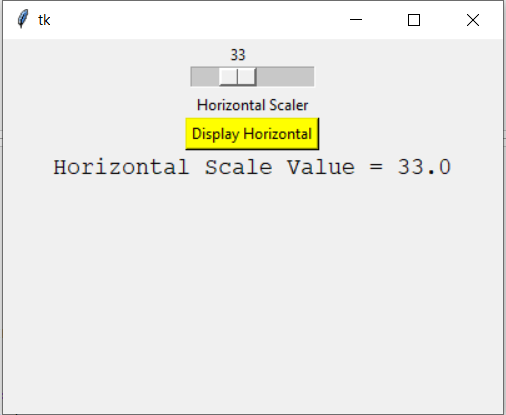 Example 2: Creating a vertical slider
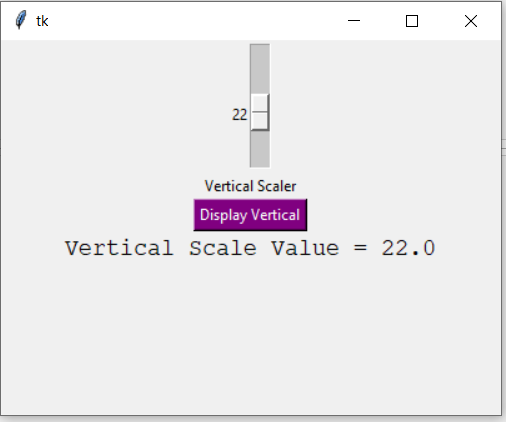
Python3 1== `
from tkinter import *
root = Tk()
root.geometry("400x300")
v2 = DoubleVar()
def show2():
sel = "Vertical Scale Value = " + str(v2.get())
l2.config(text = sel, font =("Courier", 14))
s2 = Scale( root, variable = v2, from_ = 50, to = 1, orient = VERTICAL)
l4 = Label(root, text = "Vertical Scaler")
b2 = Button(root, text ="Display Vertical", command = show2, bg = "purple", fg = "white")
l2 = Label(root)
s2.pack(anchor = CENTER) l4.pack() b2.pack() l2.pack()
root.mainloop()
`
Output: