Python | Toggle button in kivy using .kv file (original) (raw)
Last Updated : 12 Jul, 2025
Kivy is a platform independent GUI tool in Python. As it can be run on Android, IOS, linux and Windows etc. It is basically used to develop the Android application, but it does not mean that it can not be used on Desktops applications.
???????? Kivy Tutorial - Learn Kivy with Examples.
Toggle button:
The ToggleButton widget acts like a checkbox. When you touch or click it, the state toggles between ‘normal’ and ‘down’ (as opposed to a Button that is only ‘down’ as long as it is pressed).
Toggle buttons can also be grouped to make radio buttons - only one button in a group can be in a ‘down’ state. The group name can be a string or any other hashable Python object:
btn1 = ToggleButton(text='Male', group='sex', ) btn2 = ToggleButton(text='Female', group='sex', state='down') btn3 = ToggleButton(text='Mixed', group='sex')
Only one of the buttons can be ‘down’/checked at the same time. To configure the ToggleButton, you can use the same properties that you can use for a Button class.
Basic Approach:
- import kivy
- import kivyApp
- import toggle button
- import Gridlayout
- Set minimum version(optional)
- create layout class
- create App class
- create the, kv file
- return Layout/widget/Class(according to requirement)
- Run an instance of the class
Implementation of the Approach:
.py code:
Python3 `
Program to explain how to use Toggle button in kivy
import kivy module
import kivy
base Class of your App inherits from the App class.
app:always refers to the instance of your application
from kivy.app import App
this restrict the kivy version i.e
below this kivy version you cannot
use the app or software
kivy.require('1.9.0')
The ToggleButton widget acts like a checkbox.
To use this you must have to import it.
from kivy.uix.togglebutton import ToggleButton
The GridLayout arranges children in a matrix.
It takes the available space and divides it
into columns and rows, then adds
widgets to the resulting “cells”.
from kivy.uix.gridlayout import GridLayout
Create the Layout Class
class Toggle_btn(GridLayout): pass
Create the App Class
class ToggleApp(App): def build(self): return Toggle_btn()
Run the App
if name=='main': ToggleApp().run()
`
.kv code:
Python3 `
.kv file implementation of the code
:
# Columns divides screen in two parts
cols:2

# Create Toggle button 1
RelativeLayout:
    canvas:
        Color:
            rgb: 0, 0, 1
        Rectangle:
            size: root.width, root.height
    ToggleButton:
        size_hint: None, None
        size: 0.25 * root.width, 0.25 * root.height
        pos: 0.125 * root.width, 0.350 * root.height
        text: 'Toggle Button 1'
        group: 'geometry'
Create Toggle button 2
RelativeLayout:
    canvas:
        Color:
            rgb: 0, 1, 1
        Rectangle:
            size: root.width, root.height
    ToggleButton:
        size_hint: None, None
        size: 0.25 * root.width, 0.25 * root.height
        pos: 0.125 * root.width, 0.350 * root.height
        text: 'Toggle Button 2'
        group: 'geometry'
`
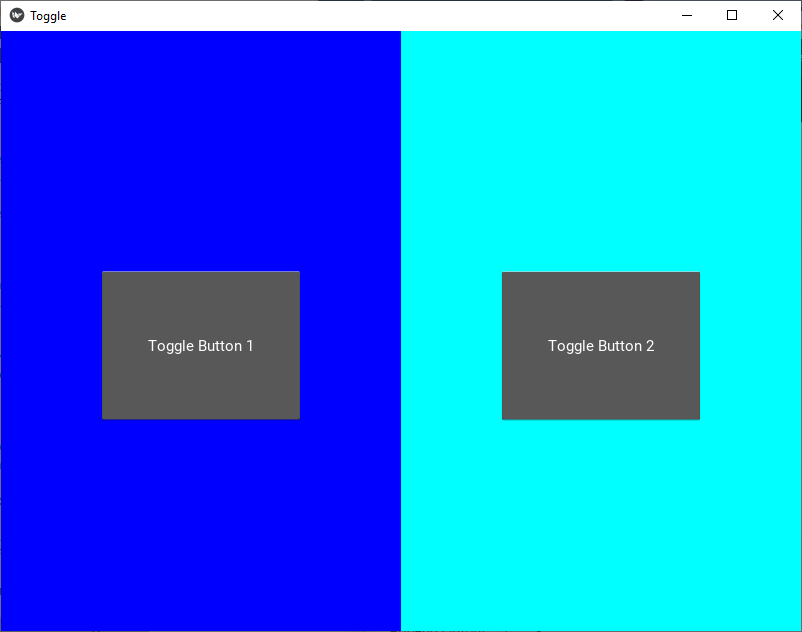
Output: