Python | Visualizing image in different color spaces (original) (raw)
OpenCV (Open Source Computer Vision) is a computer vision library that contains various functions to perform operations on pictures or videos. It was originally developed by Intel but was later maintained by Willow Garage and is now maintained by Itseez. This library is cross-platform that is it is available on multiple programming languages such as Python, C++ etc. Let's discuss different ways to visualize images where we will represent images in different formats like grayscale, RGB scale, Hot_map, edge map, Spectral map, etc.
RGB Image :
RGB image is represented by linear combination of 3 different channels which are R(Red), G(Green) and B(Blue). Pixel intensities in this color space are represented by values ranging from 0 to 255 for single channel. Thus, number of possibilities for one color represented by a pixel is 16 million approximately [255 x 255 x 255 ].
Python 1== `
Python program to read image as RGB
Importing cv2 and matplotlib module
import cv2 import matplotlib.pyplot as plt
reads image as RGB
img = cv2.imread('g4g.png')
shows the image
plt.imshow(img)
`
Output : 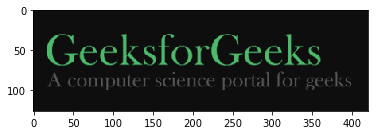
Gray Scale Image :
Grayscale image contains only single channel. Pixel intensities in this color space is represented by values ranging from 0 to 255. Thus, number of possibilities for one color represented by a pixel is 256.
Python 1== `
Python program to read image as GrayScale
Importing cv2 module
import cv2
Reads image as gray scale
img = cv2.imread('g4g.png', 0)
We can alternatively convert
image by using cv2color
img = cv2.cvtColor(img, cv2.COLOR_BGR2GRAY)
Shows the image
cv2.imshow('image', img)
cv2.waitKey(0)
cv2.destroyAllWindows()
`
Output : 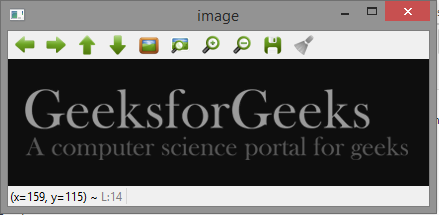
YCrCb Color Space :
Y represents Luminance or Luma component, Cb and Cr are Chroma components. Cb represents the blue-difference (difference of blue component and Luma Component). Cr represents the red-difference (difference of red component and Luma Component).
Python 1== `
Python program to read image
as YCrCb color space
Import cv2 module
import cv2
Reads the image
img = cv2.imread('g4g.png')
Convert to YCrCb color space
img = cv2.cvtColor(img, cv2.COLOR_BGR2YCrCb)
Shows the image
cv2.imshow('image', img)
cv2.waitKey(0)
cv2.destroyAllWindows()
`
Output : 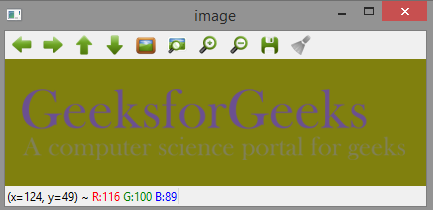
HSV color space :
H : Hue represents dominant wavelength.S : Saturation represents shades of color.V : Value represents Intensity.
Python 1== `
Python program to read image
as HSV color space
Importing cv2 module
import cv2
Reads the image
img = cv2.imread('g4g.png')
Converts to HSV color space
img = cv2.cvtColor(img, cv2.COLOR_BGR2HSV)
Shows the image
cv2.imshow('image', img)
cv2.waitKey(0)
cv2.destroyAllWindows()
`
Output : 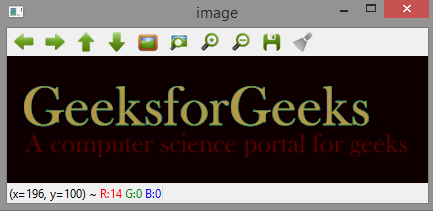
LAB color space :
L - Represents Lightness.A – Color component ranging from Green to Magenta.B – Color component ranging from Blue to Yellow.
Python 1== `
Python program to read image
as LAB color space
Importing cv2 module
import cv2
Reads the image
img = cv2.imread('g4g.png')
Converts to LAB color space
img = cv2.cvtColor(img, cv2.COLOR_BGR2LAB)
Shows the image
cv2.imshow('image', img)
cv2.waitKey(0)
cv2.destroyAllWindows()
`
Output : 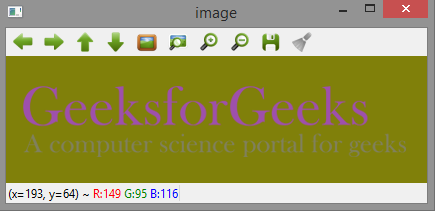
Edge map of image :
Edge map can be obtained by various filters like laplacian, sobel, etc. Here, we use Laplacian to generate edge map.
Python 1== `
Python program to read image
as EdgeMap
Importing cv2 module
import cv2
Reads the image
img = cv2.imread('g4g.png')
laplacian = cv2.Laplacian(img, cv2.CV_64F) cv2.imshow('EdgeMap', laplacian)
cv2.waitKey(0)
cv2.destroyAllWindows()
`
Output : 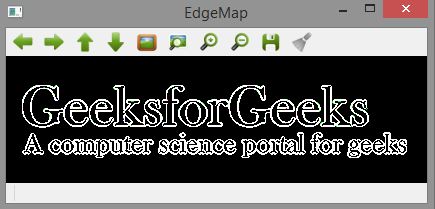
Heat map of image :
In Heat map representation, individual values contained in a matrix are represented as colors.
Python 1== `
Python program to visualize
Heat map of image
Importing matplotlib and cv2
import matplotlib.pyplot as plt import cv2
reads the image
img = cv2.imread('g4g.png')
plot heat map image
plt.imshow(img, cmap ='hot')
`
Output : 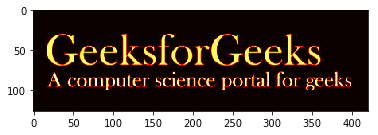
Spectral Image map :
Spectral Image map obtains the spectrum for each pixel in the image of a scene.
Python 1== `
Python program to visualize
Spectral map of image
Importing matplotlib and cv2
import matplotlib.pyplot as plt import cv2
img = cv2.imread('g4g.png') plt.imshow(img, cmap ='nipy_spectral')
`